Unreal Engine 5 (UE5), renowned for its cutting-edge graphics capabilities, robust toolset, and unparalleled fidelity in game and real-time content creation, offers developers a flexible environment for bringing their visions to life. While the engine provides a powerful visual scripting system known as Blueprints, many of its advanced or niche features remain exclusive to C++ programming. This inherent duality necessitates the integration of plugins, which act as crucial extensions, bridging the gap between C++ functionalities and Blueprint accessibility, thereby empowering a broader range of developers and accelerating production pipelines. The vibrant global developer community further enriches this ecosystem, constantly contributing innovative solutions that can be seamlessly incorporated into projects, provided developers understand the correct installation procedures. This guide delineates the two primary methods for integrating these essential extensions into an Unreal Engine 5 project: via the official Unreal Marketplace and through advanced manual installation for community-driven plugins.
The Indispensable Role of Plugins in Unreal Engine 5 Development
Unreal Engine 5’s architecture is designed for extensibility, allowing developers to customize and expand its capabilities beyond the core feature set. Plugins are fundamental to this philosophy, enabling the addition of new runtime features, editor tools, or even entirely new content types without modifying the engine’s source code directly. This modular approach is vital for several reasons: it promotes code reusability, facilitates specialized functionalities, and helps manage project complexity. For instance, while UE5’s native networking capabilities are robust, a plugin like VaRest can streamline interactions with external RESTful APIs, a common requirement for modern online games or applications needing to fetch dynamic data from web services. Similarly, community-driven plugins often provide utility nodes or specialized tools that address specific workflow bottlenecks, born from real-world development challenges faced by their creators. The distinction between features native to C++ and those accessible via Blueprints is significant; plugins often serve to expose complex C++ functions as user-friendly Blueprint nodes, making advanced functionalities available to designers and less code-proficient developers. This democratizes access to powerful engine features, allowing smaller teams and individual creators to achieve results previously only attainable by large studios with extensive C++ engineering resources.
Unreal Marketplace Plugins: A Streamlined Integration Process
The Epic Games Launcher serves as the central hub for Unreal Engine developers, providing access not only to various engine versions but also to a curated marketplace of assets and plugins. This official platform offers a secure and streamlined method for acquiring and installing extensions, benefiting from Epic’s vetting process and ensuring a degree of compatibility and support.
Accessing the Unreal Marketplace and Locating Code Plugins:
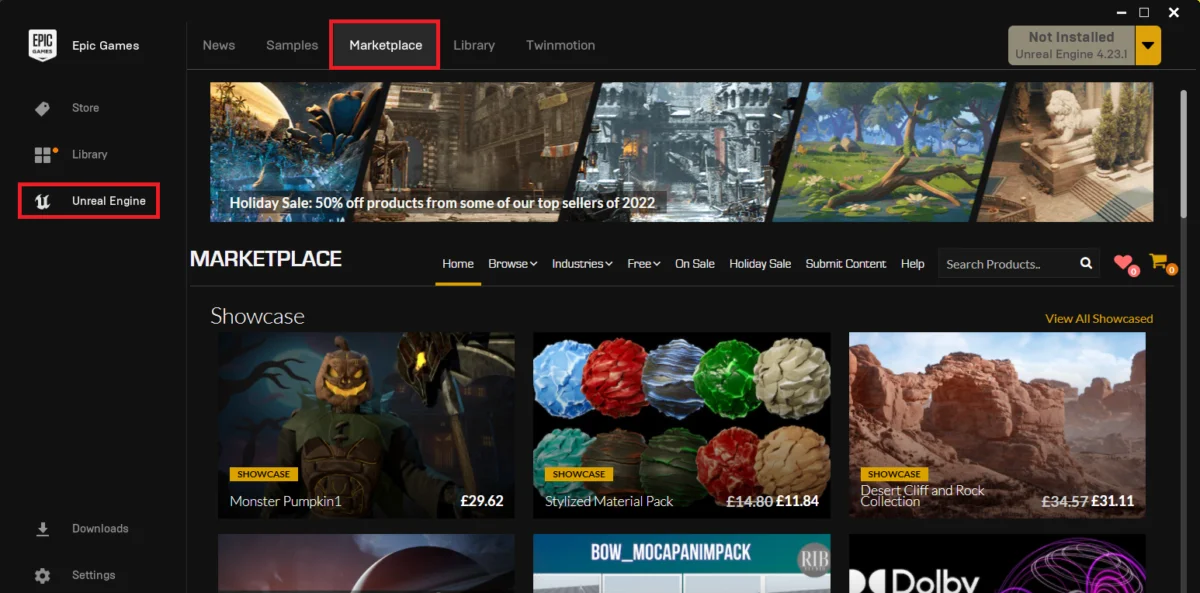
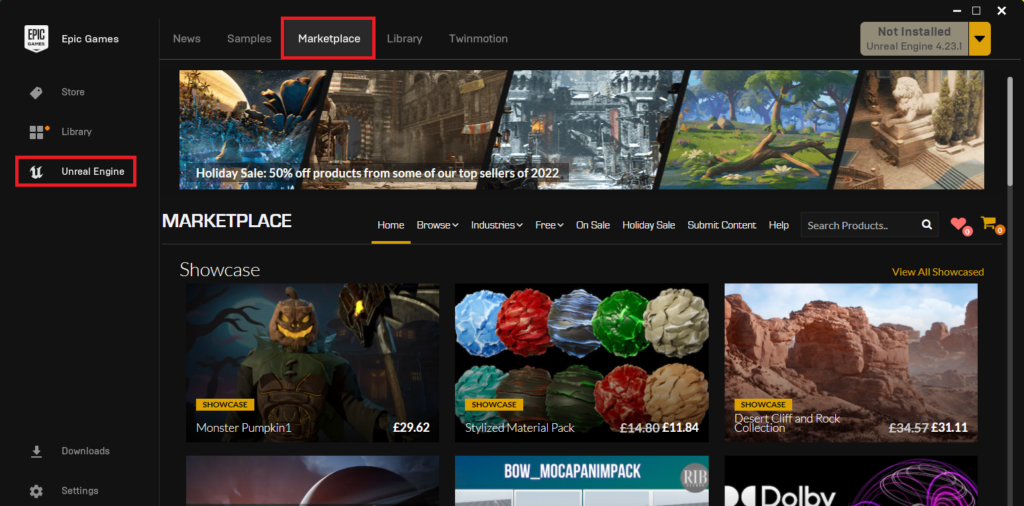
The initial step involves launching the Epic Games Launcher and navigating to the "Unreal Marketplace" tab. This digital storefront hosts a vast array of resources, ranging from 3D models and textures to sound effects and, critically, code plugins. To filter for code-specific extensions, users must select the "Browse" tab, then specifically click on the "Code Plugins" option. This categorisation is essential as it distinguishes between purely artistic assets and functional code additions that modify or extend engine behavior. The marketplace is a significant economic driver for many independent developers, allowing them to monetize their specialized tools and share their expertise with the wider community. Epic Games reported substantial growth in marketplace transactions, highlighting its importance as a distribution channel.
Selection and Acquisition:
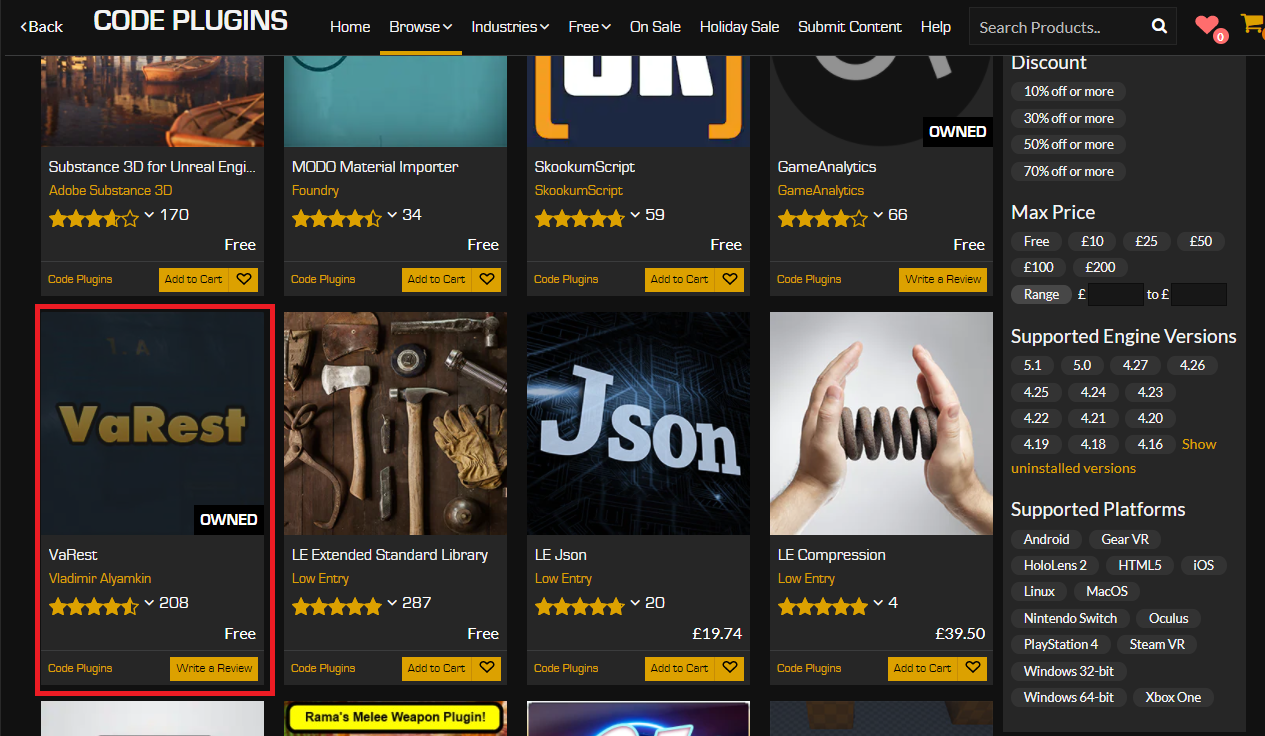
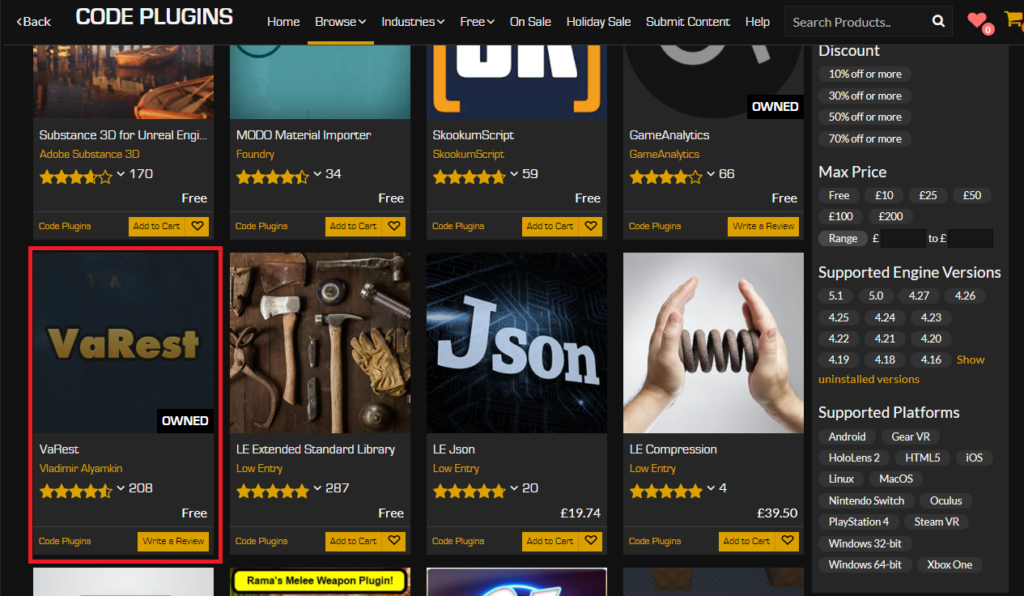
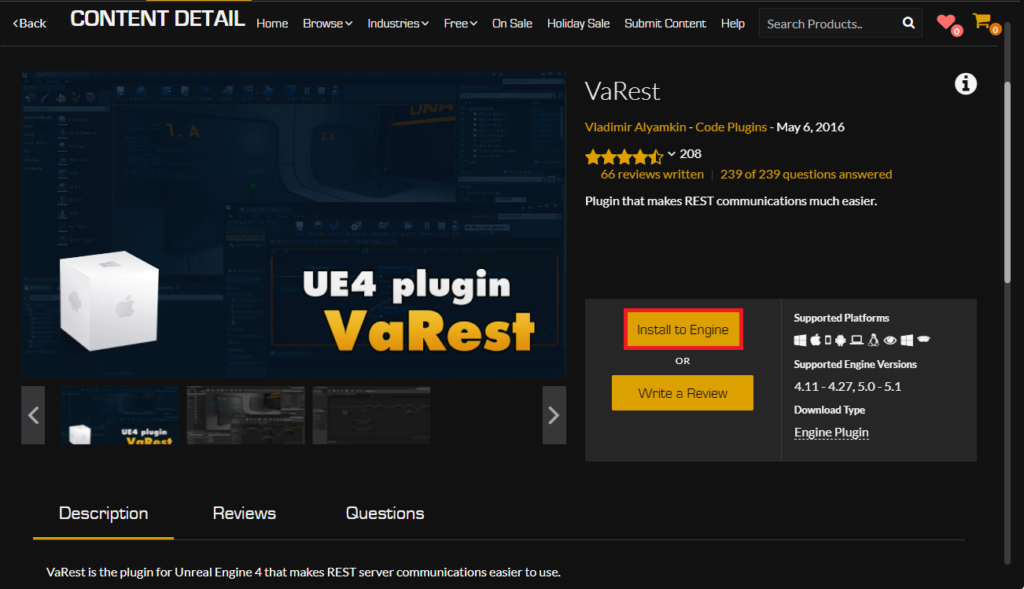
Once within the "Code Plugins" section, developers can browse or search for the desired functionality. For illustrative purposes, the VaRest network plugin is an excellent example of a commonly sought-after extension due to its utility in handling web requests. When selecting a plugin, it’s crucial to review its documentation, user reviews, and, most importantly, its compatibility with the specific Unreal Engine 5 version being used for the project. The acquisition process is similar to any online retail experience: if the plugin is not already owned, it must be added to a cart and the purchase completed. A key detail to note is that even free plugins require a "purchase" transaction, albeit at no cost, which registers them to the user’s Epic Games account and allows for subsequent installation and updates. This system ensures proper licensing and tracking for all marketplace content.
Engine Installation and Version Management:
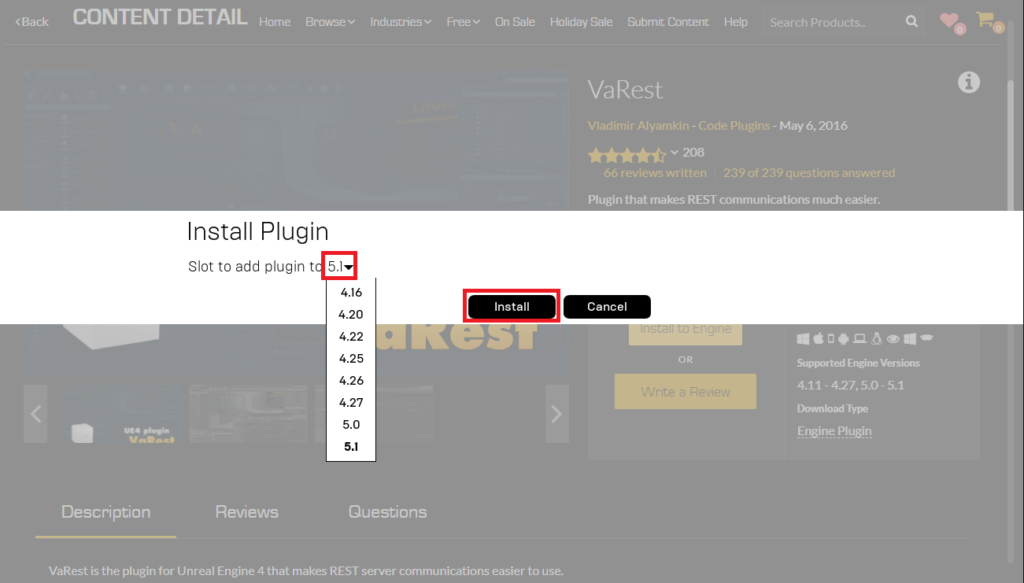
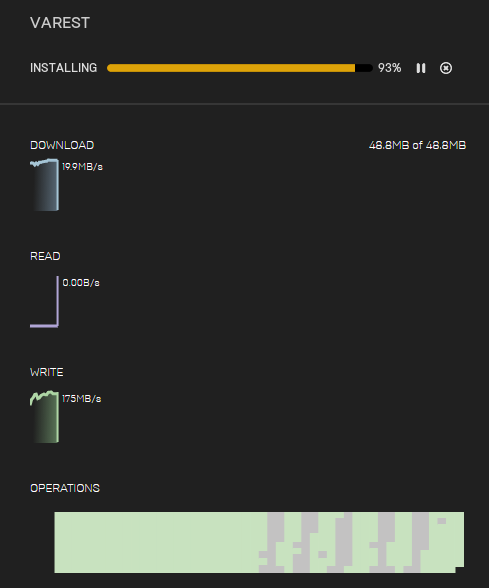
Unlike content assets that can be added directly to a project, code plugins from the Marketplace are installed to the Unreal Engine itself. This enables the plugin to be accessible across multiple projects that utilize the same installed engine version, offering greater flexibility and efficiency. After acquiring a plugin, an "Install to Engine" button becomes available. Clicking this will prompt the user to select the specific Unreal Engine 5 version(s) they wish to install the plugin into. This versioning choice is critical, as plugins are often compiled against specific engine builds and may not function correctly if there is a mismatch. The Epic Games Launcher then manages the download and installation process, displaying its progress in the "Downloads" tab. Upon successful completion, the plugin’s files are integrated into the chosen engine installation directory, preparing it for project-level activation.
Enabling the Plugin within an Unreal Engine Project:
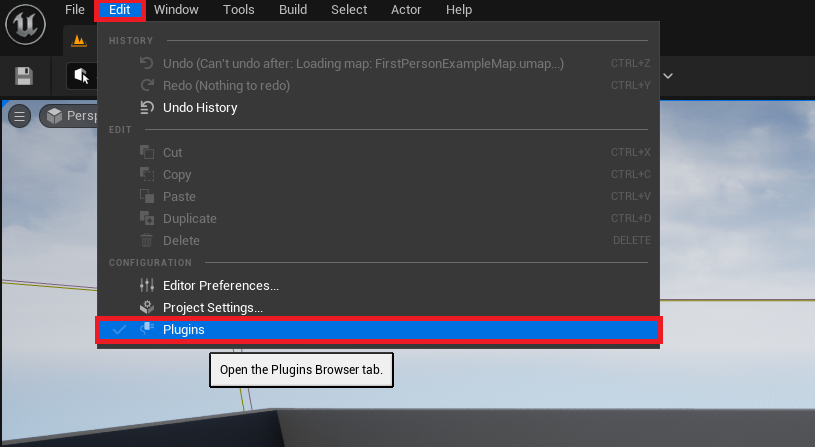
Even after installation to the engine, newly added plugins are not automatically active within every Unreal Engine project. This design choice is deliberate, preventing projects from loading unnecessary code, which could increase compilation times, executable sizes, and overall project complexity. To enable a plugin for a specific project, developers must open their Unreal Engine project and navigate to "Edit" in the main menu, then select "Plugins." This action opens the "Plugins" tab, a comprehensive interface for managing all installed extensions. Within this tab, a search bar allows users to quickly locate the newly installed plugin by name. Once found, a checkbox next to the plugin’s entry must be activated. Upon checking the box, the Unreal Engine editor will typically prompt for a restart. This restart is not merely a formality; it allows the engine to properly load the new plugin’s modules, integrate its functionalities, and, if necessary, recompile project code to acknowledge the new dependencies. Only after this restart will the plugin’s features, such as new Blueprint nodes or C++ classes, become available for use within the project.

Manually Installed Plugins: Advanced Integration for Community Contributions
While the Unreal Marketplace offers a convenient and curated experience, a significant portion of the Unreal Engine ecosystem thrives on community-driven development and open-source contributions. Many valuable plugins, often created by individual developers or smaller teams, are distributed through platforms like GitHub, community forums, or personal websites. Manual installation is the method required for integrating these external resources, offering greater flexibility but also demanding increased caution.
Disclaimer: Exercising Due Diligence:
It is paramount to approach manually installed plugins with a heightened sense of caution. Unlike Marketplace plugins, which undergo a degree of vetting by Epic Games, community-sourced plugins may not have the same level of security checks or ongoing support. Developers must prioritize downloading files and code only from trusted sources. Reputable community forums, well-established GitHub repositories with active development, and developers with a proven track record are generally safer bets. The risk of introducing malicious code, unstable functionalities, or severe compatibility issues is non-trivial. Furthermore, ensuring the plugin’s compatibility with the specific Unreal Engine 5 version is entirely the developer’s responsibility. CouchLearn, the original source of this information, explicitly disclaims responsibility for any damage resulting from unknown or untrusted files, a sentiment echoed across the development community.
The Manual Installation Process:
The manual installation process for community plugins typically involves placing the plugin’s files directly into the project’s directory structure.
- Project-Specific Plugins Folder: The first step is to ensure that the Unreal Engine project folder contains a "Plugins" directory. This folder is typically located at the root level of the
.uprojectfile. If it does not exist, it must be manually created. This "Plugins" folder serves as the designated location for all project-specific plugins, keeping them separate from engine-wide installations and allowing for easier version control and sharing within a team. - Copying the Plugin Files: Once the "Plugins" folder is established, the downloaded plugin’s folder (e.g., "VictoryPlugin") must be copied directly into it. It is crucial to ensure that the entire plugin structure, usually containing "Source," "Binaries," "Content," and a
.uplugindescriptor file, is intact within this newly copied folder. For example, Rama’s Victory BP Plugin, a widely recognized community contribution, provides a vast collection of utility Blueprint nodes that significantly extend the engine’s default capabilities, often found distributed in this manner. - Verifying Folder Structure: A correctly installed manual plugin will have its core files (like the
.upluginfile and its subdirectories) directly within the[YourProject]/Plugins/[PluginName]structure. This ensures the Unreal Engine can properly discover and load the plugin when the project is opened.
Enabling the Manually Installed Plugin:
Similar to Marketplace plugins, manually installed plugins are not active by default and require explicit activation within the project.
- Accessing the Plugins Menu: Within the Unreal Engine 5 editor, navigate to "Edit" in the main menu, then select "Plugins."
- Locating and Activating: Use the search bar in the "Plugins" tab to find the manually installed plugin. Since it’s located within the project’s own "Plugins" folder, it will appear alongside any engine-installed plugins. Check the box next to the plugin’s name to enable it.
- Editor Restart: The editor will prompt for a restart. Confirming this restart is essential for the engine to load the newly recognized plugin, integrate its features, and potentially recompile project modules that might now depend on it. After the restart, the plugin’s functionalities will be fully accessible within the project’s C++ code and Blueprint graphs.
Broader Impact and Implications for Game Development
The robust plugin ecosystem, encompassing both the curated Unreal Marketplace and the expansive community contributions, profoundly impacts the landscape of Unreal Engine 5 development.
Democratization of Advanced Features: Plugins significantly lower the barrier to entry for complex functionalities. Features that might require extensive C++ knowledge or intricate engine modifications can be encapsulated within a plugin and exposed as simple Blueprint nodes. This empowers designers, technical artists, and smaller teams to implement sophisticated systems—from advanced AI behaviors to custom UI frameworks and complex networking interactions—without needing a dedicated C++ programmer for every task. This accelerates prototyping and iterative design, making high-quality game development more accessible.
Innovation and Specialization: The plugin ecosystem fosters innovation by allowing developers to specialize in niche areas. A developer skilled in physics simulations might create a custom solver plugin, while another might focus on advanced animation blending. These specialized tools become available to the broader community, preventing reinvention of the wheel and allowing projects to incorporate best-in-class solutions for specific problems. This collective innovation pushes the boundaries of what’s possible with Unreal Engine.
Economic Opportunities: The Unreal Marketplace provides a vital platform for developers to monetize their expertise. Successful plugins can generate significant revenue, creating a sustainable business model for independent creators and fostering a healthy, competitive market for development tools. This economic incentive further fuels the creation of high-quality, well-supported plugins.
Challenges and Considerations: Despite the numerous benefits, the reliance on plugins also introduces challenges. Compatibility issues across different engine versions are a perennial concern, requiring plugin developers to constantly update their work and project developers to manage engine upgrades carefully. "Plugin hell," where a project becomes overly reliant on numerous plugins that might conflict or become unmaintained, can lead to instability and difficulty in debugging. Performance overhead, potential security vulnerabilities from untrusted sources, and the learning curve associated with integrating and utilizing new tools are also factors developers must consider. Furthermore, while the community is vibrant, support for manual plugins can be inconsistent, depending heavily on the original creator’s availability and willingness.
Conclusion
Integrating plugins into Unreal Engine 5 projects is an essential skill for modern developers, significantly extending the engine’s native capabilities and streamlining development workflows. Whether leveraging the curated safety and convenience of the Unreal Marketplace or embracing the flexibility and specialized offerings of manually installed community plugins, understanding the correct installation and activation procedures is paramount. While Marketplace plugins offer a more guided experience with built-in compatibility checks and Epic’s support infrastructure, manually installed plugins unlock a vast reservoir of community-driven innovation, albeit with an increased responsibility for due diligence and compatibility management. By effectively utilizing this rich plugin ecosystem, developers can unlock the full potential of Unreal Engine 5, accelerate their creative processes, and bring increasingly ambitious and sophisticated interactive experiences to fruition. The continuous evolution of this ecosystem underscores the collaborative spirit at the heart of the Unreal Engine community, driving innovation and empowering creators worldwide.
About the Author