The landscape of interactive media and game development continues its rapid evolution, with Unreal Engine 5 (UE5) standing at the forefront, offering unparalleled tools for creating high-fidelity experiences. A critical component in unlocking the full potential of this powerful engine, particularly for a broad spectrum of developers, lies in the strategic integration of plugins. These modular extensions serve as vital bridges, expanding UE5’s native functionalities and enabling developers to incorporate advanced features, often bridging the gap between C++ exclusive capabilities and the more accessible Blueprint visual scripting system. The thriving developer community plays a significant role in this ecosystem, continually contributing to a vast repository of plugins available through both official channels and independent sources. This guide delves into the essential processes of installing and enabling these plugins within Unreal Engine 5, highlighting their immense value in accelerating development cycles and enriching creative possibilities.
The Foundational Role of Plugins in Modern Game Development
Unreal Engine 5, developed by Epic Games, represents a monumental leap in real-time 3D creation, powering everything from AAA video games to cinematic virtual production, architectural visualization, and intricate simulations. At its core, UE5 offers two primary scripting environments: C++ for high-performance, low-level control, and Blueprints for intuitive, visual scripting. While C++ provides direct access to the engine’s deepest functionalities, many features and optimizations within UE5 are initially exclusive to this programming language. This presents a potential barrier for developers who primarily leverage Blueprints for their projects, seeking a more visual and often faster prototyping workflow.
This is precisely where plugins become indispensable. They act as wrappers, extending C++ functionalities and exposing them as accessible Blueprint nodes, or introducing entirely new systems that enhance the engine’s capabilities without requiring developers to write complex C++ code from scratch. This democratizes access to advanced features, allowing smaller teams, independent developers, and even hobbyists to implement sophisticated systems that might otherwise be out of reach due to time, expertise, or resource constraints. The demand for such extensions underscores a broader industry trend towards modularity and collaborative development, where specialized tools and assets can be seamlessly integrated to enhance productivity and foster innovation.
The Unreal Engine ecosystem is a vibrant testament to this collaborative spirit. Thousands of third-party developers, from individual contributors to established studios, actively create and maintain plugins that address a myriad of development needs. These range from networking solutions like VaRest, which simplifies interaction with RESTful APIs, to comprehensive UI frameworks, advanced AI behaviors, specialized physics solvers, and custom editor tools. This rich marketplace of extensions ensures that UE5 remains adaptable and responsive to the evolving demands of various creative industries, solidifying its position as a versatile and future-proof development platform.
Navigating the Official Channel: Unreal Marketplace Plugins
For most developers, the Unreal Marketplace serves as the primary and most secure conduit for acquiring and integrating plugins into their UE5 projects. Operated by Epic Games, the Marketplace offers a curated selection of assets and tools, ensuring a baseline level of quality, compatibility, and security. This official channel provides a streamlined process from acquisition to installation, minimizing potential compatibility issues and offering a degree of trust not always present with external sources.
The chronological steps for installing a plugin from the Unreal Marketplace are straightforward and designed for user convenience:
-
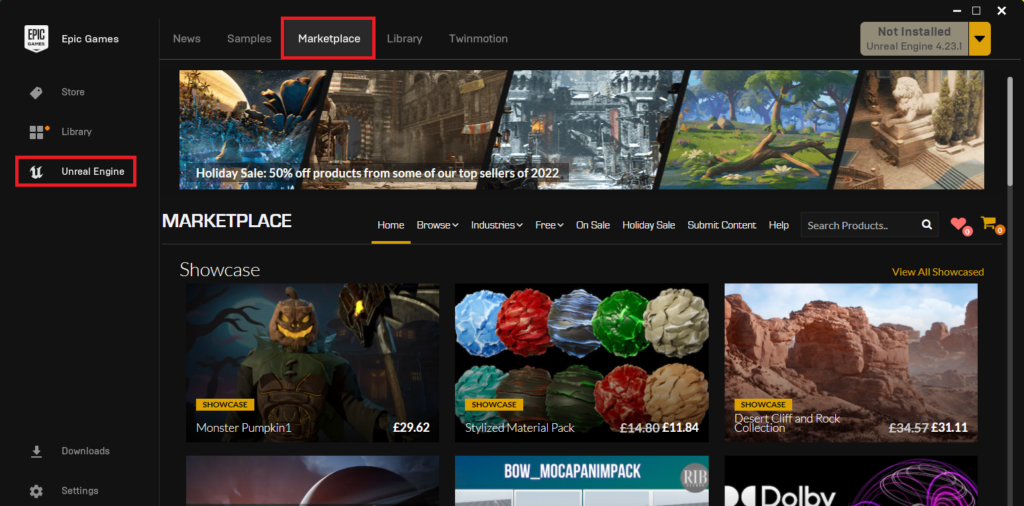
Accessing the Epic Games Launcher and Marketplace: The journey begins by launching the Epic Games Launcher, the central hub for managing Unreal Engine versions, projects, and marketplace content. Within the launcher, developers must navigate to the dedicated "Unreal Marketplace" section. This interface is intuitively designed, presenting a wide array of assets categorized for easy discovery.
-
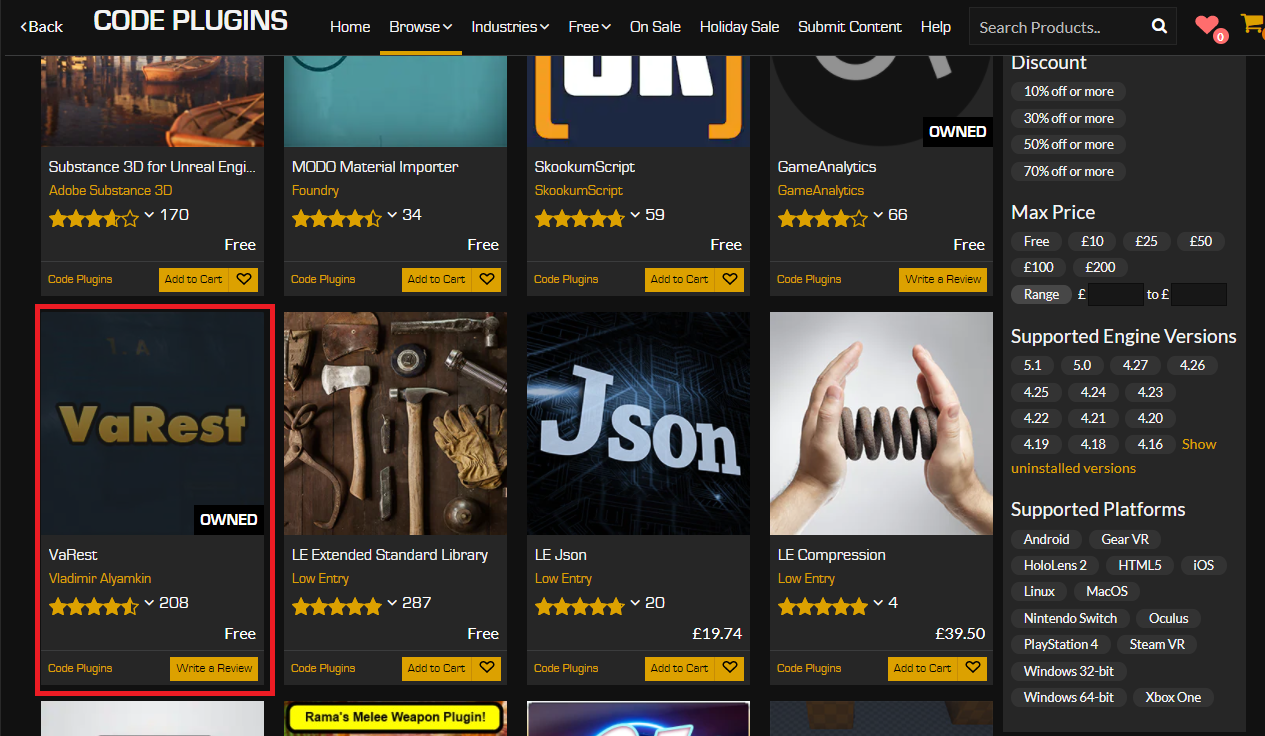
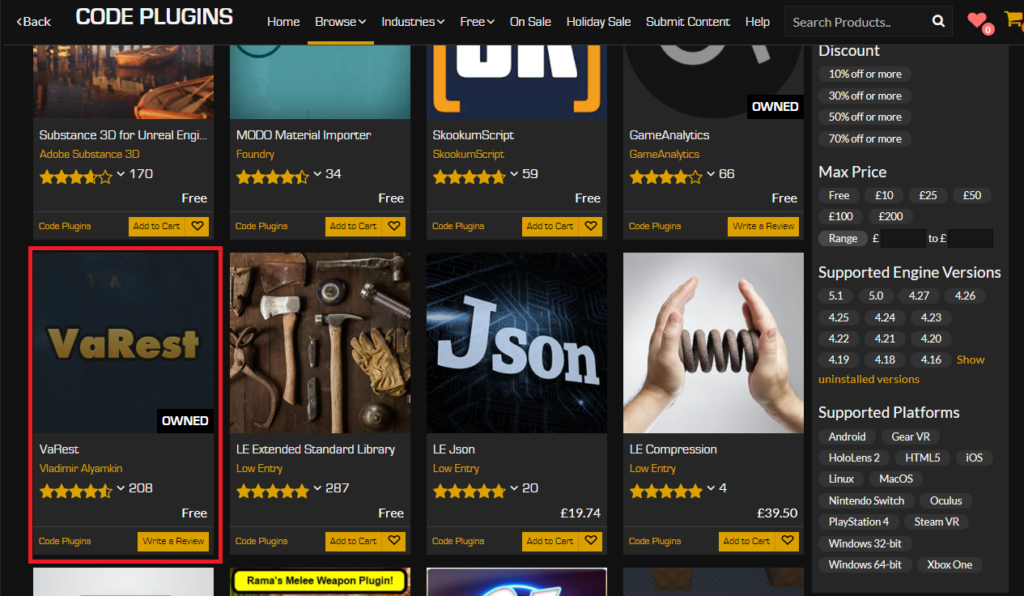
Discovering Code Plugins: To specifically locate plugins that extend engine functionality, developers proceed to the "Browse" tab and select the "Code Plugins" option. This filter narrows the vast selection of assets to only those that introduce new code-based features, often manifesting as new Blueprint nodes or C++ classes.
-
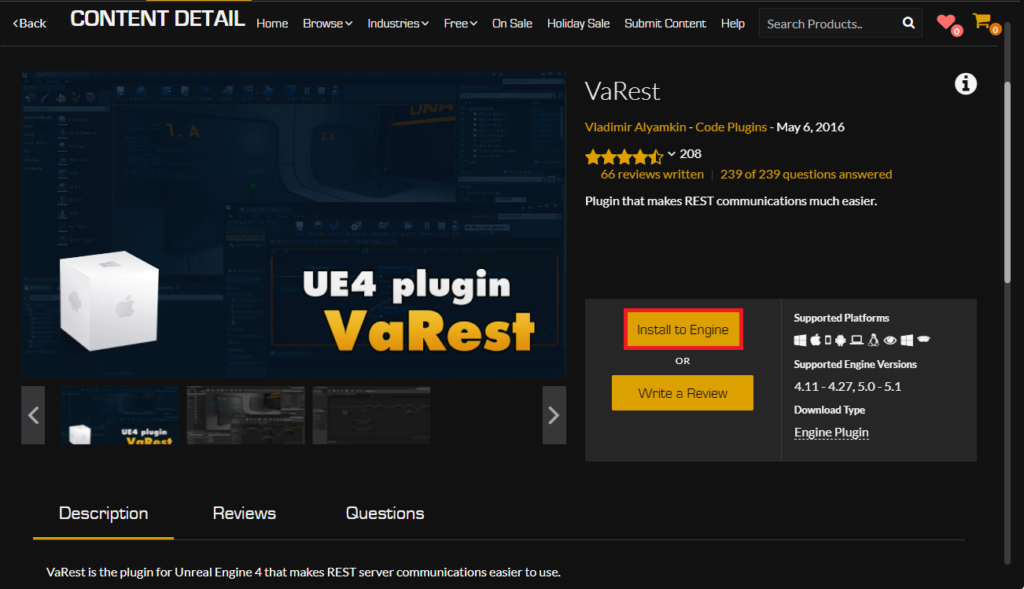
Acquisition of Desired Plugins: Once in the "Code Plugins" section, developers can browse or search for their desired plugin. For instance, the VaRest network plugin, a popular choice for integrating web services into UE5 projects, is a prime example of such a utility. If the plugin is not already owned, it must be added to the cart and the purchase process completed. It is important to note that even free plugins require this "purchase" step, though no financial transaction occurs, effectively adding them to the user’s library. This ensures that Epic Games tracks ownership and facilitates future installations and updates.

-
Initiating Engine Installation: Unlike content assets that are imported directly into projects, most code plugins are installed to the Unreal Engine itself, making them available across all projects that utilize that specific engine version. Following acquisition, a prominent "Install to Engine" button becomes available on the plugin’s product page. Clicking this initiates the installation process.
-
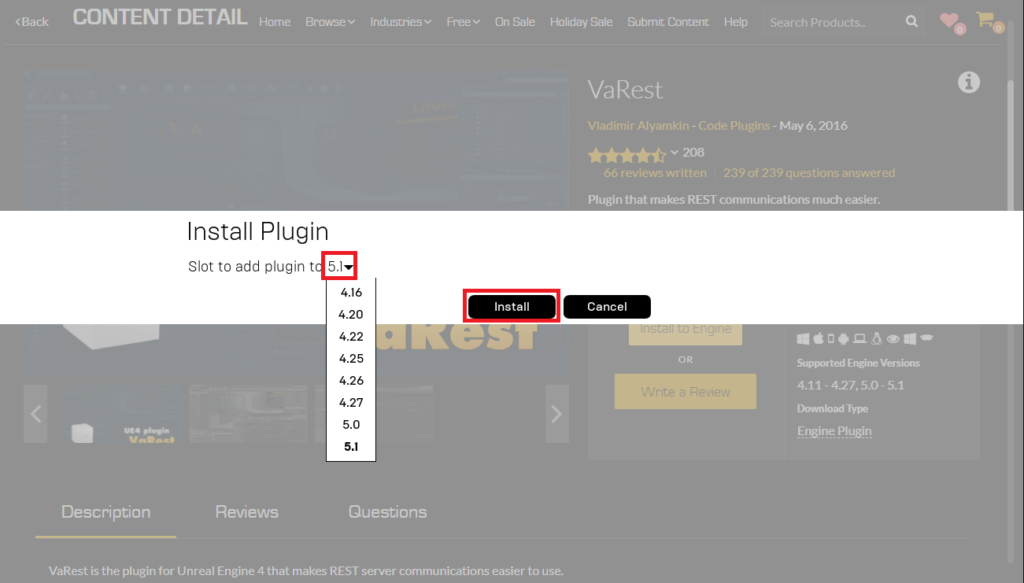
Selecting the Target Engine Version: The system will then prompt the developer to choose the specific Unreal Engine 5 version they wish to install the plugin to. This is a crucial step, as plugins are often compiled against specific engine versions to ensure compatibility. Selecting the correct version prevents potential compilation errors or runtime issues. Epic Games typically ensures that Marketplace plugins are compatible with current and recently released engine versions.
-
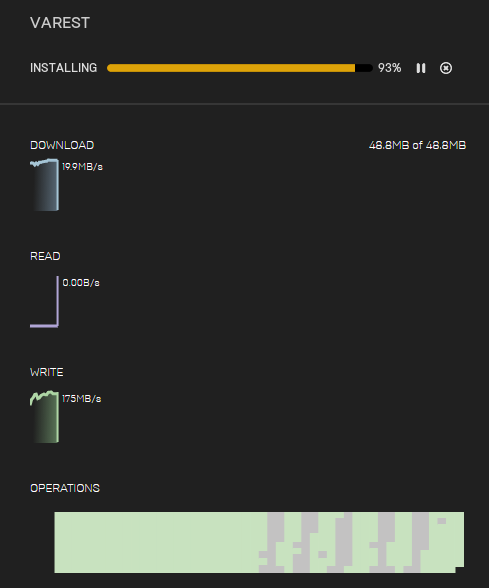
Monitoring Download and Installation: Upon selection, the plugin download and installation process commences. Progress can be monitored within the "Downloads" tab of the Epic Games Launcher. This phase involves downloading the plugin files and integrating them into the chosen Unreal Engine installation directory. Once completed, the plugin’s core files are now part of the engine’s architecture.
Enabling the Plugin within the Project Editor:
The installation to the engine is only the first part of the integration. For a newly installed plugin to be active and usable within a specific Unreal Engine project, it must be explicitly enabled within that project’s settings. This design choice prevents projects from unnecessarily compiling and packaging code for plugins they don’t use, thereby keeping executable sizes lean and build times efficient.
-
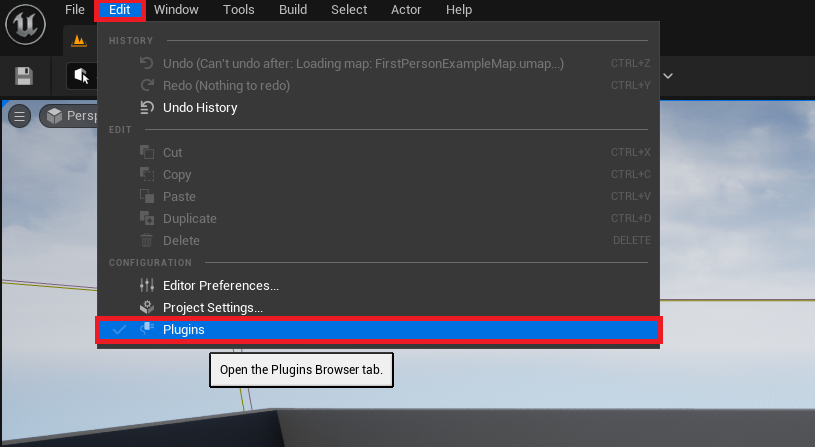
Accessing the Plugins Menu: Within the Unreal Engine 5 editor for the target project, developers navigate to the main menu, select "Edit," and then click "Plugins." This action opens the Plugins browser, a comprehensive interface for managing all available and active plugins.
-
Locating and Activating the Plugin: Inside the Plugins tab, a search bar allows developers to quickly find their newly installed plugin by typing its name (e.g., "VaRest"). The search results will display the plugin’s details. A checkbox next to the plugin’s entry signifies its activation status.
-
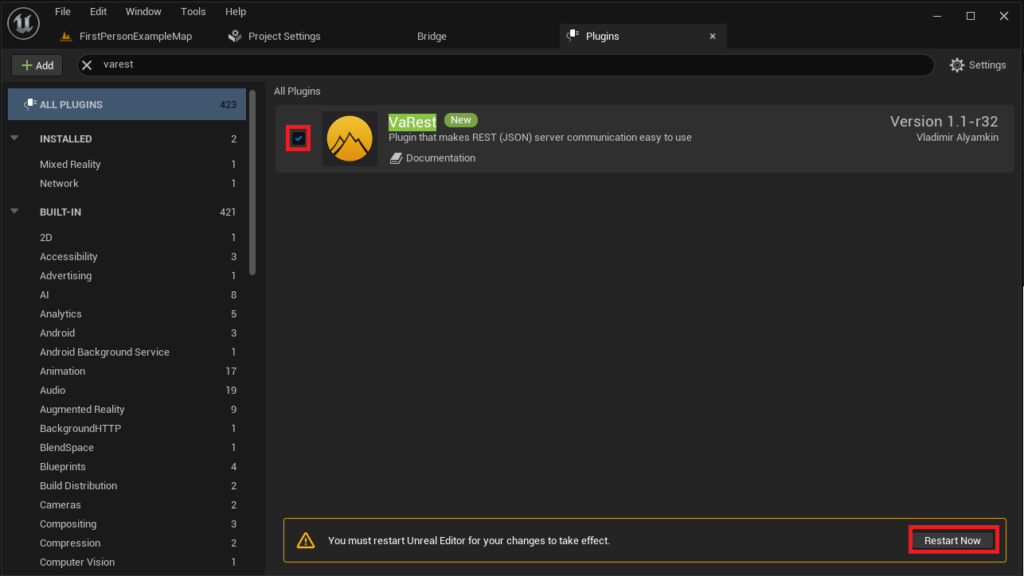
Restarting the Editor: To finalize the activation and load the plugin’s functionalities into the project, the developer must click the checkbox to enable it, and then click the "Restart Now" button when prompted. This restarts the Unreal Engine editor, allowing it to recompile necessary modules and integrate the plugin’s features into both C++ and Blueprint environments. Upon restart, the plugin’s nodes and functionalities will be accessible for use within the project.
Advanced Customization: Manually Installed Plugins
While the Unreal Marketplace offers a secure and convenient method, some developers may opt for manually installing plugins. This approach is typically used for community-developed tools, custom internal plugins, or specialized solutions not distributed through the official marketplace. This method offers greater flexibility but demands a higher degree of developer responsibility, particularly concerning security and compatibility.
Crucial Disclaimer: The importance of caution cannot be overstated when dealing with manually installed plugins. Developers must exercise extreme vigilance and only download Unreal Engine plugins from trusted sources. Untrusted files or code can pose significant security risks, including malware or malicious functionality. CouchLearn, like any responsible platform, unequivocally disclaims responsibility for any damage caused by downloading unknown or unverified files. Furthermore, it is paramount to ensure the plugin’s compatibility with the specific version of Unreal Engine 5 installed to avoid project corruption or instability. Always back up your project before attempting manual plugin installations.
The Manual Installation Process:
To illustrate the procedure for manually integrating a UE5 plugin, we can consider an example such as the "Victory BP Plugin by Rama," a well-known community contribution that extends Blueprint capabilities significantly.
-
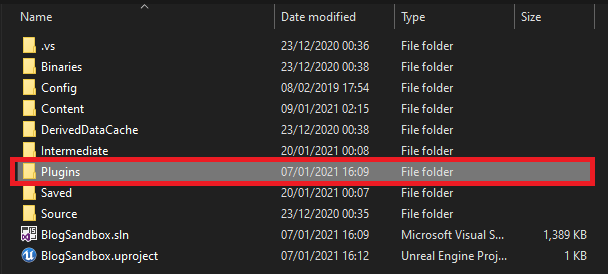
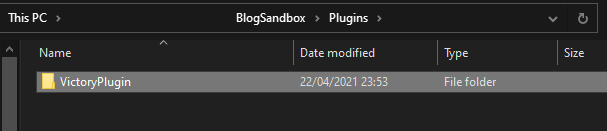
Establishing the Project’s Plugins Folder: The first step involves ensuring that the project’s root directory contains a dedicated "Plugins" folder. If this folder does not exist, it must be manually created. This folder serves as the designated location for all manually installed plugins specific to that project. The path typically looks like
YourProjectName/Plugins/. -
Transferring the Plugin Files: The next step involves copying the entire plugin’s folder, which contains all its necessary files and structure, into the newly created or existing "Plugins" directory within your project. For example, if using the Victory Plugin, the
VictoryPluginfolder (ensuring it’s compatible with your UE5 version, e.g., UE5.0) would be placed directly intoYourProjectName/Plugins/. This action effectively makes the plugin’s code available to the project.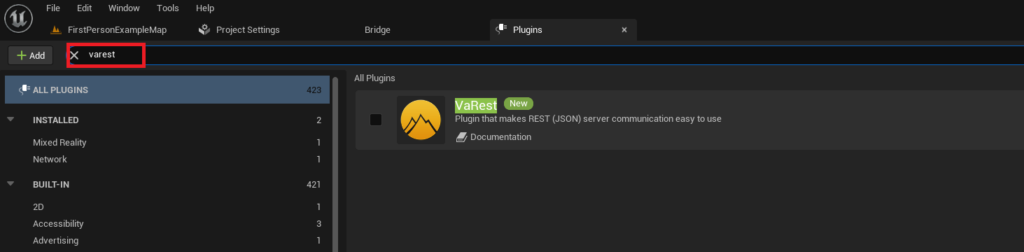
-
Verifying Plugin Contents: Inside the copied plugin folder, developers should find a structured set of files that constitute the plugin, including
.uplugindescriptor files, source code, content, and compiled binaries. The presence of these files confirms a successful transfer and indicates that the plugin is structurally sound for the engine to recognize.
Enabling Manually Installed Plugins:
Similar to Marketplace plugins, manually installed plugins are not active by default and must be explicitly enabled within the project editor to prevent unnecessary code compilation and manage executable size.
-
Accessing the Plugins Menu: The process mirrors that of Marketplace plugins: open the Unreal Engine 5 editor for your project, navigate to "Edit," and then select "Plugins."
-
Locating and Activating the Plugin: In the Plugins tab, use the search box to find the manually installed plugin by its name. The system should now recognize its presence within the project’s
Pluginsfolder. Locate the plugin entry and click its corresponding checkbox to enable it. -
Restarting the Editor: As with Marketplace plugins, enabling a manually installed plugin requires an editor restart. Click the "Restart Now" button when prompted. This action allows the engine to properly load the plugin, compile any necessary modules, and integrate its functionalities into both the C++ and Blueprint environments of your project. After the restart, the manually installed plugin will be fully operational.
Broader Implications: Shaping the Future of Interactive Experiences
The seamless integration of plugins, whether through the curated Marketplace or via careful manual installation, is more than just a technical detail; it is a foundational element shaping the future of interactive development with Unreal Engine 5. This robust plugin architecture significantly impacts several key areas:
- Democratization of Development: By exposing complex C++ functionalities through accessible Blueprint nodes, plugins empower a wider range of creators, including those without extensive programming backgrounds, to build sophisticated and innovative experiences. This lowers the barrier to entry for high-end game development and other real-time 3D applications.
- Accelerated Development Cycles: Plugins provide pre-built solutions for common or specialized tasks, eliminating the need for developers to reinvent the wheel. This dramatically reduces development time and costs, allowing teams to focus on unique creative aspects rather than foundational engineering.
- Fostering Innovation and Specialization: The plugin ecosystem encourages specialized development. Experts in specific domains (e.g., networking, AI, procedural generation) can create and share tools that elevate the entire community’s capabilities. This leads to a richer variety of features and solutions readily available.
- Expanding UE5’s Reach Beyond Gaming: The versatility afforded by plugins is crucial for Unreal Engine 5’s expanding presence in non-gaming sectors. Industries like architecture (for real-time walkthroughs), automotive (for configurators and simulations), film (for virtual production), and engineering (for data visualization) heavily rely on specialized plugins to tailor UE5 to their unique requirements.
- Economic Impact and Community Growth: The Unreal Marketplace has cultivated a significant economic ecosystem, providing a platform for developers to monetize their expertise and tools. This fosters a healthy cycle of innovation, where success on the Marketplace incentivizes further development, attracting more talent and strengthening the overall community. Epic Games’ continued investment in the Marketplace, including initiatives for free monthly content, further stimulates this vibrant exchange.
Industry analysts consistently highlight the strategic importance of such open and extensible platforms. The ability to customize and expand core engine functionality via plugins is not merely a convenience but a competitive advantage for Unreal Engine 5. It ensures that the engine can adapt quickly to emerging technologies and diverse use cases, driven not just by Epic Games’ internal teams but by the collective ingenuity of its global developer base. The continuous evolution of this plugin ecosystem, including advancements in AI-driven tools, real-time data integration, and enhanced multiplayer frameworks, points towards an exciting future where the boundaries of what’s possible within UE5 are constantly being pushed by its empowered community.
In conclusion, mastering the installation and activation of plugins is a fundamental skill for any serious Unreal Engine 5 developer. Whether leveraging the curated safety of the Unreal Marketplace or carefully integrating community-driven solutions, plugins are essential tools that unlock advanced functionalities, streamline workflows, and ultimately empower creators to realize their most ambitious visions within this leading-edge real-time engine.
About the Author