The ubiquitous double jump, a foundational mechanic ingrained in the fabric of both retro and contemporary gaming, represents a crucial element for verticality and nuanced player movement across countless titles. From the gothic corridors of Castlevania: Symphony of the Night to the vibrant, obstacle-laden levels of Crash Bandicoot, the whimsical adventures of the Kirby series, and the expansive worlds of Banjo-Kazooie, platforming experiences frequently demand the strategic execution of a double jump for navigation, puzzle-solving, and combat evasion. This enduring appeal underscores its importance in crafting engaging and responsive player experiences. Fortunately, with the advent of Unreal Engine 5 (UE5), the integration of this classic mechanic has been streamlined, offering developers robust tools to implement it with remarkable ease and precision. This guide will meticulously detail the process of adding double jump functionality within Unreal Engine 5, extending beyond basic implementation to include intermediate-level animation refinements that significantly elevate the visual feedback and overall player immersion.
The Enduring Legacy of the Double Jump in Game Design
The concept of a double jump, allowing a character to execute a second leap while airborne, emerged as a transformative mechanic in early platforming games. Its genesis can be traced back to the golden age of arcade and console gaming, where developers sought innovative ways to enhance player control and level design complexity. Unlike a single jump, which dictates a fixed vertical trajectory, the double jump introduces a layer of dynamic control, enabling players to adjust their aerial path, reach greater heights, or recover from misjudged initial jumps. This expanded freedom profoundly impacted level design, allowing for more intricate layouts, hidden areas, and demanding sequences that would be impossible with standard jumping alone.
Iconic titles such as Super Mario Bros. 2 (1988), which featured character-specific jump properties, paved the way for more explicit double jump mechanics. However, it was games like Castlevania: Symphony of the Night (1997) that truly solidified its status as a core component of character progression and exploration, often unlocking new areas or combat strategies. The frantic pace of Crash Bandicoot (1996) utilized the double jump for precise platforming over perilous gaps, while the Kirby series (beginning with Kirby’s Dream Land in 1992, though not a traditional double jump, it featured multi-jump/hover mechanics) demonstrated how expanded aerial movement could define a character’s identity. Later, 3D platformers like Banjo-Kazooie (1998) seamlessly integrated the double jump into expansive environments, making it a natural extension of player movement. This rich history highlights the mechanic’s adaptability and consistent value in enriching gameplay across diverse genres and eras.
Unreal Engine 5: A Platform for Accessible Game Development
Unreal Engine 5, Epic Games’ latest iteration of its powerful game development suite, has been designed with an emphasis on empowering developers to create high-fidelity, immersive experiences with unprecedented efficiency. Launched in April 2022, UE5 introduced groundbreaking technologies such as Nanite for virtualized geometry, Lumen for dynamic global illumination, and MetaSounds for a complete next-generation audio system. These innovations, coupled with a robust and user-friendly blueprint visual scripting system, have positioned UE5 as a leading choice for both AAA studios and independent developers.
The engine’s architecture, particularly its character movement component, provides a highly customizable and performant foundation for player characters. This component encapsulates complex physics calculations and movement states, abstracting much of the underlying complexity from the developer. This design philosophy is precisely what makes implementing a mechanic as fundamental as the double jump remarkably straightforward in UE5, contrasting with the more laborious, code-heavy approaches often required in earlier engine versions or from-scratch implementations. Epic Games’ continuous updates, including version 5.1 and 5.2, have further refined these tools, demonstrating a clear commitment to fostering a more accessible and powerful development environment.
Initiating Your Project: The Third Person Template
To facilitate a smooth entry point for new developers, this guide leverages the Unreal Engine 5 Third Person template. This template serves as an invaluable starting point, providing a pre-configured character, basic movement controls, and a rudimentary game world. It effectively removes the initial overhead of setting up a character from scratch, allowing developers to immediately focus on implementing new mechanics. For those already working within an established project featuring a custom Character blueprint, the initial project setup steps can be bypassed, and development can commence directly at the "Adding our Double Jump" section.
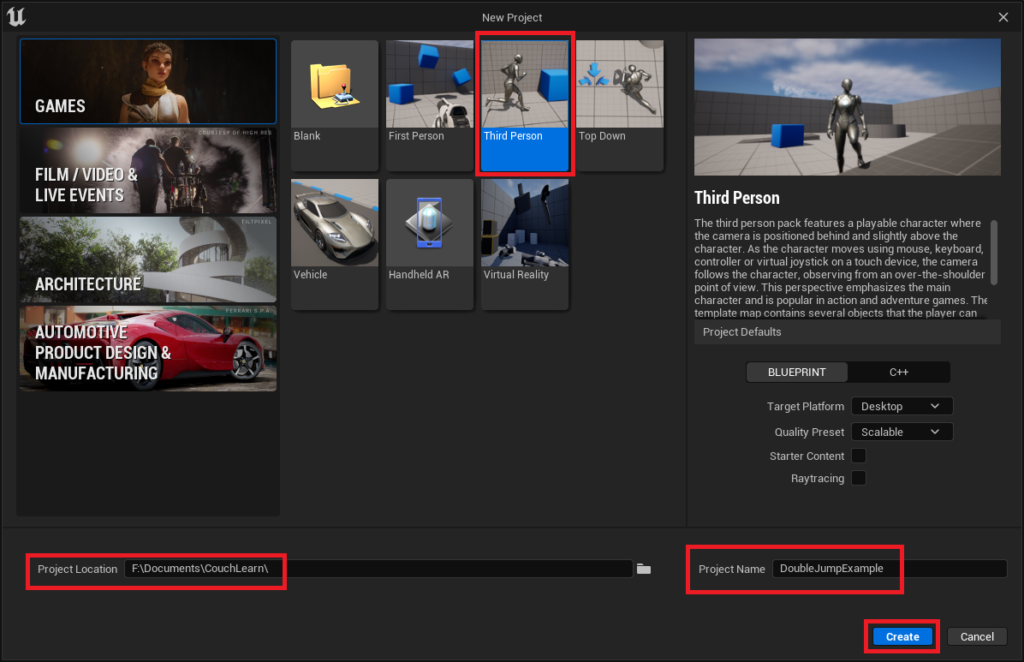
The first step in creating our template project involves navigating to the Unreal Engine 5 New Project window. Here, select the "Third Person" template. Subsequently, specify a desired project location on your computer in the bottom-left panel and assign a suitable name for your project in the bottom-right panel. Once these parameters are set, clicking the blue "Create" button will initialize the project, loading it within the Unreal Engine editor. This process typically takes a few moments, depending on system specifications.
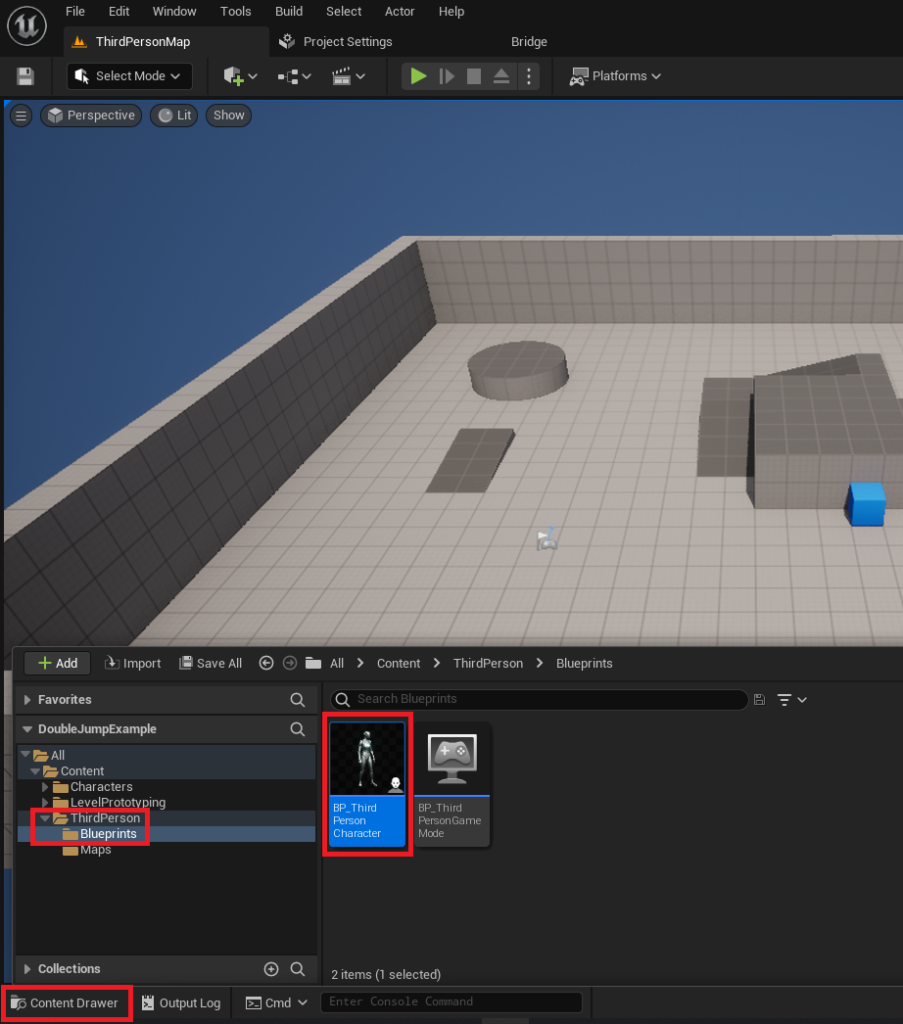
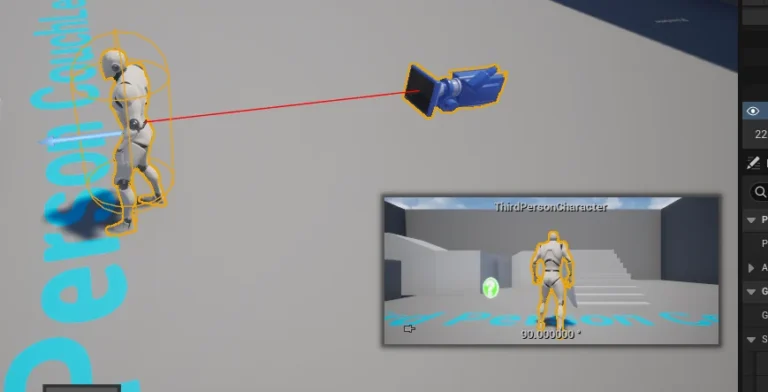
Upon the successful loading of the Unreal Engine editor, the next action is to locate the core character asset. Access the "Content Drawer," typically situated in the bottom-left corner of the editor interface. Within the Content Drawer, navigate through the directory structure: Content/ThirdPerson/Blueprints. Inside this folder, you will find the BP_ThirdPersonCharacter object. This Blueprint represents the playable character, housing its visual representation, movement logic, and other essential properties. Double-clicking this asset will open the Blueprint Editor, providing access to the character’s intricate configurations.
Streamlining Double Jump Implementation: The Core Mechanic
The process of integrating the double jump functionality into your Unreal Engine 5 character is surprisingly direct, primarily owing to the engine’s robust CharacterMovementComponent. This component is a cornerstone of Unreal Engine’s character system, designed to handle a wide array of movement types, including walking, falling, swimming, and jumping, while seamlessly managing collision detection and physics interactions.
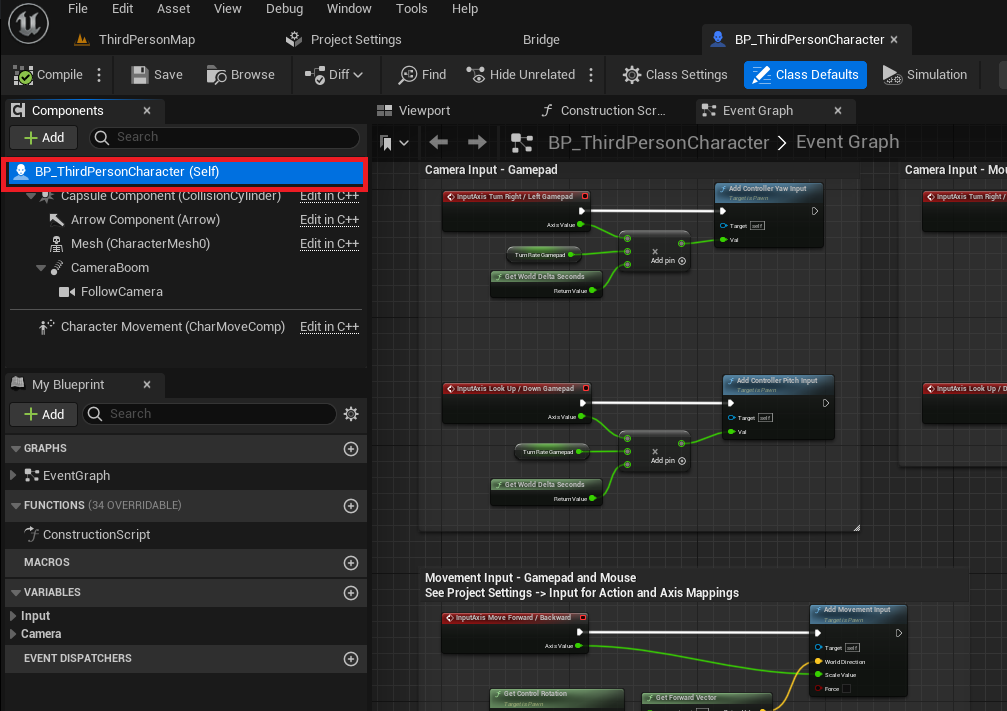
To begin, within the open Blueprint Editor for BP_ThirdPersonCharacter, the initial action involves selecting the main character blueprint node. This node is typically labeled as "BP_ThirdPersonCharacter (Self)" and represents the overarching character class. Clicking on this node will highlight it in blue, indicating that its properties are now accessible in the "Details" tab.
The "Details" tab, located on the right side of the Blueprint Editor, is a comprehensive panel that displays all editable properties of the currently selected node. Within this tab, developers will find a multitude of categories pertaining to character behavior. Our focus lies within the "Character" category, which contains fundamental movement parameters. Scroll through this section until you locate the "Jump Max Count" property. By default, this value is set to ‘1’, signifying that the character can perform only a single jump before needing to return to solid ground.
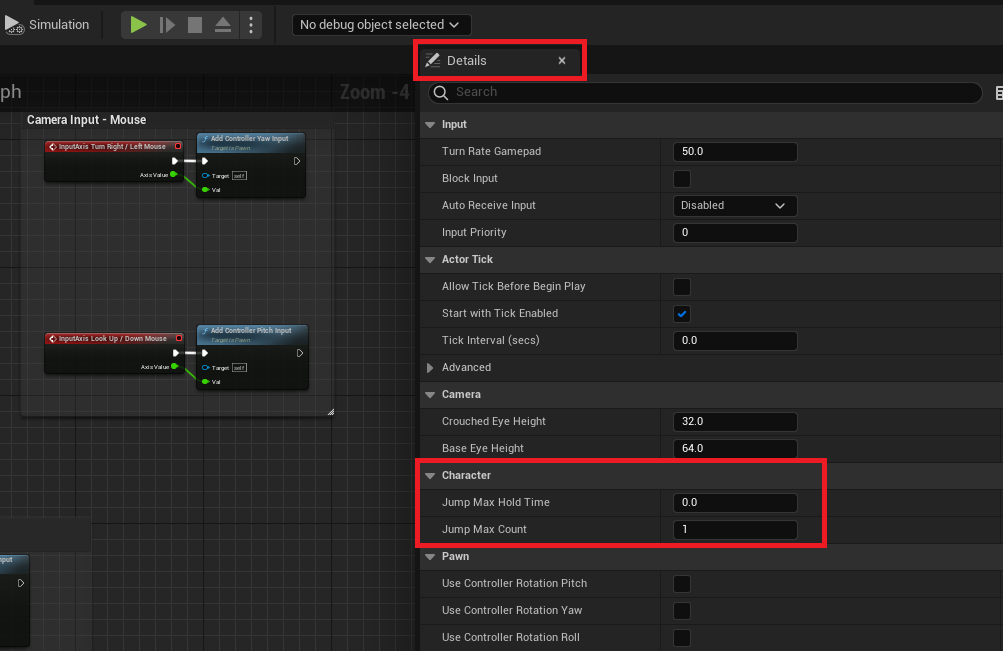
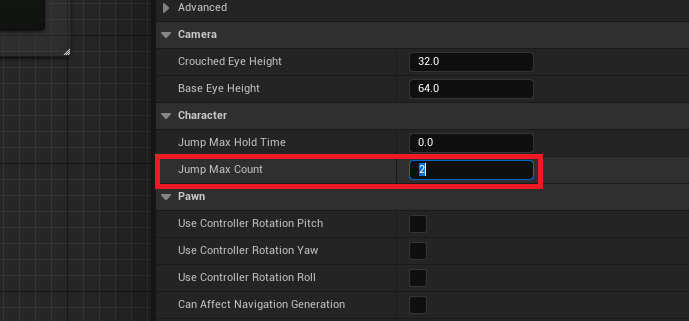
To enable the double jump, the "Jump Max Count" value must be modified. Changing this numerical input from ‘1’ to ‘2’ will instantly grant the character the ability to execute a second jump while airborne. This single parameter adjustment, managed internally by the CharacterMovementComponent, abstracts away the complex logic of tracking jump states, resetting jump counts upon landing, and applying impulse forces. For projects requiring more than two jumps, such as a triple jump or multi-air dash, this value can be adjusted to suit specific gameplay requirements. This flexibility underscores UE5’s capacity to empower designers with readily accessible control over core mechanics.
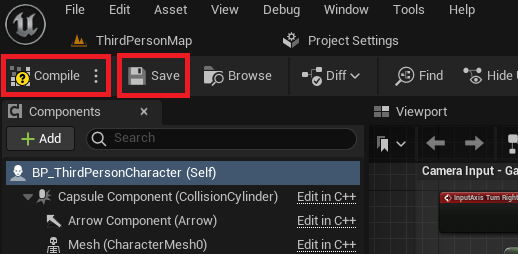
After modifying the "Jump Max Count," it is imperative to apply these changes to the Blueprint. In the top-left corner of the Blueprint Editor, locate and click both the "Compile" and "Save" buttons. Compiling the Blueprint translates the visual script into executable code, while saving ensures that these modifications are persistently stored within your project. Failure to compile and save will result in the changes not being reflected in the game.
Simple Double Jump: A Functional Prototype
Upon successfully compiling and saving the BP_ThirdPersonCharacter Blueprint, your character will now possess the fundamental ability to double jump. A quick test play within the Unreal Engine editor will confirm this functionality: pressing the jump key a second time while the character is airborne will trigger an additional upward impulse.
However, a critical observation emerges during this initial demonstration. While the double jump itself functions correctly from a mechanics standpoint, the character’s animation typically only plays once – during the initial jump. When the second jump is executed, the character remains in the "fall loop" animation or a similar state, lacking the visual feedback of an active jump. This discrepancy between mechanical action and visual representation can lead to a less polished and less intuitive player experience. The absence of a distinct animation for the second jump can make the action feel less impactful and less responsive, failing to provide the player with clear feedback that their input has registered and a new action has been performed. This highlights the crucial role of animation in conveying gameplay actions and enhancing player immersion, moving beyond mere functionality to create a truly engaging experience.
Elevating Immersion: Intermediate Animation Improvements
Addressing the animation disparity is crucial for delivering a polished double jump experience. The goal is to ensure that the jump animation plays consistently for every jump, providing clear visual feedback to the player. This involves delving into the character’s Animation Blueprint, a sophisticated system within Unreal Engine that controls how animations are blended and transitioned based on gameplay states. While slightly more complex than the initial parameter change, these animation improvements are still highly manageable within the Blueprint visual scripting environment.
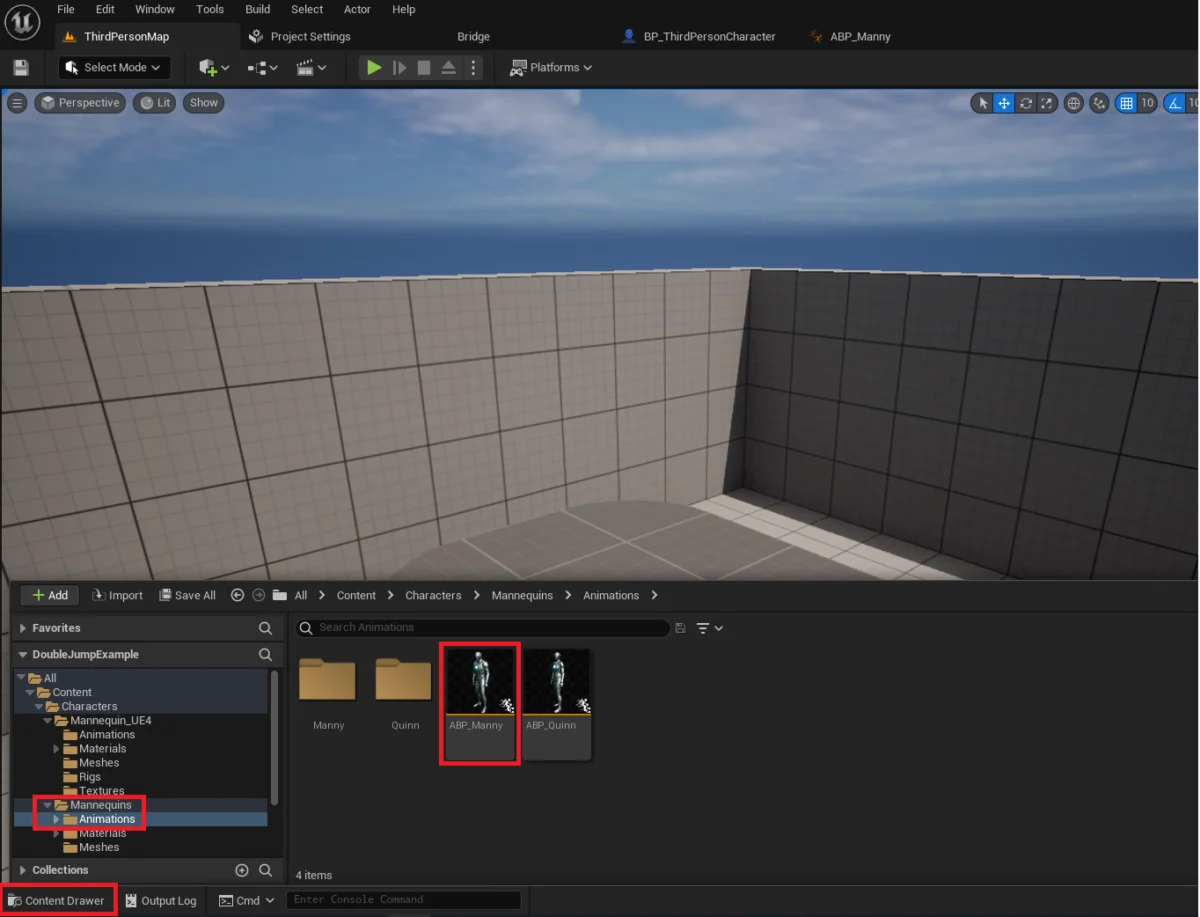
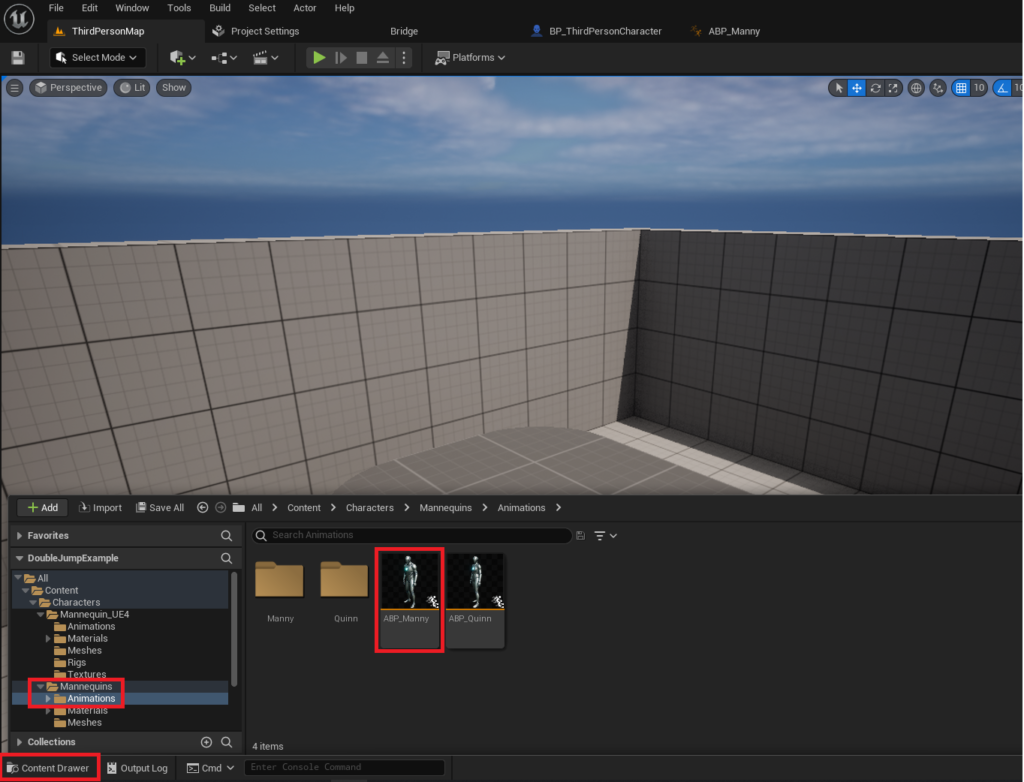
The first step in this animation refinement process is to locate and open the character’s Animation Blueprint. Return to the "Content Drawer" and navigate to the Content/Characters/Mannequins/Animations folder. Within this directory, you will find the ABP_Manny object (or ABP_Quinn, depending on your chosen mannequin). This asset is the Animation Blueprint responsible for governing all of the character’s movement animations. Double-clicking ABP_Manny will open the Animation Blueprint Editor.
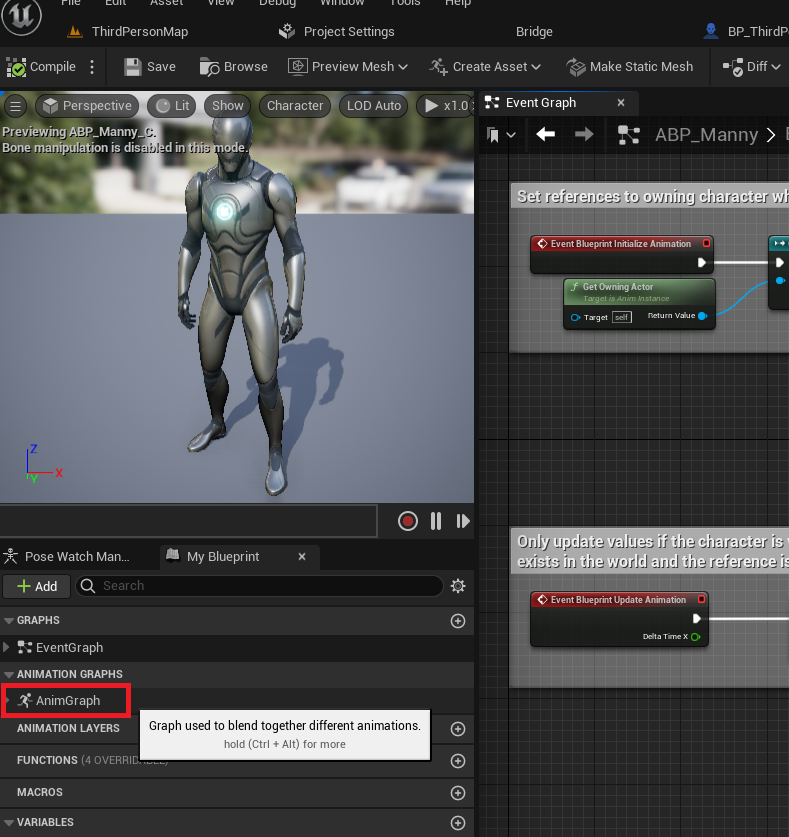
Inside the Animation Blueprint Editor, you will observe several tabs and panels. On the left side of the editor window, locate and double-click the "AnimGraph" text. The AnimGraph is the core of the Animation Blueprint, where various animation states, blend spaces, and state machines are interconnected to produce the final pose of the character. It’s a visual programming environment specifically tailored for animation logic.
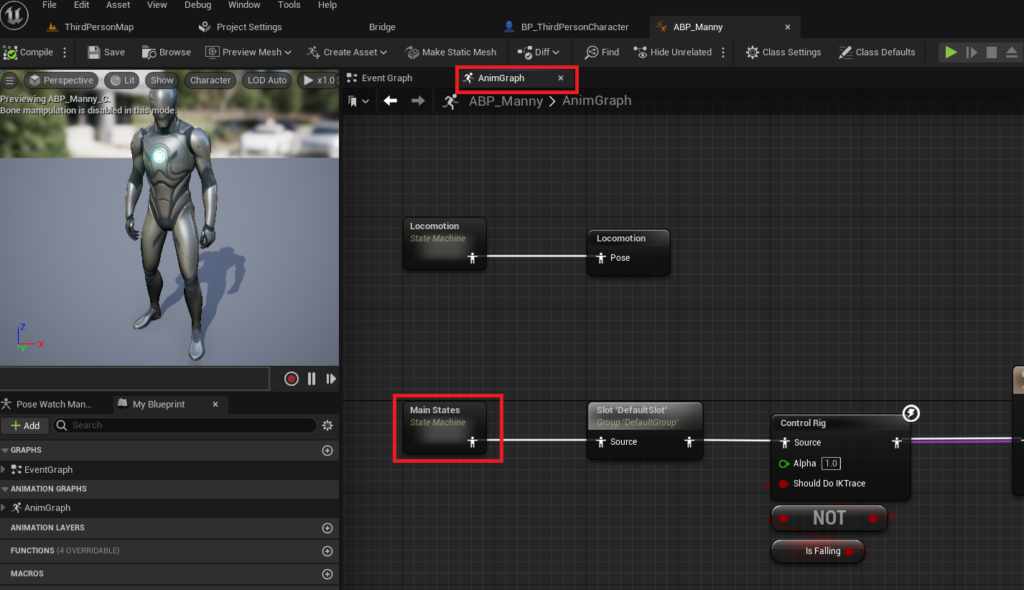
With the AnimGraph now open, the next focus is on the "Main States" state machine. A state machine in animation blueprints is a powerful tool for managing complex animation logic by defining different "states" (e.g., Idle, Walk, Jump, Fall) and the "transitions" between them. Click on the "Main States" state machine node. This action will open a new graph representing the internal logic of this state machine, showcasing how the character transitions between various major animation poses.
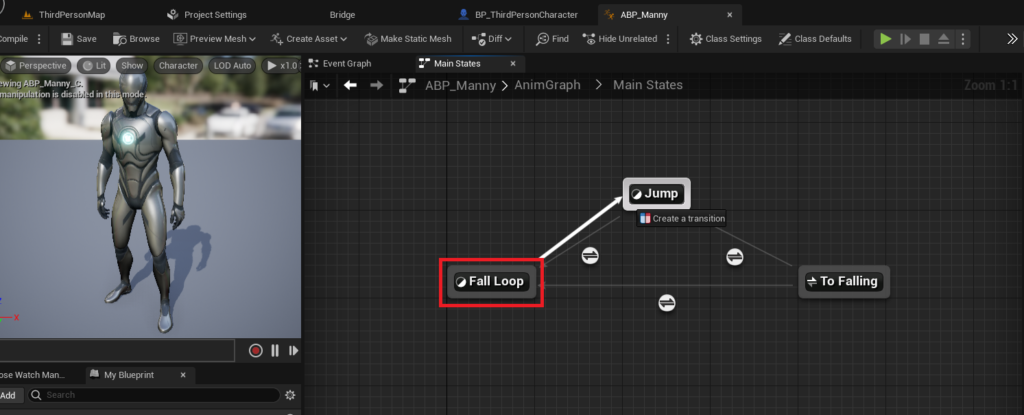
Within the "Main States" state machine graph, you will typically find states such as "Jump," "Fall Loop," "Idle/Run," and others. The issue identified earlier was that after the initial jump animation, the character transitions into the "Fall Loop" state, and subsequent jumps within the air do not re-trigger the "Jump" animation. To rectify this, a new transition must be established. Drag a connection from the "Fall Loop" state to the "Jump" state. As you drag, a tooltip stating "Create a transition" will appear. Releasing the mouse button will finalize the creation of this new transition arrow. This new pathway signifies that the character can now transition directly from a falling state back into a jumping state.
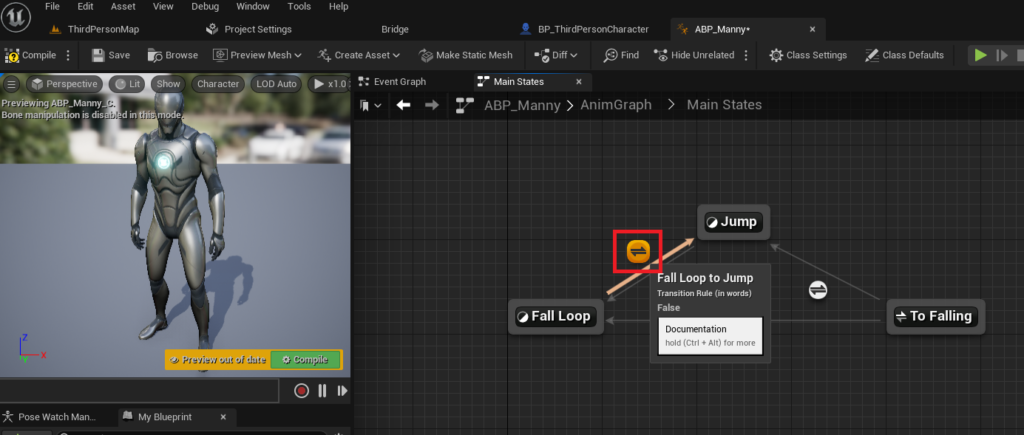
The newly created transition arrow represents a potential pathway, but it requires specific conditions to be met for the transition to occur. Click on the small icon located on the newly created transition arrow to open its editor. This transition editor is where the Blueprint logic for determining when the character should move from the "Fall Loop" state back to the "Jump" state is defined.
Within the transition editor, the following Blueprint nodes are critical for enabling the re-triggering of the jump animation:
IsFalling(Character Movement Component): This node returns a boolean value (trueorfalse) indicating whether the character is currently in a falling state. This is crucial because we only want to re-trigger the jump animation if the character is airborne and not currently grounded.GetCharacterMovement: This node provides access to the character’s movement component, from which we can retrieve various movement-related properties.GetJumpCount(Character Movement Component): This node retrieves the current number of jumps the character has performed since leaving the ground.Jump Max Count(Character Movement Component): This node returns the maximum number of jumps the character is allowed to perform.>(Greater Than) Node: This comparison node will check if theGetJumpCountis greater than ‘1’. This condition is vital because the first jump will naturally take theJumpCountto ‘1’, but for the second jump (the double jump), theJumpCountwill become ‘2’. We want the transition to occur specifically when theJumpCountindicates a subsequent jump has been initiated.ANDBoolean Node: This logical operator combines the results ofIsFallingandGetJumpCount > 1. The transition should only occur if both conditions are true: the character is falling, AND they have performed more than one jump (i.e., they are executing a double jump).ResultNode: The final output of theANDnode is connected to theResultnode of the transition. When theResultistrue, the transition from "Fall Loop" back to "Jump" will be allowed, causing the jump animation to play again.
By connecting these nodes as described, the animation state machine gains the intelligence to detect when a double jump (or any subsequent jump beyond the first) occurs while the character is airborne. This setup allows the character to seamlessly return to the jumping animation, providing consistent visual feedback for every jump performed. After setting up these nodes, remember to "Compile" and "Save" the Animation Blueprint to apply the changes.
The Polished Double Jump: Advanced Animated Demo
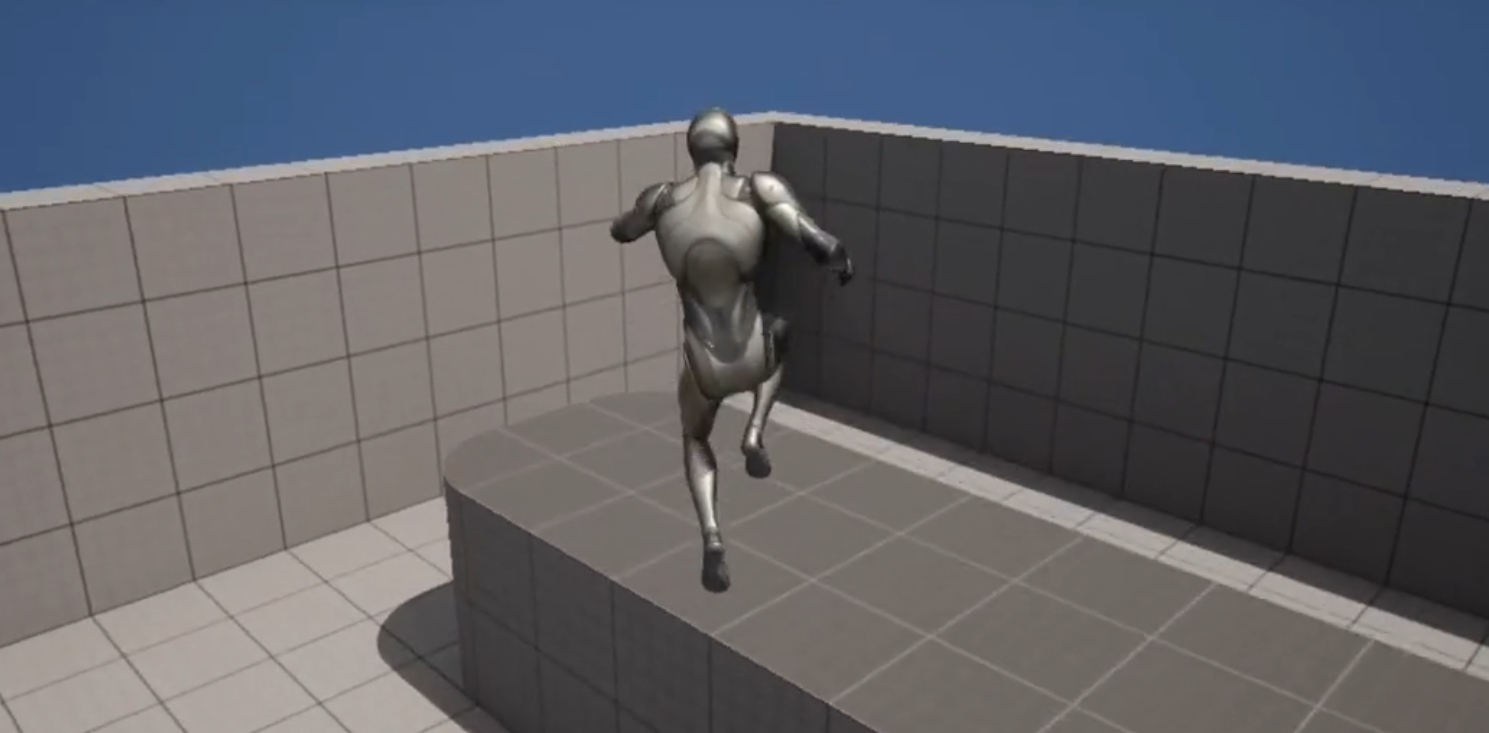
With the animation improvements fully implemented and the Animation Blueprint compiled and saved, the double jump functionality in your Unreal Engine 5 project is now complete and significantly enhanced. Observing the character in a play session will immediately reveal the difference: the character will now execute the distinct jump animation for both the initial leap and any subsequent airborne jumps. This consistent animation provides critical visual feedback, making the character’s actions feel more responsive, intentional, and engaging to the player. The game world feels more alive, and the player gains a clearer understanding of their character’s capabilities and the successful execution of their inputs. This level of polish transforms a basic mechanic into a satisfying and immersive interaction, a hallmark of high-quality game development.
Broader Implications and Developer Empowerment
The ease with which a complex, yet ubiquitous, mechanic like the double jump can be implemented and refined in Unreal Engine 5 speaks volumes about Epic Games’ vision for the engine. By abstracting away much of the low-level complexity through the CharacterMovementComponent and providing intuitive visual scripting tools like Blueprints and Animation Blueprints, UE5 significantly lowers the barrier to entry for aspiring game developers. It allows smaller teams and even solo creators to achieve levels of polish and sophistication that were once the exclusive domain of large, well-funded studios.
This accessibility has profound implications for the game development industry. It fosters innovation by allowing developers to rapidly prototype and iterate on gameplay mechanics without getting bogged down in intricate coding. Game designers can experiment with variations of jump counts, air control, and animation styles with minimal technical overhead, leading to a richer diversity of gameplay experiences. Furthermore, the robust nature of Unreal Engine’s core components ensures that these easily implemented features are also stable and performant, forming a solid foundation for more complex systems. Epic Games’ commitment to developer-centric tools, alongside comprehensive documentation and community support, reinforces UE5’s position as a powerful and democratizing force in game creation.
Conclusion
This comprehensive guide has illustrated not only the straightforward process of adding double jump functionality in Unreal Engine 5 but also the critical steps required to enhance the player experience through thoughtful animation integration. By adjusting a single parameter within the BP_ThirdPersonCharacter Blueprint, the core mechanic is established. However, it is the intermediate-difficulty animation improvements within the ABP_Manny Animation Blueprint – specifically, the creation of a transition from the "Fall Loop" state back to the "Jump" state based on IsFalling and GetJumpCount logic – that truly elevates the double jump from a functional input to a visually satisfying and immersive action. Developers are strongly encouraged to undertake these optional animation improvement steps, as the tangible difference in player feedback and overall game polish is substantial. Mastering these techniques not only equips your Unreal Engine 5 project with a double jump-capable character but also deepens your understanding of the engine’s powerful character and animation systems, paving the way for even more sophisticated gameplay mechanics and engaging player interactions.
About the Author