Unreal Engine 5 (UE5), a powerhouse in interactive media development, offers an unparalleled suite of tools for creating stunning games, simulations, and cinematic experiences. However, a significant portion of its advanced functionalities remains inherently tied to C++ programming, posing a potential barrier for developers primarily leveraging the visual scripting language, Blueprints. This inherent dichotomy has fostered a vibrant ecosystem of community-driven innovation, where third-party plugins bridge the gap, extending Blueprint capabilities and introducing new features that empower a broader spectrum of creators. This guide delves into the essential methods for installing these transformative plugins, exploring both the streamlined process via the Unreal Marketplace and the advanced procedure for manual integration, while also examining their broader implications for the development landscape.
The Indispensable Role of Plugins in Unreal Engine 5 Development
At its core, Unreal Engine 5 is designed for extensibility. While Blueprints provide an intuitive, high-level approach to game logic, certain low-level optimizations, complex algorithms, or direct hardware integrations are often best handled in C++. Recognizing this, the engine’s architecture facilitates the integration of plugins—self-contained modules that add specific functionalities without altering the core engine code. These plugins can range from simple utility nodes that streamline common tasks to comprehensive systems for networking, AI, UI, or even entirely new rendering pipelines. Their importance cannot be overstated; they democratize access to advanced features, accelerate development workflows, and allow developers to focus on creative iteration rather than foundational engineering. The growth of the Unreal Engine developer community, estimated to be in the millions, directly correlates with the proliferation of these plugins, transforming UE5 from a powerful engine into a dynamic, adaptable development platform.
Streamlined Integration: Unreal Marketplace Plugins
The Unreal Marketplace serves as the official, curated storefront for assets, tools, and code plugins, offering a secure and convenient pathway for developers to enhance their UE5 projects. Launched in 2014, the Marketplace has grown into a bustling digital economy, providing a vast array of resources that significantly reduce development time and cost. Epic Games, the developer of Unreal Engine, actively supports and vets content submitted to the Marketplace, ensuring a level of quality and compatibility that makes it the preferred choice for many developers.
The process of acquiring and integrating plugins from the Marketplace is designed for user-friendliness:
-
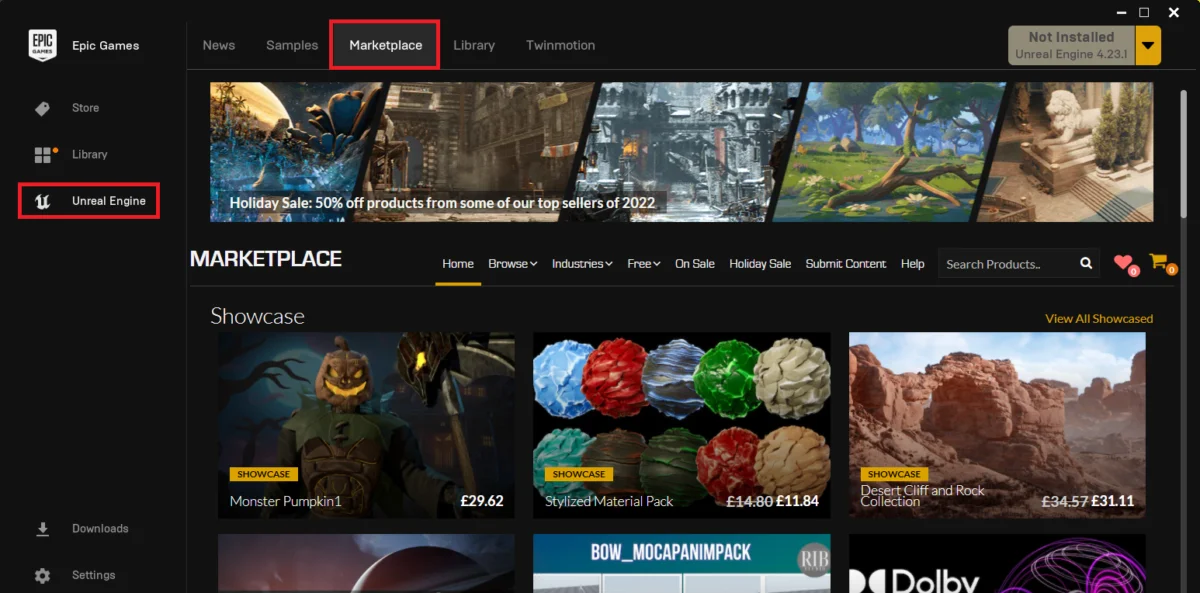
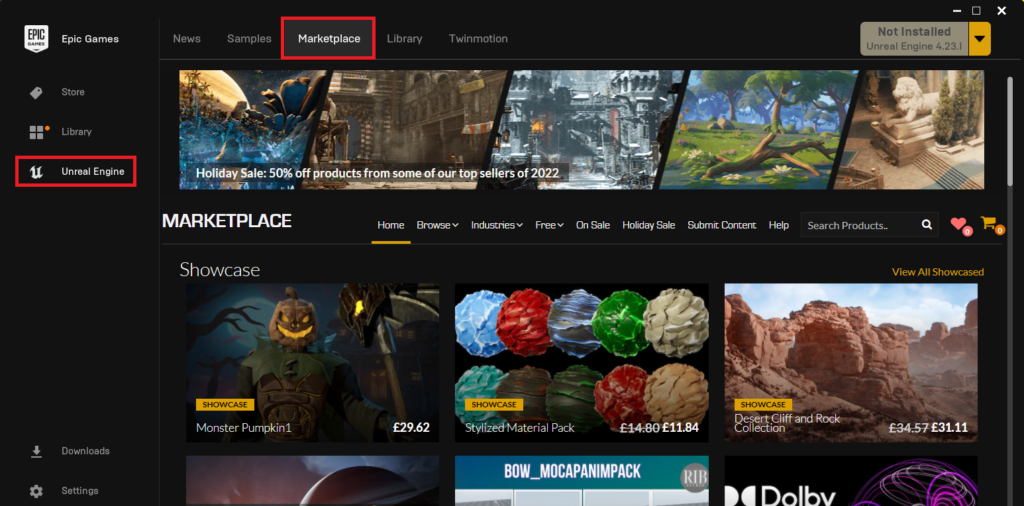
Accessing the Epic Games Launcher and Unreal Marketplace: The journey begins with the Epic Games Launcher, the central hub for managing Unreal Engine installations, game libraries, and access to the Marketplace. Upon launching the application, developers navigate to the "Unreal Engine" section and then select the "Marketplace" tab. This interface provides a comprehensive browsing experience, featuring categories, search filters, and curated collections.
- Image: Screenshot of Epic Games Launcher with Unreal Marketplace highlighted.
-
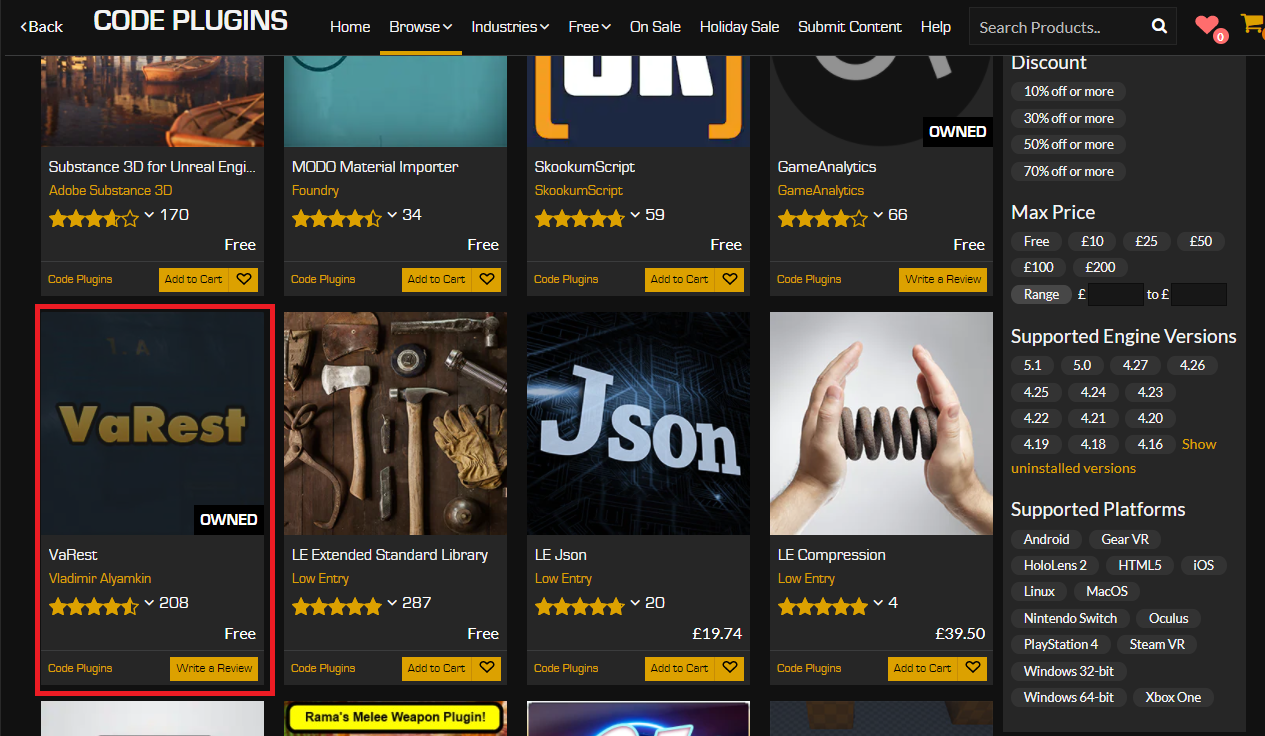
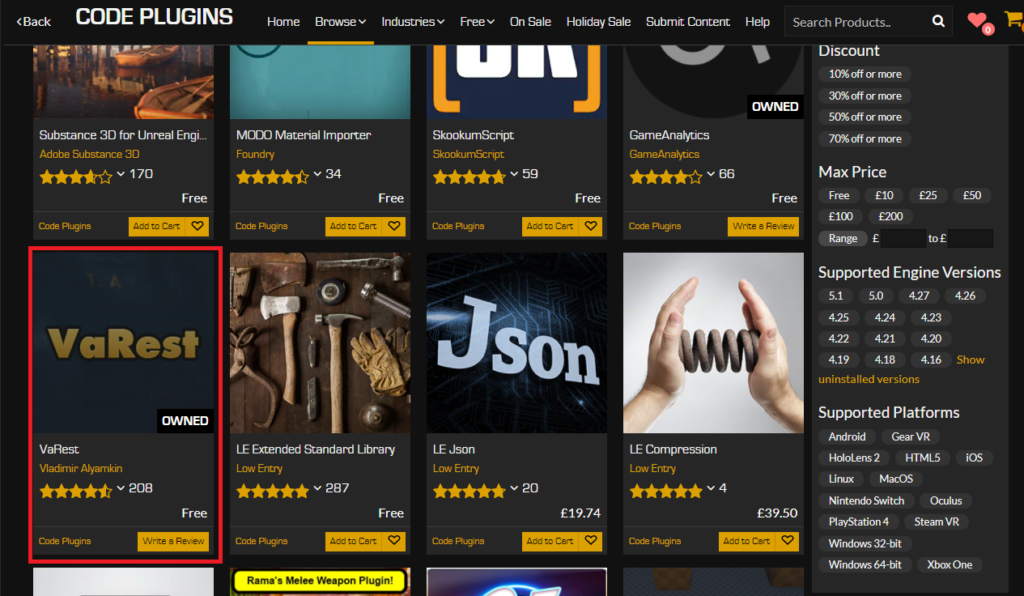
Identifying Code Plugins: Within the Marketplace, content is categorized to facilitate discovery. To specifically locate functional extensions that add C++ or Blueprint logic, developers must select the "Code Plugins" option under the "Browse" tab. This filters the vast library to display only those items that provide executable code or new Blueprint nodes, distinct from art assets, environments, or sound packs.
- Image: Screenshot showing the "Code Plugins" filter selected in the Unreal Marketplace.
-
Selecting and Acquiring the Desired Plugin: Once in the "Code Plugins" section, developers can browse or search for specific functionalities. For illustrative purposes, consider the "VaRest" network plugin, a popular choice for integrating RESTful API calls into Unreal Engine projects, making external data communication straightforward in Blueprints. Upon identifying a suitable plugin, developers proceed to its dedicated page. If the plugin is commercial, it will require a purchase. However, many valuable plugins are offered for free; even then, they must be "acquired" through a zero-cost transaction, which adds them to the user’s library. This ensures proper licensing and tracking within the Epic Games ecosystem.
- Image: Screenshot of the VaRest plugin page on the Unreal Marketplace, showing "Add to Cart" or "Free" options.
-
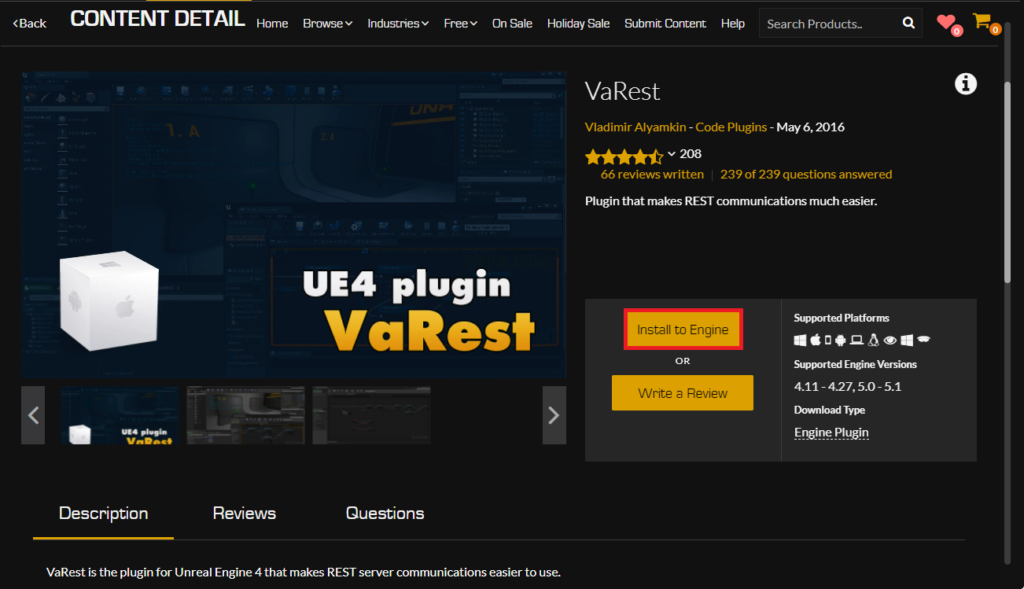
Installing to the Unreal Engine: Unlike content assets that are typically added directly to a specific project, code plugins from the Marketplace are installed to the Unreal Engine itself. This means the plugin becomes available for any compatible project running on that particular engine version. On the plugin’s Marketplace page, after acquisition, an "Install to Engine" button becomes active. Clicking this prompts the user to select the specific Unreal Engine version installed on their system (e.g., UE 5.0, UE 5.1, UE 5.2) to which the plugin should be added. It is crucial to select the correct version to ensure compatibility and prevent potential errors during project compilation.
- Image: Screenshot depicting the "Install to Engine" button and a dropdown for selecting the Unreal Engine version.
-
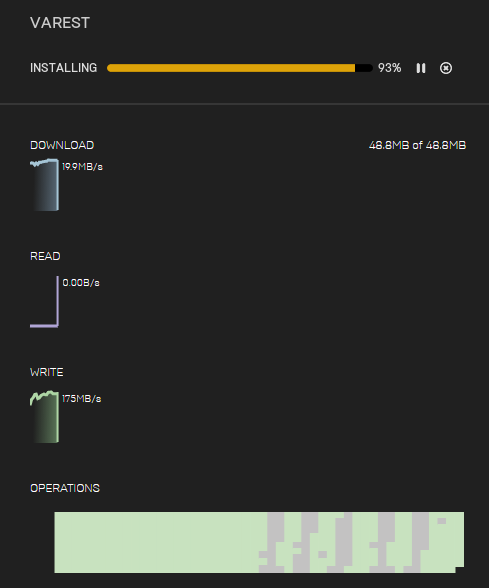
Monitoring Installation Progress: Once an engine version is selected, the installation process begins. The Epic Games Launcher provides a "Downloads" tab where the progress of the plugin installation can be monitored. This includes the download of the plugin files and their integration into the chosen engine directory. Upon successful completion, the plugin’s files are placed in the appropriate location within the engine installation, awaiting activation within a project.

- Image: Screenshot of the Epic Games Launcher’s "Downloads" tab showing plugin installation progress.
Advanced Integration: Manually Installed Plugins
Beyond the curated Marketplace, a vibrant community of developers shares plugins directly, often through platforms like GitHub, personal websites, or developer forums. This method, while offering greater flexibility and access to cutting-edge or highly specialized tools, demands a higher degree of technical proficiency and caution. Many open-source contributions, experimental features, or internal company tools are distributed this way. Projects like Rama’s Victory Blueprint Plugin, known for its extensive collection of utility nodes, are prime examples of valuable community contributions typically found outside the official Marketplace.
Crucial Disclaimer on Manual Plugin Installation:
It is imperative to exercise extreme caution when downloading and installing files from unofficial sources. Malicious code, incompatible versions, or poorly implemented plugins can lead to project instability, data corruption, or even system vulnerabilities. Always verify the reputation of the developer and ensure the plugin is compatible with your specific Unreal Engine 5 version. CouchLearn, or any reputable information source, cannot be held responsible for issues arising from untrusted downloads.
The process for manual plugin installation involves direct interaction with your project’s file structure:
-
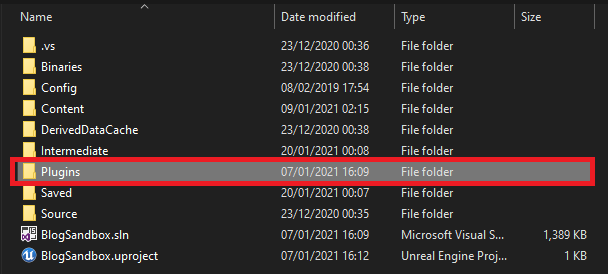
Ensuring Project Plugin Directory Exists: For a project to recognize manually added plugins, a dedicated "Plugins" folder must reside within the project’s root directory. If this folder does not exist (which is common for newly created projects or those not yet utilizing manual plugins), it must be created. The structure should be
<YourProjectName>/Plugins/. This folder serves as the local repository for project-specific plugins, allowing them to be bundled and managed alongside the project itself.- Image: File explorer screenshot showing a "Plugins" folder within a project directory.
-
Copying the Plugin Files: Once the "Plugins" folder is established, the downloaded plugin’s main folder (e.g., "VictoryPlugin") must be copied directly into it. This plugin folder typically contains critical files such as the
.uplugindescriptor, source code (Sourcedirectory), and pre-compiled binaries (Binariesdirectory) if provided. The entire plugin’s directory structure, as provided by its creator, should be maintained when copied. For instance, if downloading the Victory BP Plugin, the folder "VictoryPlugin" containing all its contents would be placed inside<YourProjectName>/Plugins/.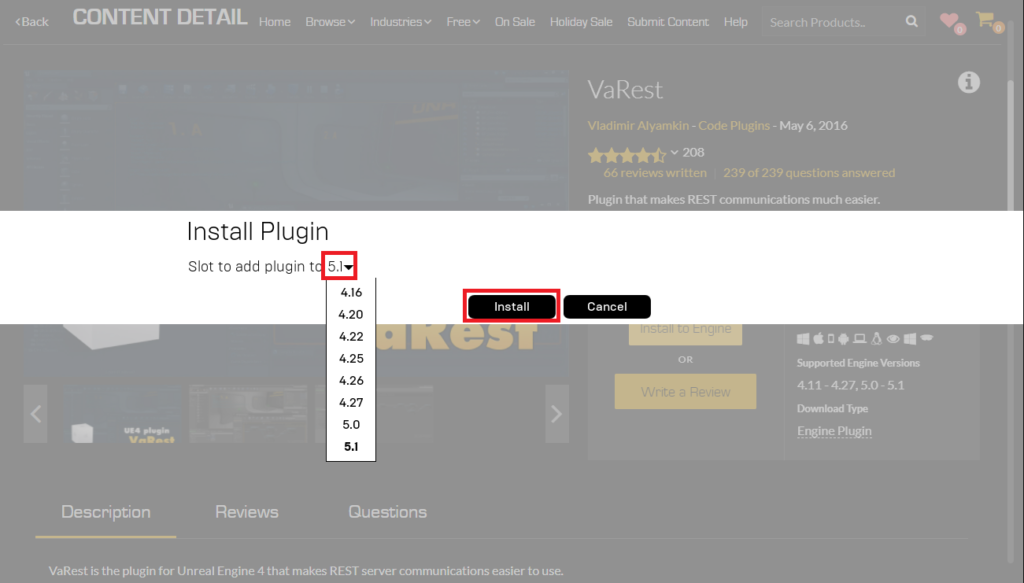
- Image: File explorer screenshot showing "VictoryPlugin" copied into the project’s "Plugins" folder.
- Image: File explorer screenshot showing the contents of the "VictoryPlugin" folder (e.g., .uplugin, Source, Binaries).
The Universal Activation Step: Enabling Plugins in Your Project
Regardless of whether a plugin is installed via the Unreal Marketplace or manually, a crucial final step is required to make it active within a specific Unreal Engine project: enabling it through the editor’s plugin manager. This design choice prevents unnecessary code from being compiled into every project, which would otherwise increase build times and executable sizes for features not being used.
-
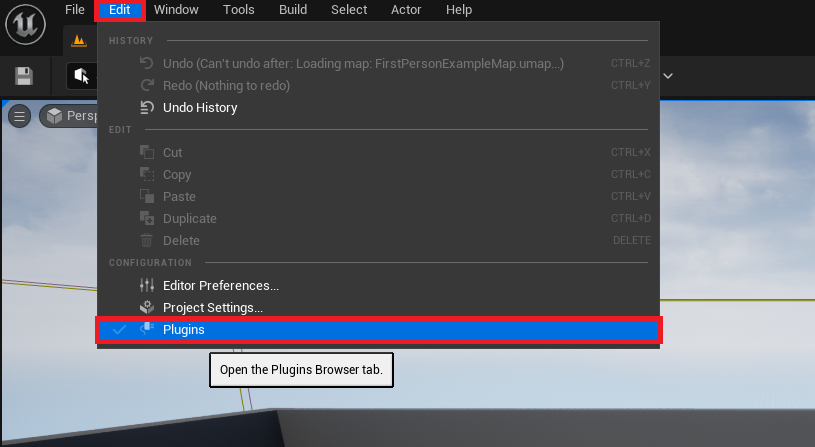
Accessing the Plugins Window: Within the Unreal Engine 5 editor, navigate to the main menu bar. Click on "Edit," and from the dropdown menu, select "Plugins." This action opens the "Plugins" window, a centralized interface for managing all available plugins—both engine-installed and project-specific.
- Image: Screenshot of the Unreal Engine 5 editor menu, with "Edit" and "Plugins" highlighted.
-
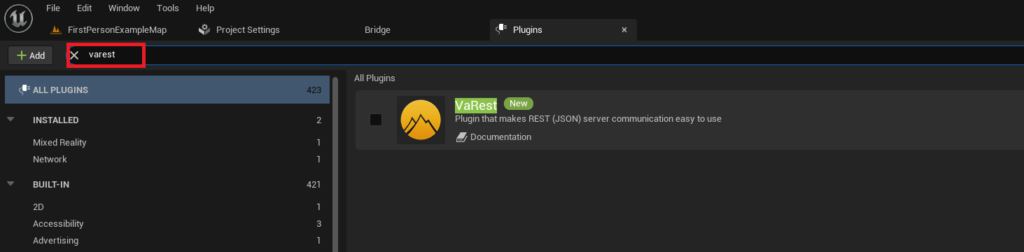
Locating the Installed Plugin: The "Plugins" window features a search bar, which is invaluable for quickly finding a specific plugin amidst potentially hundreds of options. Type the name of the newly installed plugin (e.g., "VaRest" or "Victory Plugin") into the search box. The list will filter, displaying the plugin and its details, including its developer, version, and a brief description.
- Image: Screenshot of the Unreal Engine 5 Plugins window, with the search bar used to find "VaRest" or "Victory Plugin".
-
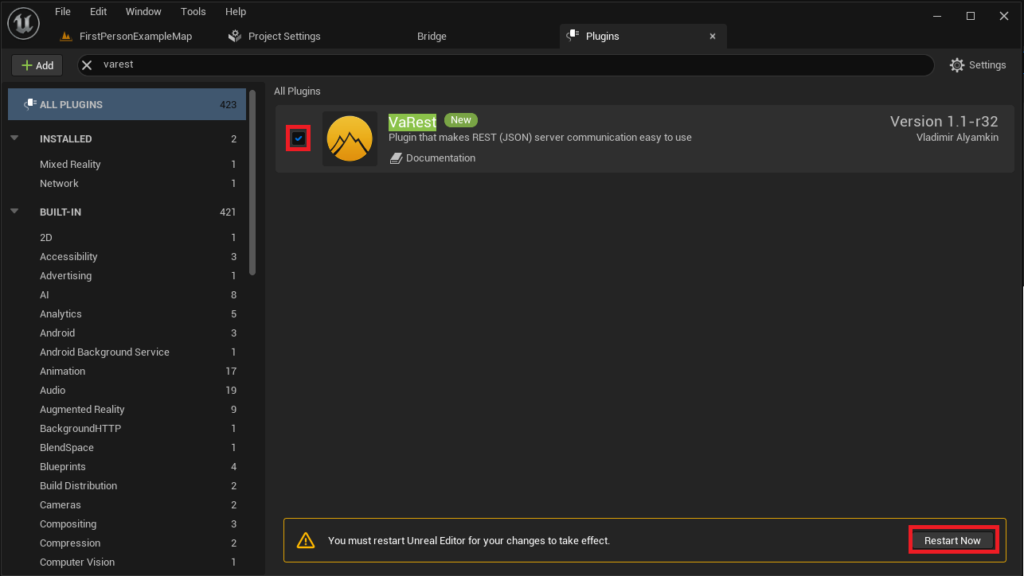
Activating and Restarting the Editor: Next to the plugin’s entry, there will be a checkbox. Click this checkbox to enable the plugin for the current project. Upon activation, the editor will typically prompt a "Restart Now" button, indicating that the changes require a restart of the Unreal Editor to take full effect. This restart allows the engine to recompile necessary modules, load the plugin’s code, and integrate its functionalities (like new Blueprint nodes or C++ classes) into the editor’s environment. Clicking "Restart Now" will close and then reopen your project, after which the plugin’s features will be fully accessible for use in both C++ and Blueprints.
- Image: Screenshot of the Unreal Engine 5 Plugins window, showing the checkbox enabled for "VaRest" or "Victory Plugin" and the "Restart Now" button.
Strategic Implications and Broader Impact for Developers
The robust plugin ecosystem of Unreal Engine 5 profoundly impacts development in several critical ways:
-
Democratization of Advanced Features: Plugins significantly lower the barrier to entry for complex functionalities. By wrapping C++ code into accessible Blueprint nodes, they enable artists, designers, and less C++-savvy developers to implement advanced systems like sophisticated networking (e.g., VaRest), complex mathematical operations, or intricate file I/O (e.g., Victory Plugin) without deep programming knowledge. This fosters cross-disciplinary collaboration and expands the creative potential within teams.
-
Acceleration of Development Cycles: Time is a precious commodity in game development. Plugins provide ready-made solutions for common or specialized tasks, eliminating the need for developers to "reinvent the wheel." Instead of spending weeks building a custom HTTP request system, a developer can integrate VaRest in minutes, immediately gaining robust networking capabilities. This allows teams to allocate more resources to core game mechanics and unique content, significantly speeding up project timelines. Industry data consistently shows that leveraging existing tools and libraries can reduce development costs by 20-40% on average for similar projects.
-
Enabling Specialization and Niche Functionalities: The flexibility of plugins allows for the development of highly specialized tools that cater to niche needs. From procedural content generation, advanced animation blending, and custom editor tools to integrations with specific hardware (e.g., VR/AR devices, haptic feedback systems) or external services, plugins extend UE5’s capabilities far beyond its default offerings. This fosters innovation and allows developers to tackle ambitious projects that might otherwise be technically prohibitive.
-
Fostering a Vibrant Community and Economic Ecosystem: The Unreal Marketplace, in particular, has cultivated a thriving economy around plugin development. Talented programmers can create and sell their solutions, generating revenue while contributing valuable tools to the community. This symbiotic relationship benefits both creators (who gain access to powerful extensions) and plugin developers (who are rewarded for their expertise). Epic Games’ 88/12 revenue split for Marketplace content further incentivizes developers, ensuring a significant return on their investment.
-
Enhancing Project Modularity and Maintainability: By encapsulating specific functionalities, plugins promote modular design. This means features can be easily added, updated, or removed without deeply impacting the core project code, improving long-term maintainability and flexibility. For large-scale projects with evolving requirements, this modularity is invaluable.
Looking Ahead: The Evolving Plugin Landscape
The trajectory of Unreal Engine 5’s development suggests an even greater emphasis on extensibility and community contribution. Epic Games continues to refine its plugin architecture and support for third-party developers, ensuring that the engine remains at the forefront of innovation. Future trends in plugin development are likely to include more sophisticated AI and machine learning integrations, advanced cloud-based services, procedural content generation tools leveraging technologies like Nanite and Lumen, and deeper integrations with virtual and augmented reality platforms. The ability to seamlessly incorporate these cutting-edge technologies through plugins will be crucial for developers aiming to push the boundaries of interactive experiences.
Conclusion
Plugins are far more than mere add-ons; they are fundamental to unlocking the full, dynamic potential of Unreal Engine 5. Whether sourced from the curated security of the Unreal Marketplace or integrated through the flexible, community-driven path of manual installation, these powerful extensions empower developers to transcend the limitations of stock engine features. By providing accessible C++ functionalities to Blueprint users, accelerating workflows, and fostering an unparalleled ecosystem of shared innovation, plugins cement Unreal Engine 5’s position as an incredibly versatile and future-proof development platform. Mastery of plugin installation is not just a technical skill; it is a strategic imperative for any developer aspiring to harness the complete power of UE5 and thrive in the ever-evolving landscape of interactive media creation.
About the Author