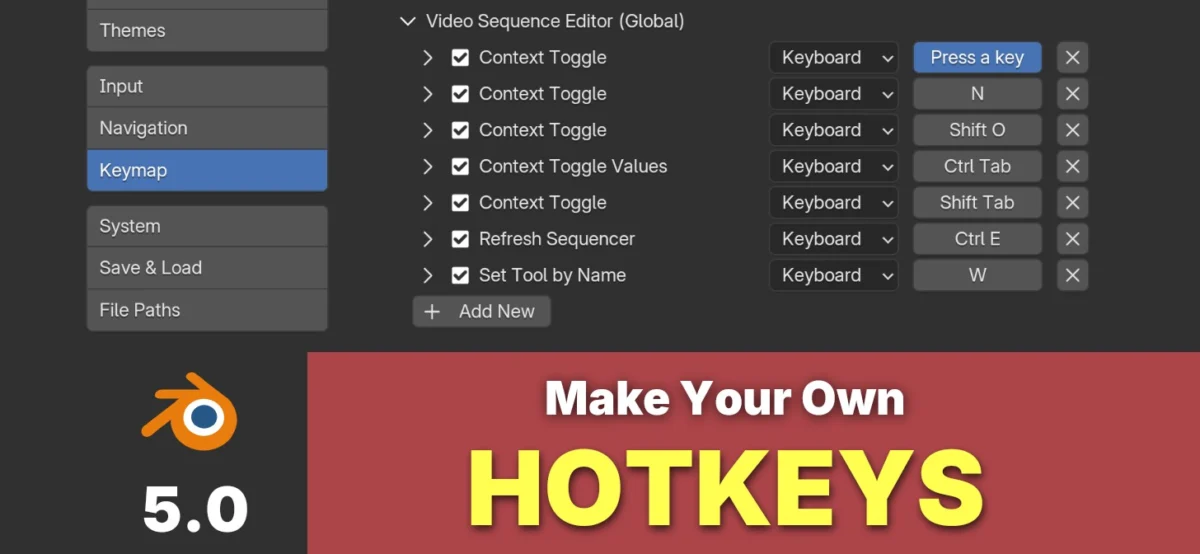
The latest update to the industry-standard 3D creation suite, Blender 5.0, introduces a robust and user-friendly system for customizing hotkeys, empowering users to tailor their workflow for maximum efficiency. This comprehensive guide, presented in a detailed video tutorial by experienced Blender educator Justin, outlines an eight-step process designed to help users create their own custom keymaps while proactively avoiding common pitfalls such as bugs, workflow disruptions, and user frustration. The release of this feature in Blender 5.0 signifies a continued commitment by the Blender Development Fund and the open-source community to enhance user experience and accessibility, acknowledging that a personalized interface can significantly impact productivity for both novice and professional artists.

The Evolution of User Interface Customization in Blender
Blender has long been recognized for its powerful feature set, but its user interface and default hotkey configurations have historically presented a learning curve for newcomers. While the software has evolved significantly over the years, with major UI overhauls in versions like 2.5 and 2.8, the ability to deeply customize keyboard shortcuts has remained a sought-after feature. Early versions offered limited customization, often requiring manual editing of configuration files. The introduction of the "Keymap" system in more recent iterations, culminating in the refined approach within Blender 5.0, represents a significant leap forward. This allows users to save, load, and share entire sets of customized shortcuts, fostering a more personalized and efficient creative environment. The growing complexity of 3D workflows, encompassing modeling, sculpting, animation, rendering, and visual effects, necessitates tools that adapt to individual user preferences and project demands. The ability to map frequently used commands to easily accessible keys can shave valuable seconds off repetitive tasks, which, over the course of a large project, translates into substantial time savings.
A Structured Approach to Custom Keymapping
Justin’s tutorial emphasizes a methodical approach to customizing Blender’s hotkeys, aiming to prevent the common issues that can arise from haphazard changes. The eight steps detailed in the video are designed to guide users through the process systematically:

- Understanding the Default Keymap: Before making any changes, it is crucial to have a solid understanding of Blender’s existing default keymap. This provides a baseline and helps identify which shortcuts are already in use and which are available. Familiarity with the default settings also aids in recognizing potential conflicts when introducing new assignments.
- Identifying Personal Workflow Needs: Users are encouraged to analyze their own typical workflow within Blender. What actions do they perform most frequently? Which commands are repeatedly accessed through menus or the search function? Pinpointing these areas is the first step in determining which hotkeys would be most beneficial to remap.
- Accessing the Keymap Preferences: Blender 5.0 provides a dedicated section within its Preferences menu for managing keymaps. This is where users can view existing keymaps, create new ones, and modify assignments. The tutorial clearly demonstrates how to navigate to this section.
- Creating a New Custom Keymap: Rather than directly altering the default keymap, the recommended practice is to create a new, custom keymap. This ensures that the original settings remain intact and can be easily reverted to if necessary. This is a critical step in preventing irreversible errors.
- Assigning New Hotkeys: The core of the process involves selecting a command from Blender’s extensive list and assigning a desired key combination to it. The tutorial highlights the interface for this, showing how to input new key presses and confirm assignments.
- Resolving Key Conflicts: A common issue is assigning a hotkey that is already in use by another command. Blender 5.0’s interface includes mechanisms to detect and help resolve these conflicts, preventing unintended overwrites and ensuring that each hotkey performs a single, defined action.
- Testing and Iteration: Once new hotkeys are assigned, it is essential to test them thoroughly in a real-world scenario. This involves using the new shortcuts in various operations to ensure they function as intended and do not interfere with other aspects of the workflow. The process is often iterative, requiring adjustments based on user experience.
- Saving and Exporting the Custom Keymap: After a satisfactory custom keymap has been developed, users can save it within Blender and optionally export it as a file. This allows for easy sharing with other Blender users or for backup purposes, ensuring that personalized setups can be maintained across different installations or machines.
The Importance of a Tailored Workflow
The ability to customize hotkeys extends beyond mere convenience; it is a strategic tool for enhancing artistic output. For instance, a character animator who frequently uses pose libraries might assign a dedicated hotkey to quickly open and select poses, saving precious time during the animation process. Similarly, a hard-surface modeler might remap tools for extruding, beveling, or loop cutting to more accessible key combinations on their keyboard, facilitating rapid iteration and refinement of geometric forms. The implications for speed and fluidity in complex tasks are significant. Studies on human-computer interaction consistently show that reducing the number of physical movements and cognitive load associated with performing frequent actions leads to increased efficiency and reduced user fatigue. By mapping commonly used commands to intuitive and easily accessible key combinations, users can maintain a more focused and immersive creative state, minimizing distractions and interruptions.
Community and Collaboration
Blender’s open-source nature fosters a strong sense of community, and the ability to share custom keymaps further strengthens this collaborative spirit. Users can distribute their personalized shortcuts, allowing others with similar workflows or preferences to benefit from their experimentation. This exchange of knowledge and tools can accelerate the learning process for new users and inspire experienced artists to rethink their own interface configurations. Platforms dedicated to Blender resources often feature sections for sharing and downloading custom keymaps, creating a valuable repository of optimized workflows. The availability of pre-configured keymaps tailored for specific industries, such as architectural visualization or game development, can also provide a significant head start for individuals entering these fields.

Future Implications and Blender’s Commitment to User Experience
The ongoing development of Blender, particularly its focus on improving user interface and experience, signals a clear direction for the software’s future. The introduction and refinement of features like the custom hotkey system underscore the Blender Development Fund’s commitment to making Blender accessible and powerful for a broad range of users. As Blender continues to expand its capabilities in areas like real-time rendering, AI-assisted tools, and advanced simulation, the importance of an efficient and personalized user interface will only grow. The ability to adapt the software to individual needs is crucial for maintaining Blender’s position as a leading force in the digital content creation landscape. The continuous feedback loop between the development team and the user community ensures that future updates will likely incorporate further enhancements to customization options, further solidifying Blender’s reputation for user-centric design. This iterative process, driven by both technical innovation and community input, positions Blender for sustained growth and adoption across various creative industries.
About the Author