The expansive capabilities of Unreal Engine 5 (UE5) are significantly amplified by its robust plugin architecture, allowing developers to extend the engine’s core functionality beyond its out-of-the-box offerings. While UE5 boasts a powerful visual scripting system known as Blueprints, many of the engine’s most advanced or performance-critical features remain exclusive to C++ implementations. This inherent distinction often necessitates the integration of plugins, which serve as vital bridges, bringing C++-exclusive functionalities, new tools, and optimized solutions directly into the Blueprint environment, thereby democratizing access to complex engine features for a wider range of developers. The vibrant and proactive Unreal Engine developer community plays a pivotal role in this ecosystem, continuously creating and distributing a vast array of plugins that introduce additional Blueprint nodes, custom assets, and specialized functionalities. This guide provides a detailed overview of the processes involved in installing and activating plugins within Unreal Engine 5, covering both the streamlined approach via the Unreal Marketplace and the more advanced method of manual installation.
The Expanding Ecosystem: Unreal Engine’s Philosophy and Plugin Role
Epic Games, the developer of Unreal Engine, has always championed an open and extensible development environment. This philosophy is deeply ingrained in UE5, which is designed to be a highly modular platform. At its core, Unreal Engine provides a powerful foundation for game development, architectural visualization, film production, and other real-time applications. However, the diverse needs of its global user base necessitate a mechanism for customization and specialization. This is where plugins become indispensable.
Plugins are essentially self-contained modules of code and assets that can be added to an Unreal Engine project or the engine itself, introducing new features without modifying the engine’s source code directly. This modularity offers several key advantages: it simplifies updates, prevents conflicts, and allows developers to tailor the engine to their specific project requirements. For Blueprint-centric developers, plugins are particularly transformative. While Blueprints offer unparalleled speed and accessibility for prototyping and iterating on gameplay mechanics, certain tasks, especially those requiring low-level system access, complex mathematical operations, or highly optimized performance, are often best handled in C++. Plugins frequently expose these C++ functionalities as new Blueprint nodes, effectively expanding the visual scripting language’s lexicon and empowering Blueprint users to tackle challenges that would otherwise require C++ expertise or direct engine modifications. The prevalence of plugins for networking, artificial intelligence, UI frameworks, rendering effects, and developer tools underscores their critical role in enhancing productivity and pushing the boundaries of what can be achieved within the engine.
Navigating the Official Channel: Unreal Marketplace Plugins
The Unreal Marketplace serves as the primary and most secure conduit for acquiring and integrating plugins into Unreal Engine 5. It offers a curated selection of assets and code, ensuring a degree of quality control and compatibility. The process for installing plugins from this official source is designed for user-friendliness, guiding developers through a series of intuitive steps within the Epic Games Launcher.
Accessing the Marketplace and Identifying Code Plugins
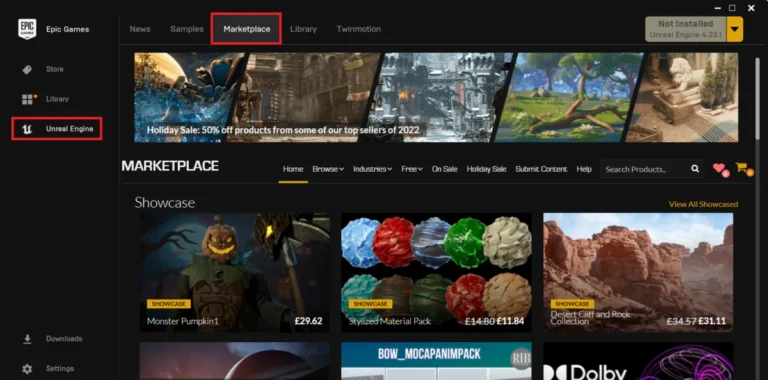
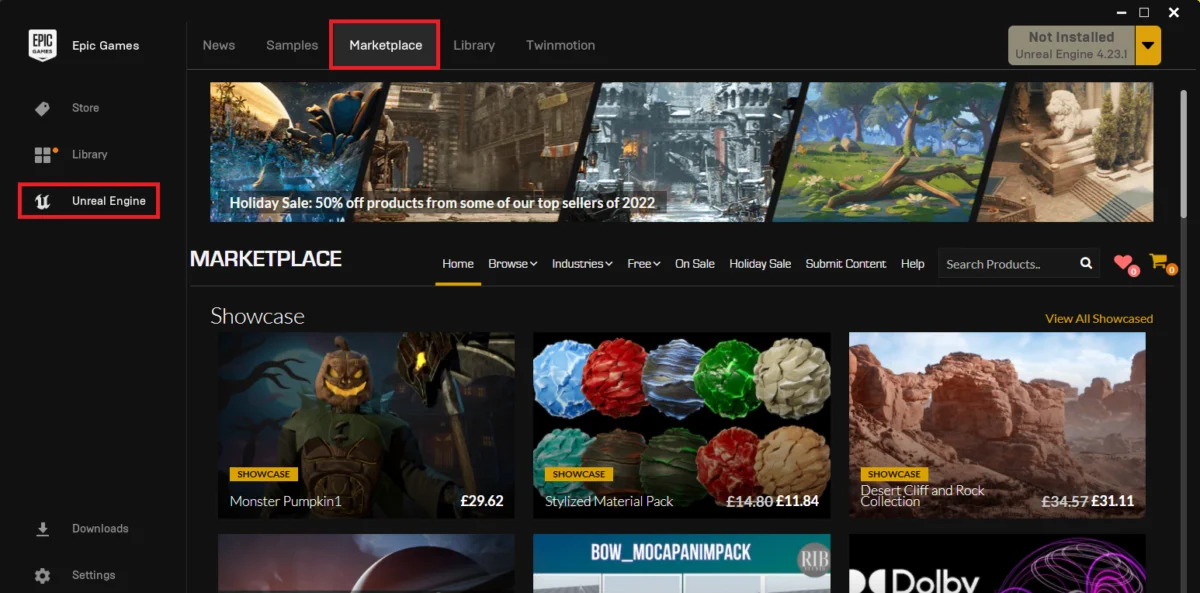
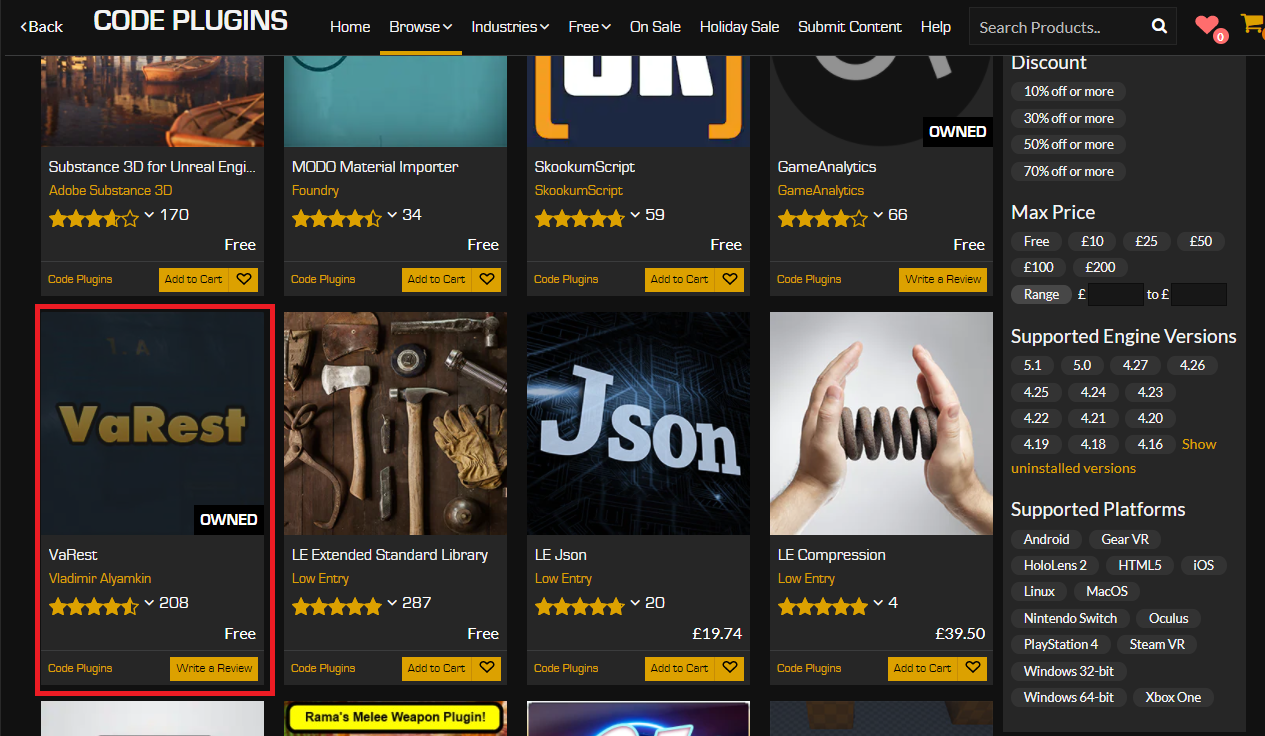
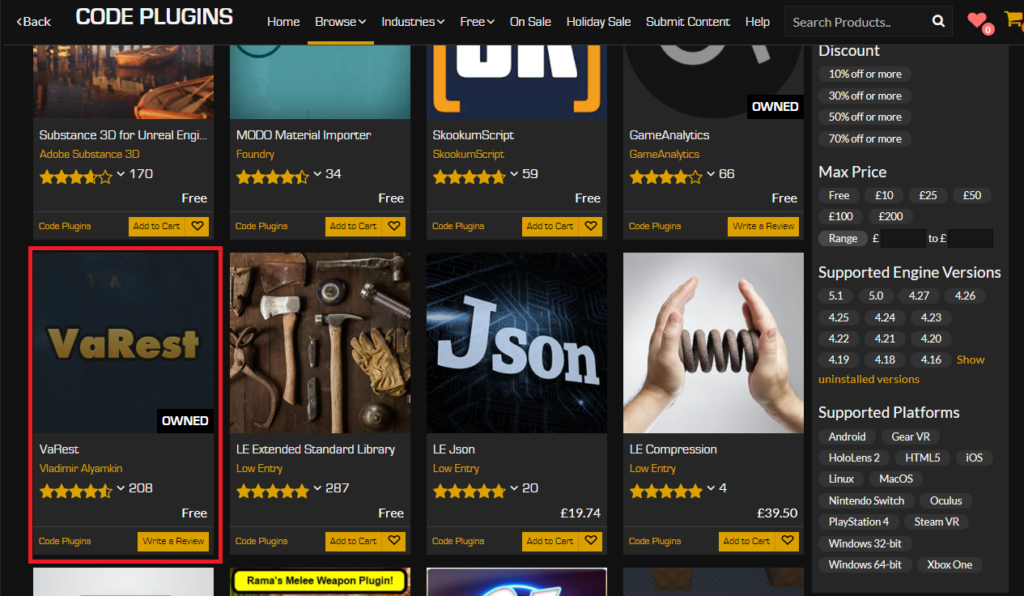
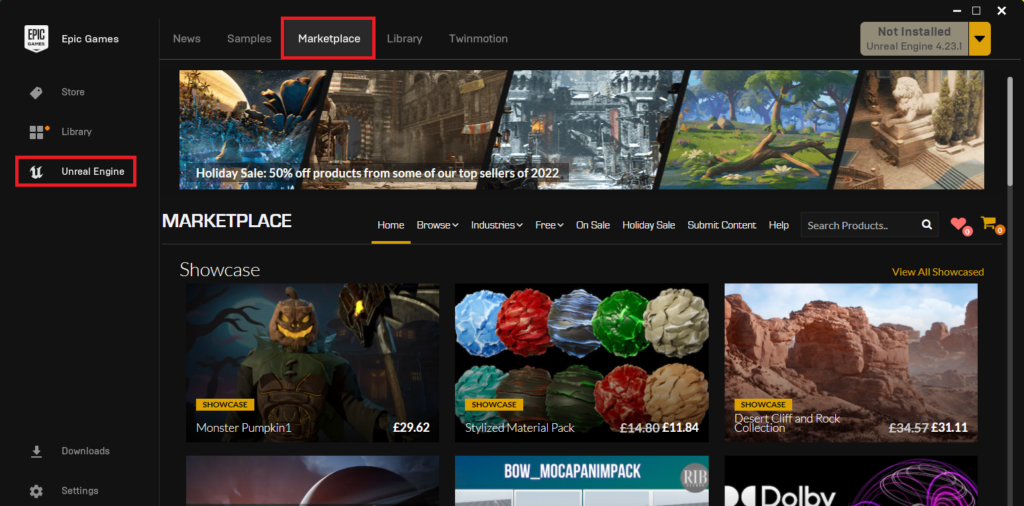
The initial step in acquiring a Marketplace plugin involves accessing the Epic Games Launcher, the central hub for managing Unreal Engine installations and associated content. Upon launching the application, users are directed to the "Unreal Marketplace" section. This dedicated storefront is meticulously organized, offering categories for various asset types, including environments, characters, animations, and crucially, "Code Plugins." To refine the search and focus specifically on functionality-extending modules, navigating to the "Browse" tab and selecting the "Code Plugins" option is essential. This filters the vast repository, presenting only those items that introduce new code-based features, often manifesting as new Blueprint nodes, C++ classes, or editor extensions. The Marketplace typically hosts hundreds of such plugins, ranging from minor utility enhancements to complex frameworks.
Selecting and Acquiring Plugins: The "Purchase" Process
Once within the "Code Plugins" category, developers can browse or search for specific functionalities they require. For illustrative purposes, the VaRest network plugin is a frequently utilized example. This plugin is widely adopted for its robust capabilities in handling RESTful API requests directly within Blueprints, enabling projects to interact seamlessly with web services and external data sources—a critical feature for many modern networked games and applications. After identifying the desired plugin, such as VaRest, the acquisition process follows a standard e-commerce model. If the plugin is a paid asset, users will proceed by adding it to their cart and completing the purchase through the provided payment gateway. It is important to note that even free plugins require a "purchase" action. This zero-cost transaction registers the plugin to the user’s Epic Games account, making it available for installation across all compatible Unreal Engine versions associated with that account. This system ensures proper licensing and tracking of all acquired assets, regardless of their price point.
Engine Integration and Version Compatibility

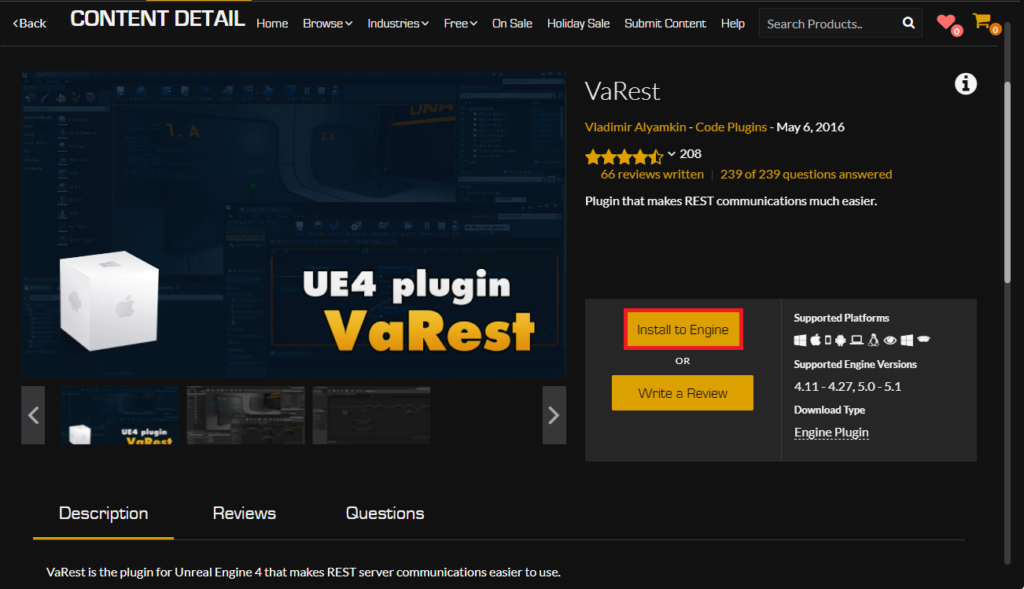
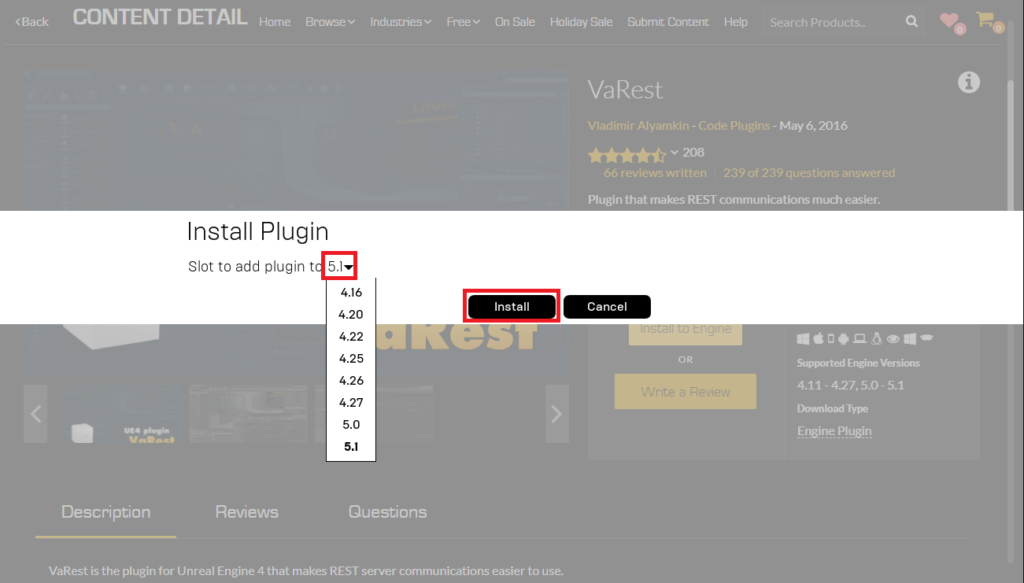
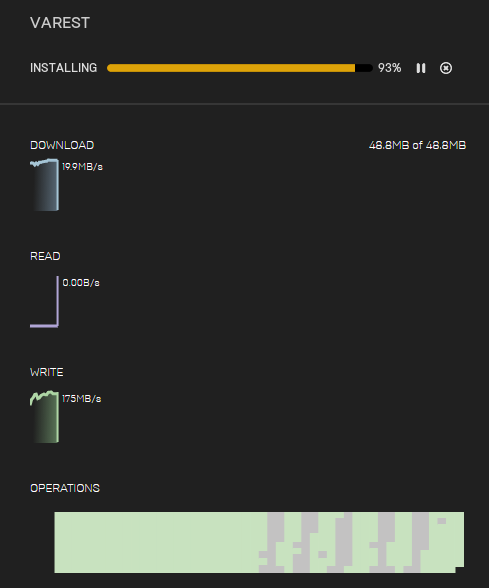
Following a successful acquisition, the next phase involves integrating the plugin directly into the Unreal Engine installation. Unlike content assets that are typically added to specific projects, code plugins are often installed directly into the engine itself, making them available to any project running on that engine version. This is achieved by clicking the "Install to Engine" button associated with the plugin on its Marketplace page. A prompt will then appear, requiring the developer to select the specific Unreal Engine version to which the plugin should be installed. This step is critical for ensuring compatibility. Plugins are often compiled against particular engine versions, and installing an incompatible version can lead to compilation errors or runtime instability. Epic Games strives to ensure plugins are updated for newer engine releases, but developers should always verify the listed compatibility before proceeding. Once the target engine version is selected, the Epic Games Launcher initiates the download and installation process. The progress of this operation is typically visible within the "Downloads" tab of the launcher, providing real-time updates on the installation status. Upon successful completion, the plugin’s files are placed in the appropriate directory within the selected Unreal Engine installation.
Activating Plugins Within a Project: The Final Step
Despite being installed to the engine, newly acquired plugins are not automatically active within individual Unreal Engine projects. This design choice is deliberate and serves multiple practical purposes: it prevents projects from compiling unnecessary code, thereby minimizing executable size and compilation times, and allows developers to enable only the functionalities relevant to their current project. The final step involves explicitly enabling the plugin within the target Unreal Engine project.
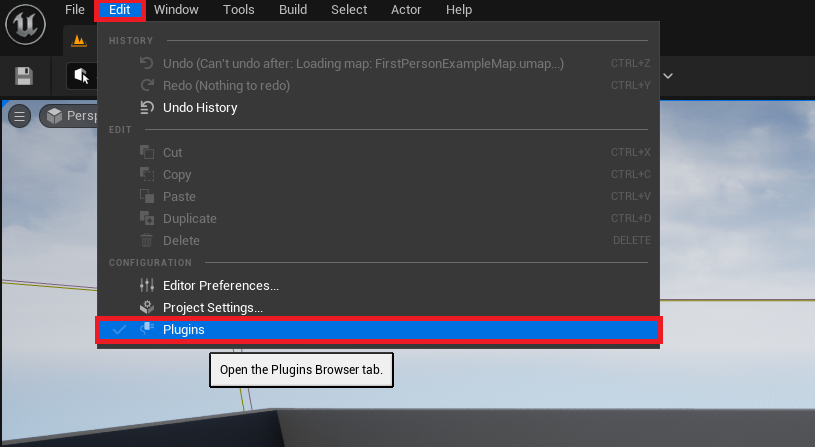
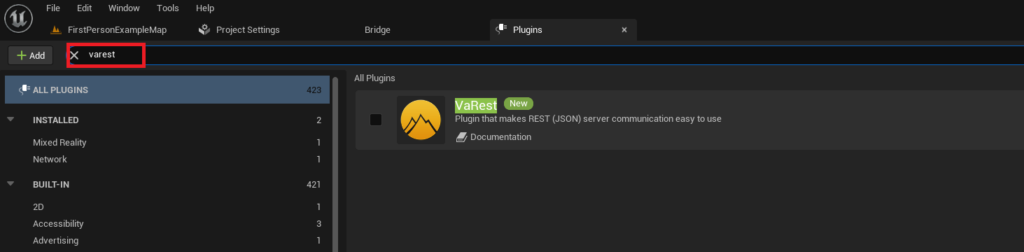
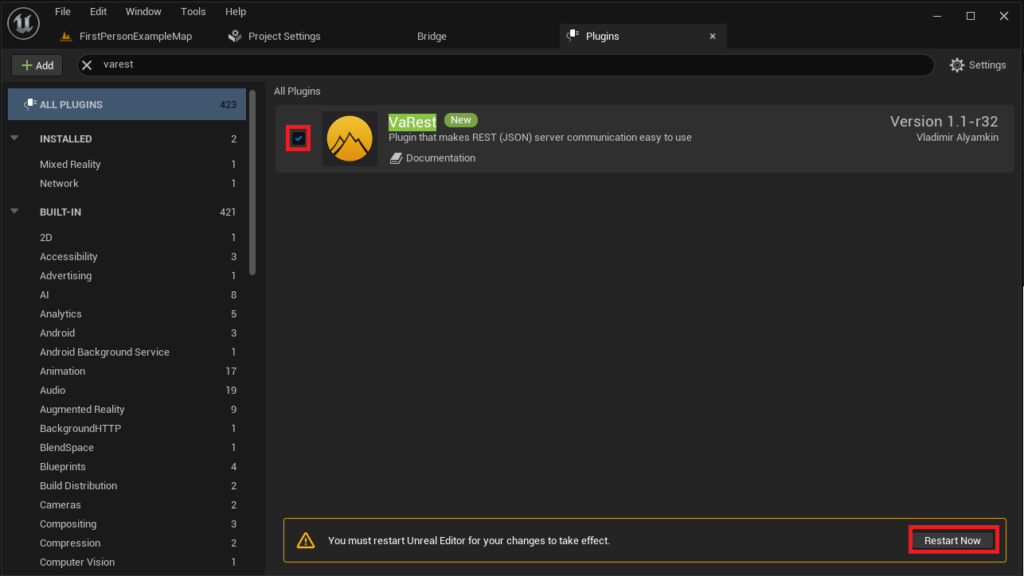
To initiate this, developers must open their Unreal Engine project. Within the editor, navigate to the main menu, select "Edit," and then choose "Plugins." This action opens the "Plugins" browser, a comprehensive interface for managing all installed and available plugins. The browser features a search bar, allowing developers to quickly locate the newly installed plugin by typing its name (e.g., "VaRest"). Once found, the plugin’s entry will display a checkbox. Clicking this checkbox enables the plugin for the current project. Upon activation, the Unreal Engine editor will typically prompt for a restart. This restart is crucial as it allows the editor to recompile the project with the newly integrated plugin’s code, ensuring all new Blueprint nodes, C++ classes, and editor functionalities are properly loaded and accessible. After the editor restarts, the VaRest plugin, for instance, would be fully functional, allowing developers to begin incorporating its networking capabilities into their Blueprints or C++ code.
Advanced Integration: Manual Plugin Installation
While the Unreal Marketplace offers a streamlined and secure method for plugin acquisition, some specialized plugins, particularly those under active community development, experimental tools, or those tailored for very specific use cases, may be distributed outside the Marketplace. These often come directly from developer forums, GitHub repositories, or independent websites. Manual installation, while offering greater flexibility, demands a heightened awareness of potential risks and technical considerations.
Understanding the Manual Approach
Manual plugin installation involves directly placing the plugin’s files into a designated directory within an Unreal Engine project. This method is common for community-driven projects, open-source contributions, or for developers who prefer direct control over their plugin dependencies. An excellent example of such a community contribution is Rama’s Victory BP Plugin, a widely recognized and celebrated collection of diverse Blueprint nodes that significantly expand the engine’s capabilities in various domains, from utility functions to complex gameplay mechanics. This plugin has been a staple in many Unreal Engine projects for years, primarily distributed through community forums.
Crucial Security Considerations and Best Practices
A critical distinction between Marketplace and manual installations lies in the vetting process. Marketplace plugins undergo a review by Epic Games, offering a layer of assurance regarding stability and security. Conversely, manually downloaded plugins bypass this official review. Therefore, developers must exercise extreme caution when sourcing plugins from external websites or repositories. The potential risks include malware, incompatible code that could crash projects, or even malicious scripts. It is imperative to download Unreal Engine plugins only from trusted sources with established reputations within the developer community. Verifying the plugin’s compatibility with the specific version of Unreal Engine 5 installed is equally vital. Incompatible plugins can lead to compilation errors, runtime crashes, or unexpected behavior within the editor. CouchLearn, and indeed the broader development community, unequivocally advises against downloading unknown files from untrusted origins, as the repercussions can range from project corruption to system compromise. Developers should always back up their projects before attempting to install any manually sourced plugin.
The Directory Structure: Creating the ‘Plugins’ Folder
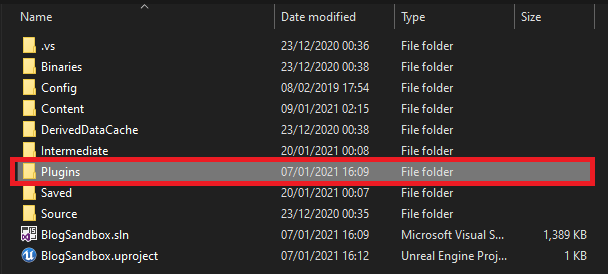
For manual installation, the plugin files are typically placed within a specific folder structure relative to the Unreal Engine project. Each Unreal Engine project resides within its own directory, which contains core project files such as the .uproject file, Content folder, Source folder (for C++ projects), and others. To install a plugin manually, a dedicated "Plugins" folder must exist within the project’s root directory. If this folder is not present, the first step is to simply create a new folder named "Plugins" at the same level as the .uproject file. This folder serves as the container for all manually integrated plugins, keeping them organized and distinct from engine-level installations.
Transferring Plugin Files
Once the "Plugins" folder is established, the next step involves copying the downloaded plugin’s files into this newly created directory. Typically, a manually distributed plugin will arrive as a compressed archive (e.g., .zip file) containing a single root folder for the plugin (e.g., "VictoryPlugin"). This root folder, along with all its contents, must be copied directly into the project’s "Plugins" folder. For instance, if downloading the Victory BP Plugin, the "VictoryPlugin" folder, containing all the plugin’s necessary files and subdirectories (such as Source, Resources, .uplugin file), would be placed inside the project’s MyProject/Plugins/ directory. It is crucial to ensure that the entire plugin folder structure is maintained during this transfer, as the engine relies on specific file paths to correctly identify and load the plugin. Any corruption or misplacement of files within the plugin’s directory can prevent it from being recognized or functioning correctly.
Enabling Manually Installed Plugins
Similar to Marketplace plugins, manually installed plugins are not automatically enabled upon being placed in the project’s directory. This design principle ensures that projects remain lean and that developers retain explicit control over their active functionalities. The process for enabling a manually installed plugin mirrors that of a Marketplace plugin:
First, open the Unreal Engine 5 project in the editor. From the main menu, select "Edit," then "Plugins." This action will open the "Plugins" browser, displaying a list of all detected plugins, including those installed manually. Utilize the search bar within the "Plugins" tab to locate the specific plugin by its name (e.g., "Victory Plugin"). Once identified, a checkbox next to the plugin’s entry will be available. Clicking this checkbox activates the plugin for the current project. As with Marketplace plugins, the Unreal Engine editor will typically prompt for a restart to fully integrate the newly enabled plugin. This restart allows the engine to compile and load the plugin’s code and assets, making its new functionalities, such as the extensive array of Blueprint nodes offered by the Victory BP Plugin, immediately accessible for use within the project’s C++ code and Blueprints.
The Developer’s Toolkit: Broader Implications of Plugin Use
The robust plugin ecosystem within Unreal Engine 5 carries significant implications for individual developers, development teams, and the broader game and real-time content industries.
Accelerating Development and Innovation
Plugins are powerful accelerators. By providing pre-built solutions for common challenges (e.g., networking, UI, AI behaviors, specific rendering effects), they drastically reduce the need for developers to "reinvent the wheel." This not only saves valuable development time and resources but also allows teams to focus their efforts on unique gameplay mechanics and creative content generation. Furthermore, the specialized nature of many plugins enables innovative solutions that might be beyond the scope or expertise of an individual team. For instance, a complex physics simulation plugin or an advanced procedural generation tool can unlock entirely new gameplay possibilities or artistic styles.
Bridging Skill Gaps: Empowering Blueprint Users
The most profound impact of plugins, particularly those that expose C++ functionalities to Blueprints, is the democratization of advanced engine features. Developers who primarily work with Blueprints, and may not have extensive C++ programming experience, gain access to powerful, performant tools that would otherwise be inaccessible. This empowers a wider range of creators to develop sophisticated projects, fostering greater inclusivity and diversity within the Unreal Engine community. It allows smaller teams or solo developers to achieve results comparable to larger studios with dedicated C++ programmers, leveling the playing field to some extent.
Maintaining Project Integrity and Performance
While plugins offer immense benefits, their use also requires careful consideration of project integrity and performance. Developers must be mindful of the potential for plugin bloat, where an excessive number of plugins can increase project size, compilation times, and even runtime performance overhead. Best practices include selecting plugins judiciously, ensuring they are well-maintained and optimized, and periodically reviewing their necessity. The "enable/disable" mechanism in the Plugins browser is crucial here, allowing developers to manage active functionalities effectively. For manually installed plugins, the onus of ensuring compatibility and stability falls entirely on the developer, underscoring the importance of trusted sources and thorough testing.
The Community-Driven Future of Unreal Engine
The Unreal Engine plugin ecosystem is a testament to the power of community collaboration. From Epic Games’ strategic decision to support a marketplace and an open architecture, to the thousands of independent developers who contribute their expertise through creating and sharing plugins, this collaborative spirit ensures that Unreal Engine remains at the forefront of real-time technology. It fosters a continuous cycle of innovation, where new tools and functionalities emerge from the diverse needs and ingenuity of the global developer base, further extending the engine’s lifespan and adaptability across an ever-evolving technological landscape.
In conclusion, integrating plugins into Unreal Engine 5 is a fundamental practice for any developer looking to maximize the engine’s potential. Whether leveraging the convenience and security of the Unreal Marketplace or opting for the flexibility of manual installation, understanding these processes is key to unlocking advanced functionalities, accelerating development cycles, and fostering innovative solutions. Adherence to best practices, particularly regarding source trustworthiness and version compatibility, remains paramount to ensure project stability and a seamless development experience.
About the Author