Unreal Engine 5, Epic Games’ flagship game development platform, stands as a titan in the industry, empowering creators from independent developers to AAA studios with its groundbreaking technologies like Nanite for virtualized geometry and Lumen for dynamic global illumination. While the engine offers an extensive suite of built-in features and the highly visual Blueprint scripting system, a significant portion of its advanced functionalities remains inherently tied to C++ programming. This inherent distinction often presents a barrier for Blueprint-centric developers seeking to harness the full power of the engine. However, a vibrant and prolific developer community has risen to bridge this gap, creating and sharing a vast array of plugins that extend Unreal Engine 5’s capabilities, introducing new Blueprint nodes, specialized tools, and bespoke functionalities that significantly streamline and enhance the development workflow. This comprehensive guide outlines the two primary methodologies for integrating these essential plugins into an Unreal Engine 5 project: through the Epic Games Marketplace and via direct manual installation, alongside an analysis of their respective implications for the broader development landscape.

The integration of third-party plugins has become an indispensable aspect of modern game development within the Unreal Engine ecosystem. As projects grow in complexity and scope, developers often encounter specific technical requirements or seek to optimize workflows for tasks ranging from advanced networking and UI elements to custom physics simulations and intricate AI behaviors. The core engine, while robust, cannot anticipate every niche need. This is where plugins become critical, transforming Unreal Engine 5 from a powerful framework into an infinitely adaptable platform. They democratize access to advanced features, allowing developers without deep C++ expertise to leverage sophisticated functionalities through intuitive Blueprint interfaces. This extensibility fosters innovation, accelerates development cycles, and ultimately contributes to the diversity and quality of games and interactive experiences produced with the engine.
Navigating the Epic Games Marketplace: A Curated Gateway to Enhanced Functionality

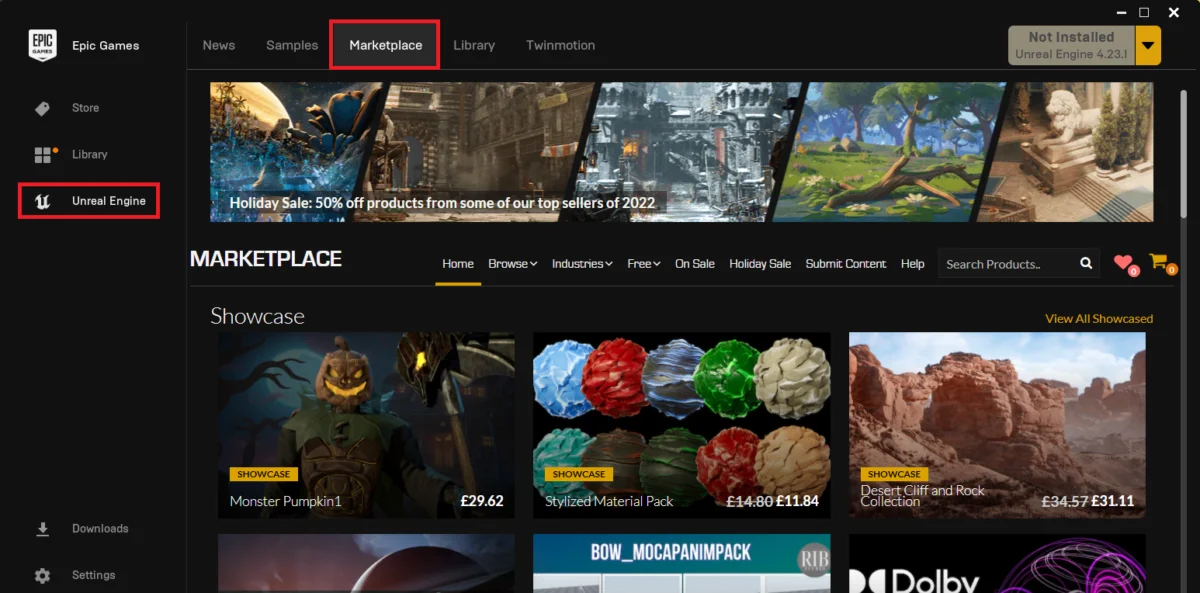
The Epic Games Marketplace serves as the official, curated repository for Unreal Engine assets, including a rapidly expanding selection of plugins. It represents Epic’s commitment to fostering a healthy developer ecosystem by providing a reliable and secure platform for content distribution. The process of acquiring and installing plugins from the Marketplace is designed for user-friendliness and reliability, ensuring compatibility and often providing dedicated support channels.
The journey begins within the Epic Games Launcher, the central hub for managing Unreal Engine installations and accessing the broader Epic ecosystem. Upon launching the application, developers are directed to the Unreal Marketplace section. This digital storefront is meticulously organized, offering a wide array of categories for various asset types. For plugins that extend core engine functionality or introduce new code-based features, the "Code Plugins" category is the primary destination. This specific filtering ensures that users can quickly locate tools directly relevant to expanding the engine’s programmatic capabilities.
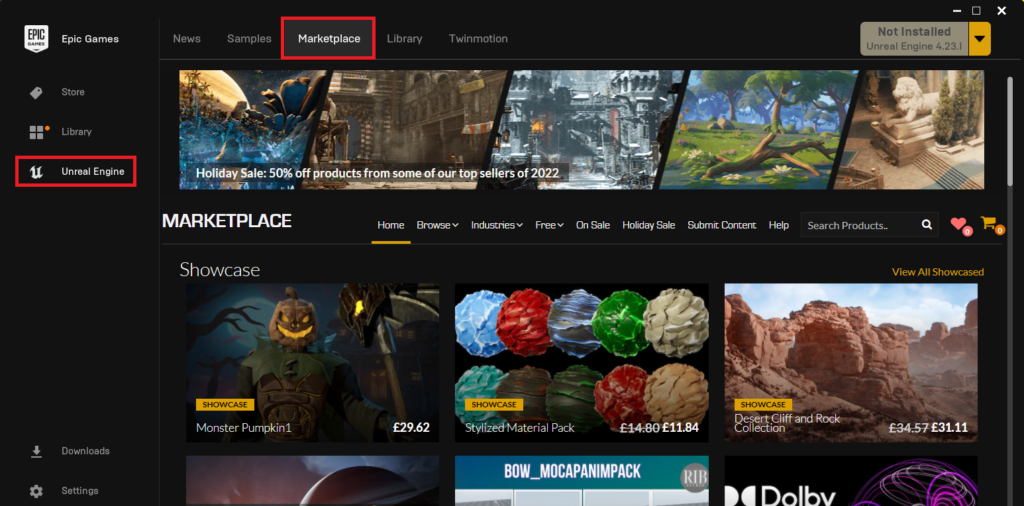
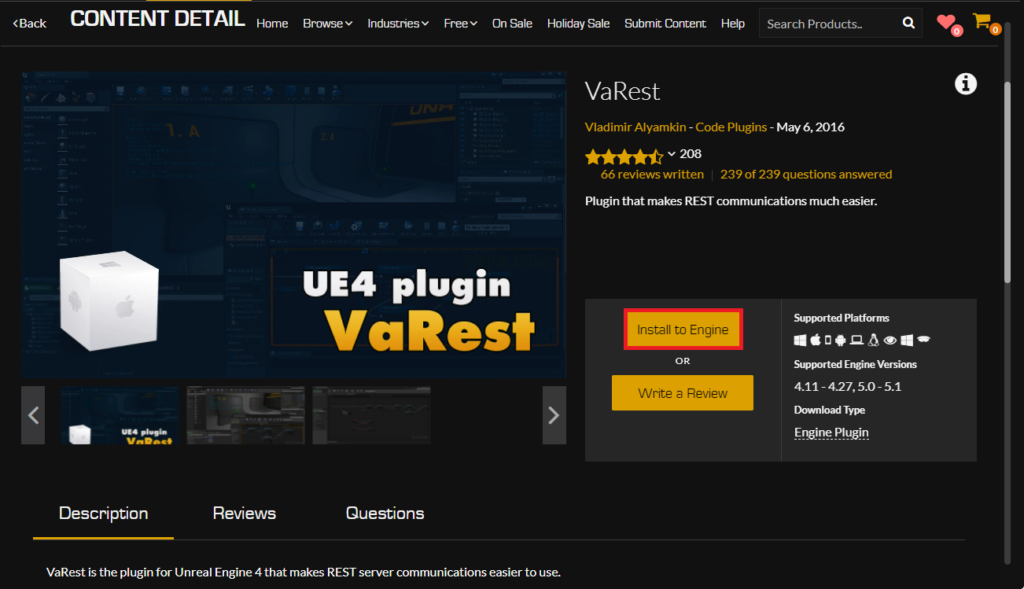
Once the "Code Plugins" section is accessed, developers can browse or search for specific functionalities they require. For instance, a developer looking to integrate advanced REST API communication might search for a tool like the "VaRest network plugin," a popular choice for handling web requests directly within Blueprints. Each plugin listing provides detailed information, including its features, compatibility with various Unreal Engine versions, user reviews, and pricing. A key aspect of the Marketplace is its seamless transaction system: if a plugin is not already owned, it can be added to the cart and purchased. Notably, even free plugins necessitate a "purchase" process, albeit at no cost, which registers them to the user’s account and enables installation. This standardized approach ensures consistent tracking and management of all acquired assets.
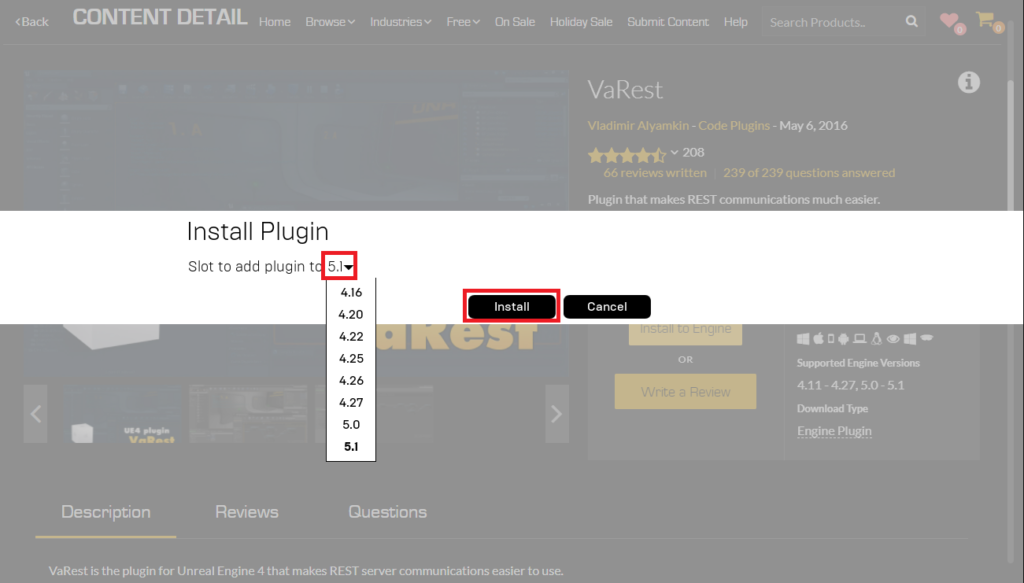
After acquiring the desired plugin, the next crucial step is installation. Unlike content assets that are typically added directly to a specific project, many code plugins are designed to be installed directly into the Unreal Engine installation itself. This allows them to be accessible across multiple projects utilizing that particular engine version. The "Install to Engine" button initiates this process. Users are then prompted to select the specific Unreal Engine 5 version they wish to integrate the plugin with. This selection is critical for maintaining compatibility and avoiding potential conflicts, as plugins are often built against particular engine versions and may not function correctly with others.

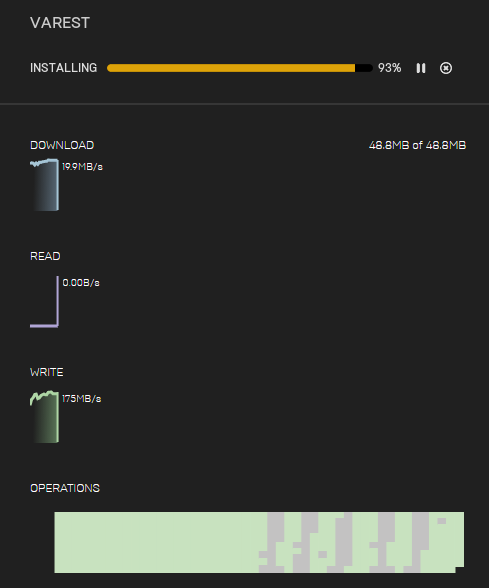
Upon selection, the Epic Games Launcher manages the download and installation in the background, typically displaying progress in the "Downloads" tab. This automated process minimizes manual file handling and reduces the risk of incorrect installation. Once the download and installation are complete, the plugin files are placed in the appropriate directory within the chosen Unreal Engine installation. While the plugin is now physically present within the engine’s directory structure, it is not yet active within any given project. This leads to the final, critical activation step.
Activating Plugins: Integrating New Features into Your Project
Regardless of whether a plugin is installed via the Marketplace or manually, it must be explicitly enabled within each Unreal Engine project that intends to use it. This design choice is intentional and serves several important purposes: it prevents projects from compiling unnecessary code, thereby reducing executable size and build times, and allows developers granular control over which functionalities are active for specific projects.
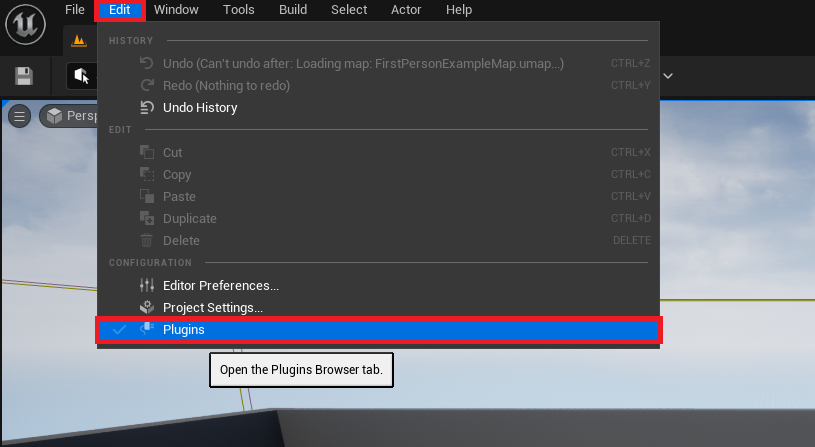
To enable a newly installed plugin, developers must navigate within the Unreal Engine editor to the "Edit" menu, and then select "Plugins." This action opens the "Plugins" window, a comprehensive interface for managing all plugins detected by the engine, whether they are built-in, Marketplace-installed, or manually added.
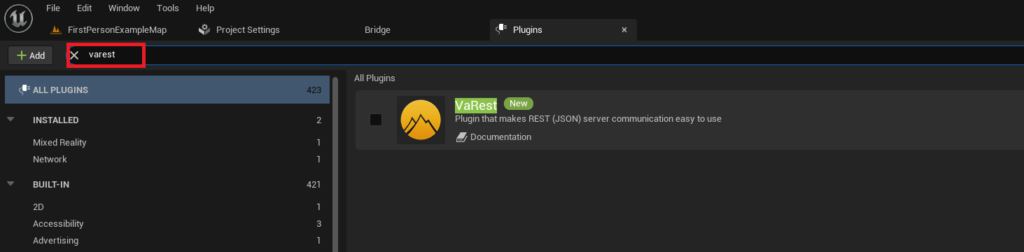
Within the "Plugins" window, a search bar is provided to quickly locate the desired plugin. Typing the plugin’s name, such as "VaRest" or "Victory Plugin," will filter the extensive list, revealing its details. Each plugin entry typically includes information about its developer, version, and a crucial checkbox indicating its enabled/disabled status. To activate the plugin for the current project, the developer simply needs to check the corresponding box.
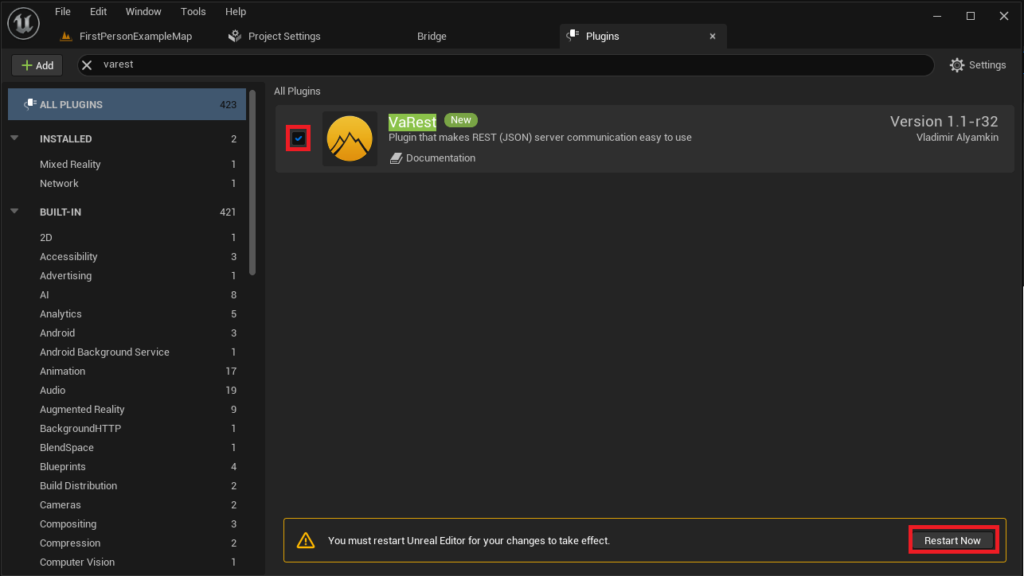
Upon enabling a plugin, the Unreal Engine editor will often prompt for a restart. This restart is not merely a convenience; it is a necessary step for the engine to recompile certain modules and properly load the new plugin’s code and assets into the project’s runtime environment. Clicking the "Restart Now" button closes and reopens the editor, ensuring that all changes are fully applied. Once the editor relaunches, the plugin’s functionalities – including new Blueprint nodes, C++ classes, and editor extensions – become available for use within that specific project. This final activation step solidifies the integration, making the plugin an active component of the development environment.
Advanced Integration: Manual Plugin Installation and Its Considerations
While the Epic Games Marketplace offers a streamlined and secure method, many valuable plugins are developed and shared directly by the community, often hosted on platforms like GitHub or dedicated developer forums. This manual installation method offers greater flexibility and access to cutting-edge or highly specialized tools that may not yet be on the Marketplace, but it also carries increased responsibilities and potential risks for the developer.
A Critical Disclaimer: It is paramount to exercise extreme caution when downloading and installing files and code from unverified online sources. Untrusted plugins can contain malicious code, introduce severe stability issues, or lead to project corruption. Developers must meticulously verify the credibility of the source, scrutinize user feedback, and ideally, review the plugin’s code if possible, especially for C++ heavy implementations. CouchLearn, for instance, explicitly disclaims responsibility for any damage resulting from unknown files, underscoring the inherent risks. Furthermore, ensuring compatibility between the downloaded plugin and the specific version of Unreal Engine 5 installed on the developer’s system is non-negotiable. An incompatible plugin can cause crashes, compilation errors, or unexpected behavior.
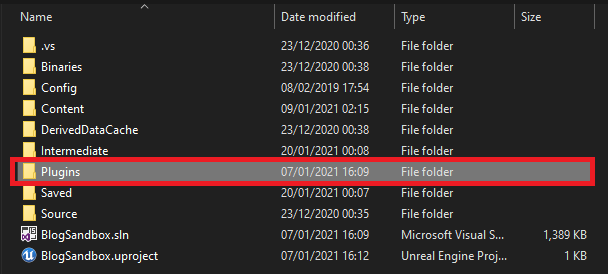
The manual installation process typically involves placing the plugin’s files directly within the project’s directory structure. The first step is to ensure that the Unreal Engine project folder contains a dedicated "Plugins" folder. If this folder does not exist (which is common for new projects or those not initially set up for local plugin development), it must be created manually at the root level of the project directory. For example, if a project is named "MyGame," the path would be MyGame/Plugins/.
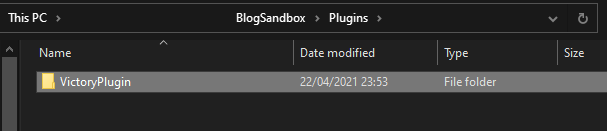
Once the "Plugins" folder is established, the downloaded plugin’s folder (e.g., "VictoryPlugin" for Rama’s widely used Victory BP Library) is copied into this newly created or existing "Plugins" directory. This means the structure would look like MyGame/Plugins/VictoryPlugin/. Inside this copied folder reside all the necessary files for the plugin to function: .uplugin descriptor files, source code (for C++ plugins), content assets, and potentially pre-compiled binaries. The integrity of this folder structure is crucial; any misplaced files can prevent the engine from recognizing or loading the plugin correctly.
After physically placing the plugin files, the enabling process mirrors that of Marketplace plugins. Within the Unreal Engine editor, navigate to "Edit" > "Plugins." Use the search bar to find the manually installed plugin by its name. Once located, check the box next to its entry to enable it. As with Marketplace plugins, the editor will likely prompt for a restart to fully integrate the new code and functionalities into the project. This restart allows the engine to recompile necessary modules and load the plugin, making its features accessible in both C++ and Blueprints.
Implications for Developers and the Broader Industry
The robust plugin ecosystem within Unreal Engine 5 has profound implications for game developers and the industry at large. For individual developers and indie studios, plugins act as force multipliers, providing access to sophisticated tools that would otherwise require significant time, resources, or specialized expertise to develop from scratch. This levels the playing field, enabling smaller teams to compete with larger studios by leveraging community-driven innovation. It fosters a culture of sharing and collaboration, where developers contribute their solutions back to the community, accelerating collective progress.
For larger studios, plugins can optimize pipeline efficiency, allowing teams to integrate specialized solutions for niche problems without diverting internal development resources. However, larger projects often require more rigorous vetting of third-party code due to concerns about stability, long-term maintenance, and intellectual property. The Marketplace’s curated nature often addresses some of these concerns, offering a layer of assurance.
The continuous evolution of plugins also highlights the dynamic interplay between engine development and community innovation. While Epic Games focuses on core engine features, the community rapidly fills gaps, introduces experimental functionalities, and adapts the engine to emerging technologies and creative demands. This symbiotic relationship ensures that Unreal Engine 5 remains at the forefront of game development technology, constantly evolving beyond its core offerings.
However, the reliance on plugins also introduces challenges. Compatibility issues between plugin versions and engine versions can lead to development roadblocks. Performance overhead from poorly optimized plugins is a constant concern. For manually installed plugins, security vulnerabilities and the potential for abandoned or unsupported projects pose significant risks. Therefore, developers must cultivate an informed approach to plugin selection, prioritizing well-maintained, reputable solutions, and understanding the trade-offs involved.
In conclusion, plugins are not merely optional additions but fundamental extensions that unlock the full potential of Unreal Engine 5. Whether through the streamlined and secure Epic Games Marketplace or the more flexible yet riskier manual installation method, the ability to integrate external functionalities is crucial for modern game development. By understanding the processes, exercising due diligence, and embracing the collaborative spirit of the Unreal Engine community, developers can leverage these powerful tools to create increasingly ambitious, innovative, and captivating interactive experiences, pushing the boundaries of what is possible with this formidable engine.
About the Author