Unreal Engine 5, a leading platform in interactive entertainment and various industrial applications, offers robust core functionalities that are continually enhanced through its vibrant developer community and a sophisticated plugin ecosystem. While many of the engine’s advanced features are intrinsically tied to C++ programming, the strategic integration of plugins significantly broadens the capabilities accessible to developers working primarily with Blueprints, Unreal Engine’s visual scripting system. This guide delves into the two primary methods of installing plugins: via the official Unreal Marketplace and through advanced manual installation, providing essential context, procedural details, and critical considerations for developers aiming to maximize their projects’ potential.
The Indispensable Role of Plugins in Unreal Engine 5 Development
Unreal Engine 5 stands as a testament to powerful, extensible game development. Its architecture, while incredibly robust, naturally prioritizes performance and deep system control through C++. This often means that certain low-level optimizations, intricate system integrations, or highly specialized functionalities are initially available exclusively to C++ developers. However, the engine’s design philosophy embraces extensibility, allowing for the creation of plugins that bridge this gap, democratizing access to complex features for a wider audience, particularly those who leverage Blueprints for rapid prototyping and iterative development. The ability to download and install these community-driven or commercially developed plugins injects new Blueprint nodes, expands existing toolsets, and introduces entirely new functionalities, proving indispensable for developers seeking to innovate without delving deep into C++ codebases.
The growth of Unreal Engine’s plugin ecosystem mirrors the engine’s increasing adoption across diverse industries, from gaming and film to architecture and automotive design. According to industry reports, the Unreal Engine developer base has seen consistent growth, with millions of active users worldwide. This expansive community actively contributes to a rich marketplace of assets and code plugins, transforming Unreal Engine from a powerful tool into a highly adaptable development environment. These plugins not only accelerate development cycles by offering pre-built solutions but also foster a collaborative spirit, allowing individual developers and small studios to access cutting-edge tools that might otherwise be out of reach.
Streamlined Integration: Installing Plugins via the Unreal Marketplace
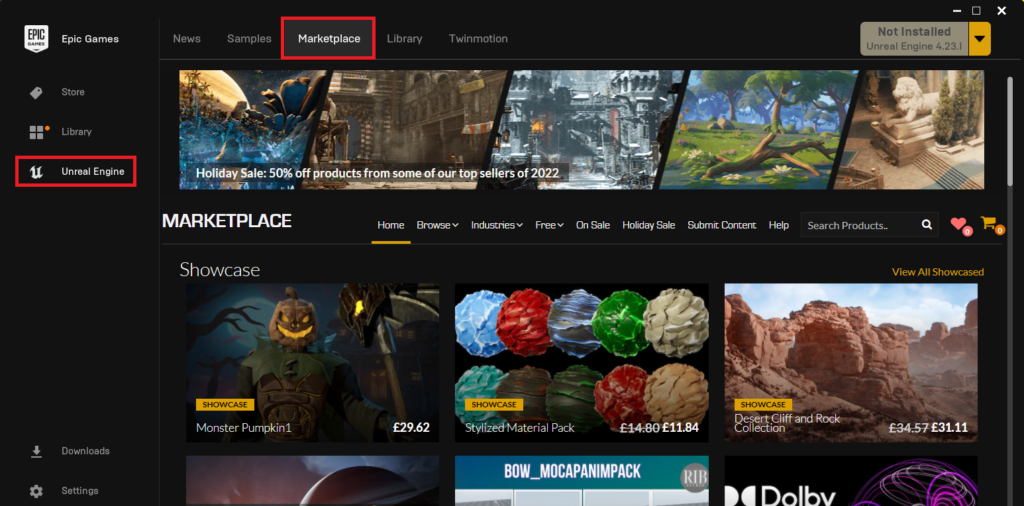
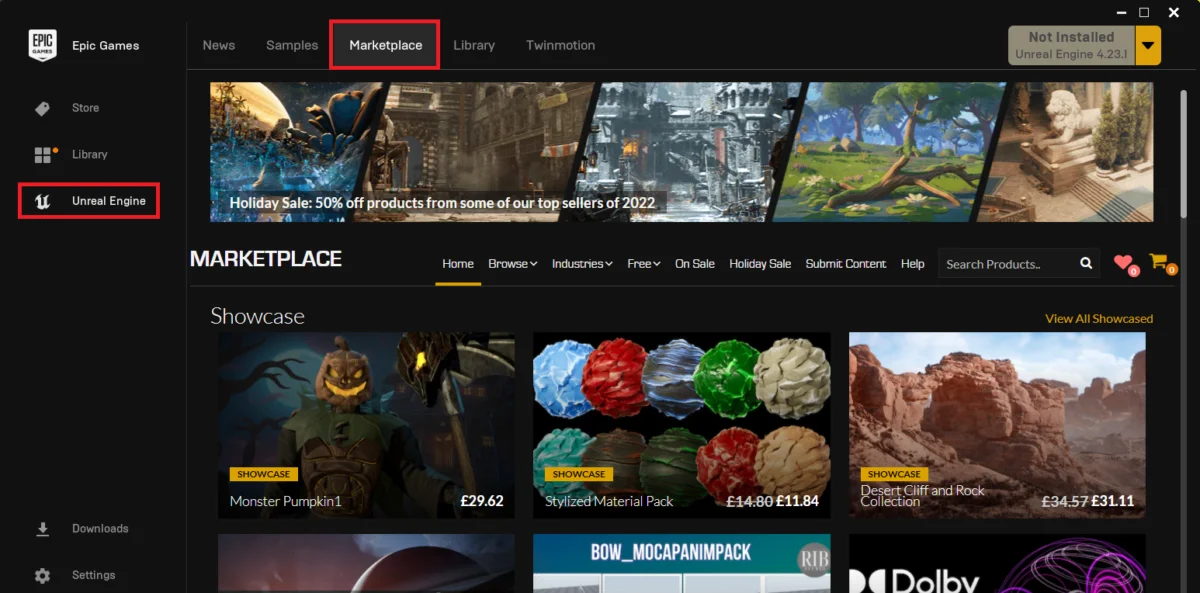
The Epic Games Launcher serves as the central hub for all Unreal Engine related activities, including accessing the Unreal Marketplace – a curated digital storefront for assets, tools, and code plugins. This method is highly recommended for its ease of use, security, and assurance of compatibility.
Step 1: Accessing the Unreal Marketplace
The journey begins by opening the Epic Games Launcher. This application, an essential gateway for Unreal Engine developers, provides quick access to installed engine versions, project management, and the integrated Marketplace. Navigating to the "Unreal Marketplace" tab within the launcher presents a vast catalog of available resources. The Marketplace interface is designed for intuitive browsing, offering various categories and search functionalities to help developers discover relevant tools.

- Context: The Unreal Marketplace, launched in 2014, has evolved into a vital component of the Unreal Engine ecosystem. It provides a platform for developers to monetize their creations and for others to acquire high-quality, pre-vetted assets and plugins, significantly reducing development time and effort. Epic Games reportedly takes a 12% cut from sales, a policy that has been lauded for its developer-friendly approach, fostering a vibrant and competitive marketplace.
Step 2: Locating Code Plugins
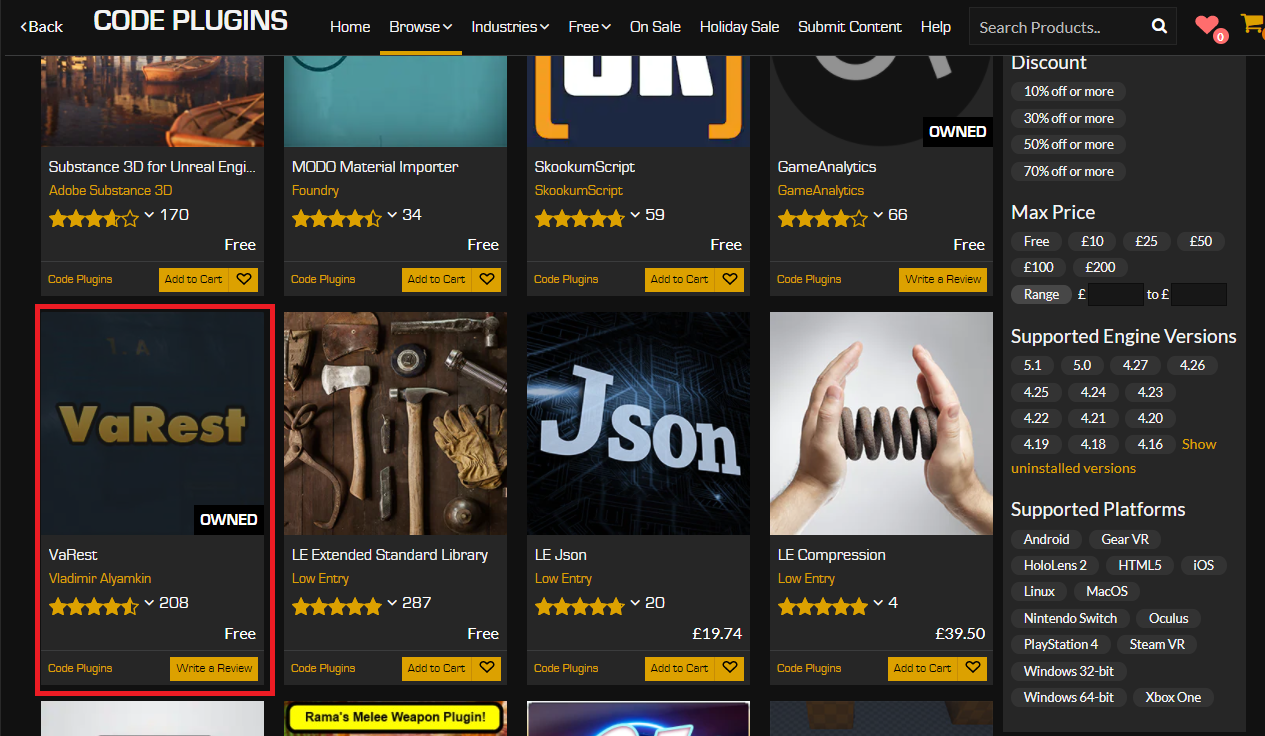
Within the Marketplace, developers will find several categories of content. To specifically target extensions that add functionality to the engine itself, rather than just art assets, navigate to the "Browse" tab and select the "Code Plugins" option. This filter narrows the search to tools that introduce new Blueprint nodes, C++ classes, editor extensions, or other programmatic enhancements.
- Data: The "Code Plugins" section is a testament to the engine’s extensibility, hosting hundreds of solutions ranging from networking libraries (like VaRest) and save-game systems to advanced AI behaviors and intricate UI frameworks. The growth in the number of code plugins available reflects the increasing demand for specialized tools that streamline complex development tasks.
Step 3: Selecting and Acquiring Your Plugin
After filtering, developers can browse through the available code plugins. For illustrative purposes, the VaRest network plugin is often cited as a popular choice, enabling robust RESTful API communication directly within Blueprints. Once a desired plugin is identified, its product page provides detailed information, including features, compatibility, reviews, and pricing.
- Procedural Detail: If the plugin is commercial, the process involves adding it to the cart and completing a purchase. Crucially, even free plugins, which are abundant and highly valuable, require a similar "purchase" process, albeit at no cost. This ensures the plugin is correctly associated with the developer’s Epic Games account, enabling proper licensing and installation. This mechanism ensures a consistent acquisition experience and proper tracking for developers and Epic Games alike.
Step 4: Installing to Engine
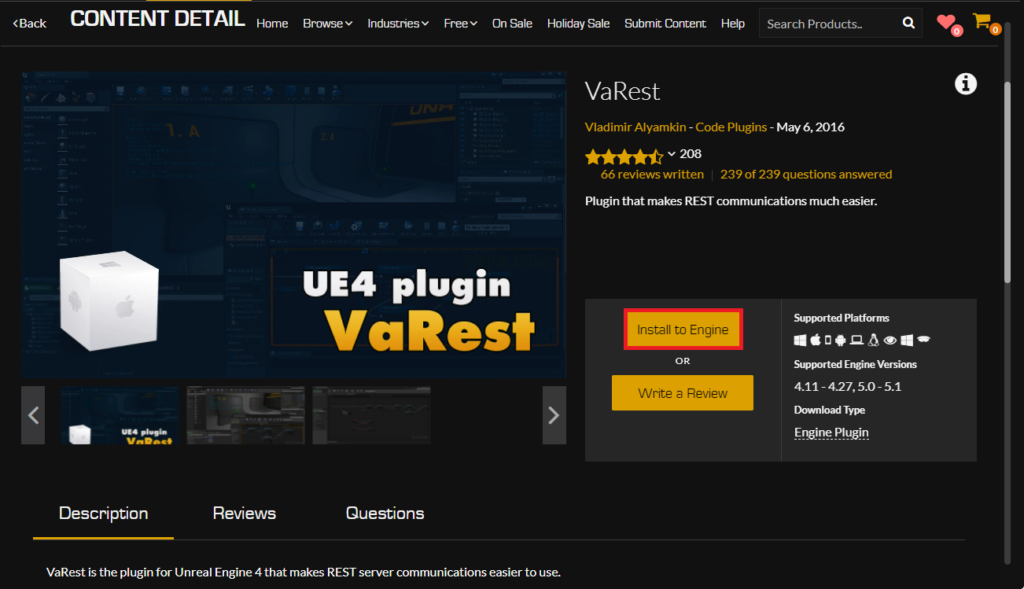
Unlike content packs that are often added directly to specific projects, many code plugins are designed to integrate with the core Unreal Engine installation itself. Therefore, after acquiring a plugin, the next action is to click the "Install to Engine" button. This initiates the process of downloading and placing the plugin files into the appropriate directory within the selected Unreal Engine version.
- Chronology: This step highlights the modular nature of Unreal Engine. Plugins installed to the engine become available to any project running on that specific engine version, offering broad utility across a developer’s portfolio. This contrasts with project-specific plugins, which are integrated directly into a single project’s directory structure.
Step 5: Choosing the Target Engine Version
A critical decision point arises here: selecting the specific Unreal Engine version to which the plugin will be installed. Developers often work with multiple engine versions concurrently, necessitating a precise choice to ensure compatibility. The launcher presents a dropdown menu listing all installed Unreal Engine versions, allowing the developer to select the appropriate one.
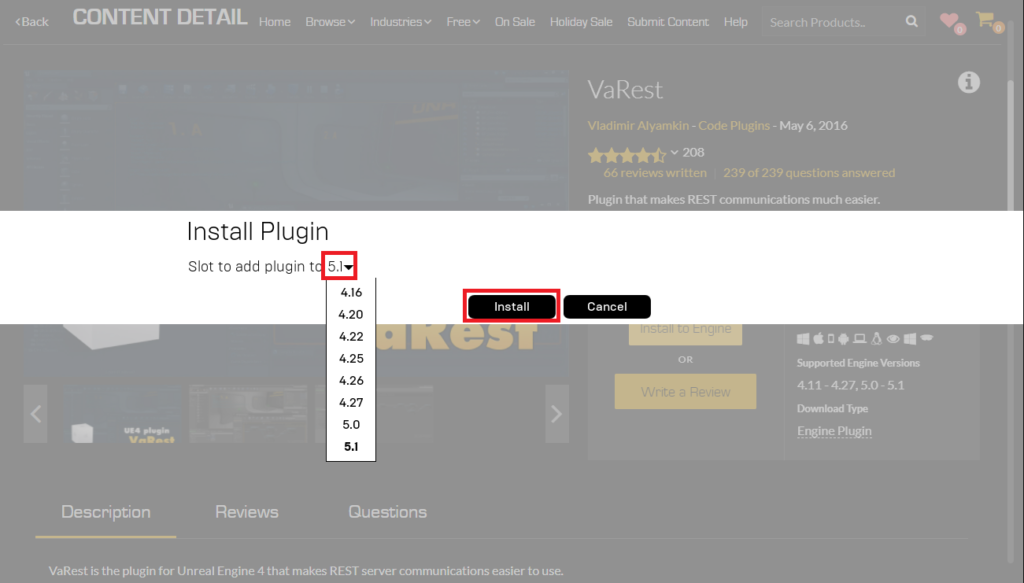
- Implication: Choosing the correct engine version is paramount. Installing a plugin designed for Unreal Engine 5.0 to a 5.3 installation, for example, could lead to compilation errors or unexpected behavior. Developers are advised to always check the plugin’s compatibility notes on its Marketplace page before proceeding.
Step 6: Monitoring Download and Finalization
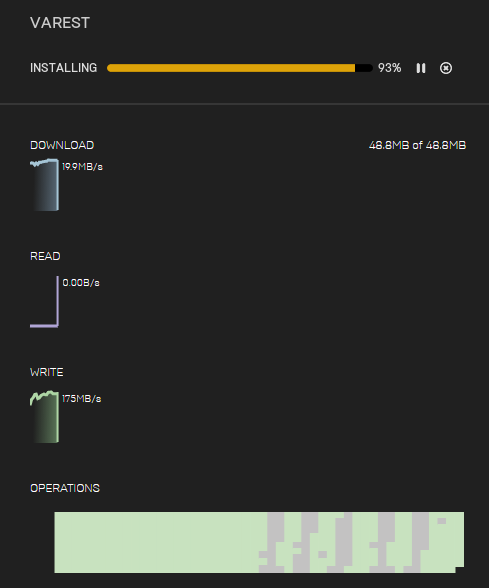
Once the engine version is selected, the plugin begins downloading. The Epic Games Launcher’s "Downloads" tab provides real-time progress updates. Upon successful completion, the plugin’s core files are now resident within the chosen Unreal Engine installation, ready for project-level activation.
Enabling the Plugin Within Your Project
Even after installation to the engine, a newly acquired plugin is not automatically active within every Unreal Engine project. This design choice is deliberate, preventing projects from compiling unnecessary code, which could increase executable size and build times.
Step 1: Accessing the Plugin Manager
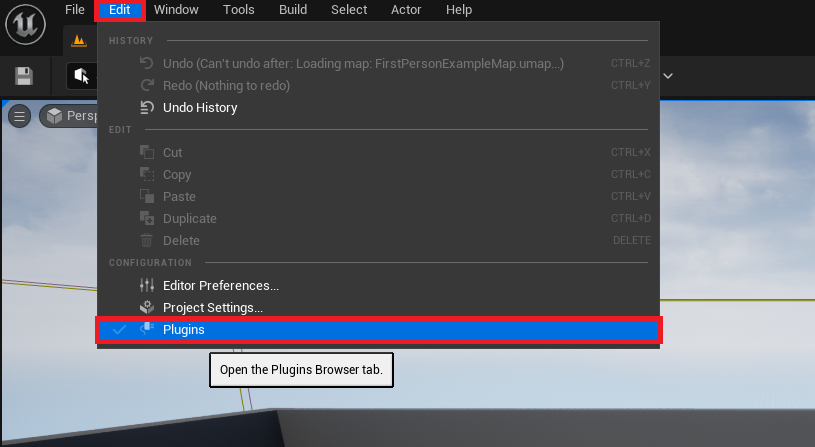
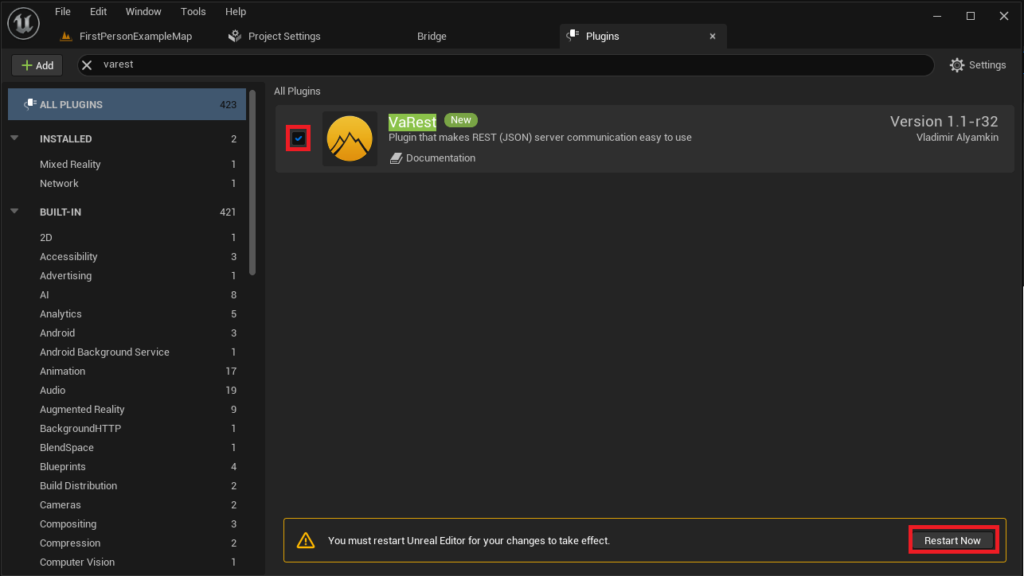
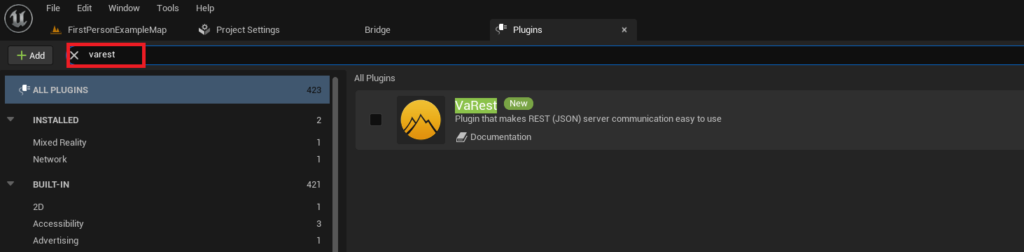
To activate the plugin for a specific project, open the Unreal Engine editor for that project. Within the editor, navigate to "Edit" in the top menu bar, then select "Plugins." This opens the Plugin Manager, a comprehensive interface for managing all plugins relevant to the current project.
Step 2: Locating the Installed Plugin
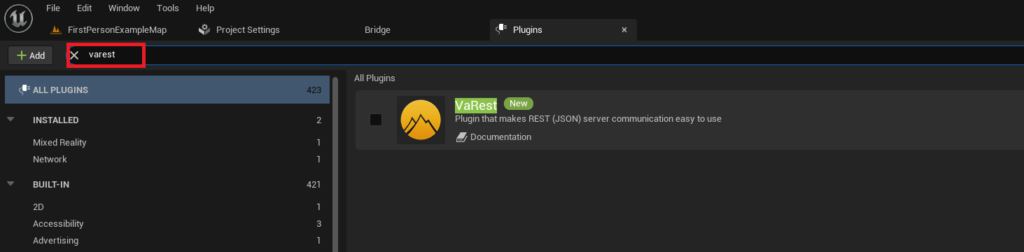
The Plugin Manager displays a list of all detected plugins. To quickly find the newly installed plugin, use the search box provided. Typing the plugin’s name (e.g., "VaRest") will filter the list, revealing its details.
Step 3: Activating and Restarting
The final step involves enabling the plugin. Locate the checkbox next to the plugin’s entry and click it to activate. Unreal Engine will then prompt for a restart of the editor. This restart is crucial as it allows the engine to recompile necessary modules and integrate the plugin’s functionalities into the project’s runtime environment and editor tools. Upon restarting, the plugin’s new Blueprint nodes, C++ classes, and editor extensions will become available for use.
- Statement (Inferred Epic Games): "Our modular plugin system, coupled with the curated Marketplace, ensures developers have access to powerful tools while maintaining control over their project’s footprint and performance," an Epic Games representative might state, emphasizing the balance between extensibility and efficiency.
Advanced Method: Manually Installing Plugins
While the Unreal Marketplace offers a secure and streamlined experience, some scenarios necessitate manual plugin installation. This typically applies to open-source plugins, custom-developed internal tools, or plugins obtained directly from a developer’s website or GitHub repository. This method requires a deeper understanding of Unreal Engine’s directory structure and comes with inherent risks.
Disclaimer: Proceed with Caution
Manual installation demands vigilance. Downloading untrusted files or code from unverified sources poses significant security risks, including malware or code that could destabilize your project or even your system. It is imperative to:
- Only download plugins from trusted sources: Reputable developer forums, official GitHub repositories from known contributors, or direct communication with the plugin author are safer options.
- Verify compatibility: Ensure the plugin explicitly states compatibility with your specific Unreal Engine 5 version. Mismatched versions are a common source of compilation errors and crashes.
- Backup your project: Before installing any manual plugin, create a backup of your Unreal Engine project. This safeguards your work in case the installation process introduces unforeseen issues.
- Statement (Inferred Developer Community): "While manual installs offer immense flexibility for bespoke solutions, the onus is on the developer to ensure the integrity and compatibility of the code. Always prioritize security and project stability," advises a seasoned Unreal Engine developer on community forums.
Step 1: Establishing the Project’s "Plugins" Folder
For manually installed plugins, the first step is to ensure your specific Unreal Engine project has a designated "Plugins" folder within its root directory. If this folder does not exist, simply create a new folder named "Plugins" at the same level as your project’s .uproject file.
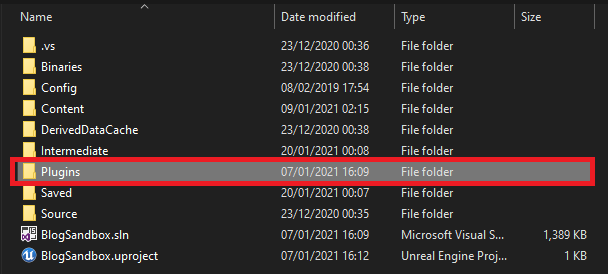
- Background: This local "Plugins" folder allows for project-specific plugin integration, meaning the plugin only affects that particular project, unlike engine-installed plugins which are available globally to an engine version. This is ideal for bespoke tools or when a plugin is not universally needed.
Step 2: Copying the Plugin Files
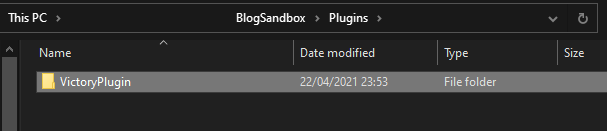
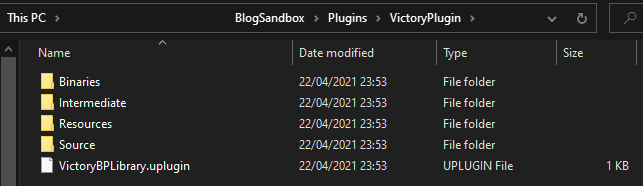
Once the "Plugins" folder is ready, copy the entire downloaded plugin’s folder into this newly created or existing "Plugins" directory. For instance, if installing Rama’s Victory BP plugin, the "VictoryPlugin" folder (containing all its subdirectories and files) would be placed inside your project’s "Plugins" folder.
- Detail: The plugin folder should contain all necessary files, including the
.uplugindescriptor file, source code (if applicable), and binary files. The.upluginfile is crucial as it informs the Unreal Engine editor about the plugin’s structure and requirements.
Step 3: Enabling the Plugin Within Your Project (Identical to Marketplace Method)
The process of enabling a manually installed plugin is identical to that of a Marketplace-installed one.
- Open your Unreal Engine project.
- Go to "Edit" > "Plugins."
- Use the search bar to find the plugin by name.
- Check the box next to its entry.
- Click "Restart Now" when prompted.
Upon editor restart, the manually integrated plugin will be active and its functionalities accessible within your project.
The Broader Impact and Implications of Unreal Engine Plugins
The robust plugin ecosystem within Unreal Engine 5 has profound implications for the entire development landscape:
- Accelerated Development and Efficiency: Plugins act as force multipliers, allowing developers to integrate complex functionalities (e.g., advanced UI, networking, analytics, physics simulations) without writing them from scratch. This significantly reduces development time and costs, enabling faster iteration and time-to-market.
- Democratization of Advanced Features: By extending C++ capabilities to Blueprints, plugins make sophisticated engine features accessible to a broader range of developers, including technical designers and artists, fostering cross-disciplinary collaboration. This lowers the barrier to entry for complex game mechanics and interactive experiences.
- Fostering Innovation and Specialization: The ability to create and share plugins encourages a culture of innovation. Developers can specialize in specific technical areas, build highly optimized solutions, and then share or sell these tools, further enriching the ecosystem. This also allows for niche solutions that might not be part of the core engine.
- Community Strength and Support: The active development and sharing of plugins underscore the strength of the Unreal Engine community. Forums, GitHub repositories, and the Marketplace serve as vital platforms for knowledge exchange, support, and collaborative problem-solving.
- Security and Compatibility Challenges: While highly beneficial, the plugin ecosystem is not without challenges. Maintaining compatibility across multiple engine versions can be a significant hurdle for plugin developers. Furthermore, the security risks associated with untrusted manual installations remain a constant concern, necessitating diligent verification practices from developers.
- Future Trends: As Unreal Engine continues to evolve, especially with advancements in areas like virtual production, AI, and metaverse applications, the role of specialized plugins is expected to grow. The engine’s modular design ensures it can adapt and expand to meet the demands of future technological paradigms, with plugins playing a central role in this extensibility.
Conclusion
Unreal Engine 5’s power lies not just in its core rendering and simulation capabilities but equally in its extraordinary extensibility through plugins. Whether acquired through the secure and convenient Unreal Marketplace or integrated manually for bespoke solutions, these invaluable tools empower developers to push the boundaries of their projects, offering new features, streamlining workflows, and enhancing the overall creative process. Understanding the proper installation and activation procedures for both methods is fundamental for any Unreal Engine developer aiming to harness the full potential of this dynamic platform and contribute to its ever-expanding universe of interactive experiences. The conscious choice between Marketplace and manual installation, coupled with a keen awareness of associated benefits and risks, defines a developer’s approach to leveraging this critical ecosystem.
About the Author