In the dynamic landscape of modern game development, balancing rapid prototyping with peak performance is a perennial challenge. Unreal Engine 5 (UE5), with its powerful visual scripting system, Blueprints, offers unparalleled accessibility and iteration speed. However, as projects scale in complexity and performance demands intensify, developers often encounter scenarios where Blueprint code, despite its convenience, begins to exhibit performance bottlenecks that cannot be resolved through further optimization within the visual scripting environment. This limitation typically arises from the inherent overhead of interpreted code and the inability to leverage certain low-level system optimizations or integrate specific C++ features directly within Blueprints.
The traditional solution of rewriting entire sections or even whole projects in C++ for maximum efficiency is often a daunting prospect, requiring a complete architectural overhaul and potentially disrupting existing Blueprint logic and asset dependencies. This extensive restructuring can introduce significant development delays and risks, especially in ongoing projects. Furthermore, certain advanced functionalities, deep engine integrations, or third-party library access crucial for sophisticated game mechanics simply do not have equivalent Blueprint nodes, necessitating a C++ intervention.
Recognizing this critical juncture in the development cycle, Unreal Engine provides a robust and elegant solution: the C++ Blueprint Function Library. This integrated feature allows developers to harness the raw speed, efficiency, and full capabilities of C++ code, seamlessly embedding it within their existing Blueprint-centric projects. By strategically offloading performance-critical or feature-dependent logic to C++ Blueprint Function Libraries, teams can achieve substantial performance improvements and unlock advanced functionalities without abandoning their existing Blueprint infrastructure or embarking on a costly, full-scale C++ conversion. This guide delves into the specifics of what a C++ Blueprint Function Library is, how to systematically create one within a UE5 project, and the practical methods for accessing and leveraging its powerful C++ functions directly within the Blueprint editor, offering a hybrid development paradigm that marries the best of both worlds.
The Genesis of Performance Bottlenecks in Game Development
Modern video games, characterized by their increasingly complex simulations, expansive worlds, intricate AI, and high-fidelity graphics, place immense demands on underlying engine architectures. While visual scripting tools like Unreal Engine’s Blueprints democratized game development, allowing designers and technical artists to implement sophisticated logic without deep programming knowledge, they come with inherent performance trade-offs. Blueprints, at their core, are interpreted bytecode that run on a virtual machine layer, which introduces a certain level of overhead compared to natively compiled C++ code. For tasks involving heavy mathematical computations, frequent data manipulation, large array iterations, or real-time physics calculations, this overhead can accumulate rapidly, manifesting as frame rate drops, stuttering, or general unresponsiveness.
Industry benchmarks and anecdotal evidence from countless development studios consistently highlight that CPU-bound operations—those that heavily rely on processor cycles rather than GPU rendering—can see performance gains ranging from 2x to 5x or even more when refactored from Blueprints into optimized C++. For instance, a complex pathfinding algorithm or an intricate inventory management system that iterates over thousands of items can become a significant performance drain in Blueprint, whereas its C++ counterpart, leveraging direct memory access and compile-time optimizations, executes with considerably greater efficiency. This difference becomes particularly pronounced in scenarios where operations are called thousands of times per second, such as in character movement updates, AI decision-making loops, or particle system calculations.
Understanding the C++ Blueprint Function Library
At its core, a C++ Blueprint Function Library is a specialized Unreal Engine class designed to expose static C++ functions directly to the Blueprint visual scripting environment. Unlike regular C++ classes that typically require an instantiated object to call their methods, functions within a Blueprint Function Library are static, meaning they can be invoked globally without needing an object reference. This characteristic makes them ideal for utility functions, helper methods, or performance-critical calculations that need to be accessible from any Blueprint graph.
The significance of this architectural choice cannot be overstated. It effectively creates a bridge, allowing performance-sensitive Blueprint nodes to be replaced with their highly optimized C++ equivalents. This means that developers can maintain the rapid iteration and designer-friendly workflow of Blueprints for most of their game logic, while selectively injecting C++ power where it matters most. This hybrid approach allows for a highly efficient division of labor: designers and technical artists can continue to build and test gameplay systems visually, while programmers can focus on optimizing critical bottlenecks and extending engine functionality through C++.
Moreover, a C++ Blueprint Function Library opens the door to C++ features that are otherwise unavailable in Blueprints. This includes direct access to low-level engine APIs, integration with external libraries (e.g., for complex data compression, cryptographic operations, or advanced networking protocols), and the ability to implement highly specialized data structures or algorithms that would be cumbersome or impossible to replicate efficiently in Blueprints.
Prerequisites for Integration: Establishing the Development Environment
Before embarking on the creation of a C++ Blueprint Function Library, developers must ensure their Unreal Engine 5 development environment is correctly configured. A foundational understanding of C++ programming within the Unreal Engine context is essential. This includes familiarity with Unreal’s specific C++ syntax, memory management (e.g., UObject lifecycle, garbage collection), and macro usage (UCLASS, UFUNCTION, UPROPERTY).
Crucially, a suitable Integrated Development Environment (IDE) capable of compiling C++ code for Unreal Engine 5 must be installed. The primary choices vary depending on the operating system:
- Windows: Visual Studio (typically 2019 or 2022, with the "Game development with C++" workload installed).
- macOS: Xcode (downloadable from the App Store).
- Linux: Visual Studio Code with the appropriate C++ extensions, or other compatible IDEs/compilers.
If an IDE is not detected upon attempting to create a C++ class, Unreal Engine will proactively prompt the user to install the necessary software, guiding them through the initial setup process. For the purpose of this guide’s practical demonstration, a macOS environment utilizing Xcode was employed.
Step-by-Step Guide: Creating a C++ Blueprint Function Library
The process of integrating C++ functionality into Blueprints begins with creating the dedicated function library. This systematic approach ensures proper project setup and seamless integration.
Verifying Project Type: C++ Enabled vs. Blueprint Only
The initial step involves determining whether the current Unreal Engine project is already configured for C++ development or if it’s a Blueprint-only project. This is a straightforward check:
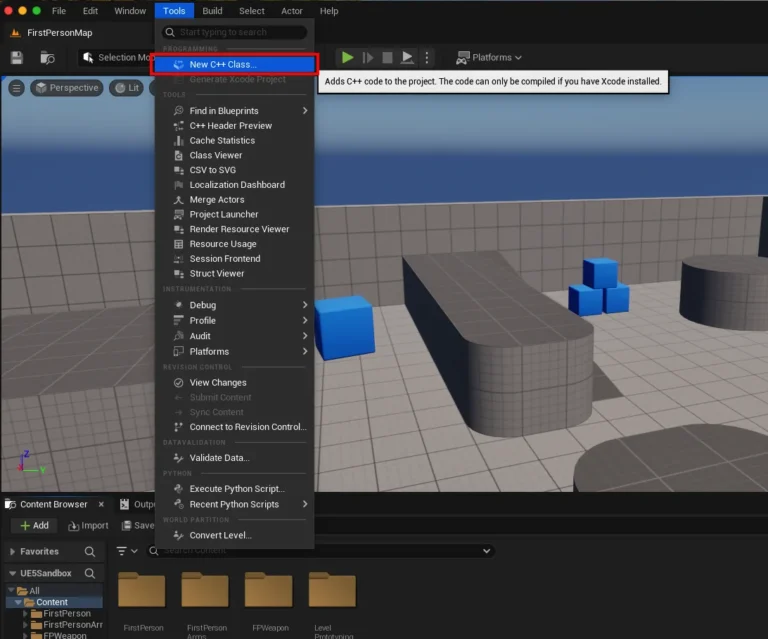
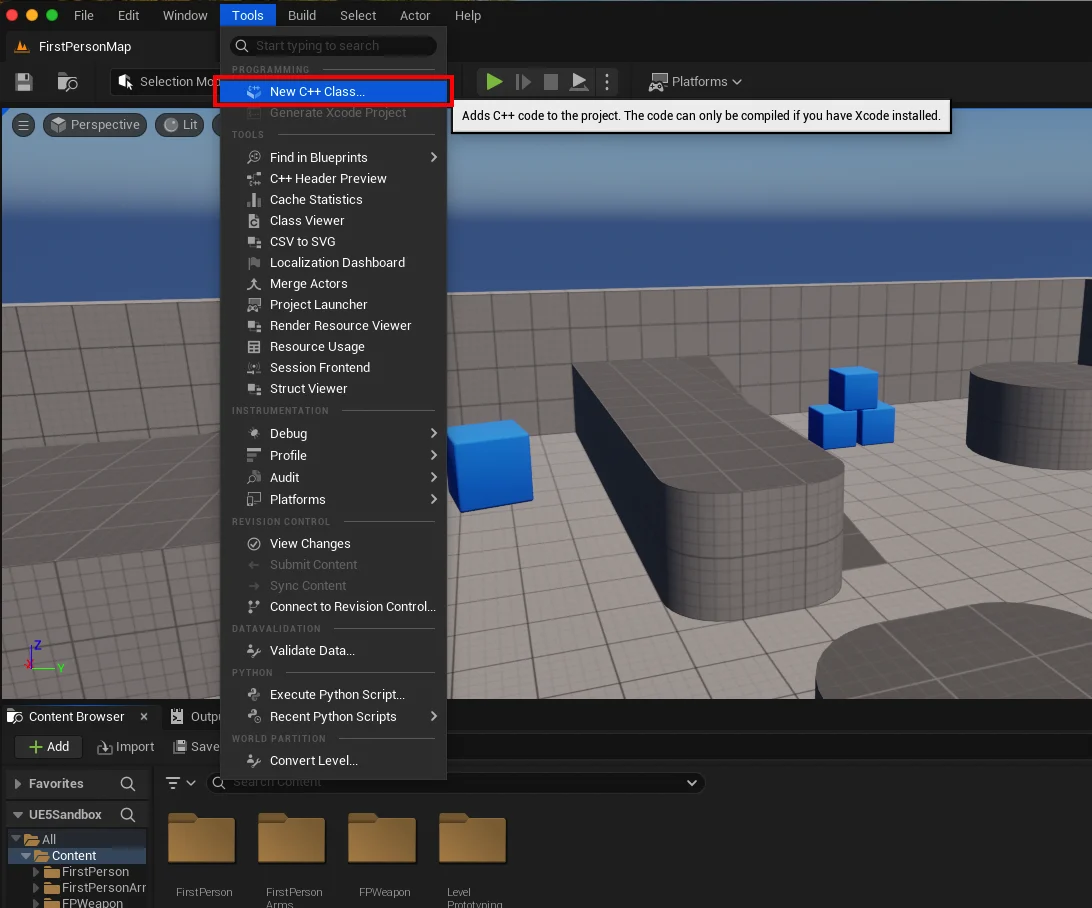
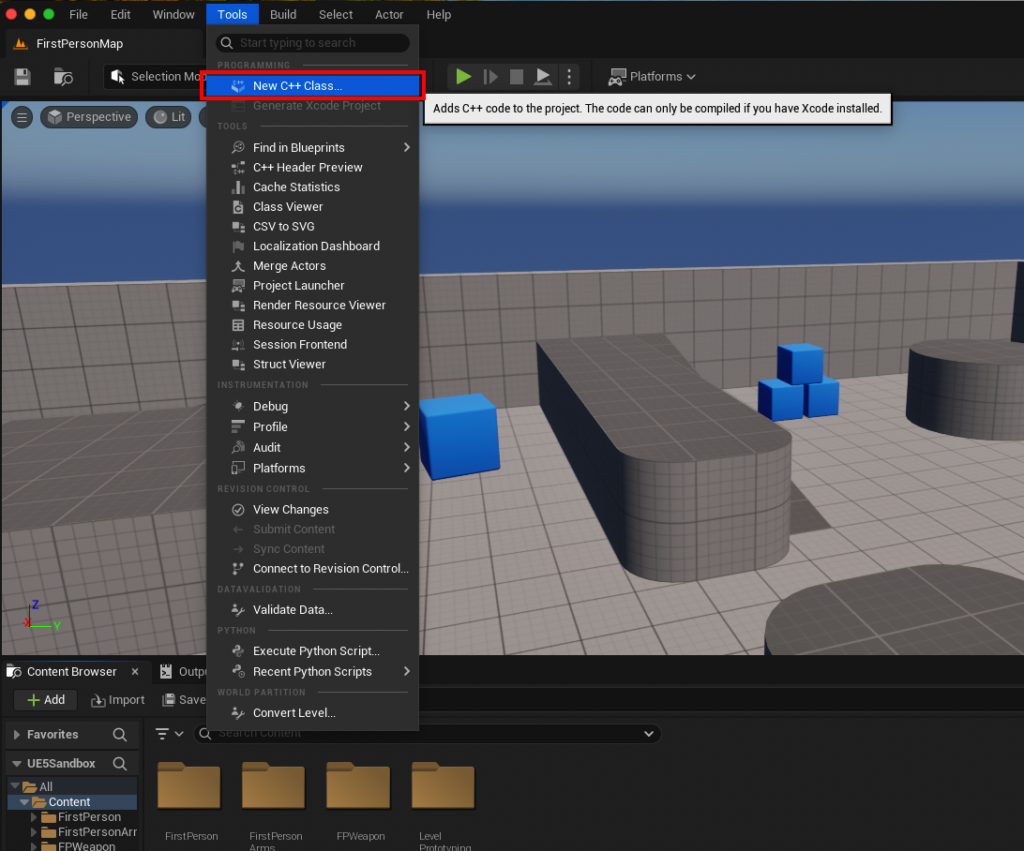
- Navigate to the "Tools" dropdown menu located at the top of the Unreal Engine editor interface.
- Click on the "New C++ Class…" option.
If the project is Blueprint-only, this action will prompt the engine to configure C++ support and, if necessary, instruct the user to install a suitable IDE. Once the environment is ready, the "New C++ Class" dialog box will appear.
Selecting the Parent Class: The Blueprint Function Library Foundation
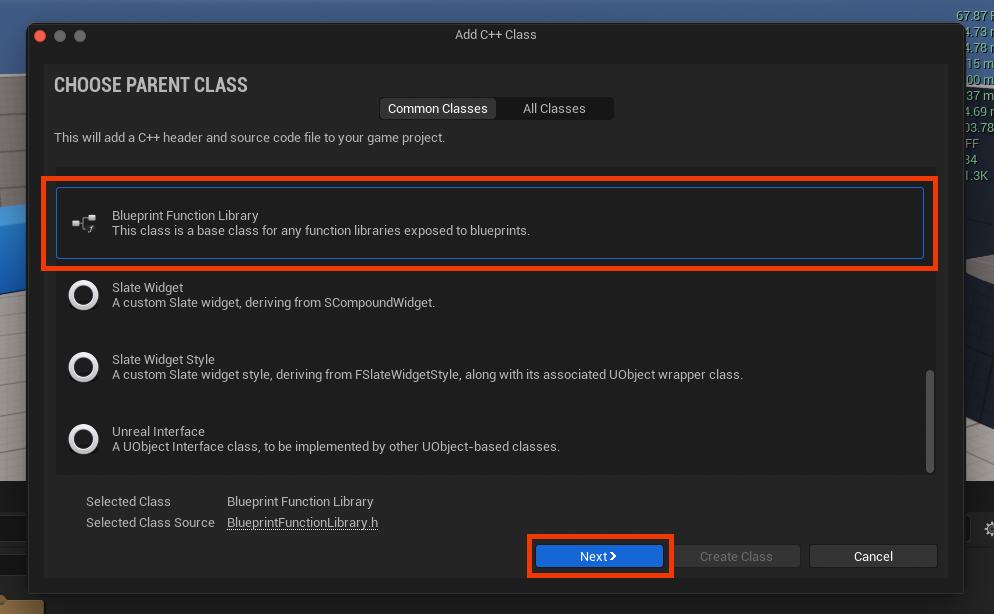
Within the "New C++ Class" dialog, developers are presented with a selection of parent classes. This choice dictates the fundamental behavior and capabilities of the new C++ class. To create a Blueprint Function Library:
- Scroll through the list of available parent classes.
- Select "Blueprint Function Library" (typically found near the bottom of the common classes).
- Click the blue "Next" button to proceed.
This selection ensures that the newly generated C++ class inherits the necessary UCLASS specifiers and boilerplate code required to expose static functions to Blueprints.
Naming the Library: Adhering to Conventions
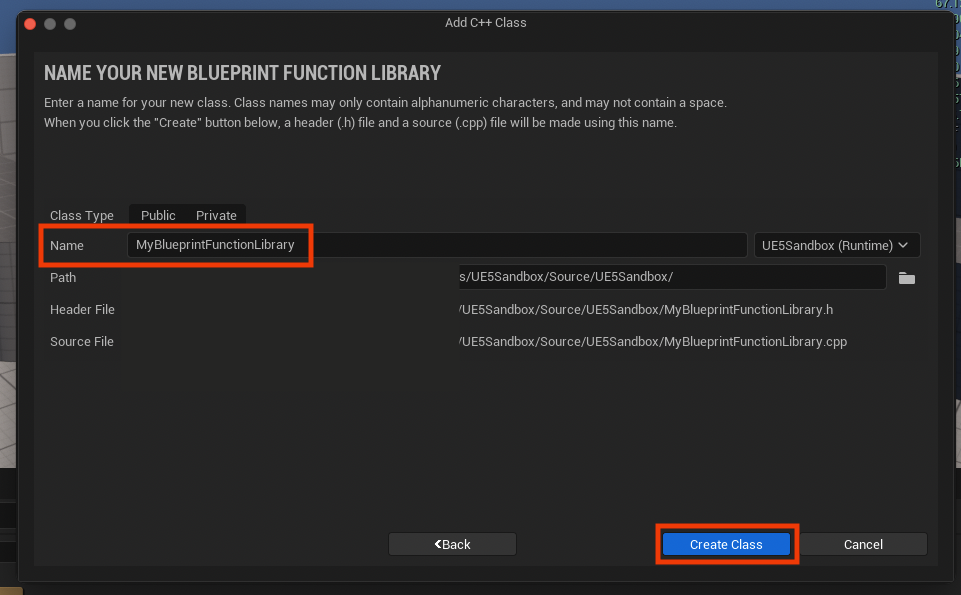
The next critical step is to assign a descriptive name to the new Blueprint Function Library class. While the system provides a default name (e.g., "MyBlueprintFunctionLibrary"), it is highly recommended to choose a clear, concise, and contextually relevant name that adheres to Unreal Engine’s naming conventions. This typically involves using "PascalCase" (capitalizing the first letter of each word) and potentially a prefix to denote its purpose or module (e.g., UGameUtilityLibrary, UMyProjectMathFunctions). For the demonstration, "MyBlueprintFunctionLibrary" was retained for simplicity.
- Enter the chosen name in the designated field.
- Click the "Create Class" button.
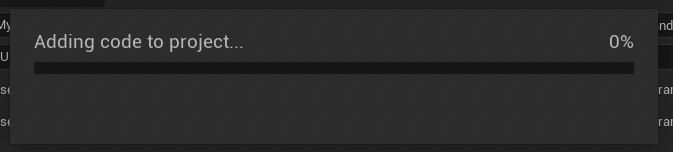
Upon creation, Unreal Engine will compile the new C++ files into the project. This compilation process can take a few moments, during which the editor might display a progress bar or become temporarily unresponsive. It is crucial to allow this compilation to complete fully before attempting any further modifications or interactions with the project. This ensures that the newly generated C++ class and its associated files are correctly integrated into the project’s build system.
Exploring the IDE: The C++ Files
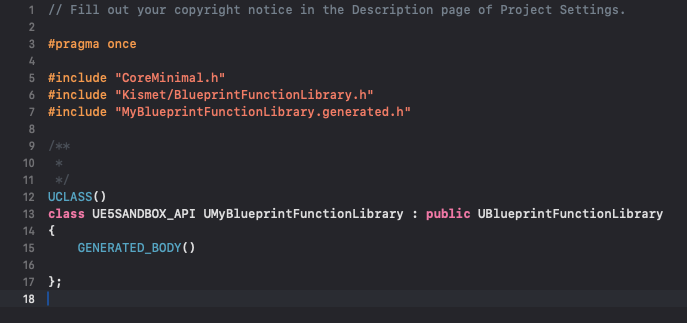
Once the compilation is complete, opening the chosen IDE (e.g., Visual Studio, Xcode) will reveal the newly generated C++ files. For a class named "MyBlueprintFunctionLibrary," two primary files will be created within the project’s "Source" directory, typically under a folder matching the project name:
MyBlueprintFunctionLibrary.h: This is the header file, containing the class declaration, includes, and function prototypes.MyBlueprintFunctionLibrary.cpp: This is the source file, where the actual implementation of the C++ functions will reside.
These files form the foundation of the C++ Blueprint Function Library, ready for custom functionality to be added.

Implementing Core Functionality: Adding C++ Functions
The heart of the C++ Blueprint Function Library lies in its functions. These are the C++ methods that will be exposed to and callable from Blueprints.
Header File Configuration (.h): Declarations and Macros
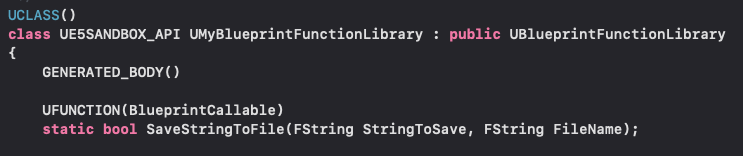
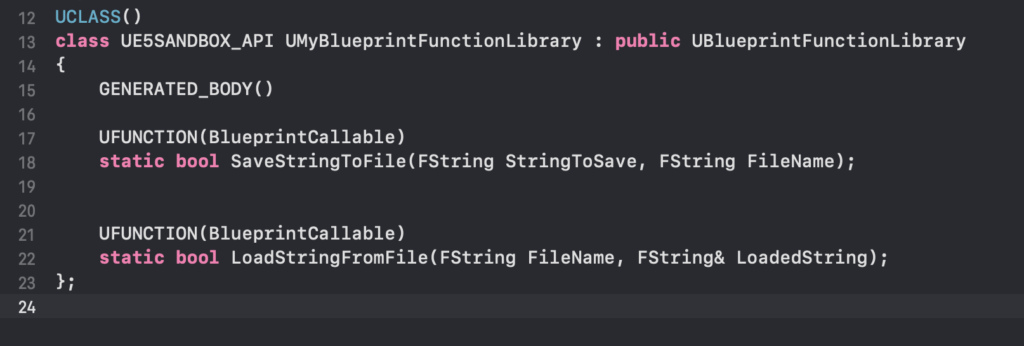
The .h header file is where functions are declared, making them known to the compiler and, critically, to Unreal Engine’s reflection system. The engine automatically generates a basic template, including necessary Unreal Engine headers and the correct class inheritance (UBlueprintFunctionLibrary).
To expose a function to Blueprints, two key elements are required:
-
staticKeyword: All functions within a Blueprint Function Library must be declared asstatic. This signifies that the function belongs to the class itself rather than to an instance of the class. Consequently, these functions can be called directly using the class name (e.g.,UMyBlueprintFunctionLibrary::MyFunction()) without needing to create an object ofUMyBlueprintFunctionLibrary. This is fundamental to how Blueprint Function Libraries operate within the visual scripting environment, as Blueprints will simply call these functions directly. -
UFUNCTIONMacro: This macro is paramount for making a C++ function visible and callable within the Blueprint editor. TheUFUNCTIONmacro serves as a directive to Unreal Engine’s Unreal Header Tool (UHT), which parses C++ headers to generate reflection data. This data allows the editor to understand the function’s signature, parameters, return type, and any associated metadata, thereby enabling it to create a corresponding Blueprint node.Common specifiers used with
UFUNCTIONfor Blueprint Function Libraries include: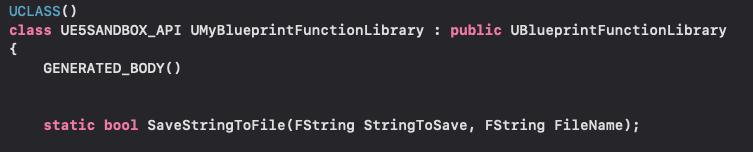
BlueprintCallable: Makes the function callable from any Blueprint.Category="MyCategory": Organizes the function within the Blueprint editor’s context menu, making it easier for developers to locate.DisplayName="My Custom Function": Provides a user-friendly name for the Blueprint node.
For a practical example, consider implementing a simple file I/O system, allowing Blueprints to save and load strings to and from text files.
// MyBlueprintFunctionLibrary.h
#pragma once

#include "CoreMinimal.h"
#include "Kismet/BlueprintFunctionLibrary.h"
#include "MyBlueprintFunctionLibrary.generated.h"

/**
 *
 */
UCLASS()
class MYPROJECT_API UMyBlueprintFunctionLibrary : public UBlueprintFunctionLibrary

    GENERATED_BODY()

public:
    /**
     * Saves a string to a specified file.
     * @param SaveText - The string content to save.
     * @param FileName - The name of the file (e.g., "mydata.txt").
     * @param bAppend - If true, appends to the file; otherwise, overwrites.
     * @return True if the string was saved successfully, false otherwise.
     */
    UFUNCTION(BlueprintCallable, Category = "File I/O")
    static bool SaveStringToFile(FString SaveText, FString FileName, bool bAppend = false);

    /**
     * Loads a string from a specified file.
     * @param LoadedText - Output parameter: The string content loaded from the file.
     * @param FileName - The name of the file to load from.
     * @return True if the string was loaded successfully, false otherwise.
     */
    UFUNCTION(BlueprintPure, Category = "File I/O") // BlueprintPure means it doesn't modify state, good for getters
    static bool LoadStringFromFile(FString& LoadedText, FString FileName);
;
In this example, SaveStringToFile and LoadStringFromFile are declared as static and decorated with UFUNCTION macros, making them accessible in Blueprints under the "File I/O" category. BlueprintPure is used for LoadStringFromFile to indicate it’s a "pure" function without side effects, which changes its appearance in Blueprints.
Source File Implementation (.cpp): The C++ Logic
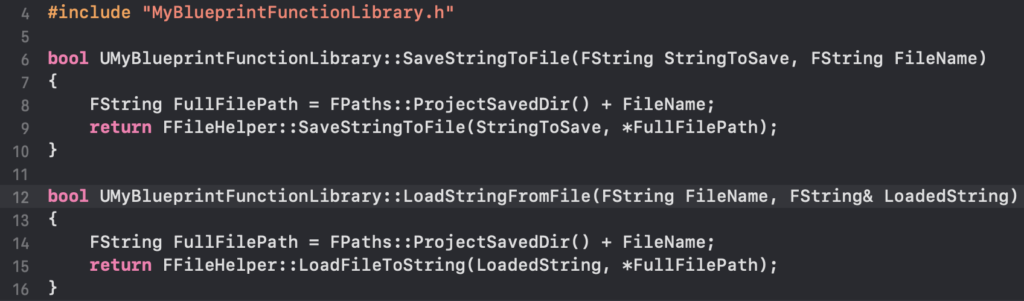
With the functions declared in the header, their actual implementation resides in the .cpp source file. Here, the full power of C++ and Unreal Engine’s extensive API can be utilized. For the file I/O example, the FFileHelper class, part of Unreal’s core utility modules, provides convenient static methods for reading and writing files.
// MyBlueprintFunctionLibrary.cpp
#include "MyBlueprintFunctionLibrary.h"
#include "HAL/PlatformFilemanager.h" // For IPlatformFile
#include "Misc/FileHelper.h" // For FFileHelper

bool UMyBlueprintFunctionLibrary::SaveStringToFile(FString SaveText, FString FileName, bool bAppend)

    if (FileName.IsEmpty())

        UE_LOG(LogTemp, Error, TEXT("SaveStringToFile: FileName cannot be empty."));
        return false;


    FString AbsolutePath = FPaths::ProjectSavedDir() + FileName; // Save to project's Saved directory

    // Check if file exists and we are not appending, then delete it to ensure overwrite
    if (!bAppend && FPlatformFileManager::Get().GetPlatformFile().FileExists(*AbsolutePath))

        FPlatformFileManager::Get().GetPlatformFile().DeleteFile(*AbsolutePath);


    bool bSuccess = FFileHelper::SaveStringToFile(SaveText, *AbsolutePath, FFileHelper::EEncodingOptions::ForceUTF8, &IFileManager::Get(), FILEWRITE_Append);

    if (!bSuccess)

        UE_LOG(LogTemp, Error, TEXT("Failed to save string to file: %s"), *AbsolutePath);

    return bSuccess;


bool UMyBlueprintFunctionLibrary::LoadStringFromFile(FString& LoadedText, FString FileName)

    if (FileName.IsEmpty())

        UE_LOG(LogTemp, Error, TEXT("LoadStringFromFile: FileName cannot be empty."));
        return false;


    FString AbsolutePath = FPaths::ProjectSavedDir() + FileName; // Load from project's Saved directory

    if (!FPlatformFileManager::Get().GetPlatformFile().FileExists(*AbsolutePath))

        UE_LOG(LogTemp, Warning, TEXT("LoadStringFromFile: File does not exist at %s"), *AbsolutePath);
        return false;


    bool bSuccess = FFileHelper::LoadFileToString(LoadedText, *AbsolutePath);

    if (!bSuccess)

        UE_LOG(LogTemp, Error, TEXT("Failed to load string from file: %s"), *AbsolutePath);

    return bSuccess;
Note: The original article uses FILEWRITE_Append with SaveStringToFile but doesn’t explicitly check for bAppend. I’ve added a check and a delete file logic to align with typical overwrite/append expectations.
After defining the C++ logic, the project must be compiled. This can be done by closing the Unreal Editor and compiling the project through the IDE, or by using the "Compile" button within the editor (if hot-reloading is enabled and stable). A successful compilation integrates the new C++ code into the engine, making the functions available for use.
Integrating C++ Functions into Blueprints
Once compiled, the C++ functions within the Blueprint Function Library are immediately accessible within the Blueprint editor, significantly enhancing the capabilities of visual scripting.
Accessing Functions in the Blueprint Editor
To use the newly exposed C++ functions:
- Open any Blueprint (e.g., a Level Blueprint, Character Blueprint, Widget Blueprint).
- Right-click anywhere in the event graph to open the context-sensitive action menu.
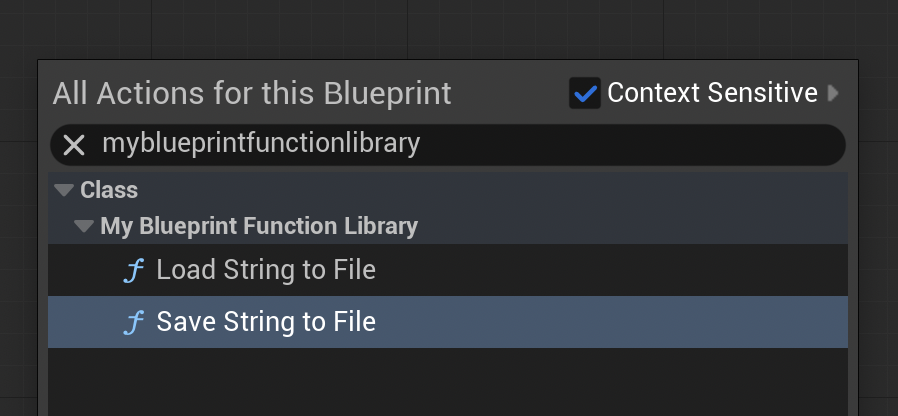
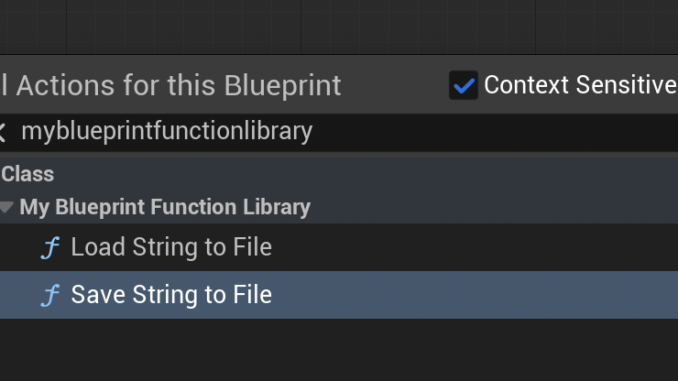
- Type the name of the Blueprint Function Library class (e.g., "MyBlueprintFunctionLibrary") or the specific function name (e.g., "Save String to File").
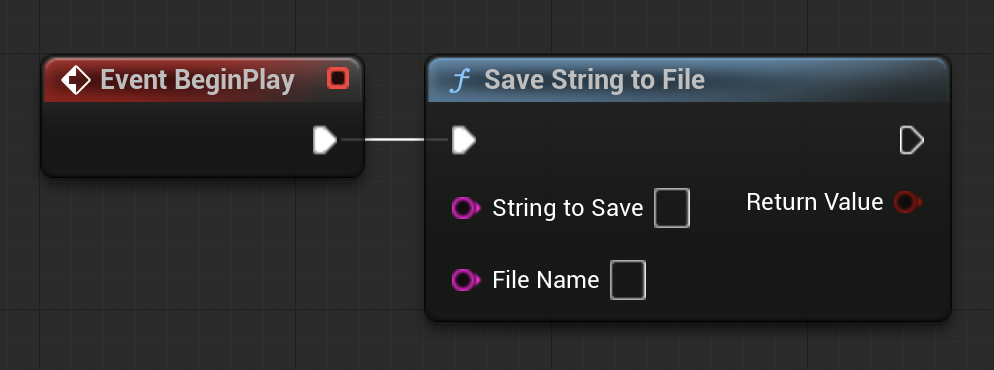
The action menu will display the C++ functions as standard Blueprint nodes, complete with their defined input and output pins, categories, and display names. This seamless integration allows designers and programmers to collaborate effectively, with C++ providing the robust backend and Blueprints handling the high-level game logic.
Practical Demonstration: File I/O in Action
To validate the functionality, a simple demonstration can be performed within the Level Blueprint:
Saving a String to File:
- In the Level Blueprint, add a "BeginPlay" event node.
- Drag off the "Exec" pin of "BeginPlay" and search for "Save String to File."
- Connect the
SaveStringToFilenode. - Provide a string literal for the "SaveText" input (e.g., "Save Test Data").
- Specify a "FileName" (e.g., "testdata.txt").
- Ensure
bAppendis false to overwrite if the file exists.
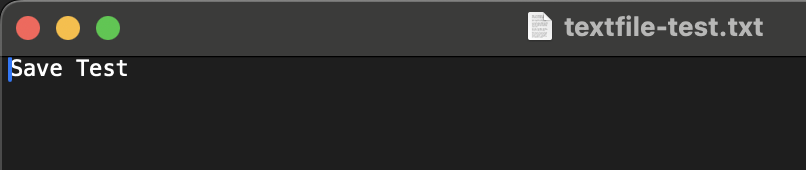
After compiling the Blueprint and running the game in the editor, the specified string will be saved to a file named testdata.txt within the project’s Saved directory (e.g., [ProjectRoot]/Saved/testdata.txt). Inspecting this file with a text editor will confirm the successful write operation.
Loading a String from File:
- To demonstrate loading, first manually create a
loadtest.txtfile in theSaveddirectory and populate it with a test string (e.g., "Loading Test Data from File"). - In the Level Blueprint, after the
SaveStringToFilenode or as a separate event, add theLoadStringFromFilenode. - Specify the "FileName" as "loadtest.txt."
- Drag off the "LoadedText" output pin and connect it to a "Print String" node.
- Connect the
Execpin from theLoadStringFromFilenode to thePrint Stringnode.
Upon running the game, the "Print String" node will display the content "Loading Test Data from File" on the screen (or in the log output), confirming that the C++ function successfully read the data from the specified file and returned it to the Blueprint.
Broader Implications and Strategic Advantages
The integration of C++ Blueprint Function Libraries extends far beyond mere performance optimization; it represents a strategic advantage for any Unreal Engine development team aiming for professional-grade game production.
Enhanced Team Collaboration: By providing a clear boundary between high-performance C++ modules and rapid-iteration Blueprints, development teams can foster better collaboration. Programmers can focus on creating robust, efficient, and well-tested C++ utilities, while designers and technical artists can leverage these tools in Blueprints without needing to delve into complex C++ syntax. This division of labor maximizes productivity and minimizes potential conflicts.
Scalability and Maintainability: As projects grow in scope and complexity, a purely Blueprint-based approach can become difficult to manage, debug, and optimize. C++ Blueprint Function Libraries introduce a layer of modularity, allowing complex systems to be encapsulated and maintained as discrete C++ units. This reduces Blueprint graph clutter, improves readability, and makes it easier to track down and fix bugs. Furthermore, well-documented C++ code is generally easier to refactor and update for long-term project viability.
Access to Advanced Engine Features and External Libraries: Many advanced functionalities within Unreal Engine itself, such as specific rendering features, low-level networking protocols, or custom physics integrations, are primarily exposed through C++ APIs. Similarly, integrating third-party libraries for specialized tasks (e.g., complex data compression, machine learning algorithms, or external hardware interfaces) almost always requires C++. Blueprint Function Libraries provide the essential gateway to these capabilities, extending the engine’s power beyond its visual scripting limitations.
Reduced Technical Debt: Proactive use of C++ Blueprint Function Libraries can significantly reduce technical debt. Instead of continuously attempting to optimize slow Blueprint code or building convoluted workarounds, critical sections can be implemented correctly and efficiently in C++ from the outset, leading to a more stable and performant codebase over the project’s lifecycle.

Conclusion
The C++ Blueprint Function Library in Unreal Engine 5 stands as a testament to Epic Games’ commitment to providing a flexible and powerful development ecosystem. By mastering the creation and utilization of these libraries, developers gain the ability to transcend the inherent limitations of Blueprint performance and functionality, unlocking the full potential of C++ within a Blueprint-centric workflow. This hybrid approach delivers tangible performance improvements, exposes hidden engine functionalities, and fosters a more collaborative and scalable development process. In an industry where performance, flexibility, and maintainability are paramount, the strategic integration of C++ Blueprint Function Libraries is not merely an optimization technique but a fundamental pillar of modern Unreal Engine development.
Further Reading
For developers seeking to deepen their understanding, the official documentation from Epic Games provides extensive resources:
- Official Blueprint Function Library documentation from Epic Games
- For more detailed C++ guides within Unreal Engine, explore dedicated C++ development resources.
About the Author