Unreal Engine 5 (UE5), a powerhouse in interactive content creation, offers developers unparalleled graphical fidelity and robust toolsets. However, a significant portion of its advanced features remains exclusively accessible through C++ programming, posing a potential barrier for developers primarily utilizing Blueprints, the engine’s visual scripting system. To bridge this gap and democratize access to sophisticated functionalities, a vibrant developer community has fostered an extensive ecosystem of plugins. These extensions, ranging from enhanced Blueprint nodes to complex system integrations, are pivotal in extending UE5’s capabilities, allowing creators to tailor the engine to their specific project needs without delving deep into C++ code. This article details the two primary methods for integrating these essential plugins: via the official Unreal Marketplace and through advanced manual installation, examining the implications of each approach for the broader development landscape.
The Landscape of Unreal Engine 5 Development and the Imperative for Plugins
Unreal Engine 5 represents a monumental leap in real-time technology, offering groundbreaking features like Nanite for virtualized geometry, Lumen for global illumination, and MetaSounds for advanced audio design. Its architecture supports a dual development paradigm: C++ for high-performance, low-level operations and intricate systems, and Blueprints for intuitive, visual scripting that accelerates prototyping and gameplay logic. While Blueprints empower a broader spectrum of developers, including designers and artists, to actively participate in the development process, certain engine functionalities and optimizations are inherently tied to C++’s direct access to system resources. This inherent distinction necessitates plugins, which serve as crucial conduits, exposing C++ features to the Blueprint environment or introducing entirely new functionalities not native to the engine’s core.
The adoption of plugins has become a cornerstone of modern game development, particularly within an engine as expansive as UE5. According to industry reports, a significant percentage of game development studios leverage third-party assets and tools to streamline workflows, reduce development costs, and enhance project scope. Plugins directly contribute to this efficiency by offering pre-built solutions for common challenges, from advanced networking protocols and user interface components to complex AI behaviors and external API integrations. This modular approach allows development teams to focus their resources on unique gameplay elements and creative endeavors, rather than reinventing foundational systems. Furthermore, the ability to extend the engine through plugins fosters innovation, enabling developers to experiment with cutting-edge technologies and integrate specialized tools quickly.
Official Integration: Navigating the Unreal Marketplace for Plugins
The most secure and streamlined method for acquiring and installing Unreal Engine 5 plugins is through the Epic Games Launcher’s integrated Unreal Marketplace. This platform serves as a centralized hub for thousands of assets, including code plugins, meticulously vetted by Epic Games to ensure compatibility and a certain standard of quality. The marketplace streamlines the discovery, acquisition, and installation process, making it the preferred route for most developers.
A Step-by-Step Chronology of Marketplace Plugin Installation:

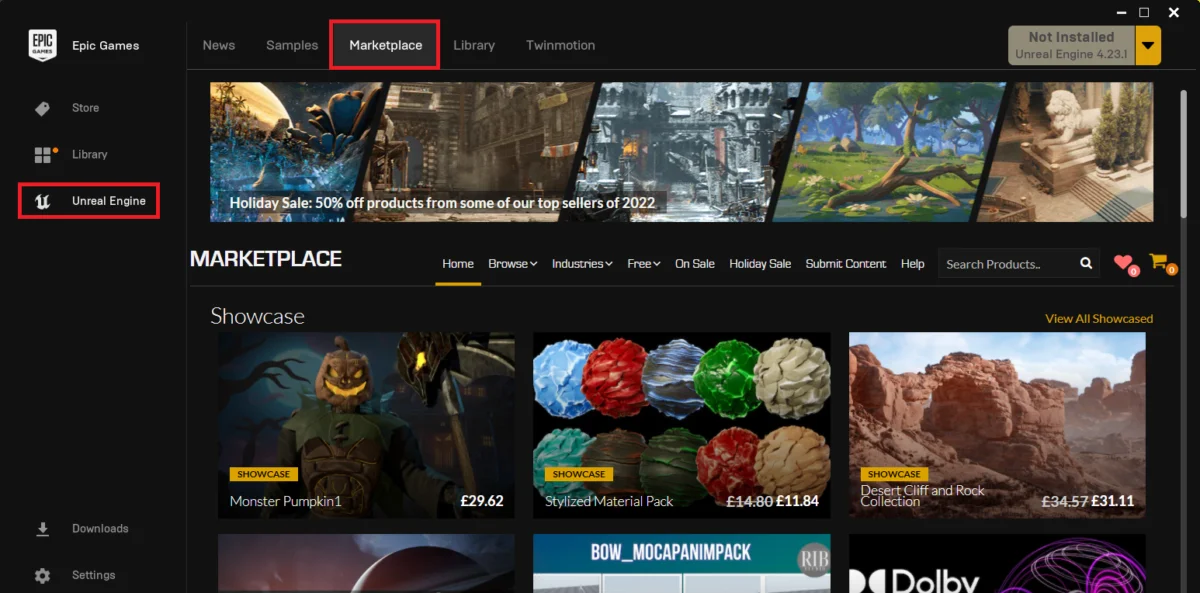
- Accessing the Marketplace: The journey begins by launching the Epic Games Launcher, the primary portal for managing Unreal Engine installations and accessing its ecosystem. Within the launcher, users navigate to the dedicated "Unreal Marketplace" section. This interface presents a curated collection of assets, categorized for easy browsing.
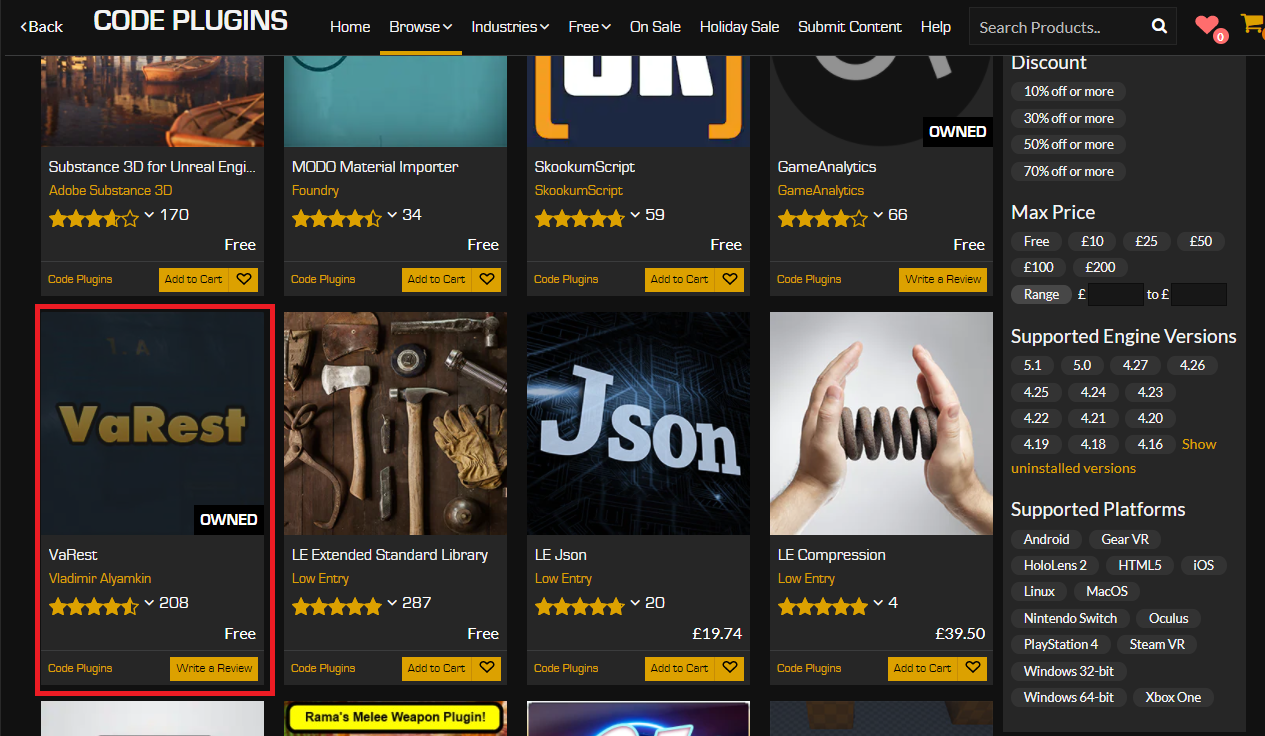
- Identifying Code Plugins: To specifically locate functional extensions rather than visual assets, developers must refine their search. Within the "Browse" tab, a crucial filtering option is "Code Plugins." Selecting this category narrows the marketplace offerings to show only plugins that introduce new C++ or Blueprint functionalities. This ensures developers are presented with the relevant tools for extending engine capabilities.
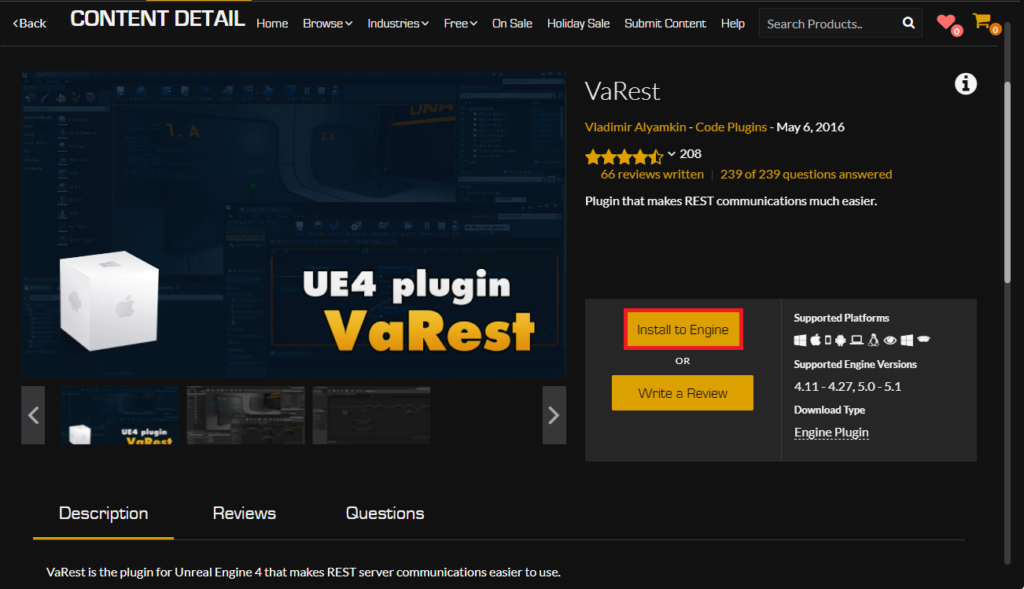
- Selection and Acquisition: Developers then browse through the available code plugins, identifying those that align with their project’s requirements. For instance, a developer might seek a plugin like "VaRest," a widely used networking plugin designed to simplify RESTful API interactions within Blueprints. Once a desired plugin is identified, the acquisition process follows standard e-commerce procedures. Even for free plugins, a "purchase" process is initiated, though no financial transaction occurs. This system ensures proper licensing and registration of the plugin to the user’s Epic Games account.
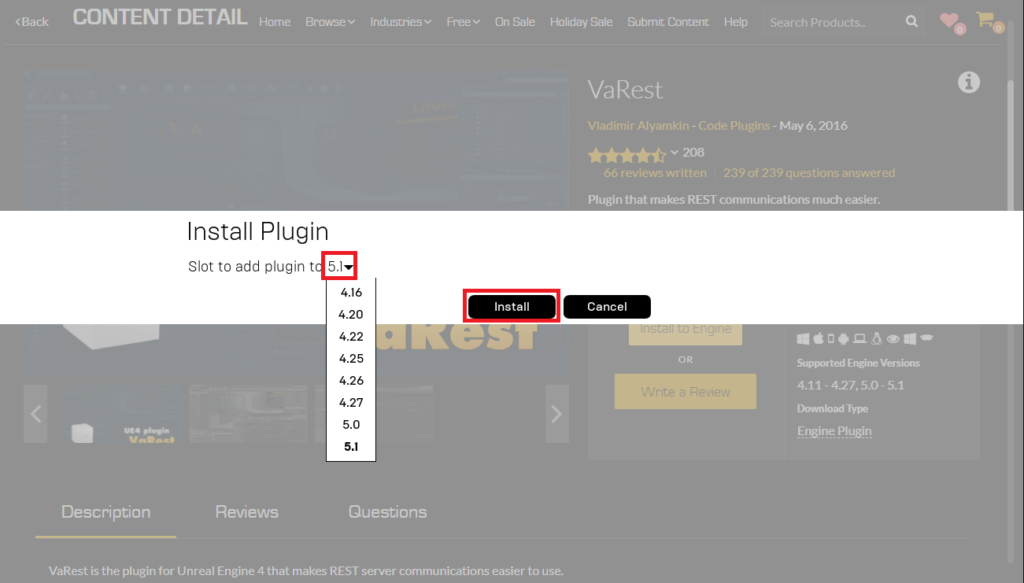
- Engine Installation: Unlike content assets that are typically added directly to a project, many code plugins are designed to integrate with the Unreal Engine installation itself, making them available across multiple projects using that specific engine version. After acquiring the plugin, the user selects the "Install to Engine" button. This prompts a choice of which installed Unreal Engine version (e.g., 5.0, 5.1, 5.2) the plugin should be associated with. This step is critical for ensuring compatibility and accessibility.
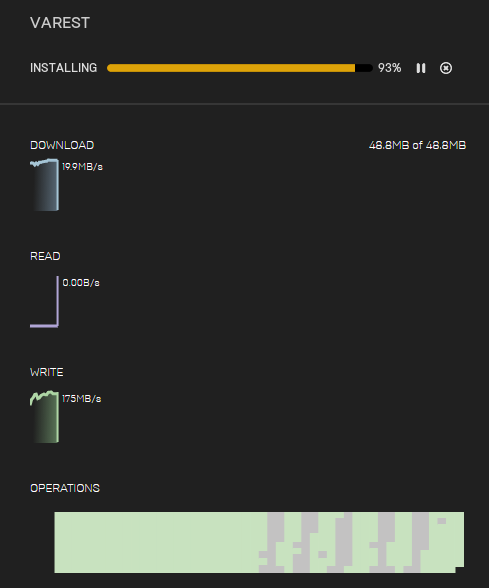
- Monitoring Download and Installation: Upon selecting the target engine version, the plugin download and installation process commences. The Epic Games Launcher provides real-time progress updates in its "Downloads" tab, allowing developers to monitor the status. Once the installation is complete, the plugin files are correctly placed within the designated engine directories, ready for project-level activation.
Activating the Plugin within an Unreal Engine Project:
Even after successful installation to the engine, a plugin is not automatically active within every Unreal Engine project. This design choice is deliberate, preventing projects from compiling unnecessary code, which could increase executable sizes and compilation times.
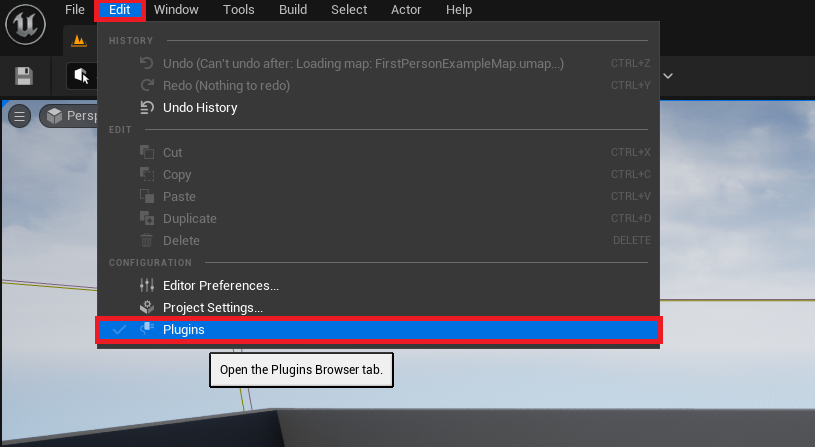
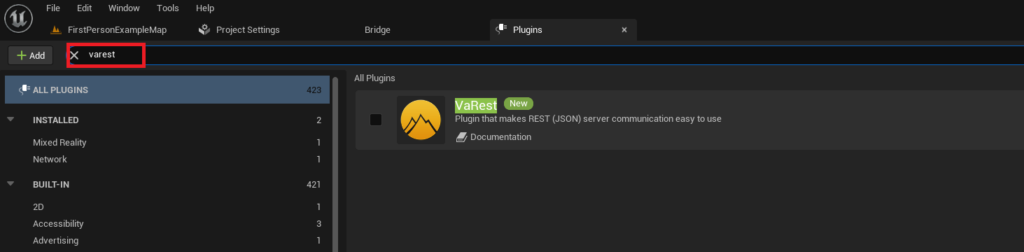
- Accessing the Plugin Manager: Within the Unreal Engine 5 editor, developers navigate to the "Edit" menu and select "Plugins." This action opens the Plugin Manager window, a comprehensive interface for viewing, managing, and enabling all installed plugins, both engine-wide and project-specific.
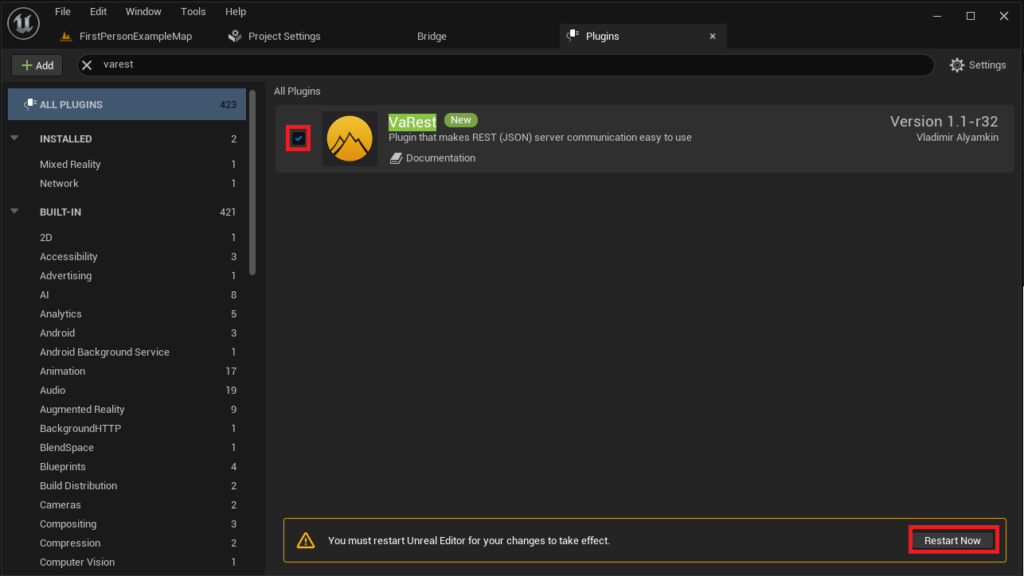
- Locating and Enabling: Inside the Plugin Manager, a search bar allows developers to quickly find the newly installed plugin by name (e.g., "VaRest"). Once located, a corresponding checkbox enables the plugin for the current project.
- Restarting the Editor: Enabling a plugin often requires a restart of the Unreal Engine editor for the changes to take full effect. A prompt will appear, offering a "Restart Now" option. Upon restarting, the plugin’s functionalities, including new Blueprint nodes, C++ classes, and other integrated features, become fully accessible within the project, ready for immediate use.
Advanced Integration: Manually Installing Community-Driven Plugins
Beyond the curated offerings of the Unreal Marketplace, a significant portion of the Unreal Engine plugin ecosystem thrives through independent developers sharing their creations on forums, GitHub repositories, and personal websites. Manual installation offers access to experimental features, highly specialized tools, or plugins developed for specific niche applications that may not be available on the official marketplace. However, this method comes with inherent risks and demands a higher degree of developer vigilance.
Disclaimer: Navigating the Risks of Untrusted Sources
It is paramount for developers to exercise extreme caution when downloading and installing plugins from unofficial sources. The integrity and security of manually installed code cannot be guaranteed by Epic Games. Untrusted files and code downloaded from the internet may contain vulnerabilities, malicious software, or introduce instability to the Unreal Engine project or even the operating system. Developers are strongly advised to:
- Verify Sources: Only download plugins from well-established, reputable community developers or official repositories known for their reliability.
- Check Compatibility: Ensure the plugin is explicitly stated to be compatible with the exact version of Unreal Engine 5 installed on the system. Incompatibility can lead to crashes, project corruption, or build failures.
- Backup Projects: Always create a backup of the Unreal Engine project before attempting to install any manually sourced plugin. This safeguards against data loss in case of unforeseen issues.
- Understand the Code (if possible): For experienced developers, reviewing the plugin’s source code can provide an additional layer of security and understanding of its functionalities.
Chronology of Manual Plugin Installation:
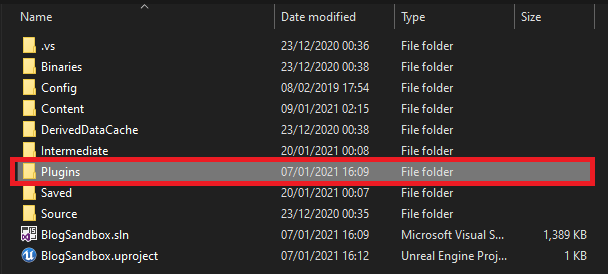
- Project Directory Structure: The manual installation process begins by ensuring the Unreal Engine project directory contains a dedicated "Plugins" folder. If this folder does not exist, it must be manually created at the root level of the project (e.g.,
MyProject/Plugins/). This folder serves as the repository for all project-specific, manually installed plugins. - Copying Plugin Files: Once the "Plugins" folder is established, the downloaded plugin’s main folder (which typically contains the
.upluginfile and other necessary assets) is copied directly into this "Plugins" directory. For example, if installing "Victory BP Plugin" by Rama, the "VictoryPlugin" folder would be placed insideMyProject/Plugins/. It is crucial to copy the entire plugin folder, maintaining its internal structure, as this contains all the necessary files for the plugin to function correctly. - Verification of Contents: Inside the newly copied plugin folder, developers should find a collection of files, including source code, binaries, resources, and the
.uplugindescriptor file. This structure confirms that the plugin has been correctly placed and is ready for integration.
Activating Manually Installed Plugins within an Unreal Engine Project:
The process for enabling a manually installed plugin within an Unreal Engine project mirrors that of marketplace plugins, emphasizing the engine’s consistent interface for plugin management.
- Accessing the Plugin Manager: As with marketplace plugins, developers open the Unreal Engine 5 editor, navigate to "Edit," and select "Plugins" to access the Plugin Manager.
- Locating and Enabling: Using the search bar within the Plugin Manager, developers type the name of the manually installed plugin (e.g., "Victory Plugin"). The engine will detect the plugin in the project’s "Plugins" folder. A checkbox associated with the plugin allows for its activation.
- Restarting the Editor: A mandatory editor restart is required to finalize the plugin activation. Clicking "Restart Now" will reload the project, integrating the new functionalities and making them available for use in both C++ and Blueprint workflows.
The Broader Impact: Empowering Developers and Accelerating Innovation
The robust plugin architecture of Unreal Engine 5, supported by both the official Marketplace and the vibrant community, significantly impacts the game development ecosystem in several profound ways:
- Democratization of Development: Plugins lower the barrier to entry for developers who may not possess extensive C++ programming expertise. By providing Blueprint-callable nodes for complex C++ functionalities, plugins empower a wider range of creators—from indie developers to large studios—to leverage the full power of UE5. This fosters creativity and expands the talent pool capable of producing high-quality interactive experiences.
- Accelerated Development Cycles: Pre-built, tested, and optimized plugins dramatically reduce development time and effort. Instead of writing custom solutions for common features like inventory systems, dialogue managers, or advanced physics interactions, developers can integrate existing plugins, freeing up valuable resources for unique game design and iteration. This directly translates to faster time-to-market and more efficient resource allocation.
- Niche Functionality and Specialization: The community-driven nature of plugins allows for the development of highly specialized tools catering to specific genres, workflows, or technical requirements. Whether it’s a plugin for procedural generation of environments, advanced cinematic tools, or integration with specific hardware, this ecosystem ensures that almost any unique development need can be addressed.
- Fostering Innovation: The ease with which new functionalities can be added via plugins encourages experimentation and innovation. Developers can quickly prototype ideas, integrate cutting-edge algorithms, or connect with emerging technologies without altering the core engine, fostering a dynamic environment of continuous improvement and creative exploration.
- Economic Impact: The Unreal Marketplace, in particular, represents a significant economic opportunity for developers. Talented programmers and artists can monetize their expertise by creating and selling high-quality plugins and assets, contributing to a self-sustaining ecosystem that benefits all participants.
Challenges and Considerations for the Future
While the advantages are clear, the proliferation of plugins also presents challenges. Compatibility issues between different engine versions or with other plugins can lead to development headaches. Furthermore, the reliance on third-party code introduces potential maintenance burdens, as developers become dependent on the continued support and updates from plugin creators. The security implications of manually installed plugins remain a critical concern, necessitating rigorous vetting processes by developers.
Conclusion
Unreal Engine 5’s extensibility through plugins is not merely a convenience; it is a fundamental aspect of its power and adaptability in the rapidly evolving landscape of interactive content creation. By effectively bridging the gap between C++’s raw power and Blueprints’ accessibility, plugins empower developers to unlock the engine’s full potential, accelerate development, and foster innovation. Whether through the secure and curated environment of the Unreal Marketplace or the adventurous, community-driven path of manual installation, the ability to augment and customize Unreal Engine 5 with specialized tools is an indispensable capability for creators striving to push the boundaries of real-time experiences. As the engine continues to evolve, the plugin ecosystem will undoubtedly remain a cornerstone of its success, driven by the ingenuity and collaborative spirit of its global developer community.
About the Author