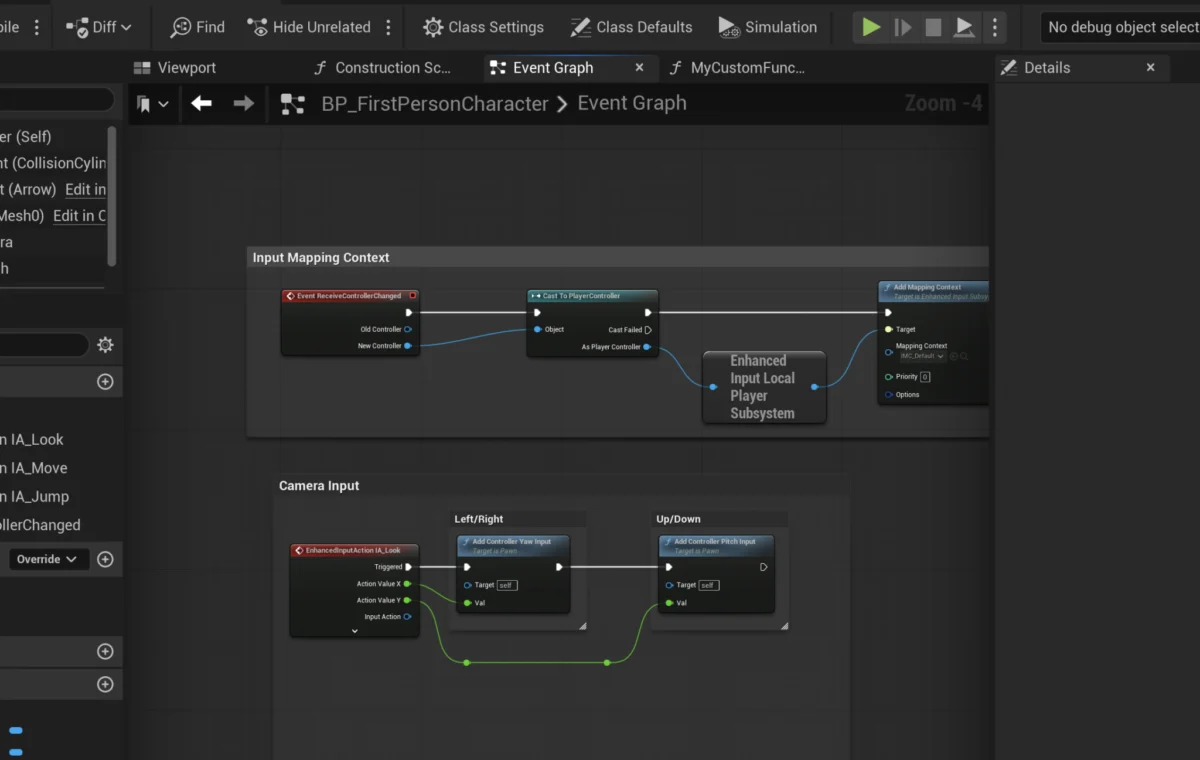
The concept of a function stands as a cornerstone in modern programming paradigms, serving as a fundamental building block for organizing and executing code efficiently. In the realm of game development, particularly within Unreal Engine 5 (UE5), this principle is robustly manifested through Blueprint Functions, which enable developers to encapsulate self-contained logic that can be invoked repeatedly across various parts of a project. These visual scripting elements are pivotal for fostering modularity, enhancing reusability, and streamlining the development workflow, whether for intricate gameplay mechanics or core system functionalities.
The Foundational Role of Functions in Programming and Blueprints
At its core, a function is a sequence of instructions designed to perform a specific task. By abstracting complex operations into callable units, functions adhere to the "Don’t Repeat Yourself" (DRY) principle, minimizing redundant code and making projects significantly easier to manage and scale. This modular approach is not only a best practice in text-based coding languages but is also deeply embedded in visual scripting environments like Unreal Engine’s Blueprints.
Unreal Engine 5, renowned for its cutting-edge graphics capabilities and robust toolset, empowers developers with Blueprints, a powerful visual scripting system that allows for rapid prototyping and complex logic creation without writing a single line of C++ code. Introduced prominently in Unreal Engine 4 and significantly refined in UE5, Blueprints democratized game development, making it accessible to a wider audience, including designers, artists, and less experienced programmers. Blueprint Functions represent a critical component of this system, allowing users to segment their node graphs into digestible, reusable units. This capability is invaluable for maintaining clean, readable, and performant code, differentiating between ad-hoc logic and structured, repeatable operations.
The benefits of integrating functions into Blueprint workflows are manifold. They significantly improve project maintainability, as changes to a particular piece of logic only need to be implemented in one central function rather than across multiple duplicated graphs. This drastically reduces the potential for errors and speeds up the iteration process. Furthermore, functions enhance readability, breaking down large, complex graphs into smaller, purpose-driven components, making it easier for individual developers and teams to understand and debug the underlying logic. This organizational clarity is especially crucial in large-scale projects where hundreds or even thousands of Blueprints might interact.
Implementing Blueprint Functions: A Step-by-Step Operational Overview
The process of creating and deploying Blueprint Functions in Unreal Engine 5 is designed to be intuitive, guiding developers through a structured approach to encapsulate logic. This guide outlines the initial steps, using the FirstPersonCharacter blueprint from a standard First Person Shooter template as a practical example.
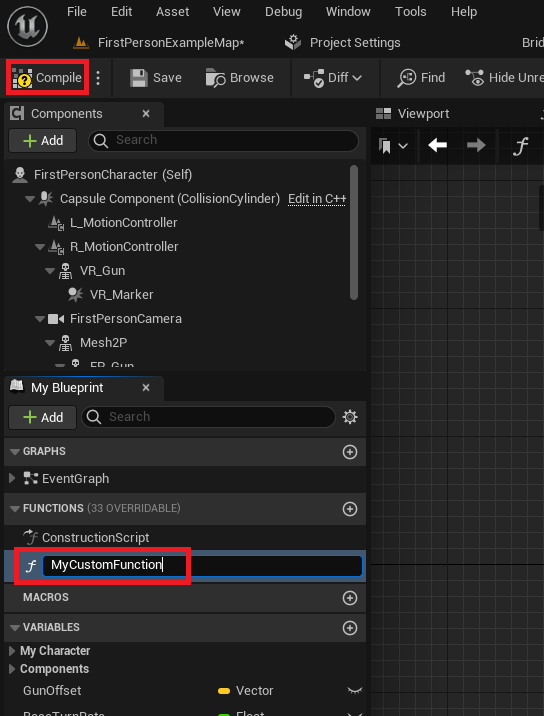
Initiating Function Creation within an Actor Blueprint
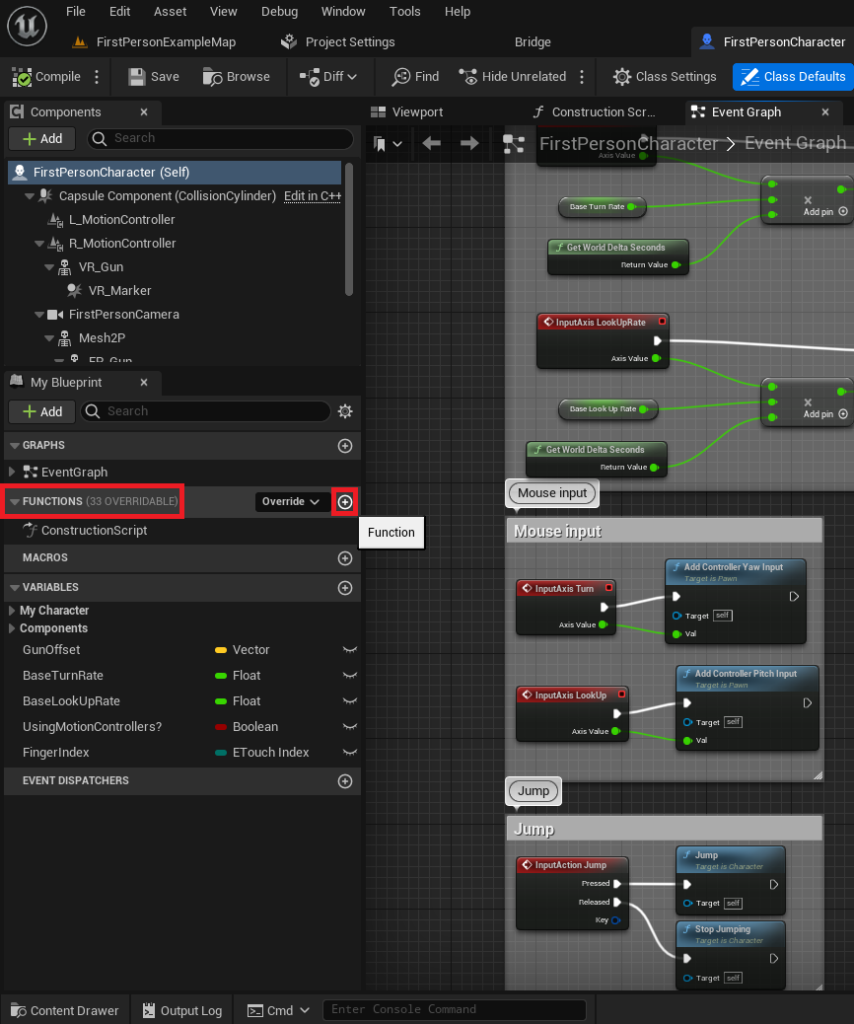
To begin, the developer must first open the specific Blueprint Actor intended to host the new function. For instance, navigating to the FirstPersonCharacter Blueprint within the content browser and opening it reveals the Blueprint Editor. On the left-hand side of this editor, a dedicated section labeled "Functions" serves as the central repository for all functions pertinent to that specific Blueprint. This organizational structure ensures that functions are inherently tied to the actor they belong to, emphasizing their self-contained nature.
To create a new function, the user locates and clicks the circular button adorned with a plus symbol, situated to the right of the "Functions" dropdown section. This action prompts the editor to generate a new, unnamed function entry. Naming conventions are paramount in software development, and Blueprints are no exception. Developers are strongly advised to assign clear, descriptive names to their functions, such as CalculateDamage, ApplyStatusEffect, or UpdatePlayerScore. Adhering to such practices from the outset is crucial for maintaining project clarity and facilitating collaborative development, preventing the proliferation of confusing or ambiguous function names that can impede progress in larger teams. Once a suitable name is entered, either pressing ‘Enter’ or clicking anywhere else in the Blueprint window finalizes the naming process. The subsequent critical step involves clicking the "Compile" button, typically located in the top-left corner of the Blueprint Editor. This action processes the newly defined function, integrating it into the Blueprint’s executable logic and making it ready for use.
Adding Basic Logic: The "Print String" Example
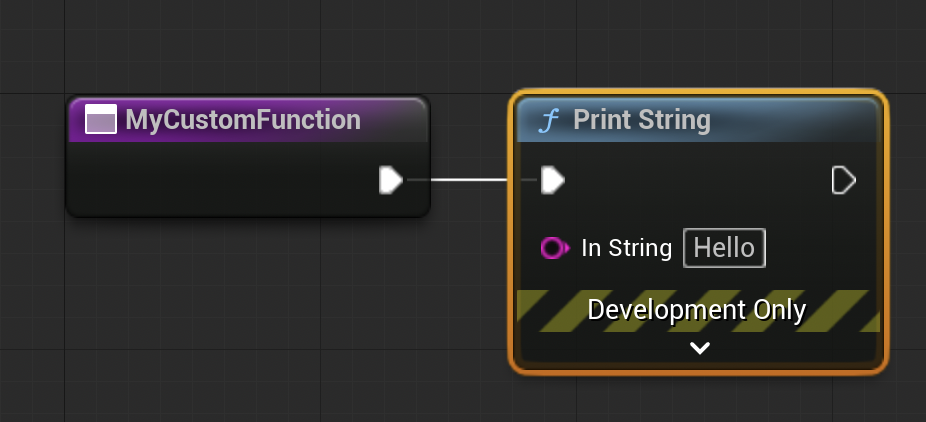
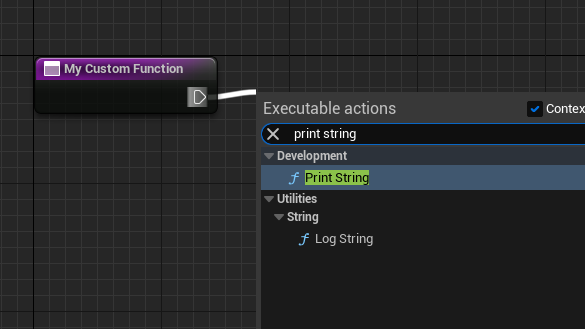
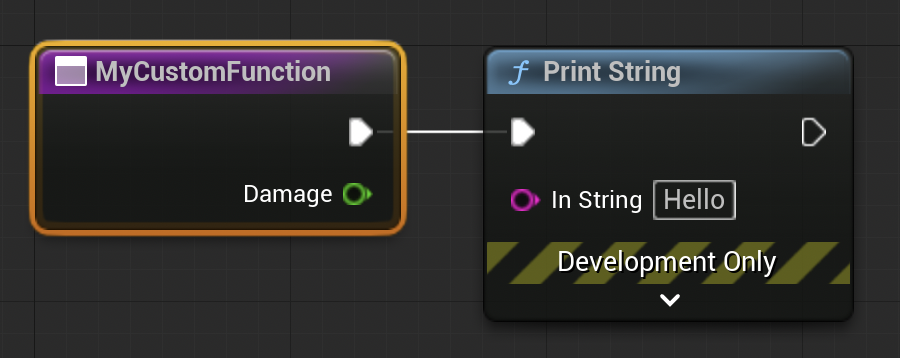
Upon successful compilation, the newly created function initially lacks any operational logic. To imbue it with functionality, a basic "Print String" operation serves as an excellent starting point for demonstration and debugging. Within the function’s graph, the developer identifies the function’s entry node, characterized by a white, sideways triangle known as an "exec pin." This pin signifies the execution flow, dictating the sequence in which nodes are processed.
By clicking and dragging from this exec pin and releasing the mouse button anywhere on the gray background grid, a contextual popup menu appears, presenting a vast array of available Blueprint nodes. Among these, selecting "Print String" will instantiate a Print String node directly within the function’s graph. Crucially, because the new node was dragged from the exec pin, it automatically establishes an execution link to the function’s entry node. This connection ensures that whenever the custom function is "called" (or "run"), the Print String node will execute sequentially, displaying a specified text string in the game’s output log. This simple yet effective setup provides immediate visual feedback, confirming that the function is correctly integrated and capable of performing its designated tasks.
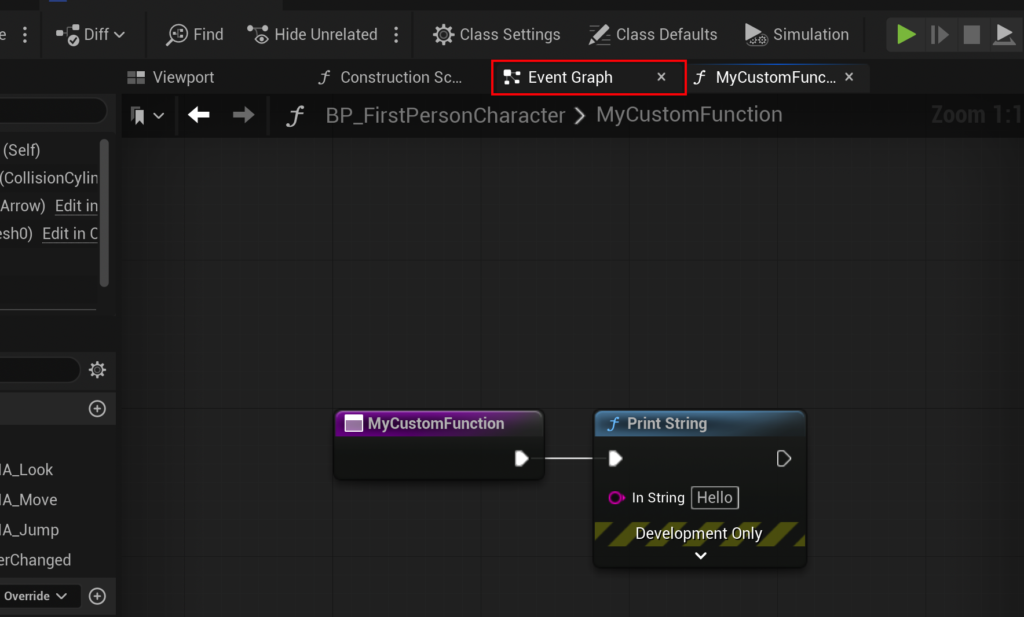
Integrating Functions into the Event Graph: The Event BeginPlay Trigger
While a function encapsulates logic, it requires an external trigger to initiate its execution. In Unreal Engine, "Events" serve this purpose, differing from functions in that they typically do not return values and can accommodate certain asynchronous nodes (such as Delay nodes) that functions cannot. A common and highly useful event is Event BeginPlay, which is automatically triggered when an actor is spawned into the game world or, in the case of a character blueprint, when the game starts.
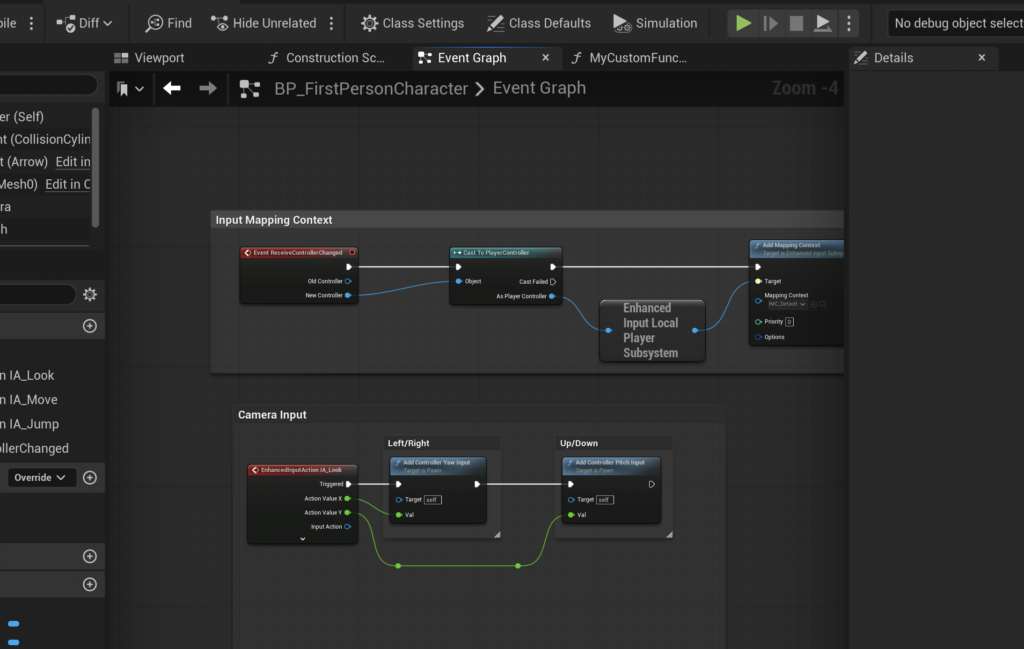
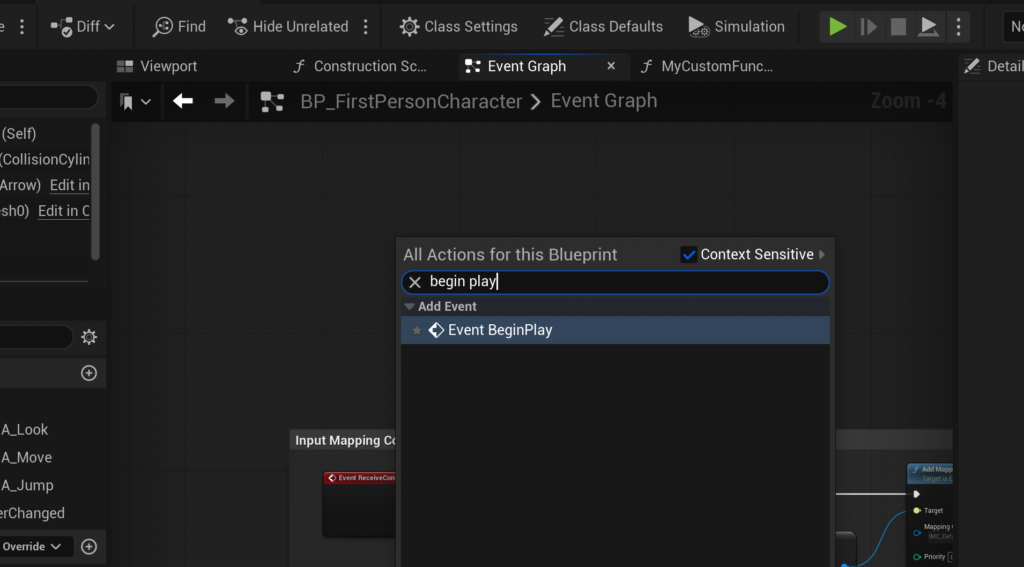
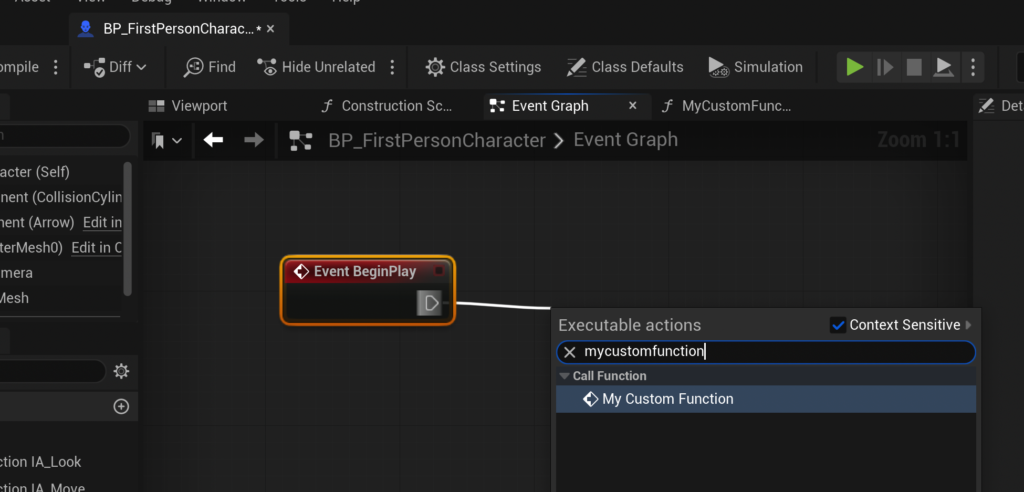
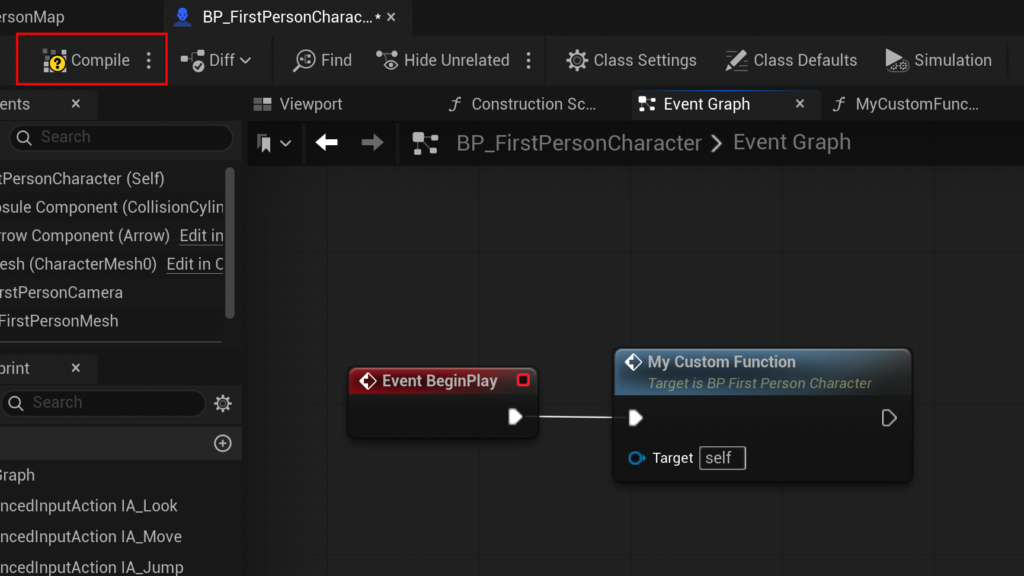
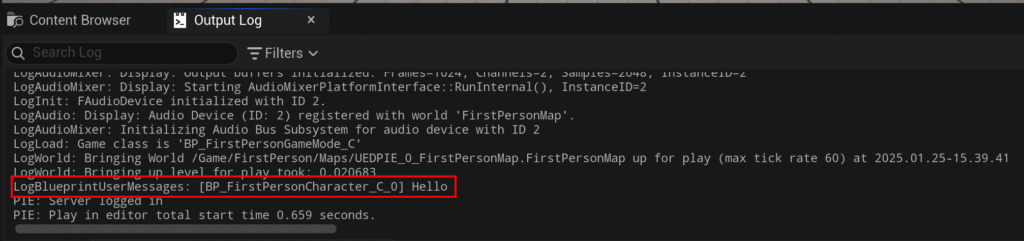
To test the newly created function, the developer navigates back to the Blueprint’s main Event Graph by clicking the "Event Graph" button at the top of the editor. Within the Event Graph, a right-click on an empty space will bring up the contextual search menu, where "Event Begin Play" can be selected to add the event node. From the exec pin of the Event BeginPlay node, the developer drags and releases the mouse, searching for and selecting the previously created custom function (e.g., "MyCustomFunction"). This action places a "call" node for the custom function, connecting it to the Event BeginPlay execution flow. The final critical step is to "Compile" and "Save" the Blueprint. Upon launching the game (e.g., in the FirstPersonMap), the Event BeginPlay will trigger, subsequently calling "MyCustomFunction," which in turn executes its internal Print String node, displaying "hello" in the output log, thereby validating the entire execution chain.
Advanced Functionality: Inputs, Outputs, and Practical Application
Beyond simple string printing, the true power of Blueprint Functions lies in their ability to accept input parameters and return output values, allowing for dynamic and flexible logic. This capability transforms a static piece of code into a versatile tool capable of processing varying data and yielding specific results.
The Necessity of Parameters: Inputs
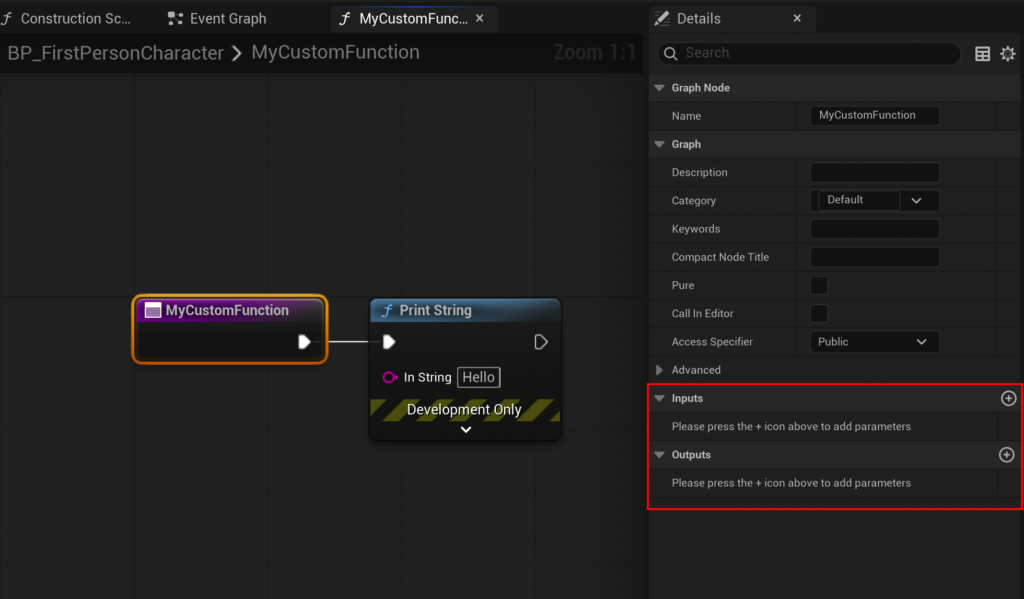
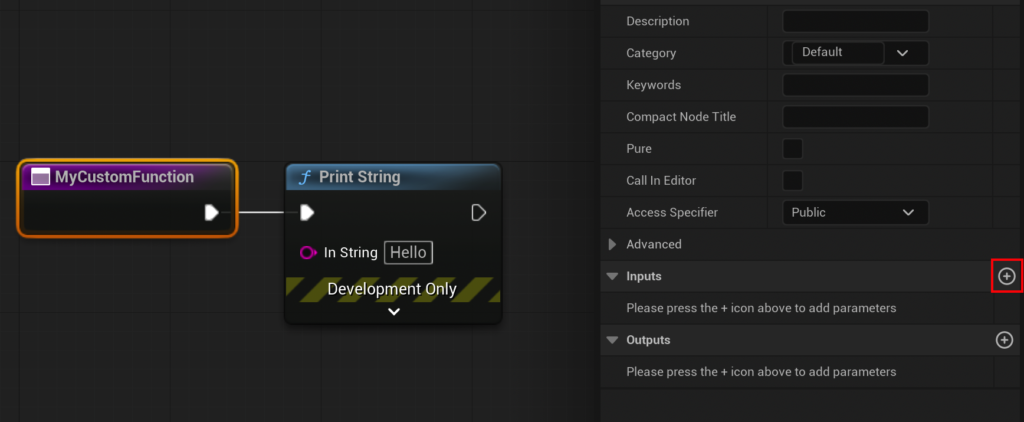
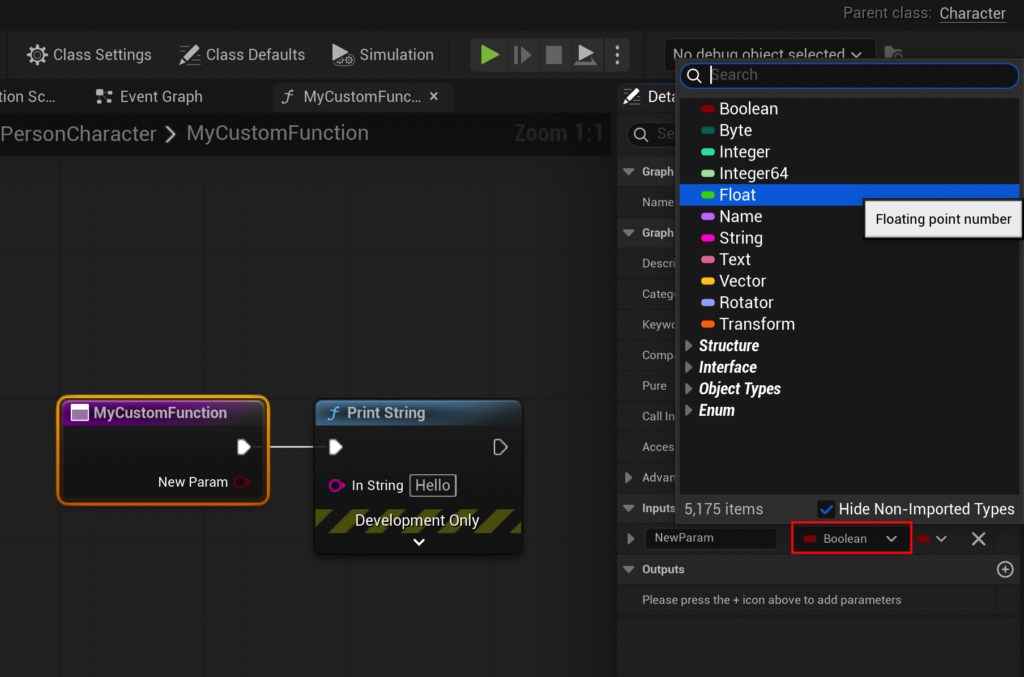
To illustrate advanced functionality, consider the CalculateDamage function mentioned earlier. Instead of hardcoding damage values, this function should accept a Damage value as an input. To achieve this, the developer selects the function’s main node (e.g., "My Custom Function") within its graph. In the Details panel on the right side of the editor, there are distinct sections for "Input" and "Output." By clicking the small add button within the "Input" section, a new input parameter is created. This parameter can then be configured: its type changed from the default "Boolean" to "Float" (to represent numerical damage), and its name set to "Damage." Once defined, this "Damage" input parameter appears as a green pin on the function’s entry node, ready to receive numerical values when the function is called.
Processing Logic within the Function
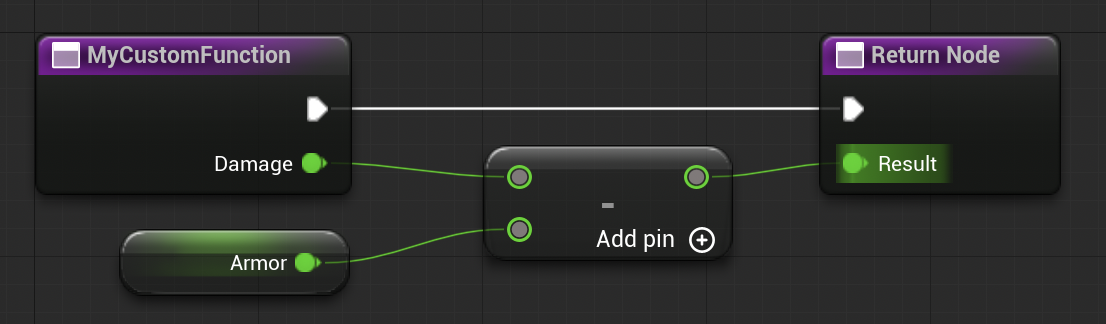
With the Damage input established, the function can now perform calculations. From the Damage input pin, the developer drags into the graph and searches for a "Subtract" node. This node will perform a subtraction operation. To make the damage calculation dynamic, a "Get" node for an Armor variable is needed. This can be created by dragging from the bottom input pin of the subtract node and selecting "Promote to variable." This action creates a new Float variable, automatically named "Armor," and connects it to the subtract node. In the Details panel for the newly created Armor variable, a default value (e.g., 15.0) can be assigned. The function now receives an incoming Damage value, subtracts the character’s Armor value from it, and prepares the result. This demonstrates how functions encapsulate not just operations but also relevant internal variables, maintaining a clear scope for their logic.
Communicating Results: Outputs and Return Nodes
A function that calculates a value is only useful if it can communicate that result back to the calling graph. This is achieved through output parameters and "Return Nodes." Similar to adding inputs, the developer selects the function’s main node and, in the Details panel, clicks the plus button within the "Output" section. The new output parameter is configured as a "Float" type and named "Result." The moment an output parameter is defined, Unreal Engine automatically generates a "Return Node" within the function’s graph. This Return Node has an output pin (e.g., Result) to which the calculated value (from the subtract node) is connected. This completes the data flow: Damage enters, Armor is subtracted, and the Result is output. For a clean final function, the earlier Print String node, if still present, can be deleted, as the function’s primary role is now to calculate and return a value, leaving the presentation or further processing to the calling graph.
When viewed in the Event Graph, the CalculateDamage function node now visibly features both an input pin for Damage and an output pin for Result. To test this, the developer connects Event BeginPlay to the CalculateDamage function, sets an arbitrary Damage input (e.g., 20.0), and then connects the Result output pin to a new Print String node. After compiling and saving, playing the game will execute Event BeginPlay, call CalculateDamage (20 – 15 = 5), and the Print String node will display "5" in the output log, confirming the successful calculation and return of the value.
Limitations and Best Practices
It is important to note certain distinctions between functions and other Blueprint constructs. For instance, Delay nodes are not supported within Blueprint Functions. This is a deliberate design choice by Epic Games, as functions are intended for synchronous, immediate execution, ensuring predictable flow and making them easier to debug. For logic requiring time-based delays or asynchronous operations, developers should utilize Custom Events or Event Dispatchers, which offer the necessary flexibility for such scenarios. Adhering to best practices, such as ensuring each function has a single, well-defined purpose, utilizing clear naming conventions, and minimizing side effects, contributes significantly to the robustness and longevity of any Unreal Engine project.
Real-World Impact and Strategic Implications
The mastery of Blueprint Functions in Unreal Engine 5 transcends mere technical proficiency; it represents a strategic advantage in game development. Industry veterans and Epic Games itself consistently advocate for modular design principles, recognizing that well-structured Blueprints are paramount for successful project execution.

Enhancing Project Maintainability and Debugging: By breaking down complex systems into smaller, testable functions, developers can isolate issues more effectively. A bug in a specific CalculateDamage function, for instance, can be pinpointed and rectified far more rapidly than if the damage calculation logic were scattered across numerous, duplicated graphs. This systematic approach drastically reduces debugging time and improves overall code stability.
Facilitating Team Collaboration: In a team environment, functions act as shared, standardized modules. A gameplay programmer can create a CheckLineOfSight function, which an AI designer can then easily integrate into various AI behaviors without needing to understand the intricate geometric calculations involved. This abstraction fosters collaboration, allows specialists to focus on their respective domains, and ensures consistency across different parts of the game. Clear function names and well-defined inputs/outputs serve as a form of self-documentation, reducing the need for extensive external documentation and enabling new team members to onboard more quickly.
Optimizing Performance and Resource Management: While Blueprints generally incur a slight performance overhead compared to native C++ code, well-organized Blueprint Functions can still contribute to optimized resource management. By ensuring that logic is executed only when needed and by avoiding redundant calculations through reusability, functions indirectly support more efficient code paths. Furthermore, the clarity they provide allows for easier identification of performance bottlenecks, should they arise, facilitating targeted optimization efforts.
Scalability for Complex Game Systems: Modern games are incredibly complex, often featuring intricate systems for combat, inventory, AI, UI, and more. Blueprint Functions are indispensable for managing this complexity. They allow developers to build sophisticated systems incrementally, layer by layer, with each function handling a specific sub-task. This architectural soundness ensures that a game project can scale from a simple prototype to a full-fledged, feature-rich title without collapsing under the weight of its own unmanaged complexity.
Conclusion
Blueprint Functions are not merely a feature of Unreal Engine 5; they are an essential paradigm for effective game development within the platform. From simplifying basic print operations to enabling sophisticated damage calculations with dynamic inputs and outputs, these self-contained pieces of logic are fundamental to creating organized, reusable, and maintainable Blueprints. Mastering their creation and application is a critical step for any developer aiming to build robust, scalable, and manageable game projects in UE5. By embracing the principles of modularity and reusability that functions embody, developers can significantly enhance their workflow, improve collaboration, and ultimately realize their creative visions with greater efficiency and stability. As Unreal Engine continues to evolve, the foundational importance of Blueprint Functions will only grow, solidifying their status as an indispensable tool in the modern game developer’s arsenal.
About the Author