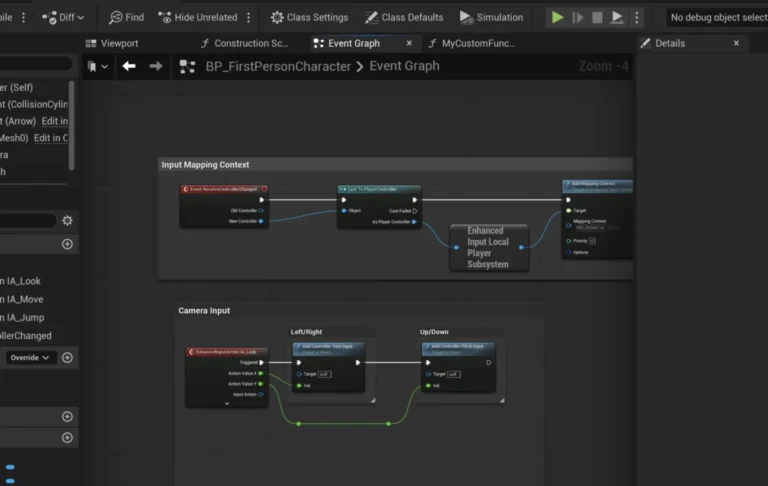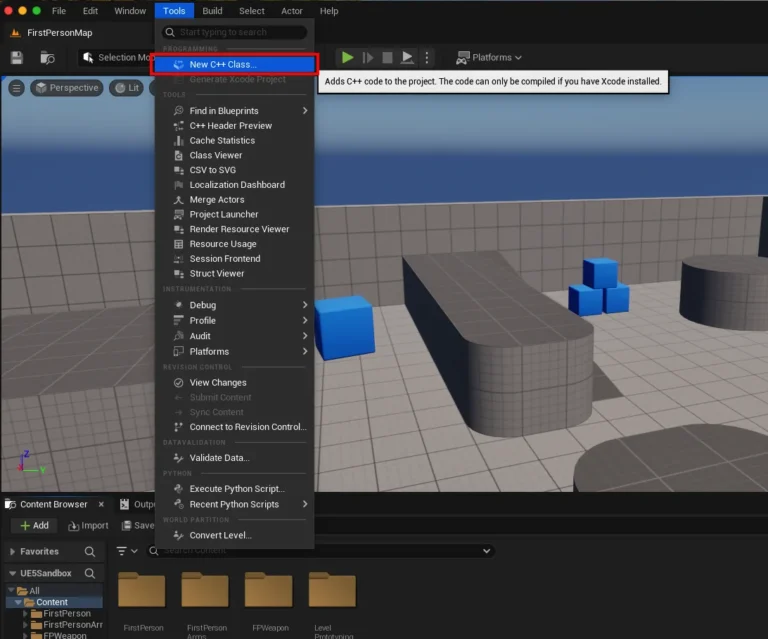
Unreal Engine 5 (UE5), a powerhouse in real-time 3D creation, offers unparalleled tools for game development, architectural visualization, film production, and more. However, a fundamental aspect of its architecture dictates that many advanced features and lower-level functionalities remain exclusive to C++ programming, presenting a hurdle for developers primarily utilizing Blueprints, Unreal Engine’s visual scripting system. To bridge this gap and democratize access to sophisticated capabilities, a vibrant ecosystem of plugins has emerged, meticulously crafted by Epic Games and its dedicated developer community. These plugins introduce new Blueprint nodes, extend engine functionality, and streamline complex workflows, significantly enhancing productivity and creative potential. This article delves into the critical processes of installing and enabling plugins within Unreal Engine 5, covering both the streamlined approach via the Unreal Marketplace and the more advanced method of manual installation, while also exploring the broader implications of this extensible architecture on the development landscape.
The Foundation of Extensibility: Why Plugins are Essential in Unreal Engine 5

At its core, Unreal Engine is built on C++, a powerful, high-performance programming language. This foundation allows for granular control over hardware, memory management, and complex game logic, making it ideal for the engine’s core functionalities. Blueprints, on the other hand, provide a visually intuitive, node-based interface that abstracts much of the underlying C++ complexity. This allows designers, artists, and even non-programmers to implement sophisticated game mechanics and interactive experiences without writing a single line of code.
However, this abstraction inherently means that certain low-level operations, performance-critical tasks, or highly specialized integrations often remain C++ exclusive. This is where plugins become indispensable. A plugin is essentially a self-contained module that can add new features, modify existing ones, or integrate third-party libraries directly into the Unreal Engine editor and runtime. By packaging C++ functionalities into easily accessible Blueprint nodes or editor extensions, plugins empower a wider range of developers to leverage advanced features that would otherwise require extensive C++ knowledge. This modular approach not only accelerates development cycles but also fosters a collaborative environment where specialized tools can be shared and integrated across diverse projects. The growth of the Unreal Engine plugin ecosystem reflects a broader industry trend towards modular software design, enabling greater flexibility and innovation.
Accessing Official Extensions: Unreal Marketplace Plugins

The most straightforward and recommended method for acquiring and installing plugins is through the Unreal Marketplace, Epic Games’ official digital storefront. The Marketplace serves as a curated repository for thousands of assets, including textures, models, animations, and crucially, code plugins. Each plugin undergoes a review process by Epic Games to ensure quality, stability, and compatibility with specific engine versions, offering developers a reliable and secure source for extensions.
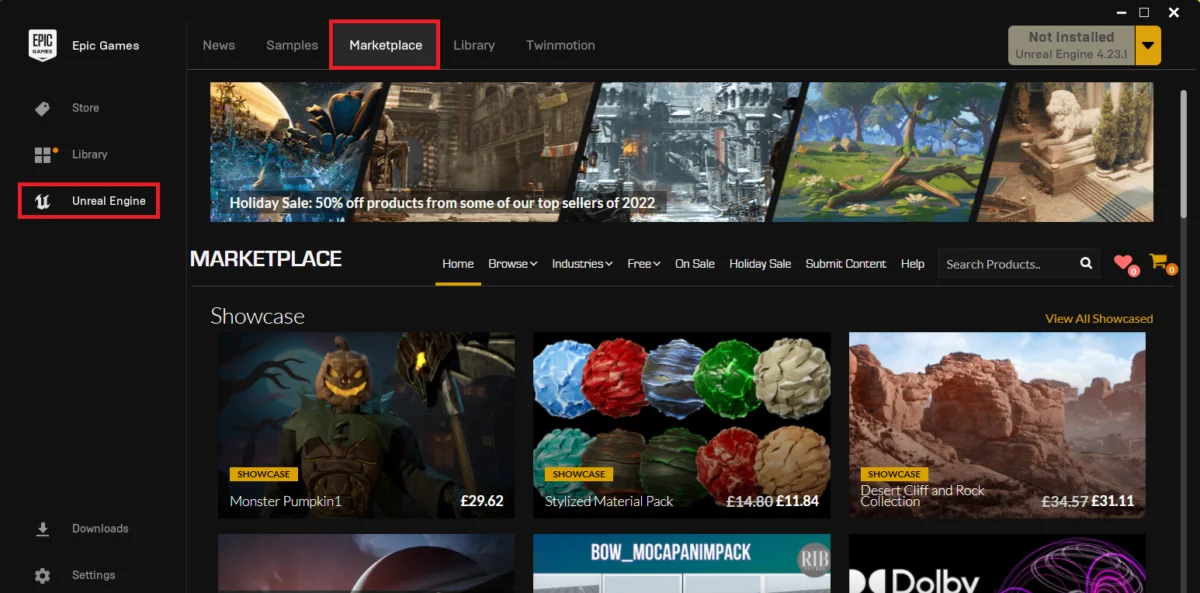
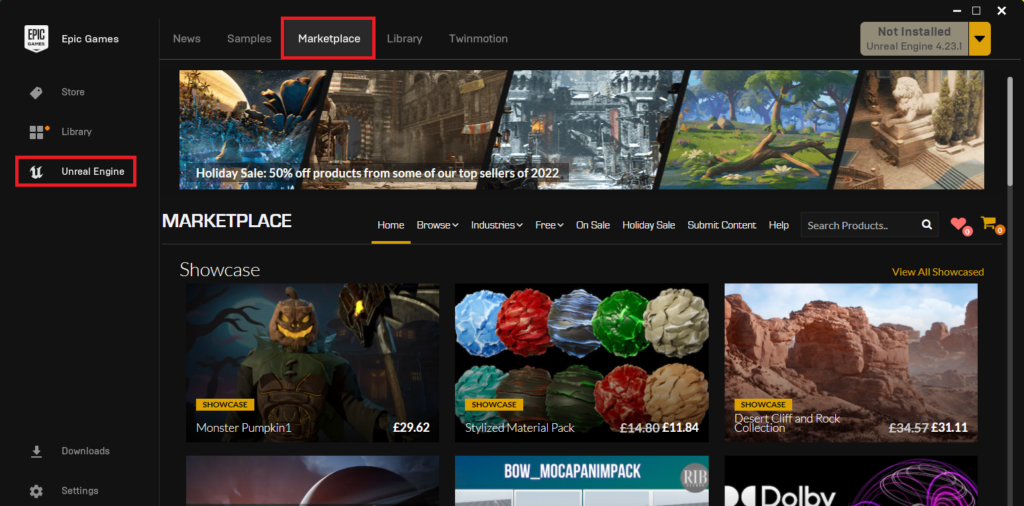
The process begins by launching the Epic Games Launcher, the central hub for all Epic Games products. Once opened, developers must navigate to the "Unreal Marketplace" tab. This section is designed to facilitate easy discovery of content, categorized for user convenience. Within the "Browse" section of the Marketplace, developers will find various content types, including "Code Plugins." Clicking this option filters the vast library to display only code-based extensions, making it easier to locate tools that add new functionalities rather than just visual assets.
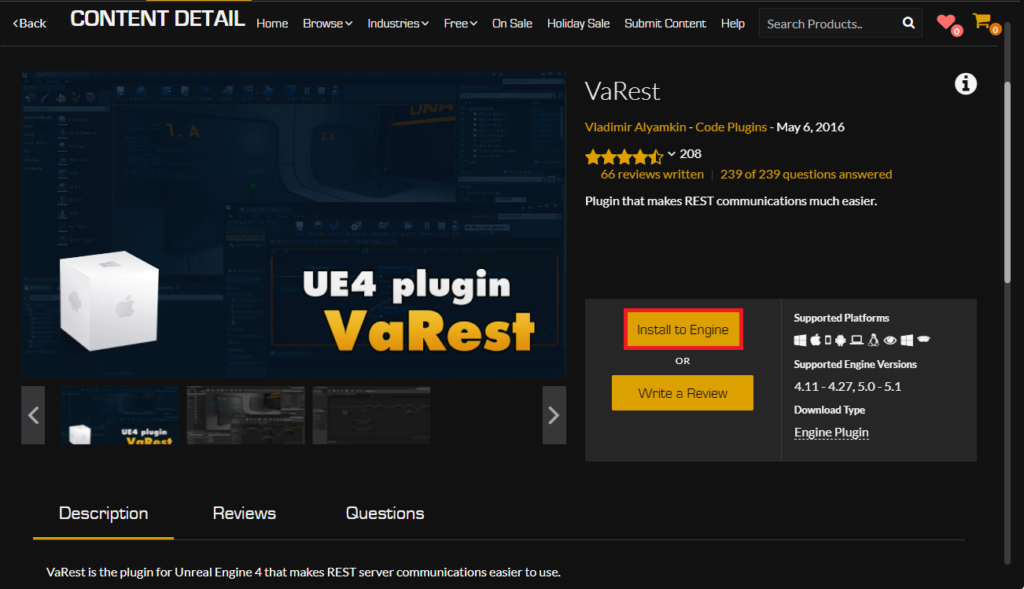
Upon identifying a desired plugin—for instance, the widely used VaRest network plugin, which simplifies making HTTP/HTTPS requests directly within Blueprints—the next step involves acquisition. Even for free plugins, developers must go through an "Add to Cart" and "purchase" process. This mechanism is crucial for license management and tracking, ensuring that Epic Games can maintain a record of ownership and provide support where necessary. It’s a frictionless process for free items, with no financial transaction involved, but it formally adds the plugin to the user’s Epic Games library.
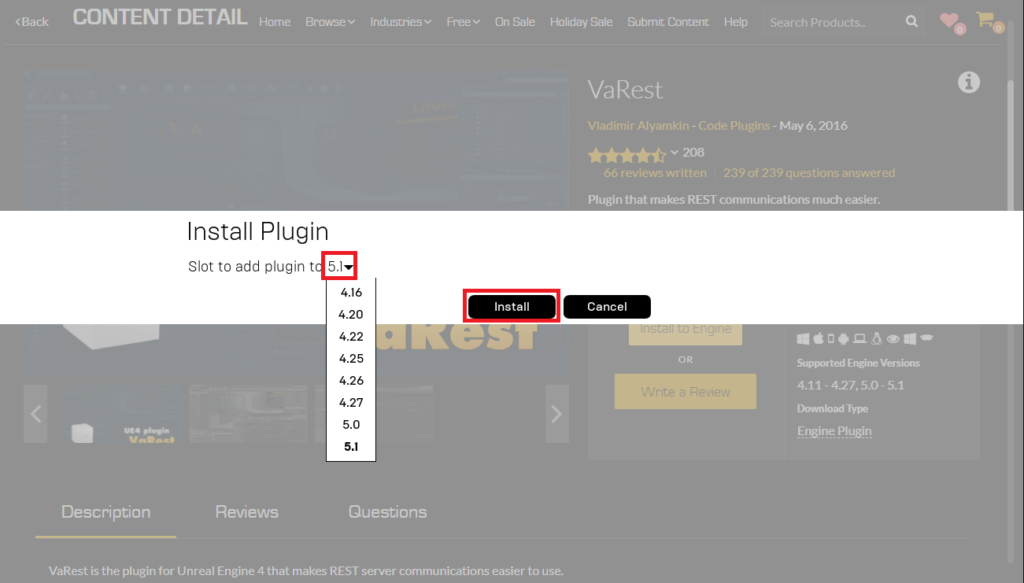
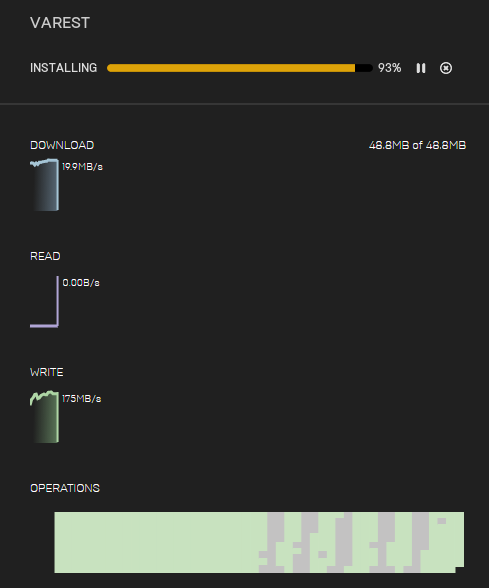
Once acquired, the plugin must be installed to the Unreal Engine itself. This is achieved by clicking the "Install to Engine" button on the plugin’s Marketplace page. A prompt will then appear, requiring the developer to select the specific Unreal Engine version to which the plugin should be installed. This step is critical, as plugins are often compiled against particular engine versions, and selecting an incompatible version can lead to errors or instability. Developers typically install plugins to their most active or relevant engine installations. After selecting the version, the installation process commences, with progress visible in the "Downloads" tab of the Epic Games Launcher. This centralized download management ensures that developers can monitor the status of their installations.
Activating Marketplace Plugins within a Project
After successful installation to the engine, the plugin is not automatically active within every Unreal Engine project. This design choice is deliberate and serves several important purposes: it prevents projects from compiling unnecessary code, thereby reducing executable sizes, improving build times, and maintaining project modularity. Therefore, a final activation step is required within the specific Unreal Engine project where the plugin is intended to be used.

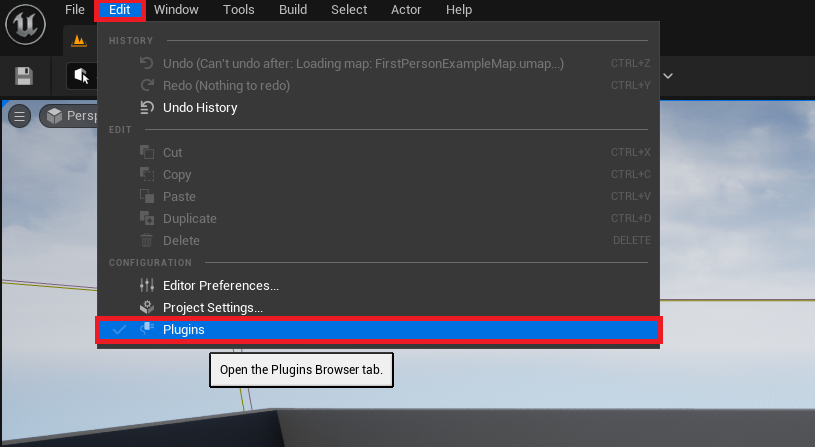
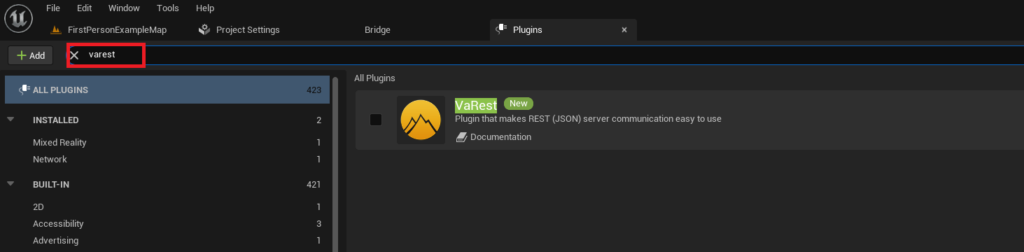
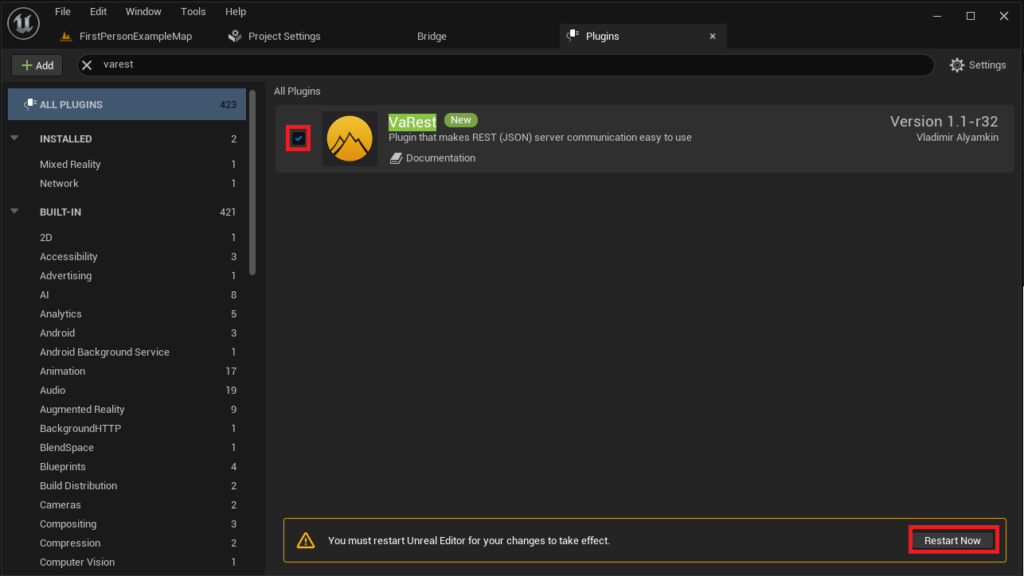
To enable the newly installed plugin, developers must open their Unreal Engine project. Within the editor, they navigate to the top menu bar, click "Edit," and then select "Plugins." This action opens the Plugins window, a comprehensive interface for managing all installed and available plugins. The window features a search bar, allowing developers to quickly locate their plugin by name (e.g., "VaRest"). Once found, a checkbox next to the plugin’s name must be clicked to enable it. Enabling a plugin often necessitates a restart of the Unreal Engine editor. A "Restart Now" button will typically appear, prompting the user to confirm the restart. This restart allows the engine to properly initialize the plugin’s modules, compile any necessary C++ code (if it’s a code plugin), and make its new functionalities, such as Blueprint nodes or editor tools, available for use within the project. This final step completes the integration, allowing developers to immediately begin utilizing the plugin’s capabilities in their C++ code or Blueprint graphs.
The Advanced Route: Manually Installed Plugins
While the Unreal Marketplace offers a convenient and secure method, developers sometimes encounter situations requiring manual plugin installation. This typically occurs for niche plugins not available on the Marketplace, open-source projects hosted on platforms like GitHub, private internal tools developed by a studio, or when developers need a specific, potentially modified version of a plugin. This method offers greater flexibility but demands a higher degree of caution and technical understanding.
Crucial Disclaimer: Navigating Risks with Manual Installation
It is paramount to exercise extreme caution when downloading and installing files from untrusted or unverified online sources. The internet is replete with malicious software, and installing an unknown plugin can introduce significant security vulnerabilities, including malware, viruses, or code that compromises project integrity. Developers must strictly adhere to a principle of source trustworthiness. Only download Unreal Engine plugins from reputable sources, such as official developer forums, well-known GitHub repositories with active communities, or direct links from established development studios.
Furthermore, compatibility is a critical consideration. Manually downloaded plugins are often compiled for specific versions of Unreal Engine. Attempting to use a plugin designed for, say, UE4.27 with UE5.3 can lead to compilation errors, crashes, or unpredictable behavior. Developers must verify that the plugin explicitly states compatibility with their installed Unreal Engine 5 version. CouchLearn and similar educational platforms consistently advise against indiscriminate downloads, emphasizing that users bear full responsibility for any damage or instability caused by untrusted or incompatible files.
The Manual Installation Process
To illustrate the manual installation, we can consider a hypothetical scenario with a plugin like the "Victory BP Plugin by Rama," renowned in the community for its extensive collection of utility Blueprint nodes. The first step in manual installation involves ensuring that the Unreal Engine project folder contains a dedicated "Plugins" folder. This folder is typically located at the root level of the project directory (e.g., MyProject/Plugins). If this folder does not exist, developers must create a new folder and name it "Plugins" precisely.
Once the "Plugins" folder is confirmed or created, the next step is to copy the downloaded plugin’s main folder into this directory. For example, if the downloaded plugin is named "VictoryPlugin," the entire "VictoryPlugin" folder (containing all its subdirectories and files) would be placed inside the project’s "Plugins" folder. This structure allows the Unreal Engine to discover and load the plugin when the project is opened. Inside the copied plugin folder, developers would typically find files like .uplugin (the plugin descriptor file), Source (containing C++ source code), Binaries (pre-compiled files), and other asset folders. The presence of these files confirms that the plugin structure is correct and ready for integration.
Activating Manually Installed Plugins within a Project
Similar to Marketplace plugins, manually installed plugins are not active by default within an Unreal Engine project. This serves the same purpose of preventing unnecessary code compilation and maintaining project efficiency. The activation process mirrors that of Marketplace plugins.
With the Unreal Engine project open, developers navigate to "Edit" then "Plugins" in the top menu bar. This action opens the Plugins window, which lists all available plugins, including those manually placed in the project’s "Plugins" folder. Using the search bar, developers can find the manually installed plugin by its name (e.g., "Victory Plugin"). Once located, the checkbox adjacent to the plugin’s name must be clicked to enable it. As with Marketplace plugins, enabling a manually installed plugin will prompt a "Restart Now" option. Clicking this button restarts the Unreal Engine editor, allowing it to properly load the plugin, integrate its functionalities, and make its new features accessible within both C++ and Blueprint environments. This restart is crucial for the engine to recognize and compile the plugin’s modules into the project.
Broader Impact and Implications for Unreal Engine Development
The robust plugin ecosystem of Unreal Engine 5 carries profound implications for individual developers, studios of all sizes, and the broader real-time 3D industry.
Democratization of Development: Plugins significantly lower the barrier to entry for advanced features. By encapsulating complex C++ logic into user-friendly Blueprint nodes, they enable artists, designers, and junior developers to implement sophisticated systems—from advanced networking to custom UI elements and complex physics interactions—without requiring deep programming expertise. This expands the pool of creators capable of realizing ambitious visions within Unreal Engine.
Increased Efficiency and Resource Optimization: For both indie developers and large studios, plugins represent a massive saving in development time and resources. Instead of "reinventing the wheel" by coding common functionalities from scratch, developers can leverage existing, often well-tested, and optimized plugins. This allows teams to focus their efforts on unique game mechanics and core project features, accelerating production timelines and reducing overall costs. The ability to quickly integrate tools for common tasks, such as saving/loading systems, procedural generation, or third-party API integrations, directly translates to faster iteration and deployment.
Fostering Innovation and Collaboration: The plugin marketplace and open-source community platforms foster a dynamic environment of innovation. Developers are not only consumers but also producers of tools, sharing their solutions and collectively advancing the capabilities of the engine. This collaborative spirit leads to the rapid development of specialized tools addressing niche needs that might not be prioritized by Epic Games directly. It also creates opportunities for independent developers to monetize their creations, further incentivizing contributions to the ecosystem.
Economic Impact and Market Dynamics: The Unreal Marketplace has grown into a significant economic force, generating revenue for Epic Games and thousands of content creators. This thriving digital economy provides a sustainable model for continuous plugin development and support. For smaller studios and individual developers, access to high-quality, affordable plugins levels the playing field, enabling them to compete with larger entities by utilizing sophisticated tools that would otherwise be out of reach.
Challenges and Considerations: While overwhelmingly beneficial, the reliance on plugins also introduces certain challenges. Maintenance and compatibility can be ongoing concerns, as plugins need to be updated to remain compatible with new Unreal Engine versions. Developers must factor in the time and effort required to manage plugin updates and potential breaking changes. Quality control is another variable, particularly with manually installed or less popular Marketplace plugins; poorly optimized or buggy plugins can introduce performance issues or instability. Therefore, careful evaluation and testing are crucial before fully integrating any new plugin into a production project.
The Future Outlook: Epic Games continues to invest heavily in the Unreal Engine ecosystem, with ongoing improvements to the plugin architecture and developer tools. The trend towards modularity and extensibility is only expected to grow, potentially incorporating more AI-assisted plugin development, easier cross-version compatibility, and enhanced debugging tools for plugin creators. As Unreal Engine evolves, plugins will remain at the forefront of empowering creators, pushing the boundaries of what’s possible in real-time interactive experiences.
In conclusion, plugins are not merely optional add-ons but rather an integral component of modern Unreal Engine 5 development. Whether sourced from the curated Unreal Marketplace or integrated manually from trusted community contributions, these extensions unlock a vast array of functionalities, bridge the C++ to Blueprint divide, and significantly enhance the efficiency and creative scope of projects. Understanding their installation and activation processes is a fundamental skill for any developer aiming to harness the full power of Unreal Engine 5 and contribute to its ever-expanding universe of interactive content.
About the Author