In the dynamic and demanding landscape of modern game development, creators frequently encounter a critical juncture where the visual scripting prowess of Unreal Engine’s Blueprint system, while invaluable for rapid prototyping and designer empowerment, reaches its performance limits. This often manifests as noticeable slowdowns in computationally intensive sections of a game, prompting developers to seek more robust and efficient solutions. While writing code entirely in C++ offers superior speed and access to low-level engine features, it typically necessitates a significant restructuring of existing Blueprint-centric projects, posing a substantial hurdle for development teams. Fortunately, Unreal Engine 5 provides an elegant and powerful hybrid solution: the C++ Blueprint Function Library, a mechanism that seamlessly integrates the raw performance and advanced capabilities of C++ directly into Blueprint workflows, mitigating the need for wholesale project overhauls. This guide delves into the essence of C++ Blueprint Function Libraries, outlining their creation, implementation, and the profound impact they have on development efficiency and game performance within the Unreal Engine ecosystem.
The Evolution of Development in Unreal Engine: A Hybrid Imperative
The journey of game development with Unreal Engine has seen a continuous evolution of its scripting tools, moving from the proprietary UnrealScript in earlier iterations to the current dual-pillar approach of C++ and Blueprint. Introduced as a successor to Kismet, Blueprint visual scripting revolutionized accessibility, allowing designers and non-programmers to craft complex game logic without delving into traditional code. Its intuitive node-based interface, immediate feedback, and ease of iteration quickly made it a cornerstone of Unreal Engine development. However, the very nature of interpreted visual scripting inherently introduces overheads compared to compiled C++ code. Operations that are CPU-bound, involve extensive mathematical calculations, large data manipulations, or frequent iterations can quickly expose Blueprint’s limitations, leading to frame rate drops, stuttering, and an overall degradation of the player experience.
Conversely, C++ stands as the bedrock of Unreal Engine itself, offering unparalleled control, optimization potential, and direct access to the engine’s core functionalities. Developers leveraging C++ can fine-tune algorithms, implement complex data structures, optimize memory usage, and integrate advanced features like multi-threading or custom physics solvers that are either difficult or impossible to achieve efficiently within Blueprint alone. The challenge, historically, lay in bridging these two distinct paradigms without disrupting established workflows. A project initiated in Blueprint, enjoying the benefits of rapid iteration, would often face a daunting task when performance bottlenecks demanded C++ intervention, often requiring a complete rewrite of affected systems. The C++ Blueprint Function Library emerged as Epic Games’ strategic answer to this dilemma, recognizing the need for a balanced approach that harnesses the strengths of both worlds.
Understanding the C++ Blueprint Function Library: Bridging the Divide
At its core, a C++ Blueprint Function Library is a specialized Unreal Engine class designed to host static C++ functions that are then exposed and made callable within the Blueprint visual scripting environment. Unlike regular C++ classes that might require instantiating an object to access their methods, functions within a Blueprint Function Library are typically static, meaning they can be invoked globally without a specific object reference. This design choice mirrors the utility nodes found in Blueprint, making them readily available in any Blueprint graph, from Actor Blueprints to Game Mode Blueprints and UI Widgets.
The primary objective of this construct is twofold: to inject performance-critical operations into Blueprint graphs and to expose C++ features that lack direct Blueprint nodes. Consider scenarios involving advanced artificial intelligence decision-making, complex procedural generation algorithms, intricate physics calculations, or high-frequency data processing. Implementing these entirely in Blueprint can lead to significant performance degradation. By offloading these demanding tasks to C++ functions within a Blueprint Function Library, developers can achieve substantial performance improvements, often seeing execution times reduced by factors ranging from 5x to 10x or even more for highly optimized C++ routines, depending on the specific task and hardware. The C++ code compiles directly into the engine’s executable, benefiting from native machine code execution, which is inherently faster than Blueprint’s interpreted execution.
Moreover, C++ Function Libraries serve as conduits for accessing a broader spectrum of Unreal Engine’s underlying capabilities and external libraries. Features like custom file I/O operations, direct manipulation of raw memory, advanced networking protocols, or integrations with third-party SDKs frequently require C++ implementation. By wrapping these C++-exclusive functionalities within a Blueprint Function Library, programmers can create custom Blueprint nodes, empowering designers to utilize these powerful tools without needing C++ expertise themselves. This significantly expands the creative possibilities and technical reach of Blueprint-centric projects.
Establishing the Foundation: Prerequisites and Project Setup
To embark on the journey of integrating C++ into Blueprint via Function Libraries, a foundational understanding of C++ within the Unreal Engine context is essential. Developers should be familiar with basic C++ syntax, class structures, and Unreal Engine’s object model, including concepts like UObjects, UClasses, and the reflection system.
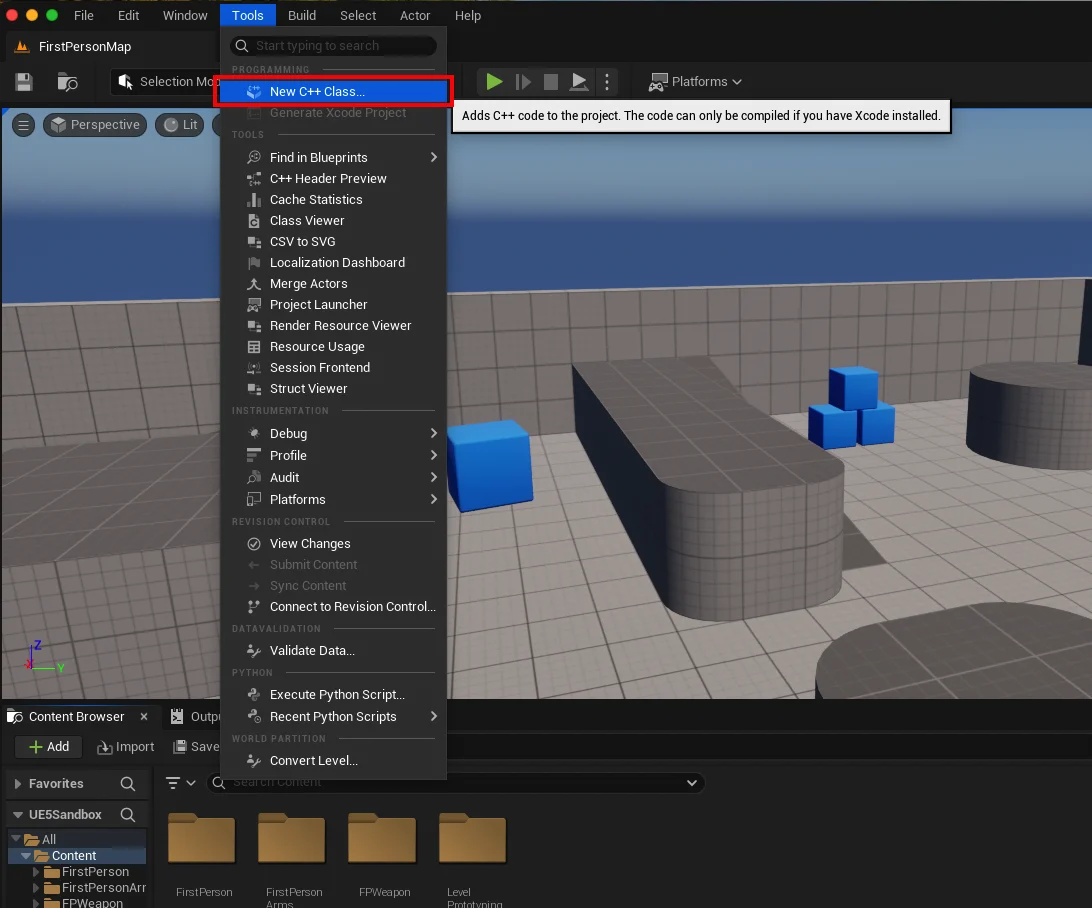
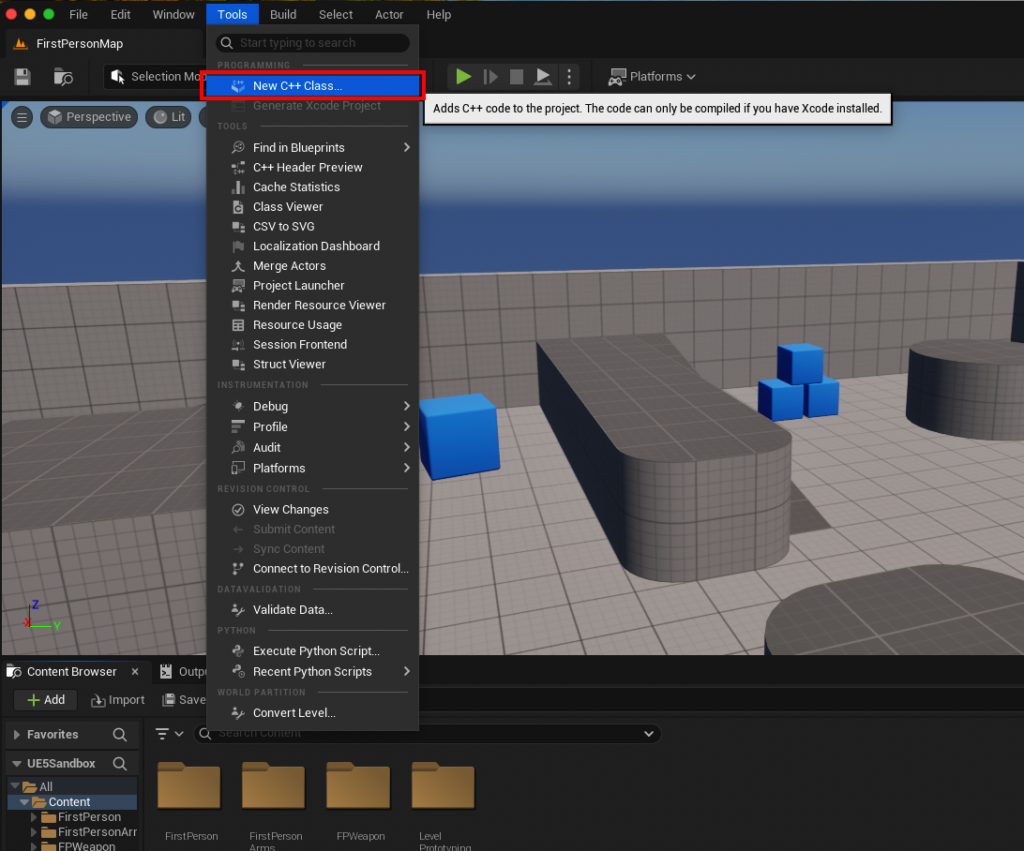
The first practical step involves ensuring your Unreal Engine project is configured to support C++ development. While Unreal Engine 5 allows for Blueprint-only projects, C++ integration naturally requires a C++-enabled project. This can be verified by navigating to the "Tools" dropdown menu in the Unreal Editor and selecting "New C++ Class." If the project is Blueprint-only, the engine will prompt the user to add C++ support, which involves generating necessary C++ source files and project configurations.
Crucially, a robust Integrated Development Environment (IDE) is indispensable for writing, compiling, and debugging C++ code. Standard choices include:
- Visual Studio (Windows): The industry-standard IDE for Windows development, offering excellent integration with Unreal Engine, powerful debugging tools, and a rich ecosystem of extensions.
- Xcode (macOS): Apple’s comprehensive IDE for macOS and iOS development, essential for C++ development on Apple platforms.
- JetBrains Rider (Windows, macOS, Linux): A cross-platform .NET IDE that also provides exceptional support for Unreal Engine C++ development, known for its intelligent code analysis, refactoring capabilities, and superior user experience.
If an IDE is not detected or installed, Unreal Engine will guide the user through the installation process for a suitable environment based on their operating system. For instance, on macOS, Xcode is the primary recommendation.
Creating Your First C++ Blueprint Function Library: A Step-by-Step Walkthrough
Once the project is C++-enabled and an IDE is set up, creating a C++ Blueprint Function Library is a streamlined process within the Unreal Editor:
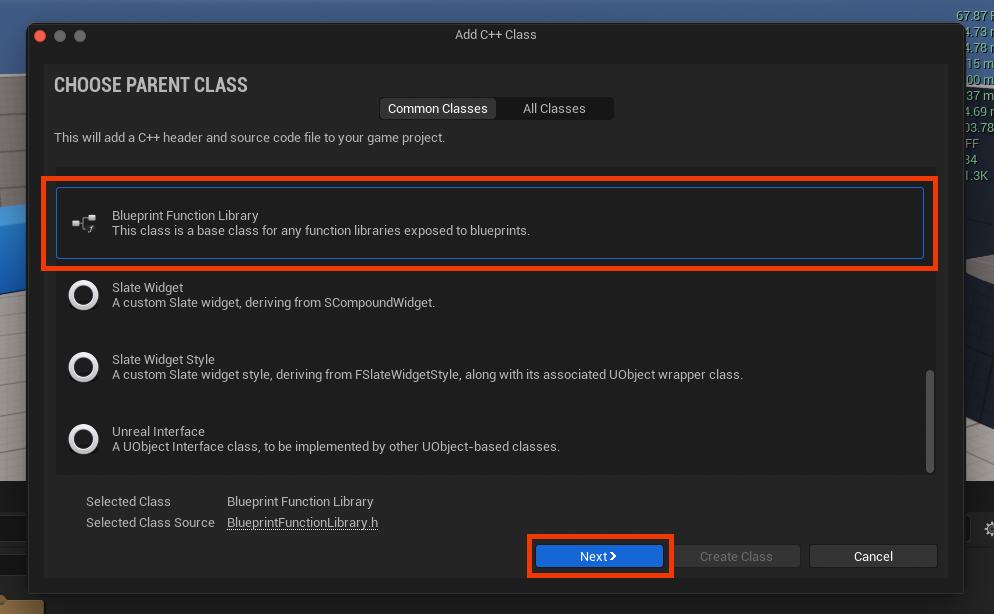
- Initiating Class Creation: From the "Tools" menu, select "New C++ Class." This opens a dialog box prompting for the type of "Parent Class" for the new C++ class.
- Selecting the Parent Class: Scroll through the list of available parent classes and select "Blueprint Function Library." This ensures the new class inherits the necessary functionalities and properties to be recognized and utilized as a function library within Blueprint. After selection, click the "Next" button.
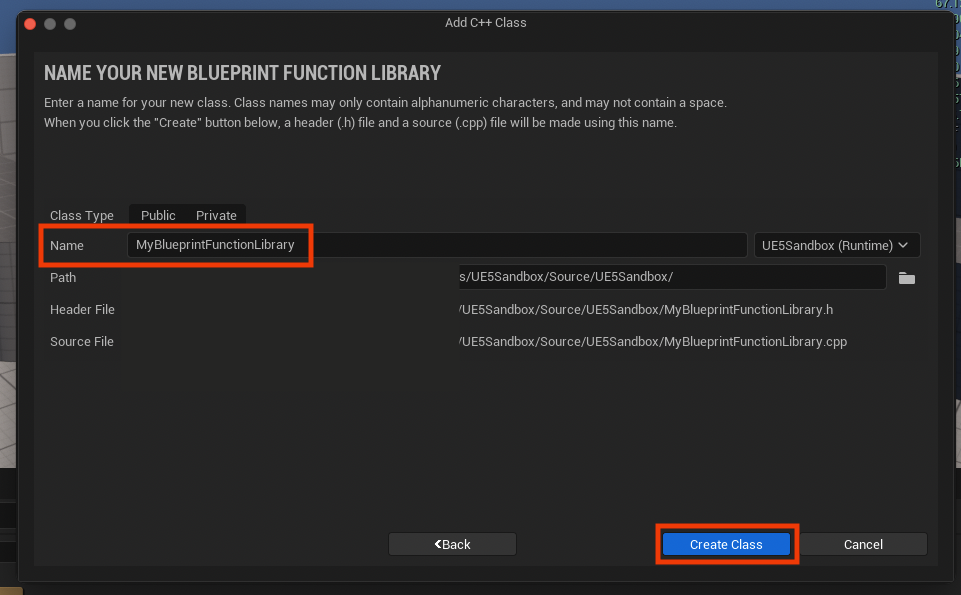
- Naming the Library: The next dialog requests a name for the new Blueprint Function Library class. Adhering to Unreal Engine’s naming conventions is highly recommended for clarity and maintainability. This typically involves using "PascalCase" (e.g.,
MyBlueprintFunctionLibrary,CustomMathLibrary,GameSaveSystem). For this guide,MyBlueprintFunctionLibraryis used as a straightforward example. A clear and descriptive name will aid discoverability and organization as the project grows. - Compilation and Integration: Upon clicking "Create Class," Unreal Engine generates the necessary
.h(header) and.cpp(source) files for the new class within the project’s "Source" folder. The engine then automatically initiates a compilation process to integrate these new files into the project. This step is critical; all C++ changes must be compiled for them to become active within the Unreal Editor. Developers should wait for this compilation to complete successfully before proceeding.
Developing Functionality: Inside the Code IDE
After the initial class creation and compilation, the newly generated .h and .cpp files will be visible within the chosen IDE. For MyBlueprintFunctionLibrary, files named MyBlueprintFunctionLibrary.h and MyBlueprintFunctionLibrary.cpp will be present.
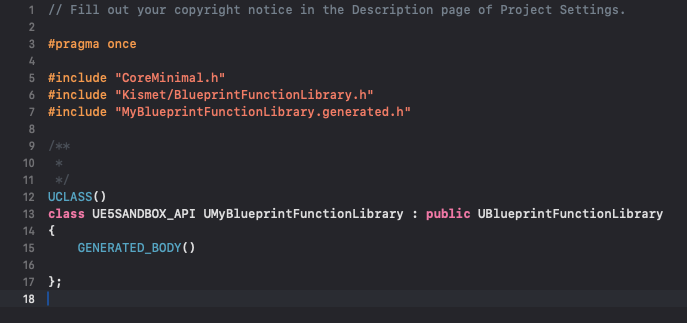
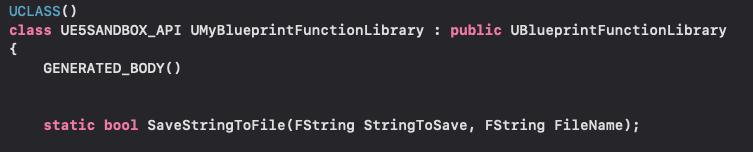
The MyBlueprintFunctionLibrary.h header file serves as the declaration space for the functions that will be exposed to Blueprint. Unreal Engine provides a basic template, including necessary includes and the class declaration inheriting from UBlueprintFunctionLibrary.
To expose a C++ function to Blueprint, two key elements are required:
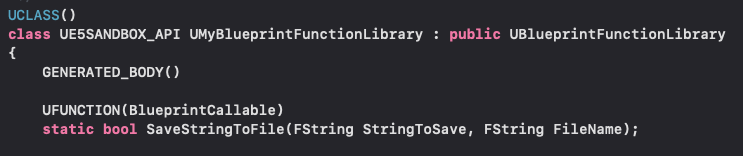
- The
staticKeyword: As previously discussed, functions within a Blueprint Function Library should typically bestatic. This allows them to be called without an instance of the class, making them universally accessible within Blueprint graphs. - The
UFUNCTIONMacro: This crucial macro is part of Unreal Engine’s reflection system. It signals to the engine that the following function should be exposed to the editor and, specifically, to the Blueprint system. Various specifiers can be used withUFUNCTIONto control its behavior in Blueprint, such asBlueprintCallable(to make it callable from Blueprints),Category(to organize it within the Blueprint context menu), andDisplayName(to give it a user-friendly name in Blueprint).
Consider a practical example: a simple string read and write system. This functionality is often critical for saving game data, logging, or configuration management, and performing it efficiently is paramount.

Example: File I/O Functions
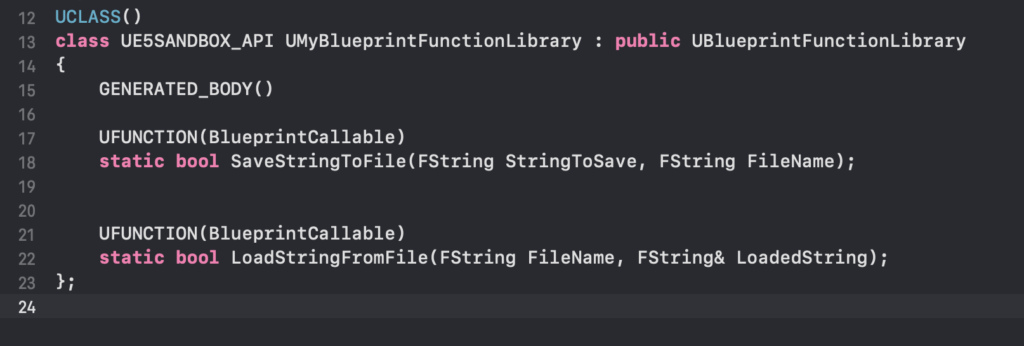
In MyBlueprintFunctionLibrary.h, function declarations would look like this:
#pragma once

#include "CoreMinimal.h"
#include "Kismet/BlueprintFunctionLibrary.h"
#include "MyBlueprintFunctionLibrary.generated.h"

/**
 *
 */
UCLASS()
class MYPROJECT_API UMyBlueprintFunctionLibrary : public UBlueprintFunctionLibrary

    GENERATED_BODY()

public:
    /**
     * Saves a string to a specified file path.
     * @param SaveText The string to save.
     * @param FileName The full path to the file.
     * @return True if the string was saved successfully, false otherwise.
     */
    UFUNCTION(BlueprintCallable, Category = "File I/O")
    static bool SaveStringToFile(FString SaveText, FString FileName);

    /**
     * Loads a string from a specified file path.
     * @param LoadText The output string loaded from the file.
     * @param FileName The full path to the file.
     * @return True if the string was loaded successfully, false otherwise.
     */
    UFUNCTION(BlueprintPure, BlueprintCallable, Category = "File I/O")
    static bool LoadStringFromFile(FString& LoadText, FString FileName);
;
Note the BlueprintPure specifier for LoadStringFromFile. This indicates that the function is "pure" – it doesn’t modify the state of the object it’s called on and will return the same value given the same inputs. Pure functions appear as nodes without execution pins in Blueprint, making them ideal for getter-like operations.
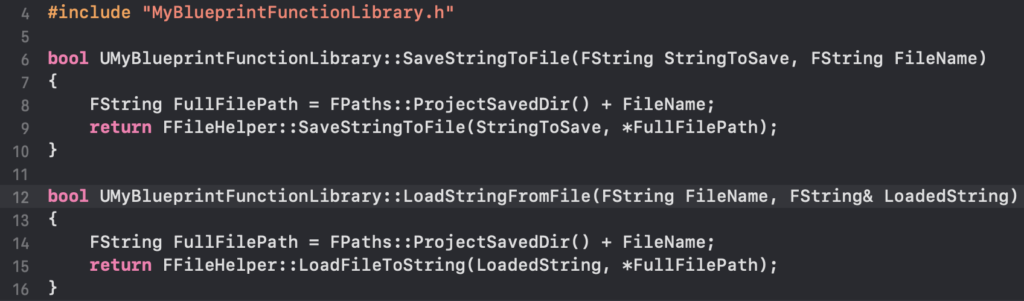
Next, in MyBlueprintFunctionLibrary.cpp, the implementation of these functions would utilize Unreal Engine’s FFileHelper class, which provides convenient utilities for file operations:
#include "MyBlueprintFunctionLibrary.h"
#include "Misc/FileHelper.h"
#include "HAL/PlatformFileManager.h"

bool UMyBlueprintFunctionLibrary::SaveStringToFile(FString SaveText, FString FileName)

    return FFileHelper::SaveStringToFile(SaveText, *FileName);


bool UMyBlueprintFunctionLibrary::LoadStringFromFile(FString& LoadText, FString FileName)

    return FFileHelper::LoadFileToString(LoadText, *FileName);
The *FileName syntax dereferences the FString to a const TCHAR*, which is often required by lower-level Unreal Engine file system functions. This example demonstrates how the Blueprint Function Library acts as a wrapper, exposing complex C++ file system operations as simple, callable Blueprint nodes.
After modifying the C++ files, it is imperative to compile the project again. This can usually be done directly from the IDE or by selecting "Compile" from the "Tools" menu in the Unreal Editor. Once compiled successfully, the editor should be relaunched to ensure all changes are fully integrated.
Seamless Integration: Utilizing C++ Functions in Blueprints
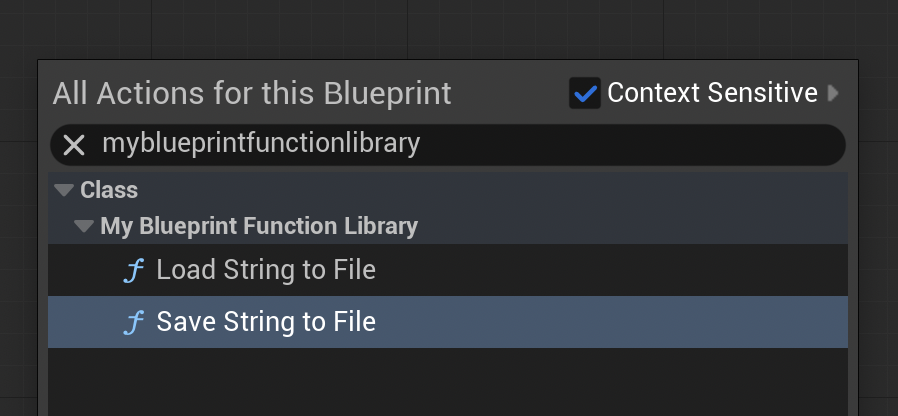
With the C++ Blueprint Function Library compiled and integrated, its functions become immediately accessible within any Blueprint graph. To use them, simply open any Blueprint (e.g., a Level Blueprint, an Actor Blueprint, or a Widget Blueprint), right-click in the event graph, and search for the name of your function library or the specific function names.
For our MyBlueprintFunctionLibrary example, typing "Save String To File" or "Load String From File" will reveal the custom C++ functions, neatly categorized under "File I/O" as specified by the Category UFUNCTION specifier. These nodes will appear with their respective input and output pins, just like any native Blueprint node, ready to be connected into the visual logic flow.
Demonstration: Practical Application in Unreal Engine 5
To illustrate the functionality, let’s walk through a brief demonstration within the Unreal Editor:
-
Saving a String:
- Open the Level Blueprint (or any Actor Blueprint).
- Add a "BeginPlay" event node.
- Right-click in the event graph and search for "Save String To File." Select the custom C++ function node.
- Connect the "BeginPlay" execution pin to the "Save String To File" execution input.
- For the "SaveText" input, enter a string literal, e.g., "Hello from C++ Function Library!".
- For the "FileName" input, specify a path, e.g.,
FPaths::ProjectSavedDir() + "my_data.txt".FPaths::ProjectSavedDir()is a convenient way to get the project’sSaveddirectory, ensuring platform compatibility. - Play the project in the editor.
- Navigate to your project’s
Savedfolder. A file namedmy_data.txtwill be created, containing the specified string. This confirms the C++ function successfully executed a file write operation from Blueprint.
-
Loading a String:
- First, manually create a text file (e.g.,
loaded_data.txt) in your project’sSavedfolder and populate it with a test string, such as "This string was loaded from a file!". - In the same Blueprint graph, add another "BeginPlay" event (or sequence it after the save operation).
- Right-click and search for "Load String From File."
- Connect the execution pin (or sequence from the previous event).
- For the "FileName" input, specify
FPaths::ProjectSavedDir() + "loaded_data.txt". - Connect the "LoadText" output pin from the "Load String From File" node to the input of a "Print String" node.
- Play the project.
- The string "This string was loaded from a file!" will appear on the screen (or in the Output Log), demonstrating the successful C++ file read operation integrated into Blueprint.
- First, manually create a text file (e.g.,
These demonstrations underscore the power and simplicity of C++ Blueprint Function Libraries. Designers can now leverage complex C++ functionalities, such as robust file I/O, without ever needing to write a line of C++ code, maintaining their preferred visual scripting workflow while benefiting from optimized underlying operations.
Broader Impact and Strategic Implications for Game Development
The integration of C++ Blueprint Function Libraries carries significant implications for various aspects of game development:
- Optimized Performance: This is arguably the most direct and impactful benefit. By offloading performance-critical calculations from Blueprint to C++, developers can significantly improve game performance, ensuring smoother frame rates, faster load times, and more responsive gameplay, especially in large-scale or graphically intensive titles.
- Enhanced Functionality and Engine Access: C++ Blueprint Function Libraries unlock a vast array of engine features and external library integrations that are not natively exposed to Blueprint. This empowers developers to implement highly specialized systems, custom hardware interactions, or integrate proprietary technologies with relative ease, expanding the technical scope of their projects.
- Improved Team Collaboration: This hybrid approach fosters better collaboration between programmers and designers. Programmers can develop highly optimized, robust C++ modules, which designers can then easily consume and integrate into their Blueprint logic. This creates a clear separation of concerns, allowing each team member to focus on their strengths without stepping on each other’s toes.
- Scalability and Maintainability: As projects grow in complexity, managing purely Blueprint-driven logic can become challenging. C++ functions offer better tools for debugging, version control, and refactoring, contributing to more scalable and maintainable codebases. By encapsulating complex logic in C++, the Blueprint graphs can remain cleaner and more focused on high-level game flow.
- Reduced Development Time: While initial setup requires C++ knowledge, the ability to reuse optimized C++ code across multiple Blueprint assets and projects can significantly reduce development time in the long run. It eliminates the need for repeated Blueprint optimizations or complex workarounds.
- Consistent Naming Conventions and API Design: The process of exposing C++ functions to Blueprint encourages careful API design. Using
CategoryandDisplayNamespecifiers ensures that the C++ functionalities appear organized and user-friendly within the Blueprint editor, promoting consistency across the project.
Conclusion
The C++ Blueprint Function Library in Unreal Engine 5 represents a crucial tool in the modern game developer’s arsenal. It elegantly addresses the inherent trade-offs between the rapid iteration of visual scripting and the raw performance of compiled code, offering a powerful bridge that combines the best of both worlds. By understanding how to create, implement, and integrate these libraries, developers can unlock tangible performance improvements, access hidden engine functionalities, and streamline their development workflows, ultimately leading to more robust, scalable, and performant games. This hybrid approach is not merely a technical workaround but a strategic imperative for projects aiming to push the boundaries of interactive entertainment within the Unreal Engine ecosystem.
About the Author