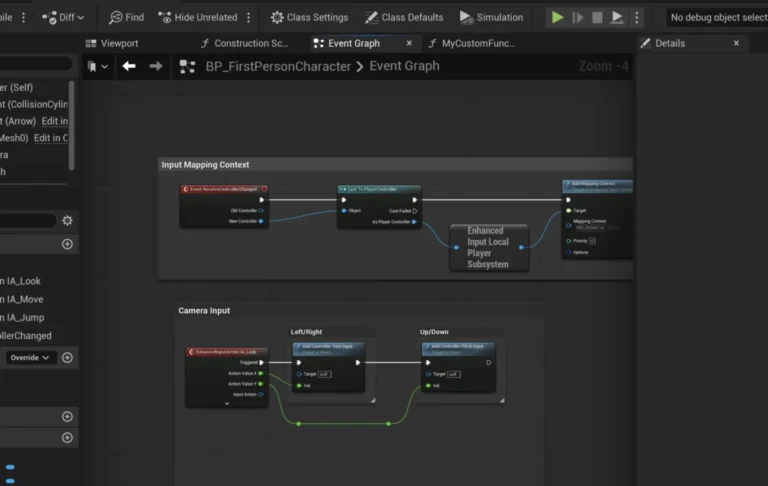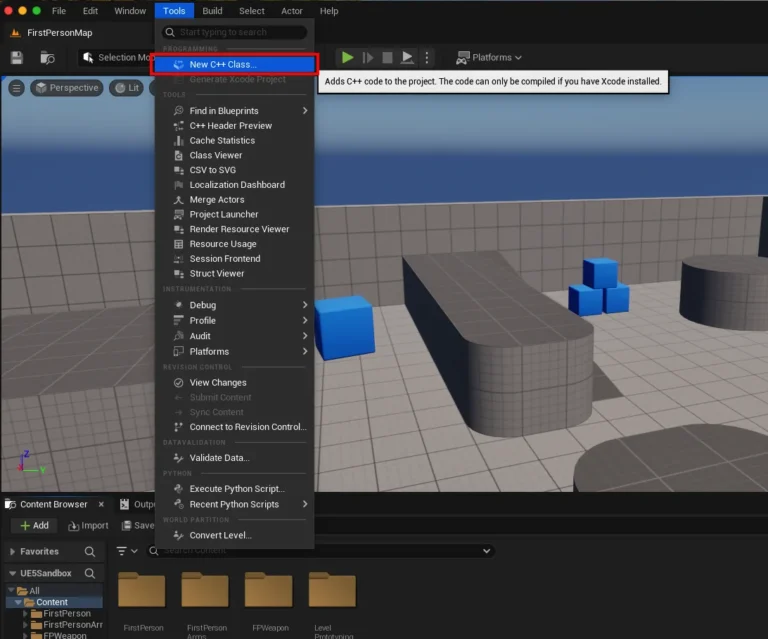
The burgeoning landscape of interactive content creation and high-fidelity game development is increasingly reliant on powerful, extensible tools, with Unreal Engine 5 (UE5) standing at the forefront. As a leading real-time 3D creation tool, UE5 offers unparalleled capabilities, yet many of its advanced features are intrinsically tied to C++ programming. This presents a potential barrier for developers primarily utilizing Blueprints, Unreal Engine’s visual scripting system, known for its accessibility and rapid prototyping advantages. However, a vibrant and prolific developer community has risen to meet this challenge, fostering an extensive ecosystem of plugins that bridge this gap, introducing a wealth of new Blueprint nodes and functionalities. These plugins empower creators to extend the engine’s core capabilities, streamline workflows, and unlock sophisticated features without delving into complex C++ code. This comprehensive report details the essential processes for integrating these vital enhancements into Unreal Engine 5 projects, covering both the official Epic Games Marketplace and advanced manual installation methods.
The Indispensable Role of Plugins in Unreal Engine 5 Development
Unreal Engine 5 has solidified its position as a cornerstone technology across various industries, from AAA game development and independent studios to film production, architectural visualization, automotive design, and sophisticated simulations. Its photorealistic rendering capabilities, advanced physics, and robust toolset enable creators to realize ambitious visions. At its core, UE5 offers two primary scripting paradigms: C++ and Blueprints. C++ provides direct access to the engine’s source code, offering maximum performance optimization and granular control, typically favored by experienced programmers for core system development. Blueprints, on the other hand, offer an intuitive, node-based visual scripting interface, democratizing development for designers, artists, and those without extensive coding backgrounds, facilitating faster iteration and prototyping.
The dichotomy between C++ and Blueprints, while offering flexibility, also creates a demand for solutions that extend Blueprint capabilities to encompass C++ exclusive features. This is precisely where plugins become indispensable. Plugins are self-contained modules that add new features, integrate third-party libraries, or extend existing engine functionalities. They are critical for:
- Feature Expansion: Introducing new Blueprint nodes for functionalities like advanced networking (REST APIs), complex mathematical operations, unique UI elements, or specialized hardware integration.
- Workflow Optimization: Providing tools that automate repetitive tasks, improve asset management, or enhance debugging processes.
- Performance Enhancements: Offering optimized C++ implementations wrapped in Blueprint-accessible nodes, leveraging the best of both worlds.
- Third-Party Integrations: Facilitating seamless connections with external services, databases, or proprietary software.
- Community Collaboration: Fostering a dynamic environment where developers share innovative solutions, benefiting the entire ecosystem.
The evolution of plugin ecosystems within major software platforms reflects a broader industry trend towards modularity and customization. Developers no longer need to "reinvent the wheel" for common functionalities, significantly reducing development time and costs. This is particularly crucial for smaller teams and independent developers who can leverage pre-built, community-tested solutions to compete with larger studios. The availability and ease of integrating such extensions are often key factors in platform adoption and developer satisfaction.
Navigating the Epic Games Marketplace for Unreal Engine 5 Plugins
The Epic Games Marketplace serves as the official, curated hub for Unreal Engine assets and plugins. It offers a streamlined, secure, and version-controlled method for acquiring and installing extensions, ensuring compatibility and reliability. This method is generally recommended for its ease of use and the vetting process Epic Games applies to listed content.
The process typically begins with the Epic Games Launcher, the central application for managing Epic Games products, including Unreal Engine installations and marketplace content.
Step 1: Accessing the Unreal Marketplace
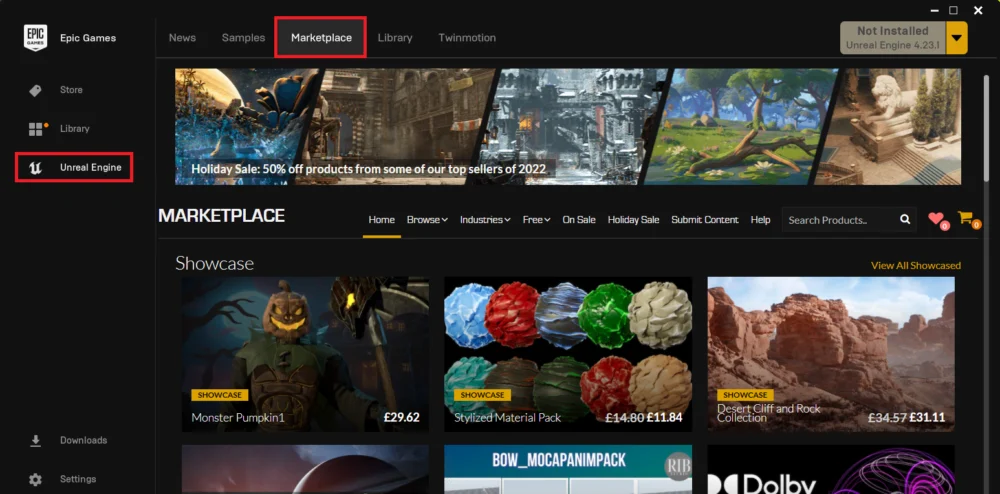
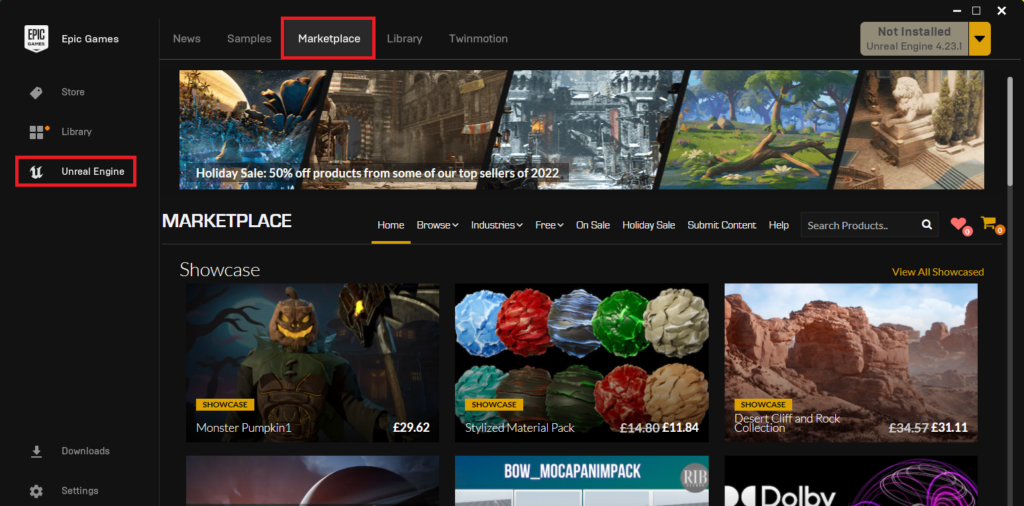
Upon opening the Epic Games Launcher, users are presented with various tabs. The "Unreal Engine" tab is the primary gateway to engine versions and projects, but for plugins, navigation leads directly to the "Marketplace" tab. This section is designed as a digital storefront, showcasing a vast array of assets, including 3D models, animations, sound effects, environments, and, critically, code plugins.
Step 2: Locating Code Plugins
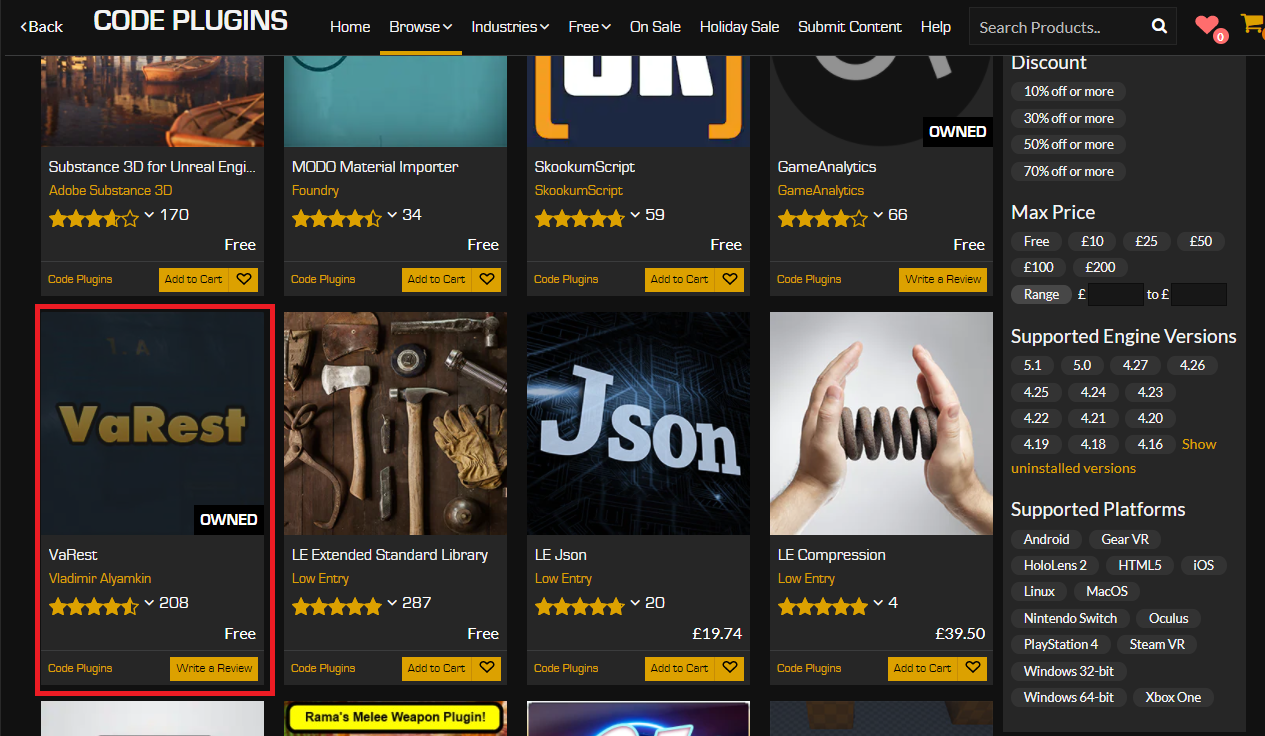
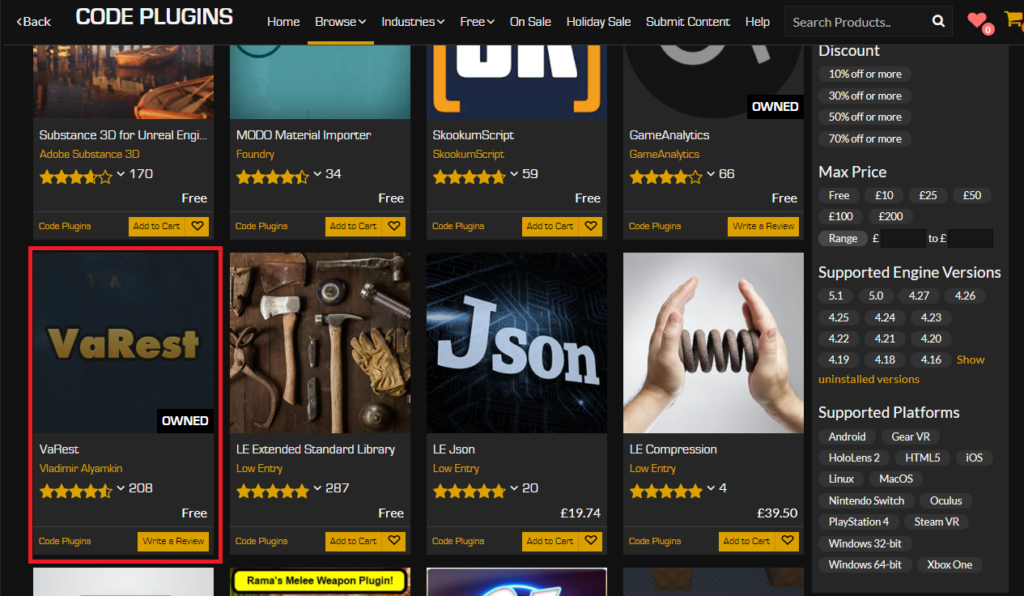
Within the Marketplace, content is categorized to facilitate discovery. To find functional extensions, users must navigate to the "Browse" tab and then select the "Code Plugins" option. This filter specifically displays plugins that introduce new C++ or Blueprint functionalities, distinguishing them from purely artistic assets. The Marketplace interface is designed for intuitive browsing, often featuring trending items, new releases, and curated collections.
Step 3: Plugin Selection and Acquisition
Once in the "Code Plugins" section, developers can browse or search for specific functionalities they require. For illustrative purposes, the VaRest network plugin is a commonly cited example. VaRest is a robust plugin that simplifies communication with RESTful web services directly from Blueprints, enabling developers to integrate external APIs for features like leaderboards, user authentication, or dynamic content loading without writing a single line of C++.

The acquisition process for plugins on the Marketplace mirrors that of standard e-commerce platforms. If a plugin is not yet owned, users will need to add it to their cart and complete a purchase. It is important to note a key detail: even free plugins require users to proceed through the "purchase" workflow. This mechanism is not for financial transaction in these cases but serves to register the plugin to the user’s Epic Games account, granting them a license, tracking ownership, and enabling subsequent installation and updates. This system ensures proper licensing and content management across all user-associated engine installations.
Step 4: Installing to the Engine
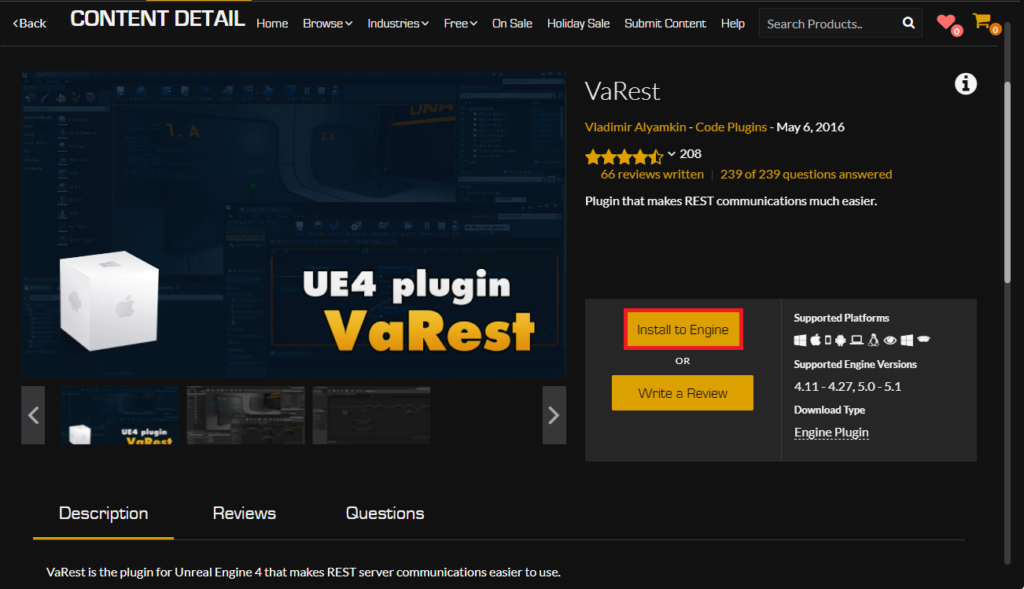
Unlike content assets that are typically added directly to a project, code plugins are often installed directly into the Unreal Engine installation itself. This makes them available across multiple projects that use that specific engine version. After acquiring a plugin, a prominent "Install to Engine" button becomes available on its product page. Clicking this button initiates the installation process.
Step 5: Selecting the Engine Version
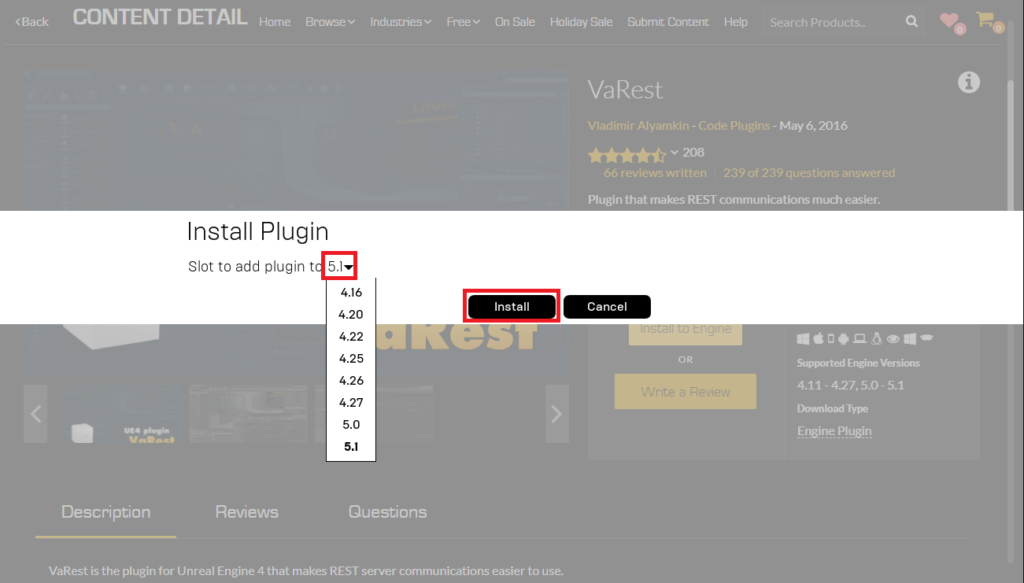
A crucial step in the installation is selecting the target Unreal Engine version. Developers often maintain multiple versions of Unreal Engine for different projects, each requiring specific plugin compatibility. The launcher presents a dropdown menu listing all installed engine versions. It is paramount to select the correct version that aligns with the project’s requirements and the plugin’s compatibility specifications. Installing a plugin to an incompatible engine version can lead to compilation errors or unexpected behavior within projects.
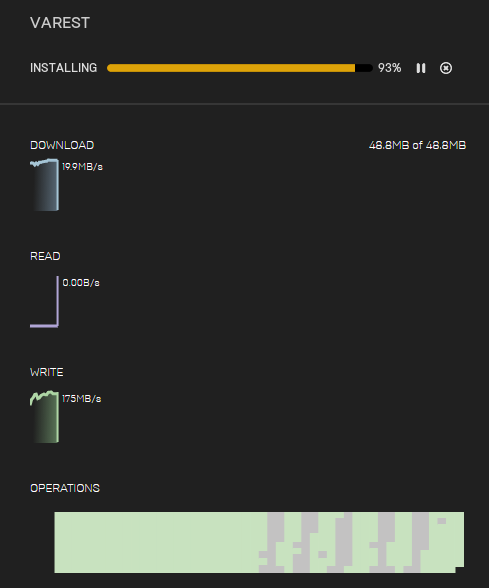
Step 6: Monitoring Download Progress
Once the target engine version is selected, the plugin download commences. The Epic Games Launcher provides a "Downloads" tab where users can monitor the progress of all ongoing downloads and installations. This tab displays estimated completion times and download speeds, ensuring transparency throughout the process. Upon successful completion, the plugin files are integrated into the selected Unreal Engine installation directory, typically within a "Plugins" subfolder.
Enabling Marketplace Plugins Within an Unreal Engine Project
The installation of a plugin to the engine does not automatically activate it for every project. This design choice is deliberate and serves several important purposes. By default, plugins are disabled to prevent projects from compiling unnecessary code, which could increase project build times, executable sizes, and resource consumption. This modular approach ensures that only the required functionalities are loaded for a given project.
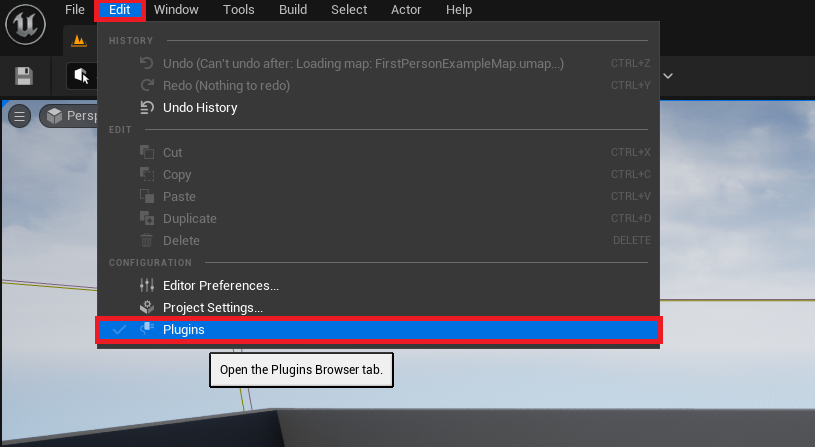
Step 1: Accessing the Plugin Manager
To activate a newly installed plugin, developers must open their Unreal Engine project. Within the Unreal Editor, the "Edit" menu in the top toolbar provides access to various project settings. Selecting "Plugins" from this menu opens the Plugin Manager.
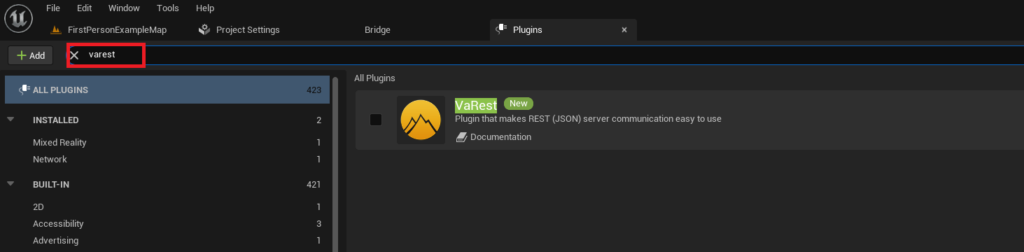
Step 2: Locating and Enabling the Plugin
The Plugin Manager displays a comprehensive list of all available plugins, both engine-level and project-specific. To quickly find the recently installed plugin, users can utilize the search bar within the Plugin Manager. Typing the plugin’s name (e.g., "VaRest") will filter the list, highlighting the relevant entry. Each plugin entry includes details such as its status (enabled/disabled), version, and developer.
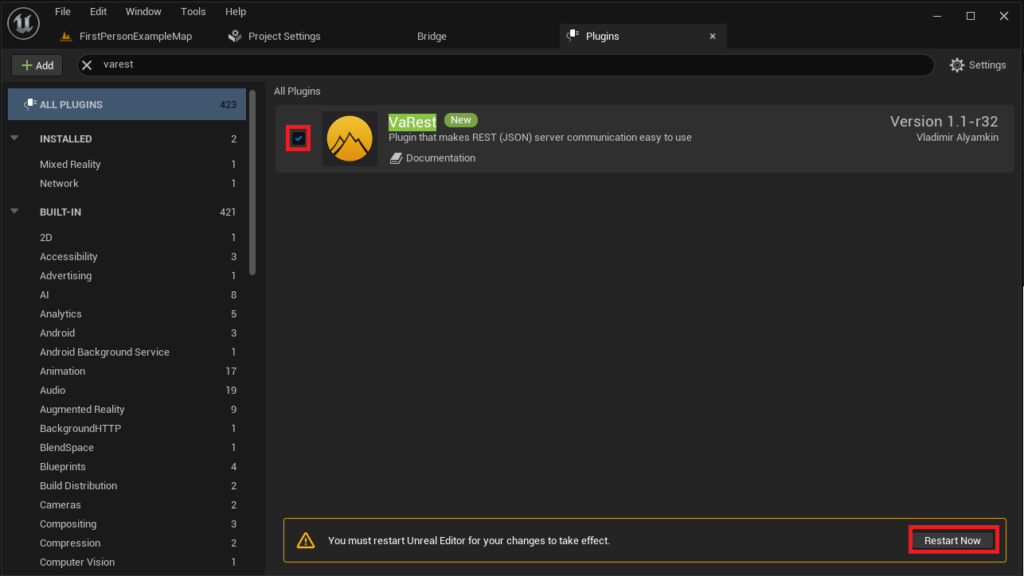
Adjacent to the plugin’s name, there is a checkbox. Ticking this box enables the plugin for the current project. Upon activation, the editor typically prompts the user to "Restart Now." This restart is essential for the engine to properly load the new plugin’s modules, compile any necessary code, and integrate its functionalities into the editor and project runtime. Once the editor restarts, the plugin’s features, including new Blueprint nodes, C++ classes, or editor extensions, become fully accessible for use within the project.
Advanced: Manually Installing Community-Driven Unreal Engine 5 Plugins
While the Epic Games Marketplace offers convenience and curation, the Unreal Engine community also produces a wealth of innovative, often open-source, plugins distributed outside the official storefront. These plugins can be found on platforms like GitHub, developer forums (e.g., Unreal Engine forums, Reddit), or personal developer websites. Manual installation offers flexibility but demands a higher degree of user responsibility regarding security and compatibility.
Crucial Disclaimer: Security and Compatibility Considerations
Before attempting any manual plugin installation, developers must heed critical warnings:
- Source Trustworthiness: Only download Unreal Engine plugins from highly trusted sources. Untrusted files and code downloaded from the internet can pose significant cybersecurity risks, including malware, viruses, or malicious code that could compromise projects or systems.
- Developer Responsibility: CouchLearn, Epic Games, or any other platform cannot be held responsible for damages caused by installing unknown or unverified files. Due diligence is solely the responsibility of the end-user.
- Version Compatibility: Ensure the downloaded plugin is explicitly compatible with the exact version of Unreal Engine 5 installed on your system. Mismatched versions are a common source of compilation errors, crashes, and unexpected behavior. Plugin developers typically specify the compatible engine versions.
For this advanced method, the Victory BP Plugin by Rama serves as an excellent example. Developed by a prominent community member, this plugin is renowned for its vast collection of Blueprint nodes that extend a multitude of functionalities, from advanced file management and system utilities to complex math operations, often filling gaps in native Blueprint capabilities.
Step 1: Preparing the Project Folder
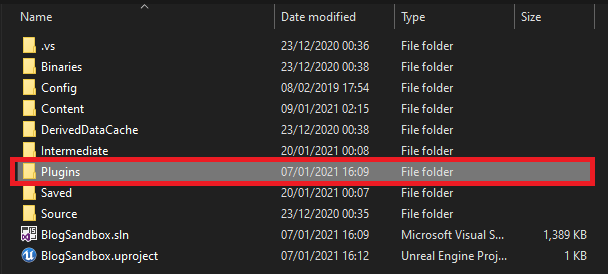
Unlike Marketplace plugins that install to the engine, manually installed plugins are typically placed within the specific project directory. The first step is to ensure that your Unreal Engine project folder contains a dedicated "Plugins" subfolder. If this folder does not exist, it must be manually created within the project’s root directory (e.g., MyProject/Plugins/). This folder serves as the designated location for all project-specific plugins.
Step 2: Copying the Plugin Files
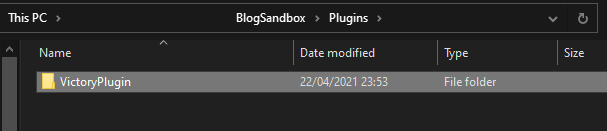
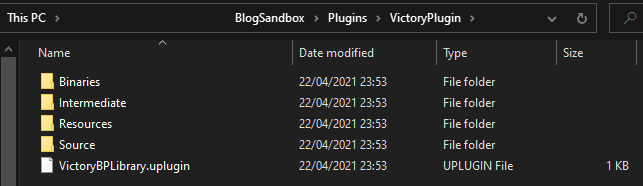
Once the "Plugins" folder is established, the downloaded plugin’s main folder (e.g., "VictoryPlugin") must be copied into it. It is crucial to copy the entire plugin folder, which contains all necessary files, including the plugin descriptor (.uplugin), source code, binaries, and content. For example, if the downloaded plugin is "VictoryPlugin" compatible with Unreal Engine 5.0, the path would be MyProject/Plugins/VictoryPlugin/. The internal structure of this folder typically includes subdirectories like "Source," "Content," and "Resources," all vital for the plugin’s functionality.
Enabling Manually Installed Plugins Within an Unreal Engine Project
The process for enabling manually installed plugins within the Unreal Editor is identical to that of Marketplace plugins. This consistency ensures a unified management experience for all extensions.
Step 1: Accessing the Plugin Manager
As before, open your Unreal Engine project. Navigate to the "Edit" menu in the top toolbar and select "Plugins" to open the Plugin Manager.
Step 2: Locating and Activating the Plugin
Within the Plugin Manager, use the search box to locate the manually installed plugin (e.g., "Victory Plugin"). The manager will display its details, including its status as disabled. Click the checkbox next to the plugin’s name to enable it.
Step 3: Restarting the Editor
Upon enabling, the Unreal Editor will prompt a "Restart Now" action. This restart is critical for the engine to load the newly added plugin’s modules, compile any necessary C++ code, and fully integrate its functionalities into the project’s environment. After the restart, the Victory Plugin’s extensive array of Blueprint nodes and other features will be available for use within your project, significantly expanding your development toolkit.
Broader Impact and Implications of a Robust Plugin Ecosystem
The comprehensive guide to installing Unreal Engine 5 plugins underscores the critical role these extensions play in the modern development landscape. The dual approach of a curated Marketplace and a dynamic manual installation option caters to the diverse needs of the Unreal Engine community, from beginners seeking reliable, vetted tools to advanced users exploring cutting-edge, community-driven innovations.
Enhanced Developer Productivity: By providing ready-made solutions for common and complex tasks, plugins drastically cut down development time. Instead of spending hours or days coding a specific feature in C++, developers can often drag and drop a Blueprint node provided by a plugin, accelerating prototyping and iteration cycles. This efficiency is a significant boon for indie developers and small teams, allowing them to achieve results comparable to larger studios with greater resources.
Democratization of Advanced Features: Plugins effectively lower the barrier to entry for sophisticated functionalities. Features that might traditionally require deep C++ knowledge are often exposed as easy-to-use Blueprint nodes. This empowers a broader range of creators, including designers, artists, and technical artists, to directly implement complex logic without constant reliance on programmers. This fosters greater collaboration and cross-disciplinary skill development within teams.
Economic Impact and Ecosystem Growth: The Epic Games Marketplace represents a thriving economy where plugin developers can monetize their expertise, fostering innovation and encouraging the creation of high-quality tools. This creates a virtuous cycle: more plugins attract more developers to Unreal Engine, leading to a larger user base and, in turn, more demand for plugins. Industry reports frequently highlight the significant revenue generated by digital marketplaces for creative assets and tools, with Unreal Engine’s platform being a notable contributor.
Community-Driven Innovation: The manual installation route, while requiring more caution, showcases the power of community-driven innovation. Developers like Rama, through their extensive contributions, embody the collaborative spirit of the Unreal Engine community. These open-source initiatives often address niche needs, provide experimental features, or offer highly specialized tools that might not fit the commercial model of the Marketplace. They serve as incubators for new ideas and foster a culture of knowledge sharing.
Future Outlook: As Unreal Engine 5 continues to evolve, the plugin ecosystem is expected to expand further. Emerging trends such as AI-driven content generation, sophisticated real-time simulations, and ever-more complex virtual production workflows will likely spur the development of specialized plugins. The ease of integrating these tools will remain paramount, solidifying Unreal Engine’s position as a highly adaptable and powerful platform for future creative endeavors. The careful balance between convenient official distribution and flexible community contributions ensures that Unreal Engine 5 remains at the cutting edge of technological advancement, driven by the ingenuity of its global developer base.
About the Author