The dynamic landscape of game development, particularly within the powerful Unreal Engine 5 (UE5) ecosystem, is continuously shaped by the accessibility of robust tools and functionalities. While UE5 offers an unparalleled suite of features, many advanced capabilities are inherently rooted in C++ code, often presenting a barrier for developers primarily utilizing Blueprints – Unreal Engine’s visual scripting system. This gap is effectively bridged by a thriving global developer community that consistently creates and shares plugins, extending Blueprint functionality and streamlining complex development tasks. This article delves into the critical process of installing and enabling these essential plugins, exploring both the official Unreal Marketplace route and advanced manual installation methods, alongside the broader implications for game development.
The Indispensable Role of Plugins in Modern Game Development
Unreal Engine 5, renowned for its cutting-edge graphics and robust development environment, empowers creators to build everything from hyper-realistic simulations to expansive virtual worlds. However, the sheer breadth of its capabilities means that specific, highly specialized features or common utilities might not be immediately available as accessible Blueprint nodes. This is where plugins become indispensable. They serve as modular extensions, adding new functionalities, optimizing workflows, integrating third-party services, or exposing complex C++ features to Blueprint users. The collaborative spirit of the Unreal Engine community has fostered an extensive library of these extensions, ranging from networking tools like VaRest to extensive utility collections such as the Victory BP Plugin. This communal effort not only accelerates development cycles but also democratizes access to advanced programming paradigms, allowing a wider array of developers to implement sophisticated systems without delving deep into C++ code. The ease with which these tools can be integrated directly impacts project timelines and resource allocation, making plugin management a core competency for any serious UE5 developer.
Streamlining Workflow: Installing Plugins via the Unreal Marketplace
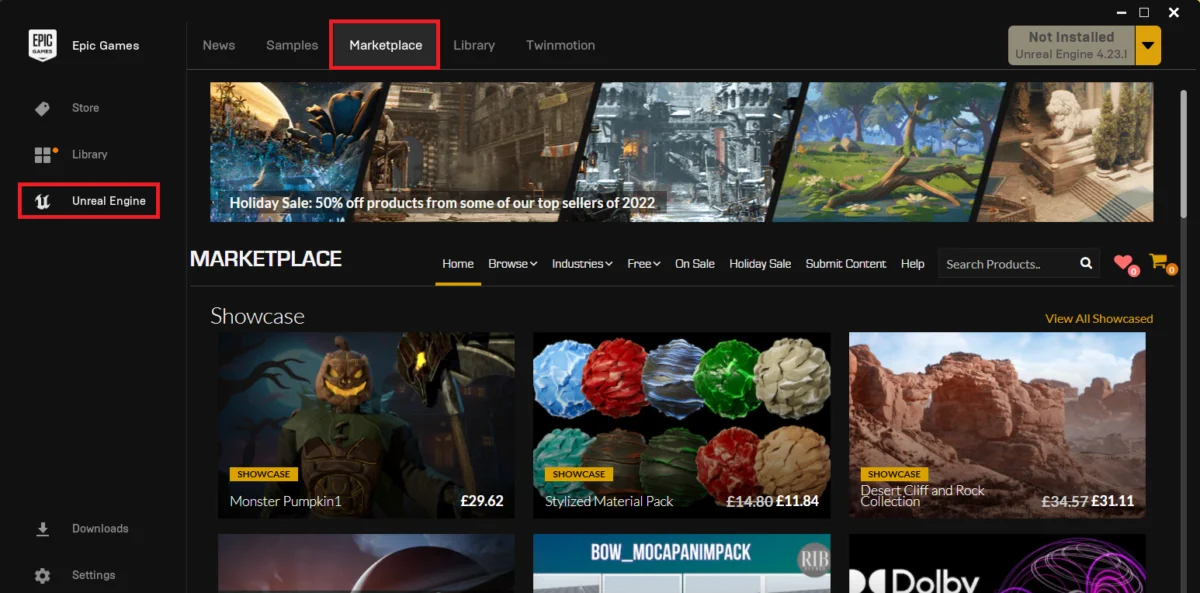
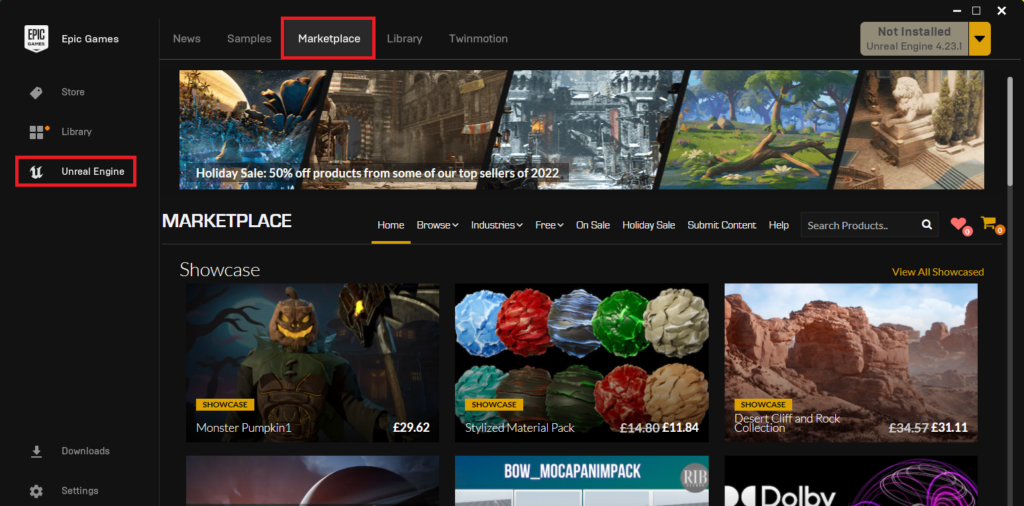
The most common and recommended method for acquiring and installing Unreal Engine 5 plugins is through the official Epic Games Launcher and its integrated Unreal Marketplace. This platform serves as a central hub for thousands of assets, tools, and code plugins, providing a curated and generally reliable source for enhancing UE5 projects.
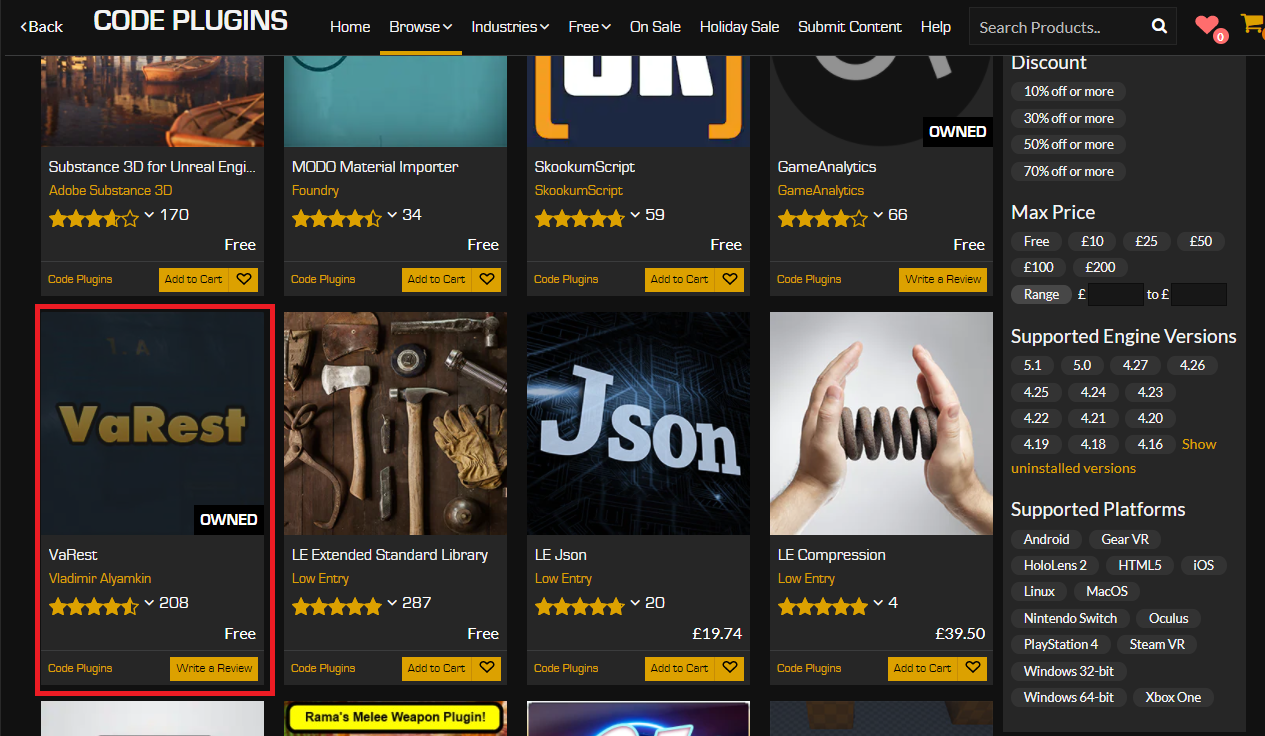
The process begins with the Epic Games Launcher, the gateway to all Unreal Engine installations and associated content. Developers first navigate to the Unreal Marketplace section within the launcher. This dedicated storefront offers a categorized browsing experience, allowing users to discover a wide array of content. For code-specific extensions, the critical step is to filter content by selecting the "Code Plugins" option under the "Browse" tab. This narrows the selection to plugins designed to introduce new functionalities or expand existing ones, often providing new Blueprint nodes or C++ classes.
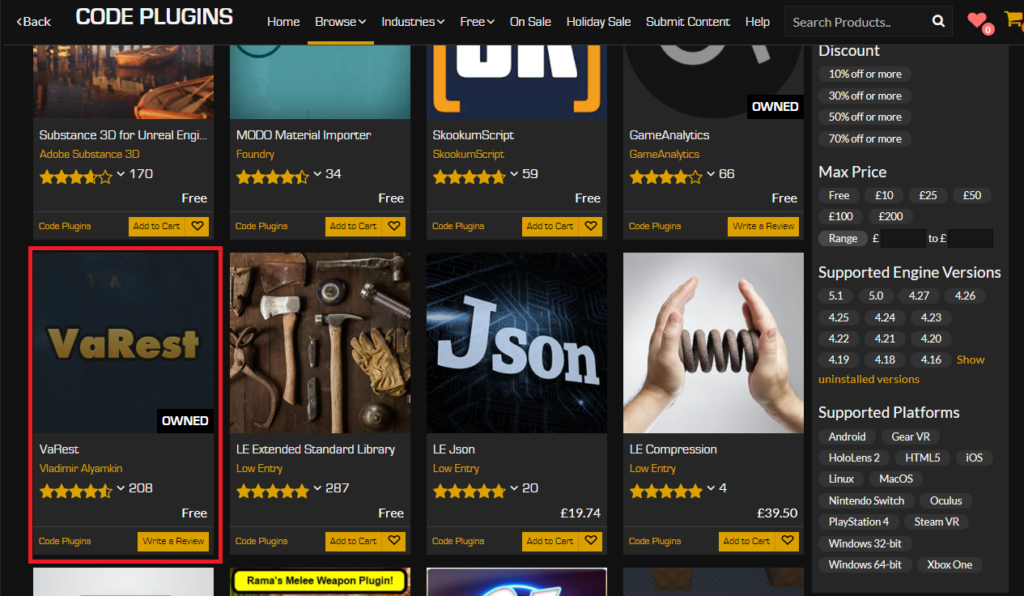
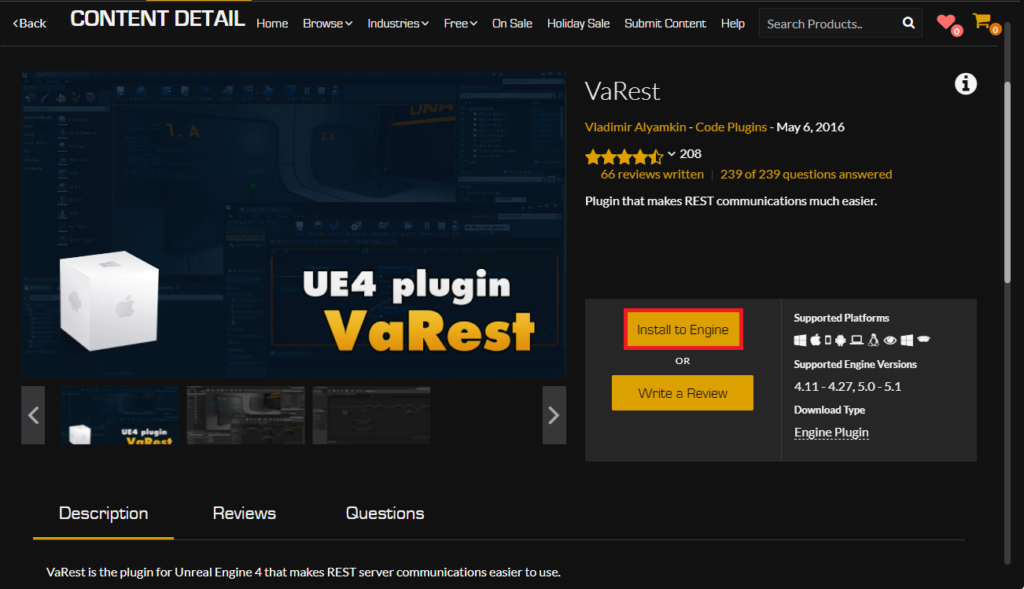
Once a desired plugin is identified, such as the widely used VaRest network plugin – a popular choice for integrating RESTful API services into Unreal Engine projects – the acquisition process is straightforward. If the plugin is commercial, users proceed with a standard purchase transaction. Notably, even free plugins, which constitute a significant portion of the Marketplace offerings, require users to "purchase" them at no cost. This administrative step registers the plugin to the user’s Epic Games account, making it accessible for installation across their owned engine versions.
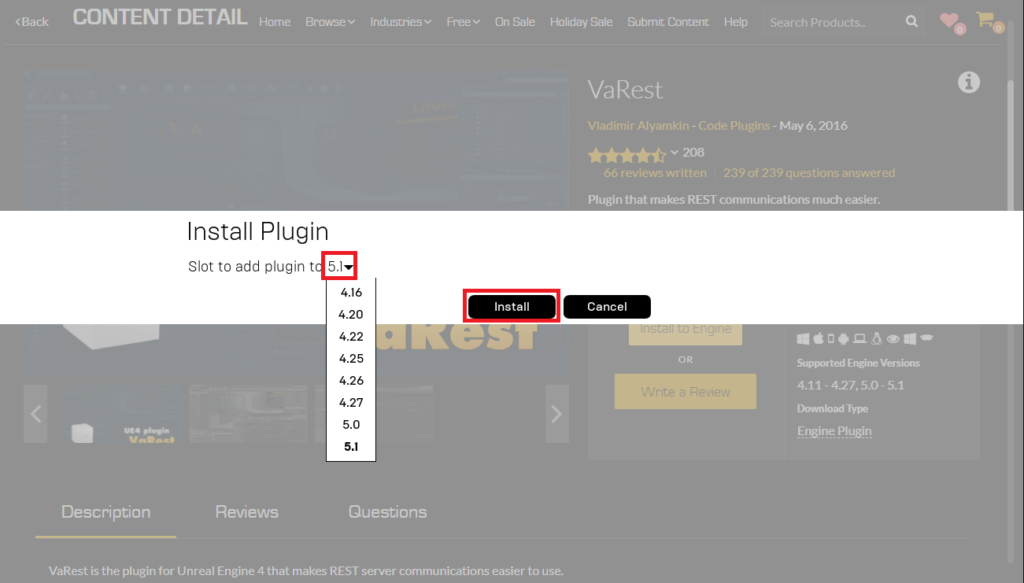
Following acquisition, the next step is to "Install to Engine." Unlike project-specific assets, many code plugins are designed to integrate directly with the Unreal Engine installation itself, making them available across multiple projects that utilize that specific engine version. Upon clicking "Install to Engine," developers are prompted to select the precise Unreal Engine version to which the plugin should be added. This is a crucial compatibility check, as plugins are often built against specific engine versions and may not function correctly if installed to an incompatible one. For instance, a plugin compiled for UE5.0 might not work seamlessly with UE5.3 without updates from the developer.
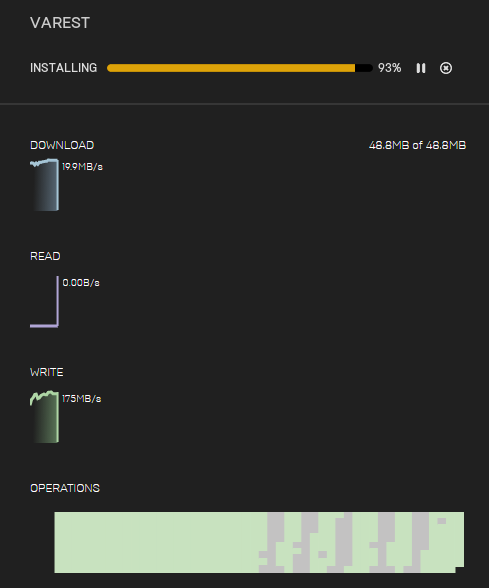
The installation then proceeds in the background, visible in the "Downloads" tab of the Epic Games Launcher. This download and integration process can take varying amounts of time depending on the plugin’s size and the user’s internet connection. Upon successful completion, the plugin’s core files are integrated into the selected Unreal Engine installation directory, laying the groundwork for its activation within individual projects.
Activating Marketplace Plugins within an Unreal Engine Project
Even after a plugin is successfully installed to the Unreal Engine, it is not automatically active within every project. This design choice is a deliberate optimization strategy by Epic Games. By default, plugins are disabled at the project level to prevent unnecessary code from being compiled, which would increase the project’s executable size and potentially its loading times. This selective activation ensures that projects only carry the overhead of the plugins they genuinely require.
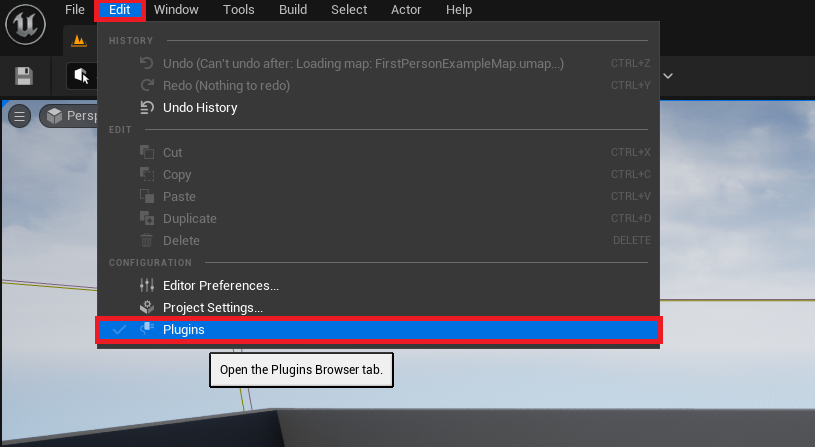
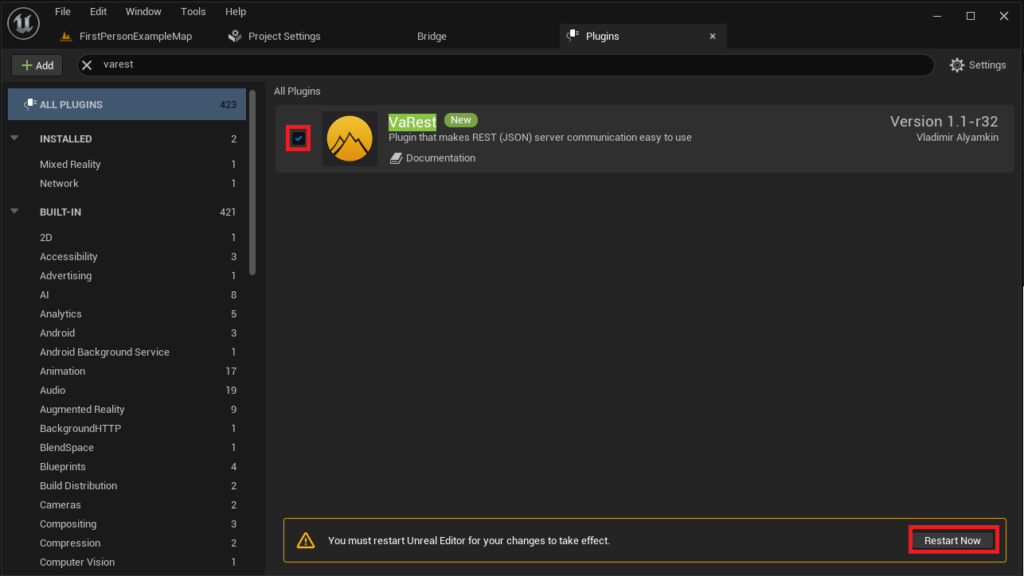
To enable a newly installed Marketplace plugin, developers must open their specific Unreal Engine project. Within the editor, the process is initiated by navigating to "Edit" > "Plugins." This action opens the Plugins manager, a comprehensive interface for viewing, searching, and managing all installed and available plugins.

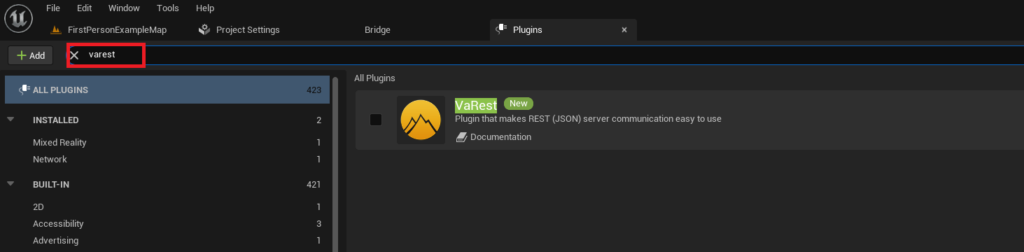
Inside the Plugins window, a search bar facilitates locating the desired plugin. Typing the plugin’s name, for example, "VaRest," will quickly filter the extensive list of plugins. Once identified, a simple checkbox next to the plugin’s entry allows for its activation. This action signals to the Unreal Engine project that the plugin’s functionalities should be loaded and made available.
The final, essential step is to restart the Unreal Engine editor. Activating a plugin often involves recompiling certain project modules or initializing new systems that require a fresh editor session to take effect. Upon clicking the "Restart Now" button, the editor closes and reopens, loading the project with the newly enabled plugin fully integrated. At this point, the plugin’s features, whether new Blueprint nodes, editor extensions, or C++ classes, become accessible for use in both C++ and Blueprint development within that particular project.
Advanced Method: Manually Installing Plugins for Specific Project Needs
While the Unreal Marketplace offers a streamlined experience, there are scenarios where developers might need to install plugins manually. This often applies to custom-developed plugins, experimental community contributions not yet listed on the Marketplace, or specific versions of plugins downloaded directly from source repositories (e.g., GitHub) or developer forums. This advanced method requires a greater degree of caution and technical understanding due to the absence of the Marketplace’s automated verification and compatibility checks.
Disclaimer and Critical Considerations for Manual Installation:
It is paramount to preface manual plugin installation with a robust disclaimer: Extreme caution must be exercised when downloading untrusted files and code online. The digital landscape is rife with potential threats, and installing unverified code can introduce severe risks, including malware, system instability, and project corruption. Developers are strongly advised to only download Unreal Engine plugins from trusted sources, such as official developer websites, well-regarded GitHub repositories with active communities, or established development forums known for their integrity. CouchLearn, or any similar educational platform, cannot be held responsible for damages resulting from the installation of unknown or malicious files. Furthermore, compatibility is a critical factor. Developers must meticulously verify that the manually downloaded plugin is explicitly compatible with their installed version of Unreal Engine 5. Installing an incompatible plugin can lead to compilation errors, crashes, or unpredictable behavior within the editor.
The Manual Installation Process:
The manual installation process typically involves direct interaction with the Unreal Engine project’s file structure. The first step is to ensure that the project directory contains a "Plugins" folder. If this folder does not exist, developers must manually create it at the root level of their project directory (e.g., MyProject/Plugins/). This dedicated folder serves as the repository for all project-specific, manually installed plugins.
Next, the developer copies the downloaded plugin’s folder directly into this newly created or existing "Plugins" directory. For instance, if utilizing Rama’s renowned Victory BP Plugin, the VictoryPlugin folder (containing all its core files) would be placed inside MyProject/Plugins/. It is crucial that the copied folder contains all the necessary plugin files, including its .uplugin descriptor, source code, binaries, and any associated content. The internal structure of the plugin folder itself must remain intact as provided by the plugin developer to ensure proper recognition by Unreal Engine.
Activating Manually Installed Plugins:
Similar to Marketplace plugins, manually installed plugins are not automatically enabled. The same rationale applies: avoiding unnecessary code compilation and maintaining project efficiency.
To activate a manually installed plugin, the developer opens the Unreal Engine project and navigates to "Edit" > "Plugins." Within the Plugins manager, the search functionality remains invaluable. By typing the name of the manually installed plugin (e.g., "Victory Plugin"), the system will locate its entry.
The final step mirrors the Marketplace process: checking the box next to the plugin’s name to enable it and then clicking the "Restart Now" button. This initiates an editor restart, allowing the Unreal Engine to properly load and integrate the manually added plugin. Once the editor reopens, the functionalities provided by the plugin will be available for use across both C++ and Blueprint environments within that specific project.
Broader Impact and Implications for the Unreal Engine Ecosystem
The robust plugin ecosystem, encompassing both the curated Unreal Marketplace and the decentralized community-driven manual installations, represents a cornerstone of Unreal Engine 5’s appeal and adaptability.
Developer Empowerment and Efficiency: Plugins democratize advanced development. Features that might traditionally require extensive C++ knowledge or weeks of custom coding can be integrated in minutes by Blueprint users, significantly lowering the barrier to entry for complex functionalities. This directly translates to increased developer efficiency, allowing smaller teams and individual creators to achieve results previously only attainable by larger studios. It is estimated that well-chosen plugins can reduce development time for specific features by as much as 30-50%, depending on their scope and complexity.
Innovation and Specialization: The plugin market fosters innovation by allowing developers to specialize in niche areas. A developer skilled in networking can create a powerful REST API plugin, while another specializing in UI/UX might develop a suite of advanced UI components. This specialization enriches the entire ecosystem, providing tailored solutions for almost any development challenge.
Economic Impact of the Marketplace: The Unreal Marketplace has evolved into a significant economic engine, supporting thousands of asset creators and plugin developers. It provides a revenue stream for individuals and small studios, encouraging the creation of high-quality tools that benefit the wider community. Epic Games spokespersons have frequently highlighted the Marketplace as a testament to the strength and collaborative spirit of their global developer base, emphasizing its role in fostering creativity and growth.
Challenges and Considerations: Despite their undeniable benefits, plugins also present certain challenges. Compatibility updates are a constant concern; as Unreal Engine evolves rapidly, plugins must be regularly updated by their creators to maintain functionality. Plugin abandonment, where a developer ceases support for a plugin, can leave projects vulnerable or necessitate costly refactoring. There can also be a performance overhead if too many or poorly optimized plugins are used, impacting project performance and build times. Furthermore, the learning curve associated with integrating and effectively utilizing complex plugins can be steep.
The Future of Unreal Engine Development: The trajectory of Unreal Engine 5 suggests an increasing reliance on modularity and community contributions. As the engine continues to push boundaries in areas like virtual production, cinematic rendering, and open-world scalability, the demand for specialized plugins will only grow. Future developments may see even more sophisticated integration tools, AI-powered plugin recommendations, and enhanced security protocols for manually sourced plugins, further solidifying their role as an essential component of the modern game development toolkit.
In conclusion, mastering the installation and activation of plugins is not merely a technical step but a strategic imperative for Unreal Engine 5 developers. Whether leveraging the curated offerings of the Unreal Marketplace or carefully integrating specialized tools manually, plugins unlock a vast potential for enhanced creativity, efficiency, and expanded functionality, driving the continuous evolution of interactive experiences.
About the Author