Unreal Engine 5 (UE5) stands as a monumental achievement in real-time 3D creation, powering some of the most graphically intensive and innovative experiences across gaming, film, and architectural visualization. At its core, UE5 is designed for unparalleled extensibility, a philosophy largely actualized through its robust plugin system. While the engine’s visual scripting language, Blueprints, offers immense accessibility and rapid prototyping capabilities, many of its most advanced features and performance-critical optimizations remain exclusive to C++ code. This inherent dichotomy often presents a challenge for developers seeking to leverage the full power of UE5 without deep C++ expertise. Fortunately, the vibrant and prolific developer community, alongside Epic Games’ official marketplace, provides a wealth of plugins that bridge this gap, extending Blueprint functionality and introducing entirely new features. This article delves into the critical processes of acquiring and activating these essential tools, covering both the streamlined approach of the Unreal Marketplace and the more advanced method of manual installation, thereby empowering developers to unlock the engine’s complete capabilities.
The Strategic Imperative: Why Plugins are Indispensable in Unreal Engine 5 Development
Unreal Engine’s architecture has always prioritized modularity and extensibility, a design principle that has become even more pronounced with UE5. The engine’s core, written in C++, offers maximum control and performance, making it the preferred choice for complex systems, engine modifications, and performance-sensitive operations. Blueprints, on the other hand, provide an intuitive, node-based visual scripting interface that democratizes game development, allowing designers and artists to implement sophisticated logic without writing a single line of code. However, this convenience often comes with limitations; certain low-level engine functionalities, external API integrations, or highly optimized algorithms are often exposed only through C++.
This is precisely where plugins become indispensable. They serve as modular packages of code and assets that can be seamlessly integrated into Unreal Engine projects, extending its core functionality without requiring developers to modify the engine’s source code directly. For Blueprint users, plugins are particularly transformative, as they frequently expose C++ features as new Blueprint nodes, effectively bringing advanced capabilities—such as complex networking protocols, specialized rendering techniques, or sophisticated data parsing—directly into the visual scripting environment. This significantly expands the scope of projects that can be undertaken primarily with Blueprints, reducing reliance on C++ programmers for specific tasks and accelerating development cycles.
The growth of the Unreal Engine ecosystem has seen an exponential rise in plugin availability. The Unreal Marketplace alone hosts thousands of plugins, ranging from productivity tools and editor extensions to runtime features like advanced AI, physics simulations, and specialized input handling. Beyond the official marketplace, a vast network of community forums, GitHub repositories, and independent developer websites offers countless more, showcasing the collective ingenuity and collaborative spirit of the UE developer base. This robust plugin ecosystem not only enhances the engine’s versatility but also fosters innovation, allowing developers to build upon existing solutions rather than reinventing the wheel, ultimately contributing to a more efficient and dynamic development landscape.
Navigating the Official Channel: Acquiring Plugins from the Unreal Marketplace
For most developers, the Unreal Marketplace represents the safest and most convenient avenue for plugin acquisition. Operated directly by Epic Games, it provides a curated selection of tools, assets, and code plugins, ensuring a baseline level of quality, compatibility, and support. The process is designed for user-friendliness, integrating seamlessly with the broader Epic Games ecosystem.
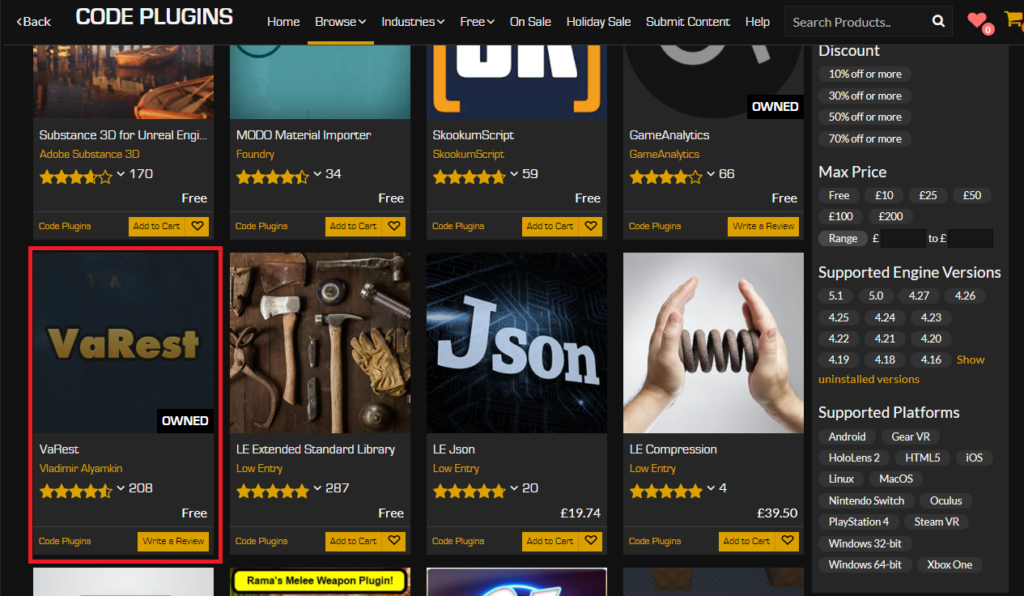
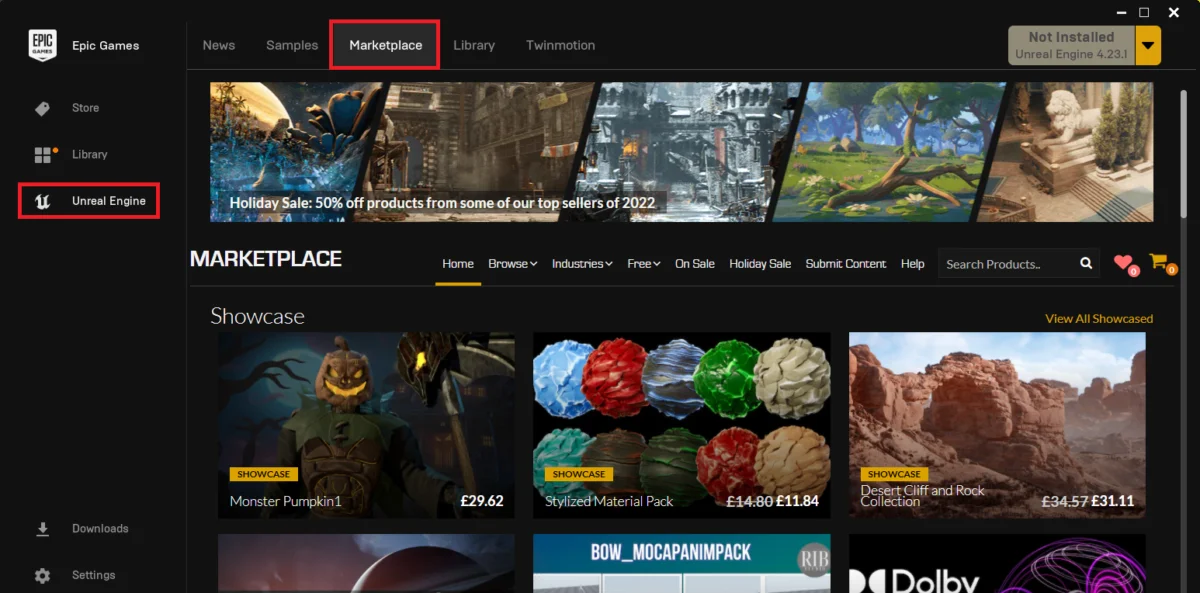
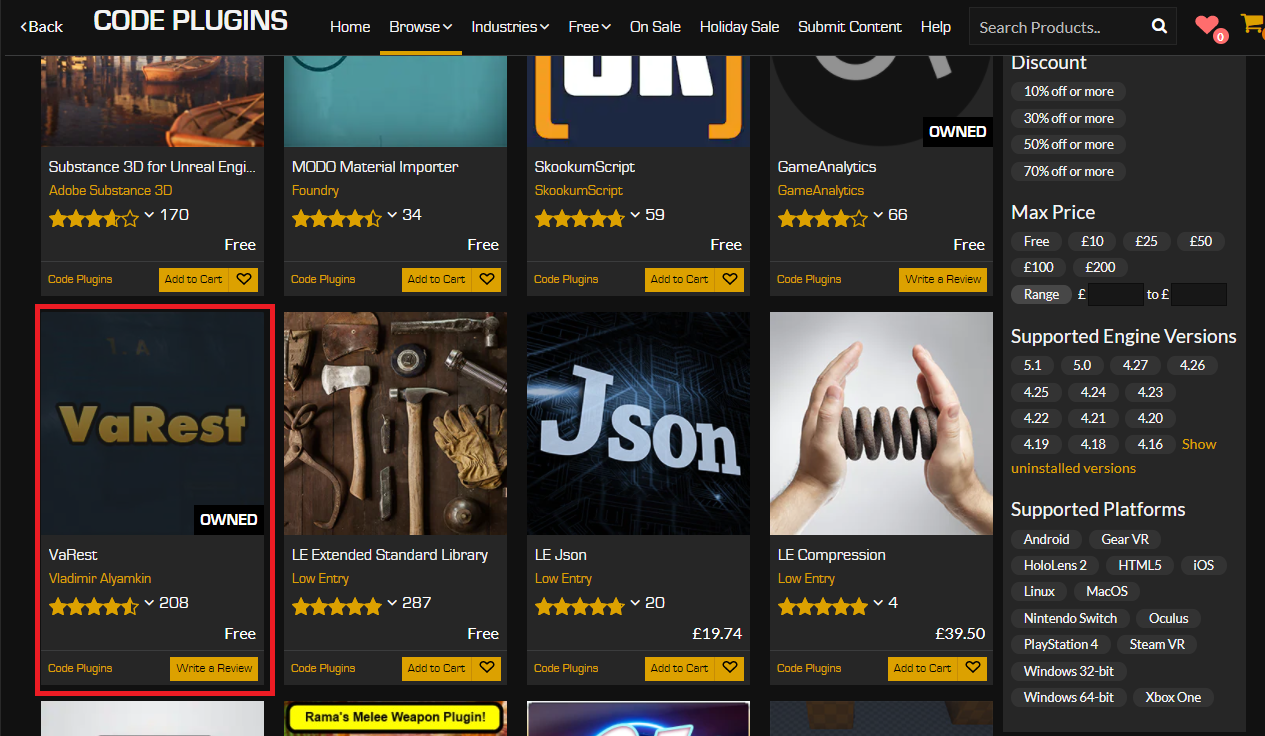
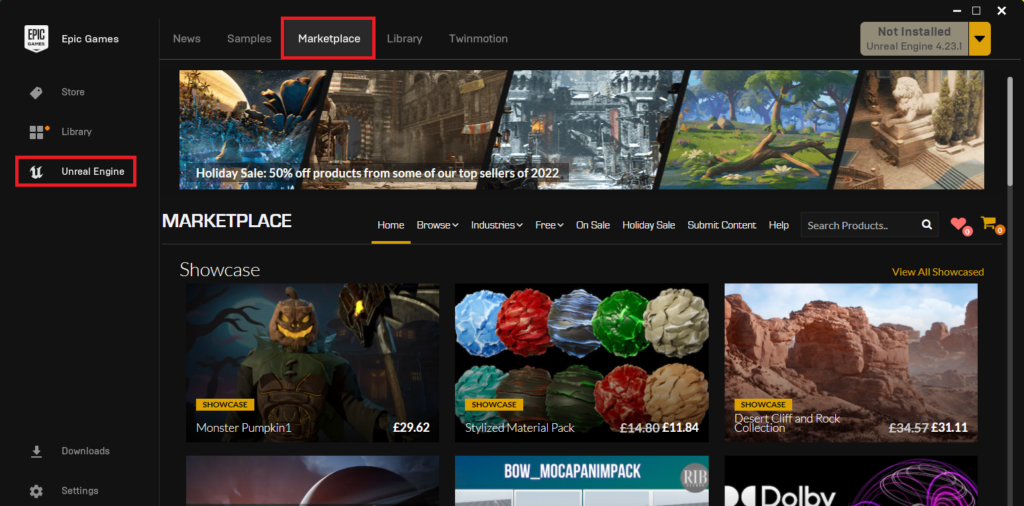
The initial step in this journey involves launching the Epic Games Launcher, which serves as the central command center for all Unreal Engine installations, projects, and marketplace content. Within the launcher, developers must navigate to the Unreal Marketplace tab. This digital storefront is meticulously organized, allowing users to browse a diverse catalog of offerings. To specifically locate functional extensions for the engine, the "Browse" tab should be utilized, followed by selecting the "Code Plugins" option. This filtering mechanism helps streamline the search, presenting only those items designed to enhance or expand the engine’s programming capabilities.
Once the "Code Plugins" section is accessed, developers can explore a wide array of options. For illustrative purposes, the VaRest network plugin is a pertinent example. VaRest is a highly popular and widely used plugin that provides robust tools for integrating RESTful APIs into Unreal Engine projects, enabling seamless communication with web services—a crucial feature for modern online games and applications. Upon identifying a desired plugin, the acquisition process is straightforward. If the plugin is commercial, users proceed with a standard e-commerce transaction by clicking "Add to Cart" and completing the purchase. It is noteworthy that even free plugins, often provided by Epic Games or benevolent community members, require a similar "purchase" process, albeit without any monetary charge. This ensures proper licensing, registration with the user’s Epic Games account, and streamlined management within the launcher’s library.
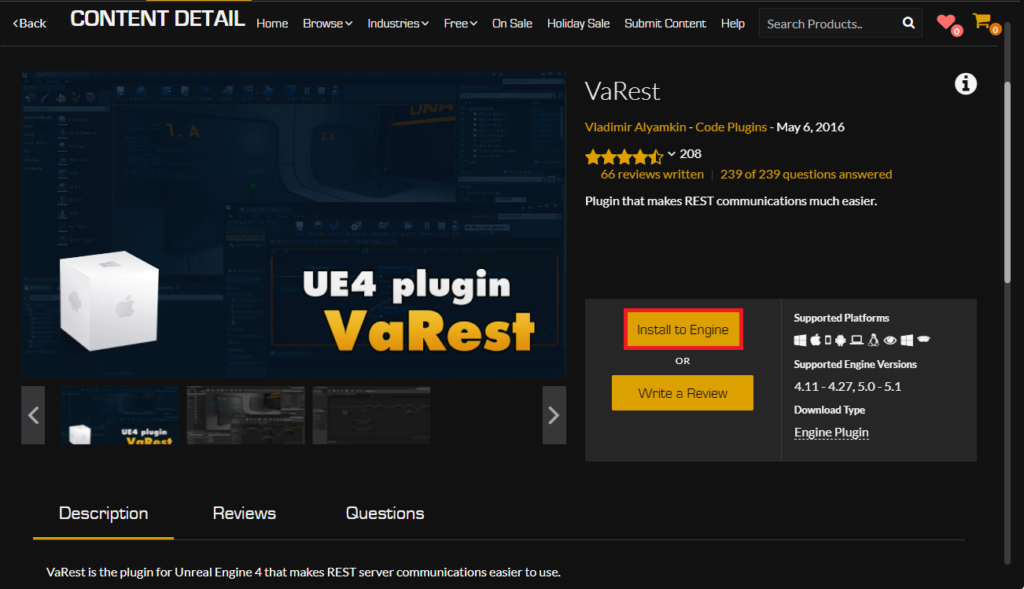
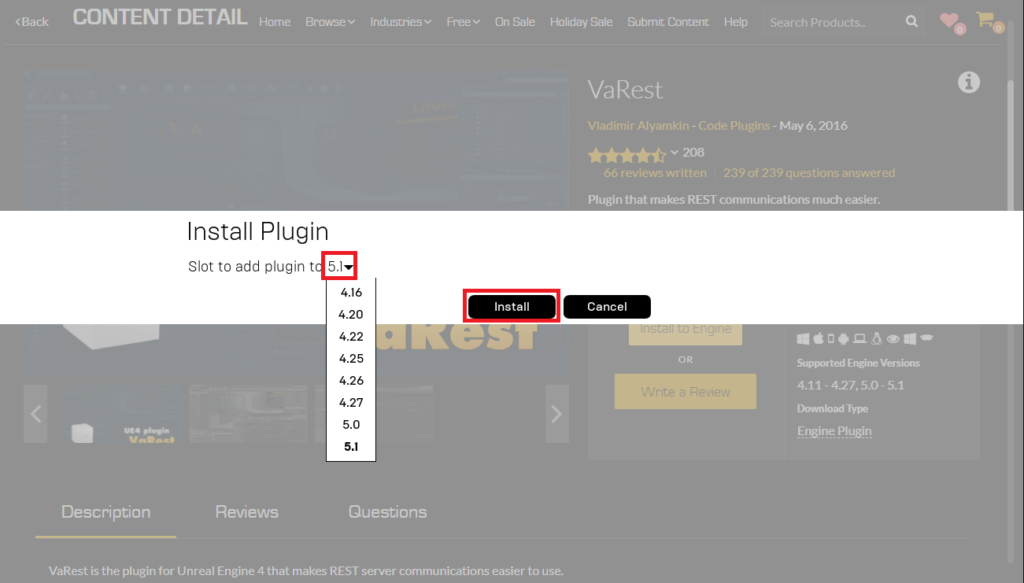
Following acquisition, the plugin is ready for installation. Unlike content assets that might be added directly to a specific project, code plugins are typically installed directly into the Unreal Engine installation itself. This makes them globally available to any project running on that particular engine version. To initiate this, developers click the "Install to Engine" button associated with the plugin. A critical subsequent step involves selecting the correct engine version from a dropdown menu. This is paramount for compatibility, as plugins are often compiled against specific engine versions, and a mismatch can lead to compilation errors or runtime crashes within projects. For instance, a plugin compiled for UE5.0 might not function correctly with UE5.3 without an update from the plugin developer.
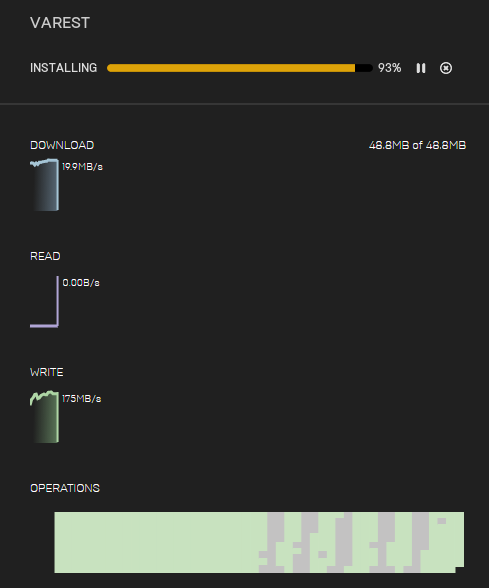
Upon selection, the installation process commences, and its progress can be monitored via the Downloads tab within the Epic Games Launcher. This provides transparency, showing the download size, speed, and remaining time. Once the download and installation are successfully completed, the plugin’s files are placed into the appropriate directories within the selected Unreal Engine installation, making them accessible for activation within individual projects. This methodical approach ensures that developers have a clear, managed pathway to enhance their Unreal Engine environment with vetted and compatible extensions.
Activating Installed Plugins Within Unreal Engine Projects
While the Epic Games Launcher facilitates the acquisition and engine-level installation of plugins, the final crucial step involves enabling these plugins within a specific Unreal Engine project. This design choice, where plugins are not automatically activated by default, is a deliberate optimization strategy. It prevents projects from building unnecessary code and assets, which would otherwise increase the project’s executable size and compilation times. This granular control allows developers to tailor the engine’s functionality precisely to the needs of each individual project.
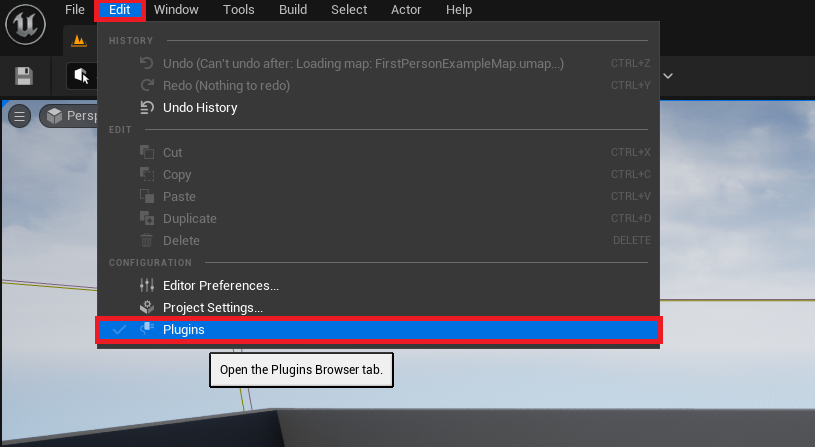
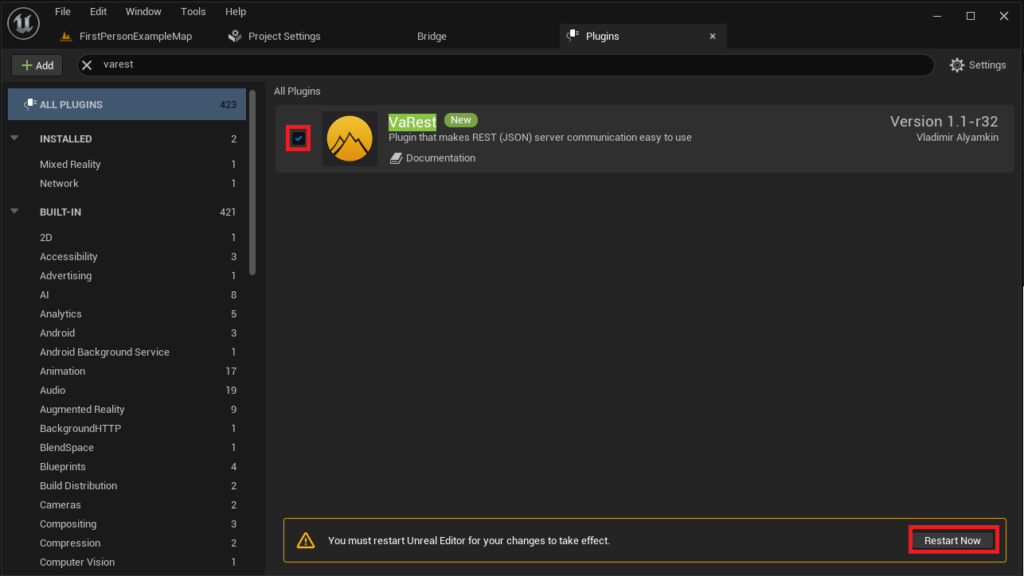
To enable a newly installed plugin, developers must first open the Unreal Engine project they wish to modify. Within the Unreal Editor, the process begins by navigating to the main menu, clicking "Edit," and then selecting "Plugins." This action opens the Plugins tab, a comprehensive interface that lists all available plugins, both those bundled with the engine and those installed by the user.

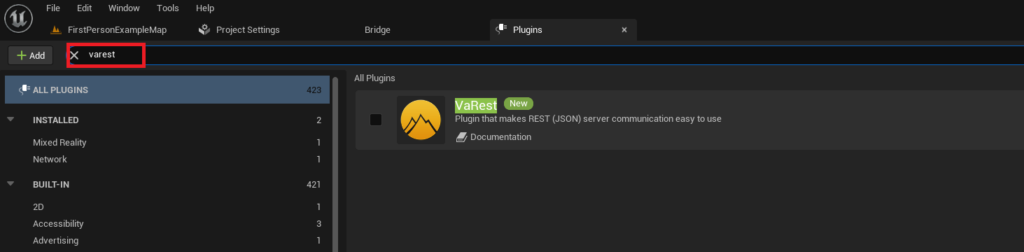
The Plugins tab features a search bar, which is invaluable for quickly locating specific plugins amidst a potentially extensive list. Developers should type the name of their newly installed plugin (e.g., "VaRest") into this search box. The interface will then filter the list, presenting the plugin along with its details, such as its developer, description, and status.
The final action required is to locate the checkbox next to the plugin’s name and click it to enable the plugin. Upon activation, the Unreal Editor will typically prompt the user with a message indicating that changes require a restart of the editor. This is a mandatory step, as the engine needs to recompile relevant modules and load the plugin’s code into memory to fully integrate its functionality. Clicking the "Restart Now" button will close the current editor instance and relaunch it with the newly enabled plugin. Once the editor restarts, the plugin’s features, including any new Blueprint nodes, C++ classes, or editor tools, will be fully available for use within the project, ready to enhance development workflows and extend project capabilities. This activation process ensures that developers maintain control over their project’s footprint while gaining access to powerful extensions.
Advanced Plugin Deployment: Manual Installation and Associated Considerations
Beyond the streamlined process of the Unreal Marketplace, there are scenarios where developers might opt for, or need to resort to, manually installing plugins. This advanced method is typically employed for community-driven projects not hosted on the marketplace, custom internal tools, or pre-release versions of plugins distributed directly by developers. While offering flexibility, manual installation comes with increased responsibilities and potential risks that necessitate careful consideration.
Disclaimer and Best Practices for Manual Installation:
When engaging in manual plugin installation, extreme caution is paramount. The integrity and security of a development environment can be compromised by untrusted files. Developers must strictly adhere to the following guidelines:
- Trusted Sources Only: It is critical to download Unreal Engine plugins exclusively from reputable sources. This includes official developer websites, well-known community forums with established reputations, or verified GitHub repositories. Unverified sources pose significant risks, including the potential for malicious code, viruses, or poorly written code that could destabilize the engine or corrupt project files. CouchLearn, as an educational platform, explicitly disclaims responsibility for any damage resulting from the download or use of files from unknown or untrusted origins.
- Version Compatibility: A fundamental requirement for manual installation is ensuring that the downloaded plugin is explicitly compatible with the specific version of Unreal Engine 5 installed on the developer’s system. Mismatched versions are a common source of compilation errors, runtime crashes, or unexpected behavior. Developers should always check the plugin’s documentation or release notes for stated compatibility with UE5.0, UE5.1, UE5.2, or subsequent iterations.
- Backup Projects: Before attempting any manual plugin installation, it is highly recommended to back up the Unreal Engine project. This precaution provides a safe rollback point in case of unforeseen issues, preventing data loss or extensive debugging.
Installing the Plugin Manually:
To illustrate the practical steps of manual installation, consider a scenario involving a community-developed tool like the Victory BP plugin by Rama. This plugin is renowned for offering a vast collection of utility Blueprint nodes, significantly extending the engine’s built-in functionality.
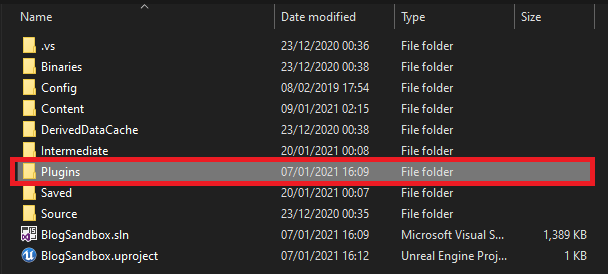
The process begins by ensuring the correct structural hierarchy within the Unreal Engine project directory. Navigate to the root folder of your project (the folder containing your .uproject file). Within this directory, there must be a folder named "Plugins." If this folder does not exist, it must be created manually, ensuring the name is precisely "Plugins" (case-sensitive on some operating systems). This "Plugins" folder serves as the designated repository for all project-specific, manually installed plugins.
Next, the downloaded plugin’s folder needs to be copied into this newly created or existing "Plugins" directory. For instance, if the Victory Plugin download provides a folder named VictoryPlugin (which should contain all its internal files like the .uplugin descriptor, source code, and binaries), this entire VictoryPlugin folder is placed directly inside your project’s Plugins folder. The critical distinction here is that manual plugins are placed within the project’s Plugins folder, making them project-specific, rather than within the engine’s installation directory. This ensures that the plugin is only loaded when that particular project is opened, further contributing to project isolation and reducing engine load times for other projects.
Upon copying the plugin files, it is advisable to briefly inspect the contents of the copied plugin folder to ensure all necessary files, particularly the .uplugin descriptor file, are present. This file is crucial as it informs Unreal Engine about the plugin’s existence, its modules, and its compatibility.
Enabling the Manually Installed Plugin:
Despite being physically placed within the project’s directory, manually installed plugins, like their Marketplace counterparts, are not automatically enabled. The same rationale applies: to maintain project efficiency and prevent unnecessary code compilation.
The activation procedure mirrors that of Marketplace plugins. Open your Unreal Engine project. Within the Unreal Editor, access the Plugins tab by clicking "Edit" in the main menu, followed by "Plugins."
Once the Plugins tab is open, use the search box to find the manually installed plugin by its name (e.g., "Victory Plugin"). The plugin should appear in the filtered list, often categorized under "Project" plugins to distinguish it from "Engine" plugins.
Finally, activate the plugin by clicking its associated checkbox. As with Marketplace plugins, the editor will prompt for a restart. Click "Restart Now" to apply the changes. After the editor relaunches, the manually installed plugin will be fully integrated into your project, making its extended functionalities available for use in both C++ and Blueprint environments. This dual approach to plugin management—official and manual—provides developers with unparalleled flexibility, catering to diverse development needs and fostering a truly open-ended creative environment within Unreal Engine 5.
The Broader Impact and Future Trajectory of Unreal Engine Plugins
The robust and accessible plugin ecosystem is not merely a convenience; it is a fundamental pillar supporting the rapid innovation and widespread adoption of Unreal Engine 5. The implications extend far beyond individual projects, shaping industry trends and democratizing advanced game development.
Innovation Catalyst and Efficiency Gains: Plugins act as an innovation accelerator. Developers can quickly experiment with new technologies, integrate cutting-edge algorithms, or connect to external services without extensive low-level coding. This rapid prototyping capability significantly reduces development cycles and time-to-market for projects. For instance, a small indie studio can leverage a marketplace plugin for complex multiplayer networking, rather than investing months in developing a proprietary solution. This efficiency allows creative teams to focus their resources on unique gameplay mechanics and artistic vision, rather than foundational technical challenges.
Democratization of Development: By exposing C++ functionalities through Blueprint nodes, plugins effectively lower the barrier to entry for advanced game development. Designers, artists, and less experienced programmers can access sophisticated tools that were once the exclusive domain of senior C++ engineers. This inclusiveness expands the talent pool for Unreal Engine development, fostering a more diverse and collaborative industry.
Market Dynamics and Economic Impact: The Unreal Marketplace itself has become a significant economic engine, supporting a vibrant community of independent developers who create and sell plugins and assets. This creates a symbiotic relationship: plugin developers gain a revenue stream, while engine users benefit from a continually expanding library of high-quality tools. This marketplace model encourages specialization and excellence, as plugin creators strive to offer unique and polished solutions.
Challenges and Future Outlook: While the benefits are clear, the plugin ecosystem is not without its challenges. Maintaining compatibility across numerous Unreal Engine versions, ensuring rigorous testing, and providing adequate documentation and support are ongoing responsibilities for plugin developers. Users, in turn, must remain vigilant about security and compatibility, especially when opting for manual installations.
Looking ahead, the trajectory of Unreal Engine plugins appears to be one of continued growth and deeper integration. We can anticipate more sophisticated AI-powered plugins that automate tedious tasks, enhanced tools for virtual production workflows, and seamless integration with emerging technologies like cloud computing and real-time data streaming. Epic Games is likely to continue fostering this ecosystem, perhaps introducing new APIs or frameworks that simplify plugin development and enhance their stability. The community’s role will remain paramount, as grassroots innovation often leads to the most groundbreaking and practical solutions.
In conclusion, the ability to seamlessly integrate plugins, whether through the official Unreal Marketplace or via careful manual installation, is a cornerstone of Unreal Engine 5’s power and versatility. These extensions not only bridge the gap between Blueprint and C++ capabilities but also serve as a vital catalyst for innovation, efficiency, and accessibility within the global development community. Mastering plugin acquisition and activation is, therefore, not just a technical skill, but a strategic imperative for any developer aiming to harness the full, transformative potential of Unreal Engine 5.
About the Author