The landscape of game development, particularly within advanced engines like Unreal Engine 5 (UE5), is continuously shaped by the availability and seamless integration of specialized tools and functionalities. While UE5 offers a powerful native toolkit, many of its most advanced features, particularly those optimized for performance and complexity, remain exclusive to C++ programming, posing a significant hurdle for developers primarily utilizing the visual scripting language, Blueprints. This inherent dichotomy underscores the critical role of the vibrant developer community and the plugins they create, which serve as essential bridges, extending Blueprint capabilities and unlocking a broader spectrum of UE5’s potential. This guide meticulously details the processes for installing and activating these transformative plugins, catering to both official marketplace acquisitions and advanced manual integrations, thereby enhancing productivity and creative scope for developers worldwide.
The Imperative of Plugins in Unreal Engine 5 Development
Unreal Engine 5 stands as a pinnacle of real-time rendering and game development technology, offering unparalleled graphical fidelity through features like Nanite and Lumen, alongside robust frameworks for world-building and interactive experiences. However, the engine’s architectural design, while powerful, often necessitates C++ for deep-level optimizations, complex algorithms, and direct hardware interaction. Blueprints, Epic Games’ visual scripting system, provides an accessible and intuitive pathway into development, empowering designers and less code-savvy developers to create intricate game logic without writing a single line of C++. The challenge arises when certain high-performance or specialized functionalities, often rooted in C++ implementations, are not directly exposed or easily replicated within the Blueprint environment.
This is precisely where plugins become indispensable. An Unreal Engine plugin is a self-contained module of code and/or assets that extends the engine’s core functionality or adds new features. These can range from simple utility nodes that streamline common tasks to complex integrations with third-party services, advanced AI behaviors, sophisticated UI frameworks, or specialized rendering pipelines. For a Blueprint-centric developer, plugins are not merely conveniences but necessities, granting access to a wealth of C++-driven power without the need for extensive C++ expertise. This democratization of advanced features significantly broadens the creative possibilities for individual creators and smaller studios, allowing them to compete on a more level playing field with larger, more resourced development teams.
The growth of the plugin ecosystem has been exponential since the early days of Unreal Engine 4 and has only accelerated with UE5. The official Unreal Marketplace, curated by Epic Games, has become a central repository, offering thousands of assets and code plugins. Beyond the marketplace, an equally robust community thrives on platforms like GitHub, private forums, and personal websites, sharing bespoke solutions and experimental tools. This dual-pronged availability ensures that almost any conceivable development need can be met through an existing plugin, provided due diligence is exercised regarding compatibility and trustworthiness. Industry analysts consistently highlight the plugin ecosystem as a key differentiator for Unreal Engine, fostering rapid iteration and innovative solutions across diverse projects, from AAA titles to independent ventures and architectural visualizations.
Navigating the Official Channel: Unreal Marketplace Plugins
The Unreal Marketplace represents the most secure and streamlined method for acquiring and integrating plugins into an Unreal Engine 5 development pipeline. It offers a curated selection, often with direct support from the creators and guaranteed compatibility with specific engine versions. The process, while intuitive, involves several distinct stages from acquisition to project activation.
Acquisition via Epic Games Launcher
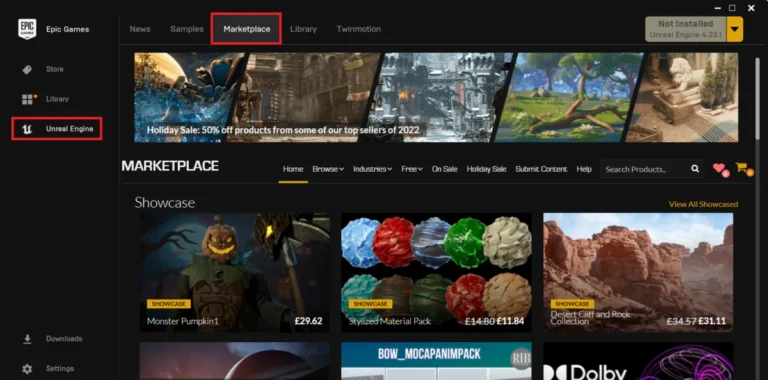
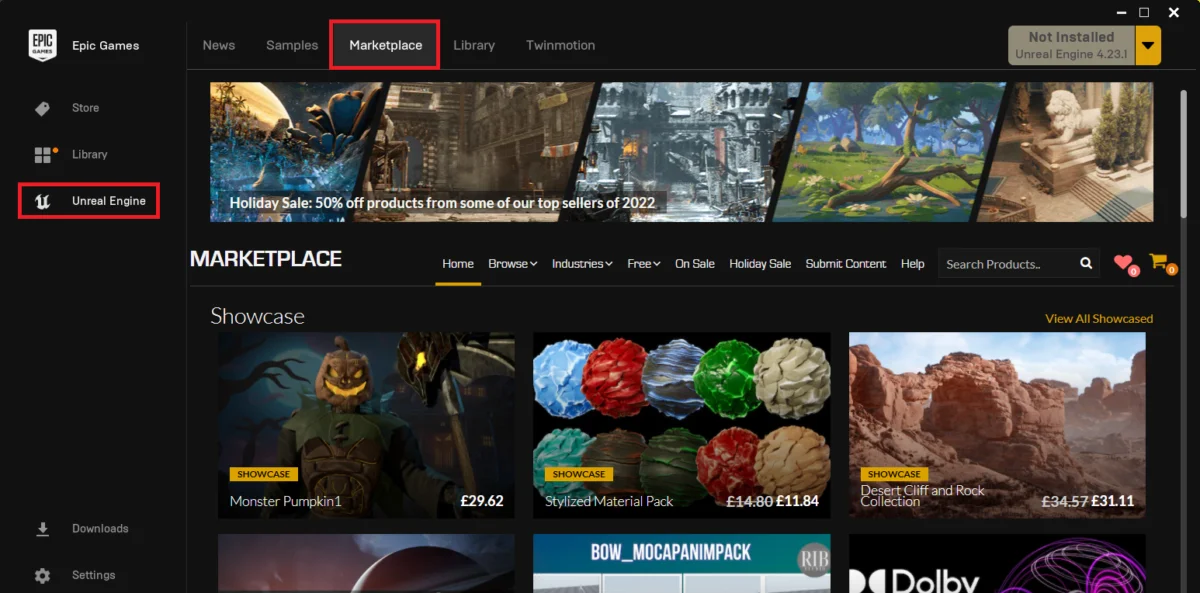
The initial step in obtaining a Marketplace plugin begins within the Epic Games Launcher, the central hub for managing all Epic Games products, including Unreal Engine installations and marketplace content. Developers must first open the launcher and navigate to the "Unreal Marketplace" section. This dedicated area serves as a digital storefront, showcasing a vast array of assets, tools, and code plugins.
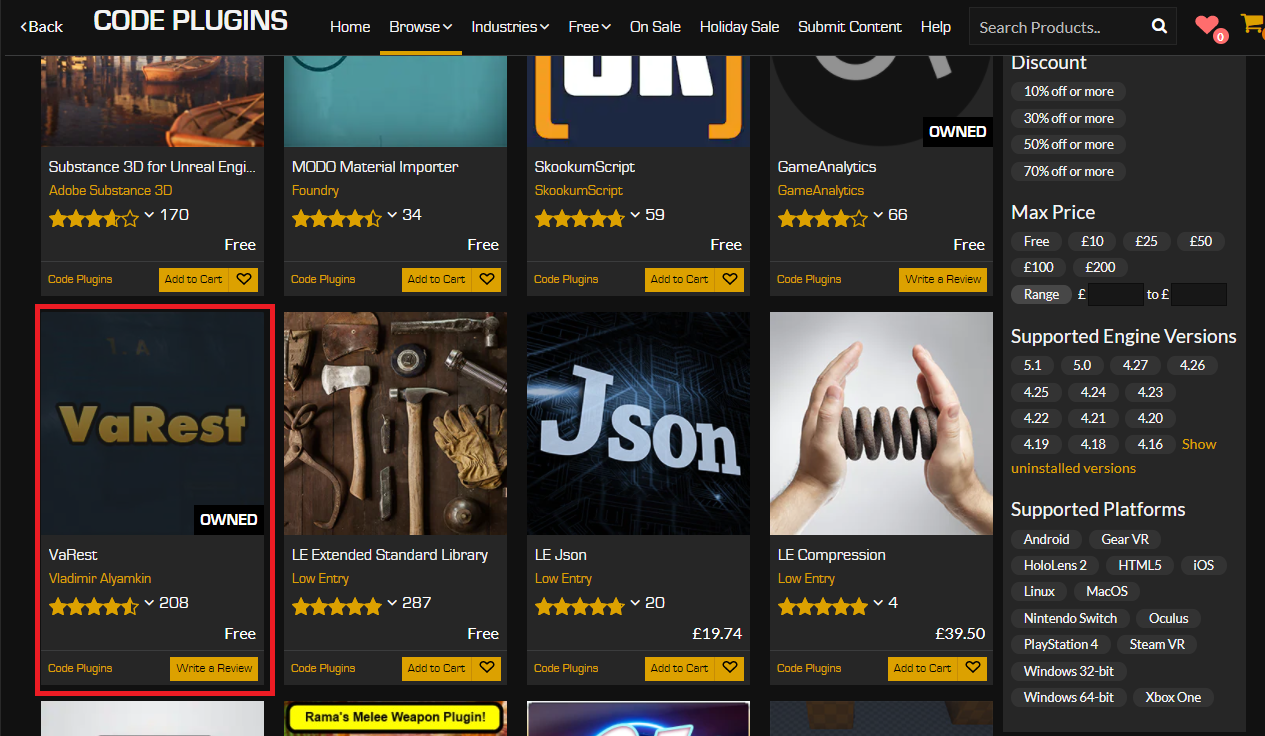
Upon entering the Marketplace, the next crucial action is to filter the content specifically for "Code Plugins." This option, typically found within the "Browse" or category tabs, helps narrow down the extensive catalog to only those entries that provide C++ or Blueprint functionality extensions. This ensures developers are browsing relevant tools rather than visual assets or project templates. The marketplace interface is designed for ease of use, allowing for keyword searches, category filtering, and sorting by popularity, rating, or price.
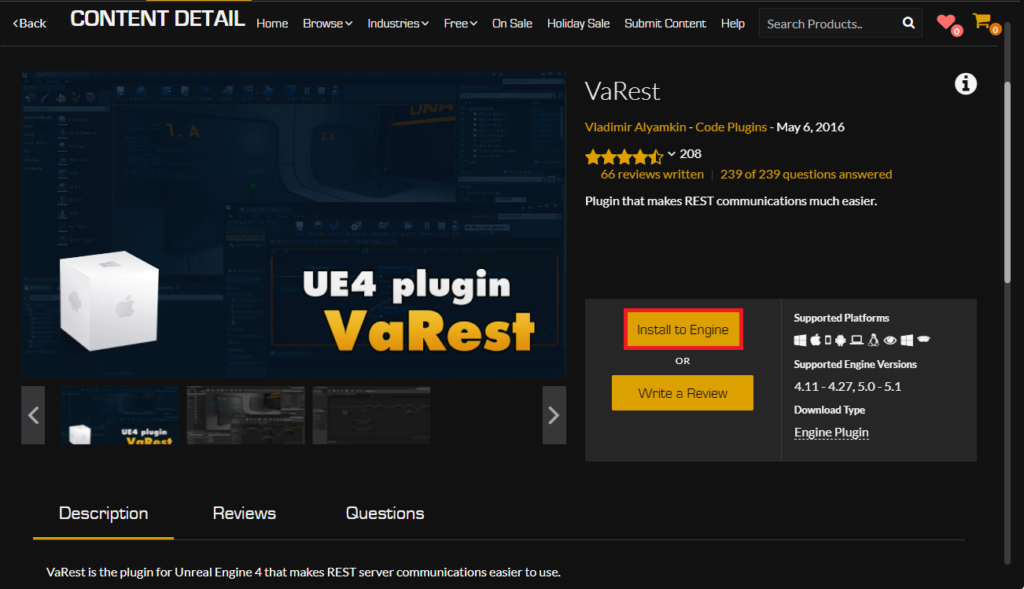
Once a desired plugin is identified, such as the widely-used VaRest network plugin for handling REST API requests, developers proceed to its dedicated product page. Here, comprehensive details, user reviews, and compatibility information are usually available. For paid plugins, the standard e-commerce procedure of adding to a cart and completing a purchase applies. However, it is noteworthy that many invaluable plugins are offered free of charge. Even for these free offerings, the system requires users to "purchase" them, albeit at a zero cost, to register ownership and enable subsequent installation. This mechanism ensures that all acquired content is tied to the user’s Epic Games account, facilitating future management and updates. This step effectively adds the plugin to the developer’s personal library of owned assets, making it available for engine integration.
Engine-Level Installation
Following the successful acquisition of a plugin, whether free or paid, the next phase involves its installation directly into the Unreal Engine. Unlike content assets that might be added directly to a project, many code plugins are designed to be installed at the engine level, making them available across all projects compatible with that specific engine version.
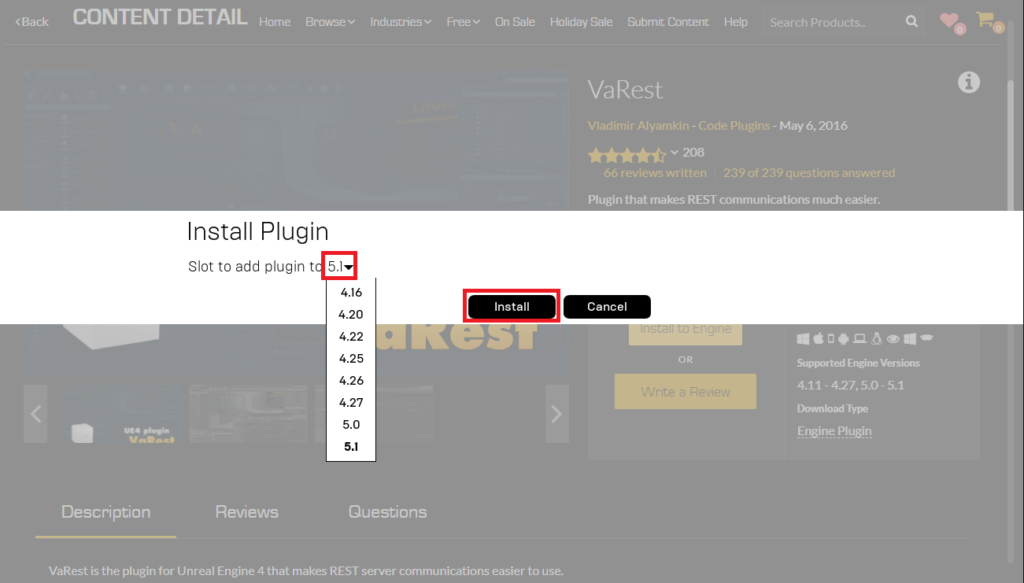
From the plugin’s product page or the developer’s library within the Epic Games Launcher, an "Install to Engine" button becomes accessible. Clicking this prompt initiates a crucial decision point: selecting the target Unreal Engine version. Developers typically maintain multiple versions of UE5 (e.g., 5.0, 5.1, 5.2, 5.3) for various projects or to test compatibility. It is paramount to choose the correct engine version that the plugin is designed for and which aligns with the developer’s active projects. Installing a plugin to an incompatible engine version can lead to compilation errors or unexpected behavior within projects.
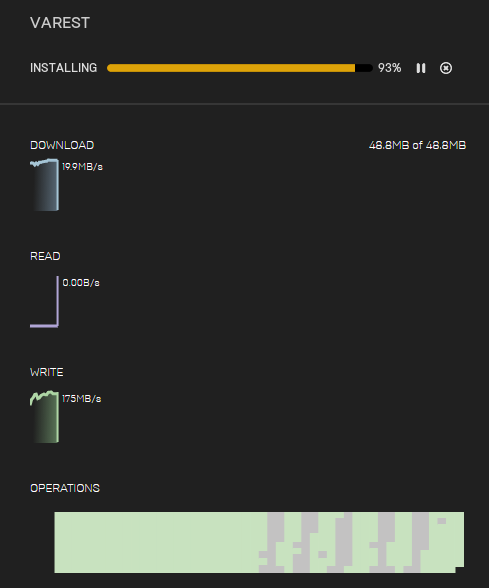
Once the engine version is selected, the launcher begins the download and installation process. This often involves downloading the plugin’s files, extracting them, and integrating them into the designated plugin directory within the chosen Unreal Engine installation. The progress of this operation can typically be monitored in the "Downloads" section of the Epic Games Launcher. This stage ensures that the plugin’s core files and compiled modules are correctly placed within the engine’s file structure, making them discoverable by any project opened with that particular engine version. The installation duration varies depending on the plugin’s size and the user’s internet connection speed. Upon successful completion, the plugin is technically present within the engine environment, but it is not yet active within any specific project.

Project-Specific Activation
The final and equally vital step in integrating a Marketplace plugin is to activate it within the specific Unreal Engine project where it will be utilized. This project-level activation is a deliberate design choice by Epic Games, preventing all projects from compiling unnecessary code from every installed plugin, which would otherwise lead to larger executable sizes and slower project load times.
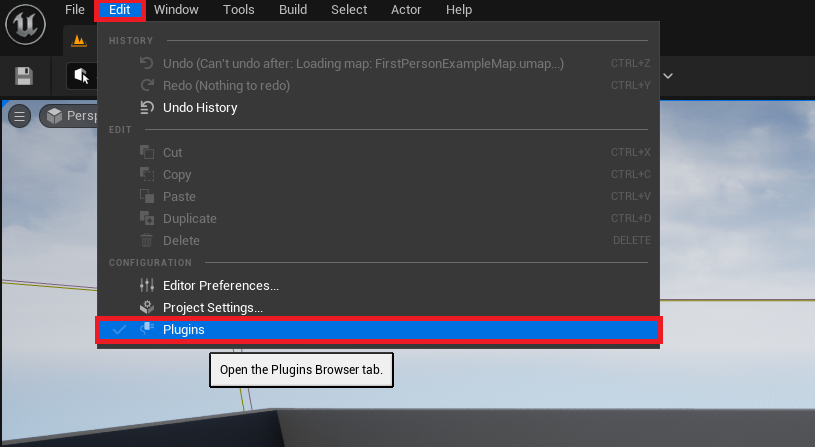
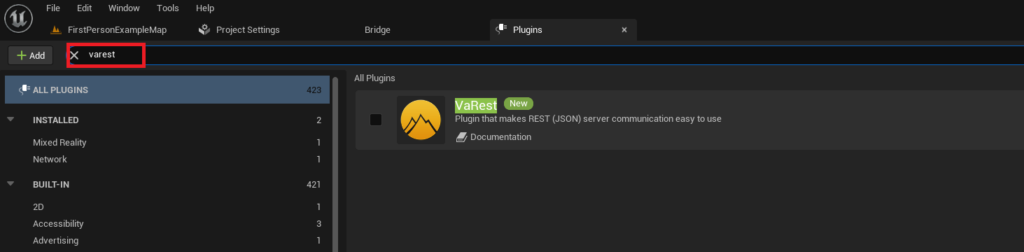
To enable the newly installed plugin, the developer must open their Unreal Engine project. Within the editor, navigation is required to "Edit" in the main menu bar, followed by selecting "Plugins" from the dropdown. This action opens the "Plugins" browser, a comprehensive interface for managing all plugins available to the current project.
The Plugins browser displays a categorized list of all installed plugins, both default engine plugins and those added by the user. To quickly locate the newly installed plugin, such as VaRest, developers can use the search bar provided within the browser. Typing the plugin’s name will filter the list, revealing its details.
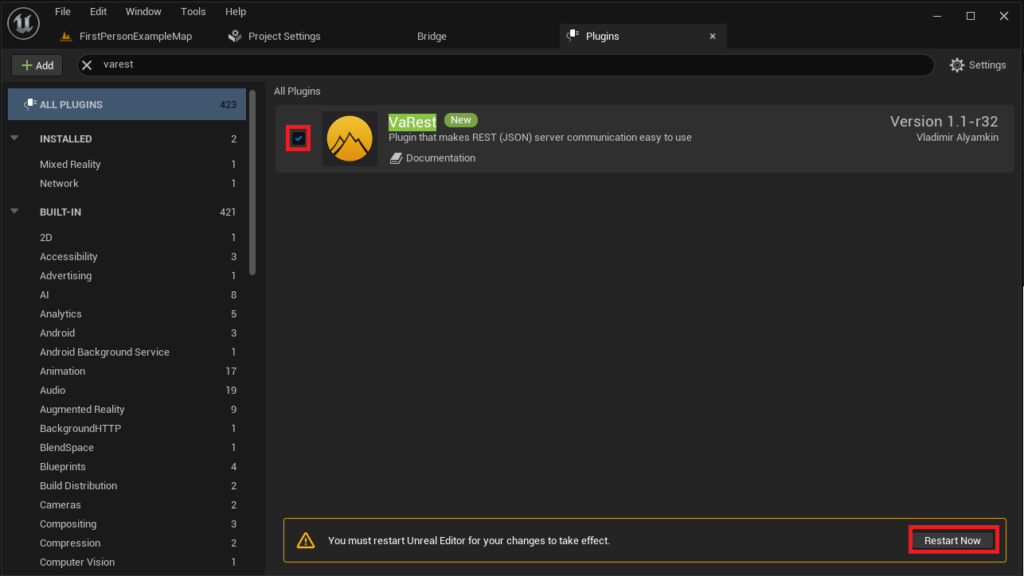
Each plugin entry in the browser features a checkbox. To activate the plugin for the current project, this checkbox must be selected. Upon enabling a plugin, the Unreal Engine editor will typically prompt the user with a "Restart Now" button. This restart is critical as it allows the engine to recompile necessary modules, load the plugin’s code, and integrate its functionalities into the project’s environment. The editor will close and then reopen, ensuring that all changes are properly applied. Once the editor has successfully restarted, the plugin’s features, including new Blueprint nodes or C++ classes, will be available for use within the project, ready to enhance development workflows.
The Advanced Route: Manual Plugin Integration
While the Unreal Marketplace offers a convenient and generally safer route for plugin acquisition, the broader Unreal Engine community often develops and shares specialized plugins outside of Epic Games’ official storefront. These manually installed plugins can be invaluable for niche functionalities, experimental features, or for developers who prefer direct control over their plugin sources. However, this method introduces additional responsibilities and necessitates a higher degree of caution.
Critical Considerations: Security and Compatibility
Before embarking on manual plugin installation, developers must heed several critical warnings. The internet is a vast repository of resources, but not all sources are equally reliable. Downloading and integrating untrusted files or code into a development environment carries inherent risks, including the potential for malware, security vulnerabilities, or simply poorly written code that could destabilize a project or the entire engine. Therefore, it is paramount to only download Unreal Engine plugins from trusted sources. Reputable community forums, well-known GitHub repositories from established developers, or direct links from official plugin websites are generally safer bets. Even then, reviewing the source code if possible, or checking community feedback, is a recommended practice.
Furthermore, compatibility is a non-negotiable factor. Unlike Marketplace plugins, which explicitly state supported engine versions, manually downloaded plugins may lack clear versioning or might be developed for specific, older iterations of Unreal Engine. Attempting to use a plugin designed for UE4.27 in a UE5.3 project, for instance, will almost certainly lead to compilation failures or runtime crashes. Developers must verify that the plugin is explicitly stated to be compatible with their installed version of Unreal Engine 5. Without this compatibility, the installation effort will be futile, and troubleshooting can be time-consuming. CouchLearn, and any responsible platform, explicitly disclaims responsibility for damages incurred from downloading unknown or untrusted files, underscoring the user’s responsibility in this advanced process.
Step-by-Step Manual Installation
Assuming a trusted and compatible plugin has been sourced, the manual installation process involves direct manipulation of the project’s file structure. This method typically places the plugin within the project itself, rather than at the engine level, making it project-specific by default.
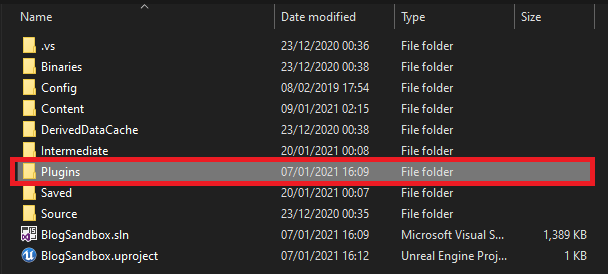
The first step is to ensure that the target Unreal Engine project directory contains a dedicated "Plugins" folder. This folder is typically located at the root of the .uproject file (e.g., MyProject/Plugins/). If this folder does not exist, developers must simply create a new folder named "Plugins" at this location. This folder serves as the designated repository for all project-specific plugins.
Next, the downloaded plugin’s folder (e.g., "VictoryPlugin," as used in the original example) needs to be copied entirely into this newly created or existing "Plugins" directory. It is crucial to copy the entire plugin folder, which typically contains the plugin’s .uplugin descriptor file, source code, binaries, and any associated content. For instance, if the Victory BP plugin by Rama is being installed, the "VictoryPlugin" folder, containing all its internal files and subdirectories, would be placed directly inside the project’s Plugins folder. The structure should resemble MyProject/Plugins/VictoryPlugin/.
This action physically integrates the plugin’s files into the project’s structure, making them accessible to the Unreal Engine editor when the project is loaded. Unlike Marketplace installations which handle file placement automatically, manual installation requires the developer to correctly place these files. The integrity of the plugin’s internal file structure within its copied folder is paramount for its proper function.
Enabling Manually Installed Plugins
Once the plugin files are correctly placed within the project’s "Plugins" folder, the final stage mirrors the activation process for Marketplace plugins: enabling it within the Unreal Engine editor. As with Marketplace plugins, manual plugins are not automatically active upon file placement; they must be explicitly enabled to prevent unnecessary compilation and executable bloat.
To enable the plugin, the developer must open the Unreal Engine project. Inside the editor, navigate to "Edit" in the main menu bar, then select "Plugins." This opens the "Plugins" browser, which lists all available plugins, including those manually added to the project’s "Plugins" folder.
Within the Plugins browser, use the search box to quickly locate the manually installed plugin by its name (e.g., "Victory Plugin"). The search functionality will filter the extensive list, making the plugin easy to find.
Finally, locate the checkbox associated with the plugin in the search results and click it to enable the plugin for the current project. Similar to Marketplace plugins, enabling a manually installed plugin will prompt the editor to recommend a "Restart Now." This restart is mandatory. The editor needs to reload the project, compile the plugin’s modules, and integrate its functionalities into the Blueprint and C++ environments. Upon successful restart, the manually installed plugin will be fully operational, providing its extended features for development. This meticulous process, while requiring more attention to detail, grants developers unparalleled flexibility in customizing their Unreal Engine development environment.
The Broader Impact: Empowering Developers and Accelerating Innovation
The robust and accessible plugin ecosystem within Unreal Engine 5 is not merely a technical convenience; it profoundly impacts the efficiency, creativity, and accessibility of game and interactive content development. Its implications extend far beyond individual projects, shaping the industry’s trajectory.
Democratization of Advanced Features
Perhaps the most significant impact of plugins is the democratization of advanced development techniques. By exposing C++ functionalities through Blueprint nodes, plugins allow artists, designers, and less code-proficient developers to leverage sophisticated algorithms, integrate complex third-party services (like databases, social media APIs, or cloud platforms), and implement high-performance features that would otherwise require deep programming knowledge. This lowers the barrier to entry for complex projects, enabling smaller teams and independent creators to realize ambitious visions without the prohibitive costs associated with hiring specialized C++ programmers for every bespoke need. The VaRest plugin, for example, transforms the intricate process of handling web requests into a series of easily manageable Blueprint nodes, making online functionality accessible to a wider audience.
Fostering a Vibrant Developer Ecosystem
The availability of a well-defined plugin architecture fosters a thriving ecosystem of third-party developers. These individuals and small studios create, maintain, and support a vast array of tools, ranging from niche utilities to comprehensive frameworks. The Unreal Marketplace acts as a central marketplace for these innovations, creating an economic model where developers can monetize their expertise and tools. This, in turn, incentivizes further development, leading to a virtuous cycle of innovation. Beyond the commercial aspect, the open-source community provides a wealth of free plugins, often addressing specific community needs or showcasing novel approaches, like Rama’s Victory BP plugin, which offers a myriad of utility functions. This collaborative spirit accelerates problem-solving and knowledge sharing across the global developer community.
Addressing Compatibility and Security Challenges
While the benefits are substantial, the reliance on plugins also introduces challenges, particularly concerning compatibility and security. Each new version of Unreal Engine often brings architectural changes, necessitating updates to existing plugins. This places a continuous burden on plugin developers to maintain their tools, ensuring they remain compatible with the latest engine iterations. For developers utilizing numerous plugins, managing these updates and potential conflicts can become a project management task in itself. Discrepancies in version compatibility are a common source of project build failures and runtime errors, demanding careful attention during engine upgrades.
Security, as highlighted in the manual installation section, remains a paramount concern. The decentralized nature of some plugin distribution (outside the official Marketplace) means that developers must exercise extreme caution. Untrusted code can introduce vulnerabilities, performance bottlenecks, or even malicious software into a project. This necessitates rigorous source verification, community vetting, and, ideally, an understanding of basic code security practices. Epic Games continues to refine its Marketplace vetting process, but the responsibility ultimately rests with the end-user for external acquisitions.
Conclusion
Unreal Engine 5 plugins are indispensable components of modern game and interactive content development, effectively bridging the gap between C++’s raw power and Blueprints’ accessibility. Whether acquired through the streamlined Unreal Marketplace or integrated manually, these extensions empower developers to push creative boundaries, optimize workflows, and bring complex ideas to fruition with greater efficiency. The step-by-step processes for installation and activation, encompassing both engine-level integration and project-specific enabling, are fundamental skills for any serious UE5 developer. As the engine continues to evolve, the plugin ecosystem will undoubtedly expand, further democratizing advanced features and solidifying Unreal Engine 5’s position as a leading platform for innovation, provided developers remain vigilant about compatibility and source integrity. The future of modular development in UE5 is bright, promising an even richer array of tools to unlock unprecedented creative potential.
About the Author