The landscape of modern game development, particularly within the Unreal Engine 5 ecosystem, often involves a delicate balance between rapid iteration provided by visual scripting and the raw performance and flexibility offered by traditional programming languages. While Epic Games’ Blueprint visual scripting system is celebrated for its accessibility and speed in prototyping and logic implementation, developers frequently encounter scenarios where Blueprint code reaches its performance ceiling, becoming a bottleneck that cannot be overcome through further optimization within the visual environment. This challenge, often arising in computationally intensive sections of a game, necessitates a strategic integration of C++ to achieve optimal performance and unlock advanced engine functionalities.
The Blueprint Performance Bottleneck: Understanding the "Why"
Blueprint’s strength lies in its ease of use and visual representation, allowing designers and non-programmers to implement complex game logic without writing a single line of code. However, this accessibility comes with inherent trade-offs in execution speed. Unlike C++, which is compiled directly into machine code, Blueprint scripts are interpreted at runtime. This interpretive layer introduces overhead, leading to slower execution times for operations that require frequent processing, extensive loops, complex mathematical calculations, or direct memory manipulation.
Common scenarios where Blueprint performance can degrade significantly include:
- Advanced AI Behaviors: Complex decision trees, pathfinding algorithms, or large-scale flocking simulations can quickly overwhelm Blueprint’s execution speed.
- Data Processing: Handling large arrays, performing frequent string manipulations, or intricate data serialization/deserialization.
- Physics Interactions: Custom physics calculations or managing a high volume of physics-enabled objects.
- Procedural Generation: Algorithms for generating terrain, levels, or assets dynamically often require intense computation.
- Game State Management: Sophisticated save/load systems, inventory management with many items, or complex quest logic.
Developers typically begin optimizing Blueprint by simplifying logic, reducing node count, and leveraging native engine features. However, there comes a point where these efforts yield diminishing returns, and the fundamental nature of Blueprint’s execution model becomes the primary constraint. This is the critical juncture where transitioning performance-critical logic to C++ becomes not just an option, but a necessity for project scalability and shipping a performant title.
The Power of C++: Unlocking Efficiency and Advanced Features
C++ offers a direct conduit to a computer’s hardware, allowing for granular control over memory management, CPU cycles, and system resources. This low-level access is the primary driver behind its superior performance. For tasks where every millisecond counts, C++ can execute operations orders of magnitude faster than their Blueprint counterparts. While specific performance benchmarks vary widely based on the complexity and nature of the code, it is generally accepted within the industry that well-optimized C++ routines will outperform Blueprint equivalents for computationally demanding operations.
Beyond raw speed, C++ provides access to a wealth of features not natively exposed or easily accessible within Blueprint:
- Multithreading: Implementing concurrent processes to fully utilize modern multi-core CPUs, preventing frame rate drops during heavy computations.
- Advanced Data Structures and Algorithms: Utilizing highly optimized C++ standard library containers (e.g.,
std::vector,std::map) and implementing custom algorithms with maximum efficiency. - Direct Engine API Access: Leveraging the full Unreal Engine API, including internal classes and functions that might not have Blueprint wrappers.
- External Library Integration: Seamlessly incorporating third-party C++ libraries for specialized functionalities like advanced networking, machine learning, or proprietary data formats.
- Memory Management: Explicit control over memory allocation and deallocation, crucial for preventing memory leaks and optimizing memory footprint, particularly important for console and mobile platforms.
Historically, integrating C++ into a predominantly Blueprint project could be daunting, often requiring a significant restructure or complex communication patterns between the two systems. However, Epic Games has continuously refined the interoperability between C++ and Blueprint, providing elegant solutions like the C++ Blueprint Function Library to bridge this gap effectively.
C++ Blueprint Function Libraries: A Seamless Integration Strategy
A C++ Blueprint Function Library is a specialized Unreal Engine class designed to expose static C++ functions directly to the Blueprint visual scripting environment. This powerful mechanism allows developers to encapsulate performance-critical or C++-exclusive logic within highly optimized C++ code, yet make it callable as a regular node within any Blueprint graph. This creates a hybrid development model where the strengths of both systems are leveraged: C++ for performance and low-level control, and Blueprint for high-level logic, rapid prototyping, and designer-friendly workflows.
The key benefits of employing C++ Blueprint Function Libraries are manifold:
- Targeted Performance Boosts: Developers can identify specific Blueprint bottlenecks and rewrite only those sections in C++, without needing to refactor the entire project.
- Expanded Functionality: Access to C++ features and external libraries that are otherwise unavailable in Blueprint.
- Seamless Integration: C++ functions appear as native Blueprint nodes, maintaining the visual scripting workflow.
- Code Reusability and Organization: Centralizing complex C++ logic into well-defined function libraries promotes modularity and makes the code reusable across multiple Blueprints and projects.
- Enhanced Collaboration: It allows C++ programmers to develop robust, optimized backend functionalities, which Blueprint designers can then readily integrate into their game logic without needing C++ expertise. This fosters a more efficient division of labor within development teams.
This approach aligns perfectly with Epic Games’ philosophy of empowering developers with flexible tools, enabling them to choose the right tool for the right job, ensuring both creative freedom and technical excellence.
Prerequisites for Implementation: Setting the Foundation
Before embarking on the creation of a C++ Blueprint Function Library, developers need to ensure their environment is correctly configured and possess a foundational understanding of C++ within the Unreal Engine context.
- Basic C++ Knowledge in Unreal Engine 5: While the library itself simplifies integration, writing the underlying C++ code requires familiarity with C++ syntax, object-oriented programming concepts, and Unreal Engine’s specific C++ conventions (e.g., UCLASS, UPROPERTY, UFUNCTION macros, FString, TArray).
- Integrated Development Environment (IDE): A robust IDE is essential for writing, debugging, and compiling C++ code. For Windows users, Microsoft Visual Studio is the standard. For macOS users, Xcode is required. Unreal Engine 5 will typically prompt users to install the necessary IDE if it’s not detected when attempting to create a new C++ class in a Blueprint-only project.
- C++ Enabled Project: An existing Blueprint-only project must be converted to a C++ enabled project. This is a straightforward process within the Unreal Editor, which generates the necessary project files and solution/workspace for the chosen IDE.
Step-by-Step Guide: Creating a C++ Blueprint Function Library in UE5
The process of establishing a C++ Blueprint Function Library is systematic, involving several clear steps within the Unreal Editor and the chosen IDE.
-
Verifying C++ Project Status:
- Open your Unreal Engine 5 project.
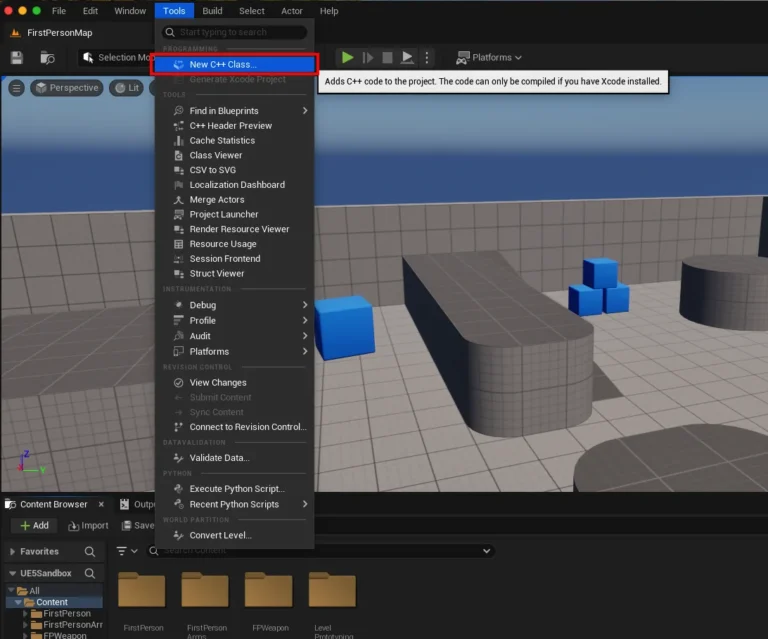
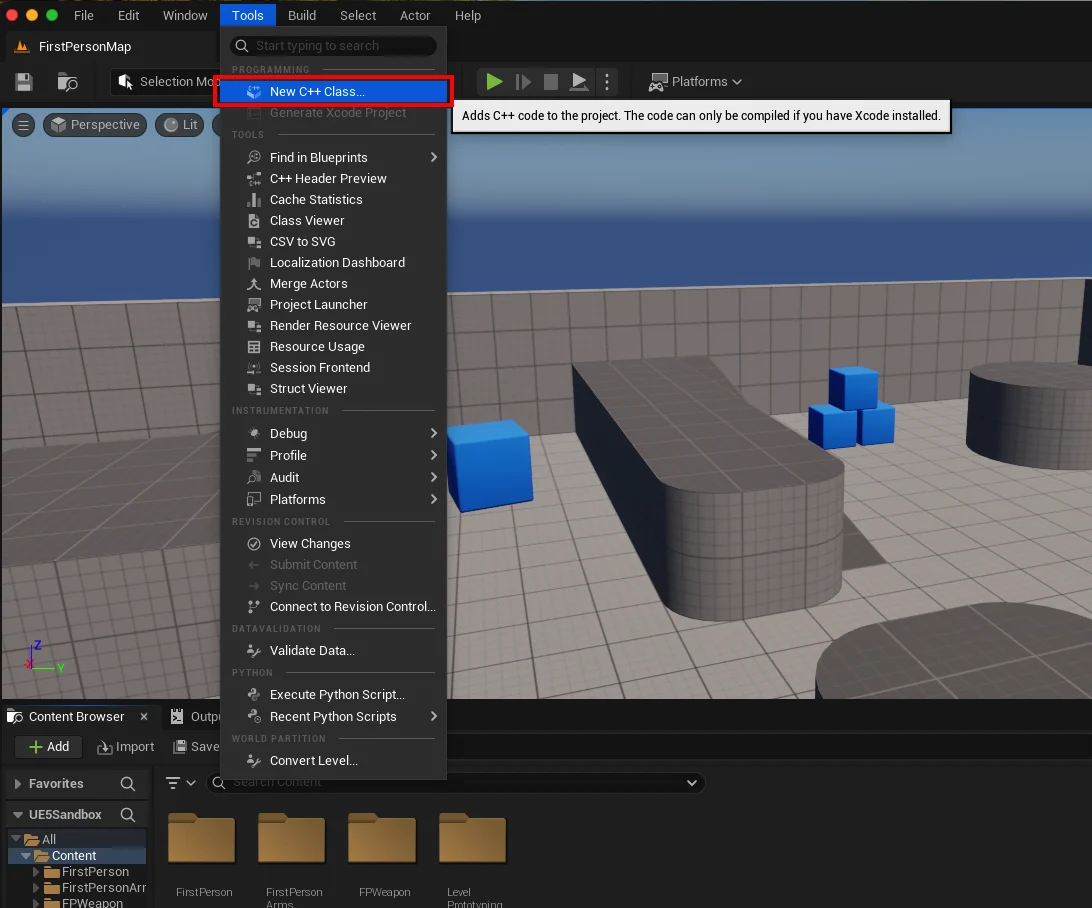
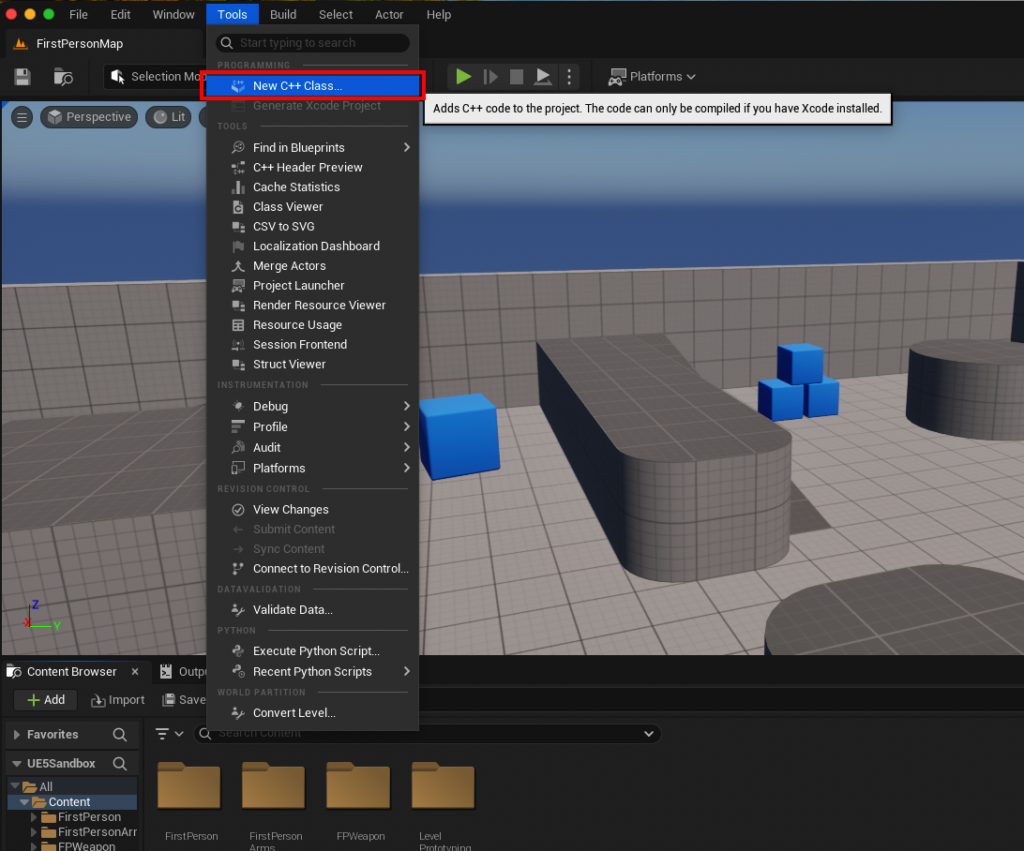
- Navigate to the "Tools" dropdown menu at the top of the editor.
- Select "New C++ Class."
- If your project is not C++ enabled, the engine will guide you through installing the necessary IDE (Visual Studio or Xcode) and converting your project. This one-time setup creates the
.sln(Windows) or.xcodeproj(macOS) file for your project.
-
Selecting the Parent Class:
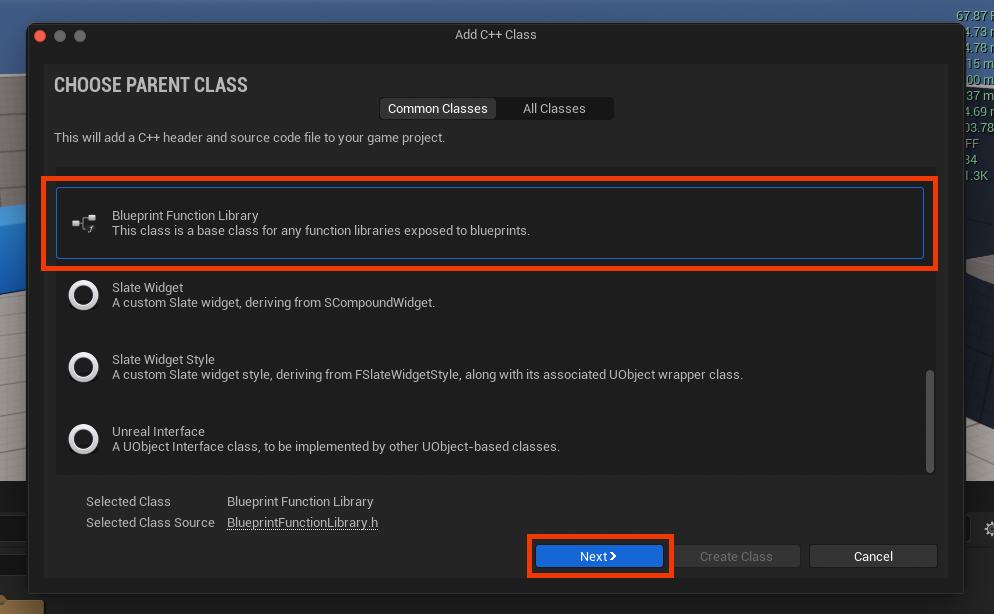
- After initiating "New C++ Class," a dialog box will appear, prompting you to choose a "Parent Class."
- Scroll down the list and select "Blueprint Function Library." This base class provides the necessary framework for exposing static C++ functions to Blueprint.
- Click the "Next" button to proceed.
-
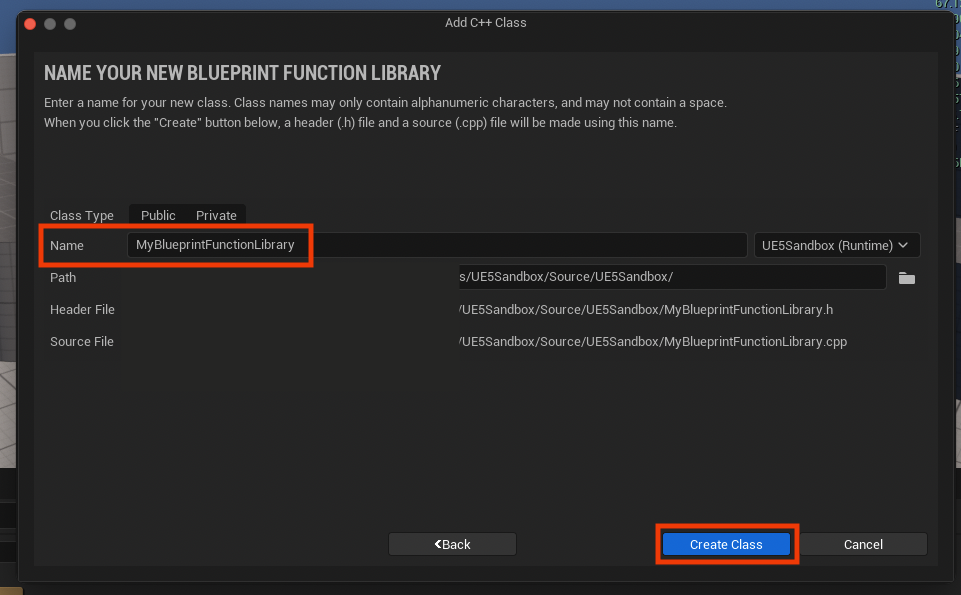
Naming Conventions:

- The subsequent dialog will ask you to name your new class.
- Adhere to Unreal Engine’s naming conventions: start with ‘U’ for Unreal objects (though the editor might automatically prefix this), use CamelCase (e.g.,
UMyBlueprintFunctionLibrary). A descriptive name likeUMyUtilityFunctionsorUGameplayStaticsLibraryis recommended. For this guide’s example,UMyBlueprintFunctionLibrarywas used. - Ensure the "Public" access specifier is selected.
- Click "Create Class."
-
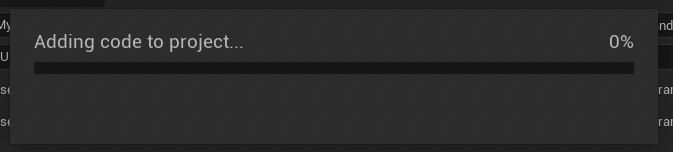
Compilation Process:
- Upon creation, Unreal Engine will compile the new C++ files. This process generates the
.h(header) and.cpp(source) files for your new library and integrates them into your project’s build system. - Wait for the compilation to complete, as indicated by the progress bar. This step is crucial before attempting to open the IDE or make further C++ modifications.
- Upon creation, Unreal Engine will compile the new C++ files. This process generates the
Developing the Functionality: Inside the IDE
Once the class is created and compiled, you can open your IDE (Visual Studio or Xcode) to begin writing the C++ code that will power your Blueprint functions.
-
File Structure:
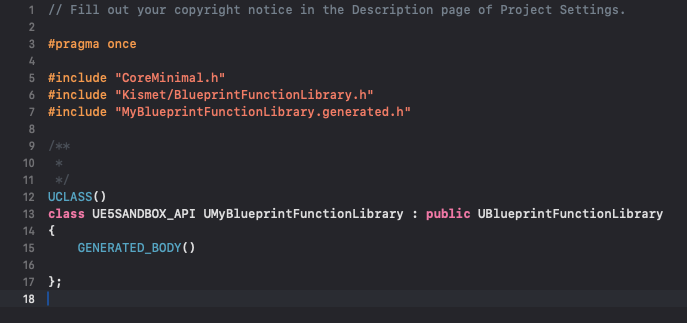
- In your IDE, you will find two new files corresponding to your chosen class name (e.g.,
MyBlueprintFunctionLibrary.handMyBlueprintFunctionLibrary.cpp). The.hfile is for declarations (function signatures), and the.cppfile is for implementations (the actual code logic).
- In your IDE, you will find two new files corresponding to your chosen class name (e.g.,
-
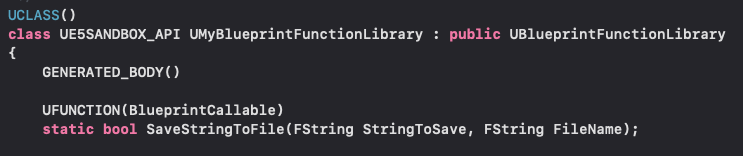
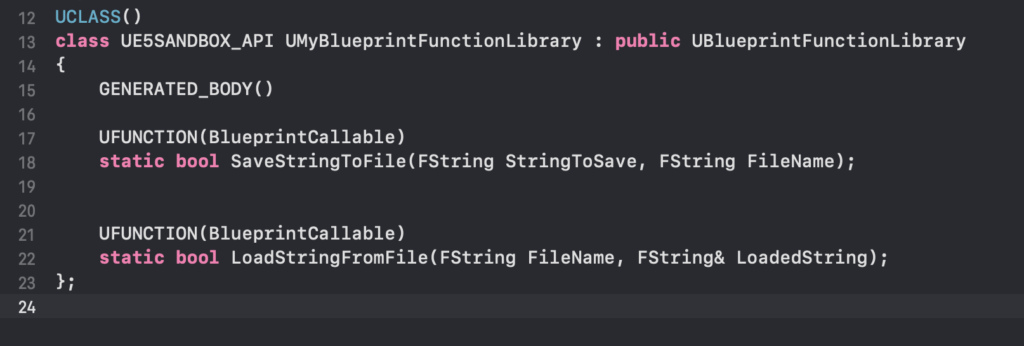
Function Declaration (.h file):
- Open the header file (
.h). You’ll see a basic class structure inheriting fromUBlueprintFunctionLibrary. - To make a function accessible in Blueprint, it must be declared within this class. The most critical elements for Blueprint exposure are:
statickeyword: Functions within a Blueprint Function Library must be static. This means they can be called directly without needing an instance of the class, behaving like global utility functions.UFUNCTIONmacro: This macro informs Unreal Engine’s reflection system to expose the function. Essential specifiers includeBlueprintCallable(to make it available in Blueprint graphs) andCategory(to organize it within the Blueprint context menu, e.g.,Category="MyUtilities|FileOperations").
-
Example Declarations (for a string save/load system):
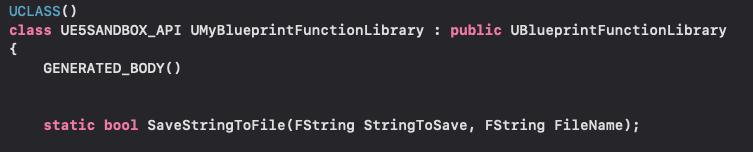
// MyBlueprintFunctionLibrary.h #pragma once #include "CoreMinimal.h" #include "Kismet/BlueprintFunctionLibrary.h" #include "MyBlueprintFunctionLibrary.generated.h" UCLASS() class UMyBlueprintFunctionLibrary : public UBlueprintFunctionLibrary GENERATED_BODY() public: UFUNCTION(BlueprintCallable, Category = "File IO") static bool SaveStringToFile(FString SaveDirectory, FString FileName, FString SaveText, bool bReplaceExisting); UFUNCTION(BlueprintCallable, Category = "File IO") static bool LoadStringFromFile(FString LoadDirectory, FString FileName, FString& LoadText); ; - Note the
&forLoadTextinLoadStringFromFile, indicating an output parameter for Blueprint.
- Open the header file (
-
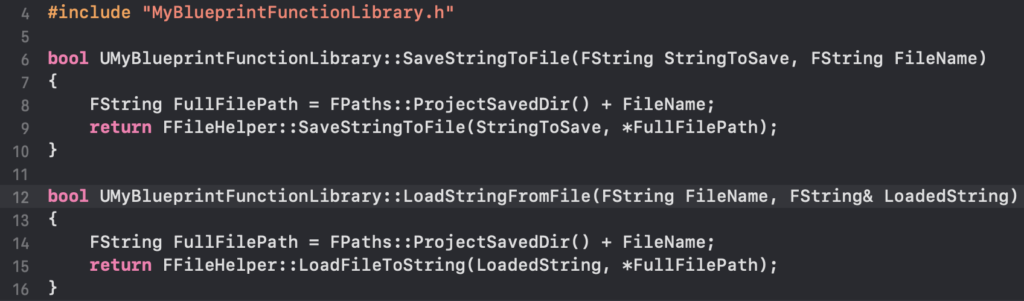
Function Implementation (.cpp file):
- Open the source file (
.cpp). Here, you’ll write the actual C++ logic for your declared functions. - For the file I/O example, Unreal Engine’s
FFileHelperclass provides convenient methods. -
Example Implementations:
// MyBlueprintFunctionLibrary.cpp #include "MyBlueprintFunctionLibrary.h" #include "Misc/FileHelper.h" #include "HAL/PlatformFileManager.h" bool UMyBlueprintFunctionLibrary::SaveStringToFile(FString SaveDirectory, FString FileName, FString SaveText, bool bReplaceExisting) SaveDirectory += "\"; SaveDirectory += FileName; // Check if file exists and handle replacement logic if (!bReplaceExisting && FPlatformFileManager::Get().GetPlatformFile().FileExists(*SaveDirectory)) UE_LOG(LogTemp, Warning, TEXT("File already exists and bReplaceExisting is false: %s"), *SaveDirectory); return false; if (FFileHelper::SaveStringToFile(SaveText, *SaveDirectory)) UE_LOG(LogTemp, Log, TEXT("Successfully saved string to file: %s"), *SaveDirectory); return true; else UE_LOG(LogTemp, Error, TEXT("Failed to save string to file: %s"), *SaveDirectory); return false; bool UMyBlueprintFunctionLibrary::LoadStringFromFile(FString LoadDirectory, FString FileName, FString& LoadText) LoadDirectory += "\"; LoadDirectory += FileName; if (FFileHelper::LoadFileToString(LoadText, *LoadDirectory)) UE_LOG(LogTemp, Log, TEXT("Successfully loaded string from file: %s"), *LoadDirectory); return true; else UE_LOG(LogTemp, Error, TEXT("Failed to load string from file: %s"), *LoadDirectory); LoadText = TEXT(""); // Ensure LoadText is empty on failure return false; - It’s good practice to include logging (
UE_LOG) for debugging purposes, especially for functions interacting with external systems like file I/O. - Once the C++ code is written, save all files in your IDE.
- Open the source file (
Integrating into Blueprints: Bridging the Gap
After developing the C++ functions, the next crucial step is to compile the project and make the new functions accessible within the Unreal Editor.
-
Recompile Project and Relaunch Editor:
- Return to the Unreal Editor. It’s often best practice to close the editor, compile your project from your IDE (e.g., Build Solution in Visual Studio), and then relaunch the editor. This ensures that all C++ changes are properly integrated and reflected. Alternatively, the "Compile" button in the editor’s toolbar (if available for C++ projects) can be used, but a full IDE compile is often more reliable after adding new classes/functions.
-
Accessing Functions in Blueprint:
- Open any Blueprint editor (e.g., a Level Blueprint, Character Blueprint, Widget Blueprint).
- Right-click in the event graph to open the context menu.
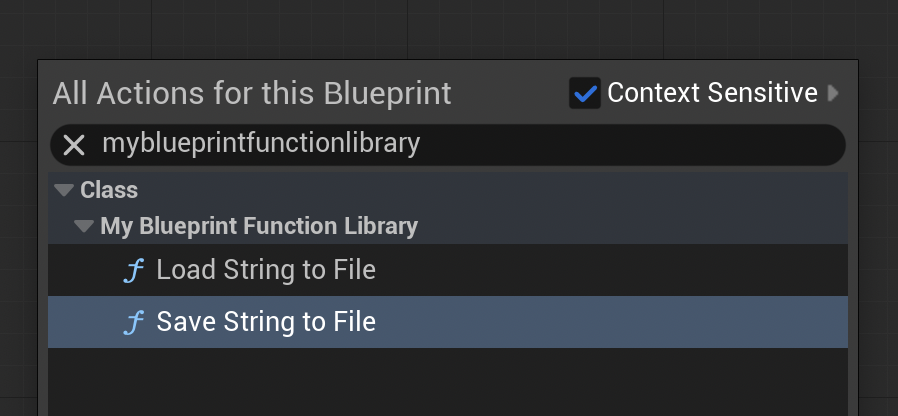
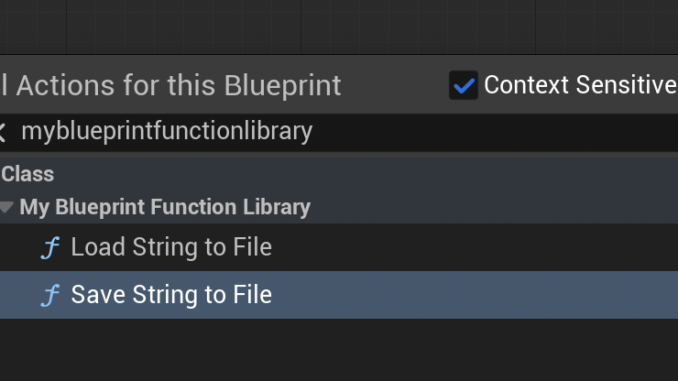
- Type the name of your C++ Blueprint Function Library (e.g., "MyBlueprintFunctionLibrary") or the name of your function (e.g., "Save String To File").
- Your newly created C++ functions will appear as callable nodes, categorized as specified in the
UFUNCTIONmacro.
Practical Demonstration and Real-World Application
To illustrate the utility of these libraries, let’s walk through the string save/load example within a Blueprint.
Scenario: Persistent Data Storage
Imagine you need to save player settings, game state, or debug logs to a file. While Blueprint offers some basic file operations, a C++ implementation can provide more robust error handling, efficiency, and direct control over file paths and formats.
-
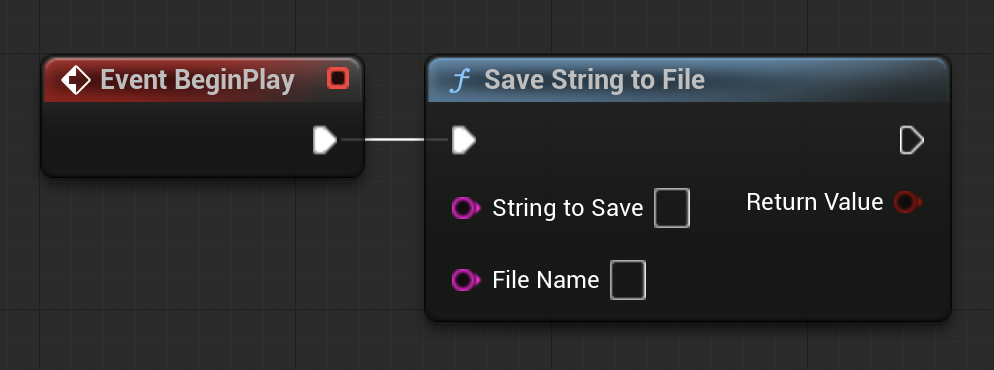
Saving Data:
- In a Level Blueprint, add an "Event BeginPlay" node.
- From "Event BeginPlay," drag a wire and search for "Save String To File."
- Connect the
Save String To Filenode. - For
SaveDirectory, useFPaths::ProjectSavedDir()(obtained via a Blueprint node) to save in the project’s ‘Saved’ folder. - Set
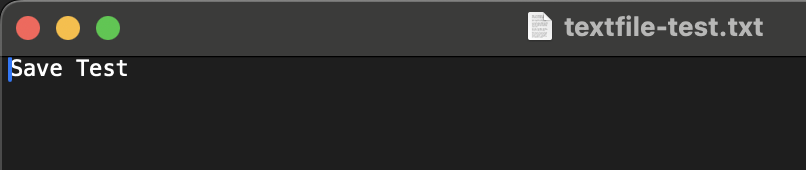
FileNameto "testfile-data.txt". - Set
SaveTextto "This is a test string saved from C++ via Blueprint!". - Set
bReplaceExistingto true. - Compile and run the game.
- Navigate to your project’s
Savedfolder (e.g.,YourProjectName/Saved). You will find "testfile-data.txt" containing the specified string.
-
Loading Data:
- First, manually create a file named "loadtest.txt" in your project’s
Savedfolder. - Inside "loadtest.txt", write "This string was loaded successfully!". Save the file.
- In the same Level Blueprint, after the save operation or on a separate event, search for "Load String From File."
- Connect the
Load String From Filenode. - For
LoadDirectory, useFPaths::ProjectSavedDir(). - Set
FileNameto "loadtest.txt". - Drag a wire from the
LoadTextoutput pin and connect it to a "Print String" node. - Compile and run the game.
- The string "This string was loaded successfully!" will appear on the screen, demonstrating that the C++ function successfully loaded the file’s content and passed it back to Blueprint.
- First, manually create a file named "loadtest.txt" in your project’s
This simple example highlights the core functionality, but the potential applications are vast. Developers can create C++ Blueprint Function Libraries for:
- Custom Math Utilities: Highly optimized vector operations, matrix transformations, or complex number theory functions.
- Networking Utilities: Custom packet serialization/deserialization, advanced socket operations.
- AI Behaviors: Complex utility systems, GOAP (Goal-Oriented Action Planning) implementations, or advanced crowd simulation logic.
- Asset Management: Custom loading/unloading strategies, metadata parsing.
- System Interactions: Interfacing with OS-specific features, external hardware, or unique input devices.
Implications for Game Development Workflow and Project Scalability
The adoption of C++ Blueprint Function Libraries has significant implications for the overall game development workflow and the long-term scalability of projects.
- Hybrid Development Efficiency: This approach champions a hybrid development model, allowing teams to use Blueprint for the majority of game logic (UI, event handling, simple interactions) where rapid iteration is paramount, while offloading performance-critical or complex tasks to C++. This optimizes development time and resource allocation.
- Performance Budgets: Meeting stringent performance targets for shipping games on various platforms often requires careful management of CPU and memory budgets. C++ Function Libraries provide a powerful tool to ensure that core game systems run as efficiently as possible, freeing up resources for other visual or gameplay elements.
- Maintainability and Debugging: While C++ introduces a steeper learning curve, well-designed function libraries encapsulate complexity. This means Blueprint users interact with simple, clear nodes, while C++ developers maintain robust, testable code. Debugging performance issues becomes more straightforward when critical paths are clearly defined in C++.
- Team Collaboration and Specialization: It fosters a clearer division of labor: C++ programmers can focus on building the engine’s foundational systems and optimized utilities, while Blueprint designers can concentrate on creative gameplay implementation, level design, and user experience. This reduces bottlenecks and allows each team member to work within their expertise.
- Future-Proofing Projects: As games become more ambitious, the demands on the engine increase. Projects built with a strong foundation of C++ for performance-critical components are inherently more scalable and adaptable to future features, engine updates, and platform requirements. It provides a robust architecture that can grow with the game.
In conclusion, C++ Blueprint Function Libraries are an indispensable tool for any serious Unreal Engine 5 developer. They offer a tangible pathway to address performance bottlenecks, unlock advanced C++ functionalities, and streamline collaborative workflows. By strategically integrating the power of C++ with the flexibility of Blueprint, developers can build more efficient, robust, and performant games, ensuring both creative vision and technical excellence. Embracing this hybrid approach is key to optimizing development processes and achieving peak performance in the dynamic world of game creation.
Further Reading:
- Official blueprint function library documentation from Epic Games: https://dev.epicgames.com/documentation/en-us/unreal-engine/blueprint-function-libraries-in-unreal-engine
- Click here to read more of our C++ guides for Unreal Engine: https://couchlearn.com/category/unreal-engine/c/
About the Author