The landscape of modern game development, particularly within sophisticated engines like Unreal Engine 5 (UE5), is constantly evolving, driven by both proprietary advancements and a robust community ecosystem. A cornerstone of this evolution is the strategic integration of plugins, which significantly extend the engine’s core functionalities. While Unreal Engine 5 offers a powerful visual scripting system known as Blueprints, many of its most advanced features and optimizations remain exclusive to C++ programming. This disparity often presents a barrier for developers who prefer the rapid prototyping and accessibility of Blueprints but require access to more complex functionalities. Plugins bridge this gap, allowing Blueprint-centric developers to leverage C++-level capabilities and integrate external tools directly into their projects, thereby enhancing workflow efficiency and expanding creative possibilities. This guide details the essential processes for installing and enabling plugins in Unreal Engine 5, covering both the official Unreal Marketplace and advanced manual installation methods.
The Strategic Importance of Plugins in Unreal Engine 5 Development
Unreal Engine 5 stands as a titan in interactive media creation, celebrated for its photorealistic rendering capabilities, advanced procedural generation tools like Nanite and Lumen, and a highly customizable framework. At its heart, UE5 offers two primary development pathways: C++ for robust, performance-critical systems, and Blueprints for intuitive visual scripting. While Blueprints empower rapid iteration and allow designers and artists to contribute directly to game logic without extensive coding knowledge, they inherently operate within the constraints of exposed C++ functions. This means that features not explicitly exposed to Blueprints, or highly specialized functionalities, traditionally necessitate C++ development.
This is where the vibrant developer community and the plugin ecosystem become indispensable. Plugins are essentially self-contained modules that add new features, integrate third-party libraries, or extend existing engine functionalities. They can introduce new Blueprint nodes, custom editors, asset types, or even entire subsystems, making complex operations accessible via visual scripting. For instance, a networking plugin like VaRest, often used for integrating RESTful APIs, allows Blueprint users to communicate with web services, a task that would otherwise require significant C++ coding. The proliferation of these tools underscores Epic Games’ commitment to an open and extensible platform, enabling developers of all skill levels to push the boundaries of their projects without being limited by their primary scripting language. The value proposition is clear: accelerate development cycles, democratize advanced features, and foster innovation through shared resources.
Navigating the Official Channel: Unreal Marketplace Plugins
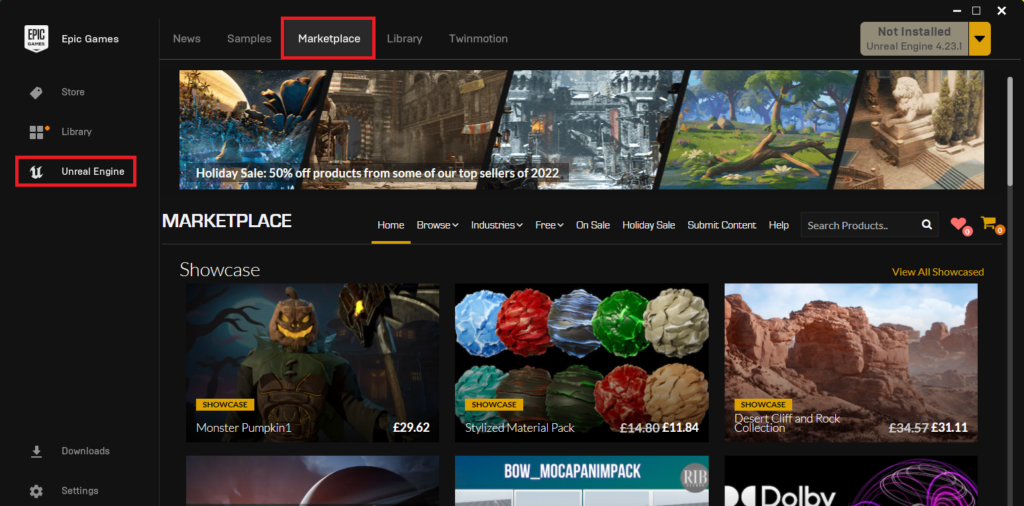
The most secure and streamlined method for acquiring and installing plugins is through the Unreal Marketplace, Epic Games’ official digital storefront. This platform serves as a curated repository for a vast array of assets, tools, and plugins, ensuring a baseline of quality and compatibility with various engine versions. The process is designed to be user-friendly, guiding developers through selection, acquisition, and integration.
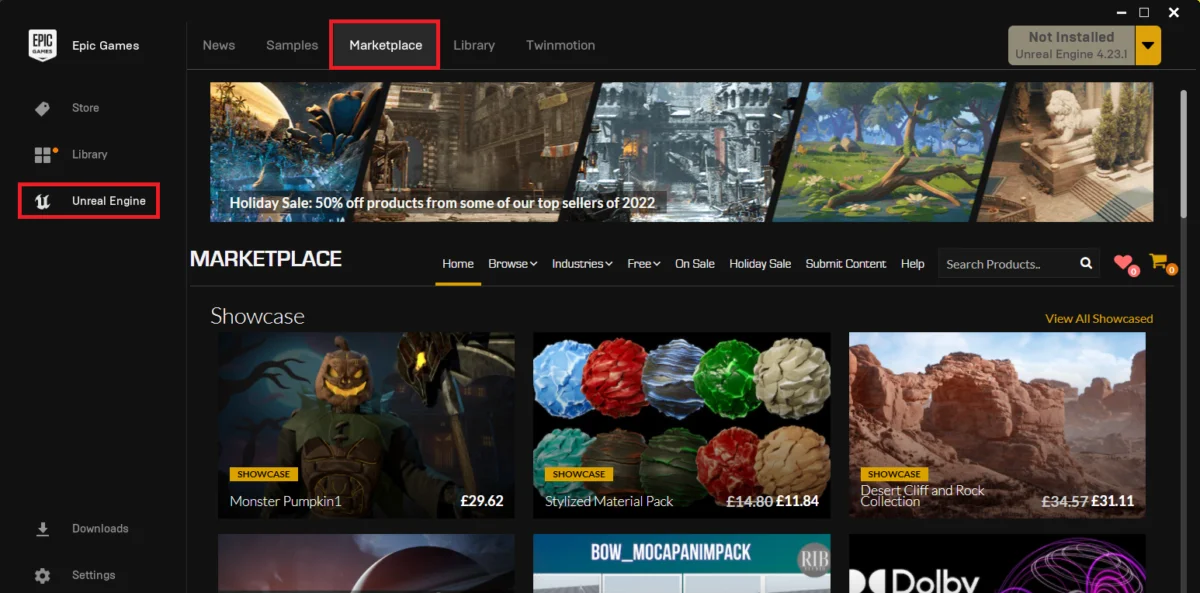
The initial step involves launching the Epic Games Launcher, the central hub for managing all Epic Games products, including Unreal Engine installations and marketplace content. Upon opening the launcher, users must navigate to the Unreal Marketplace section. This area is distinctly labeled and provides access to a comprehensive catalog of digital assets.
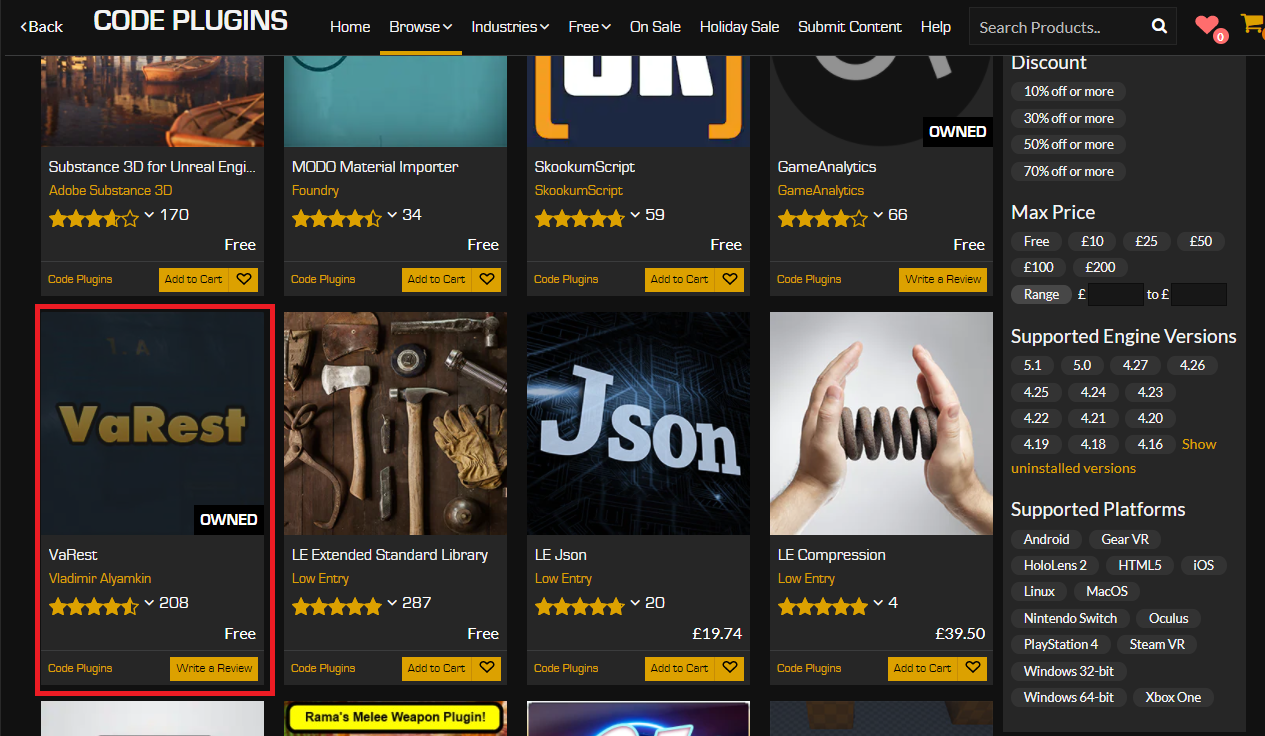
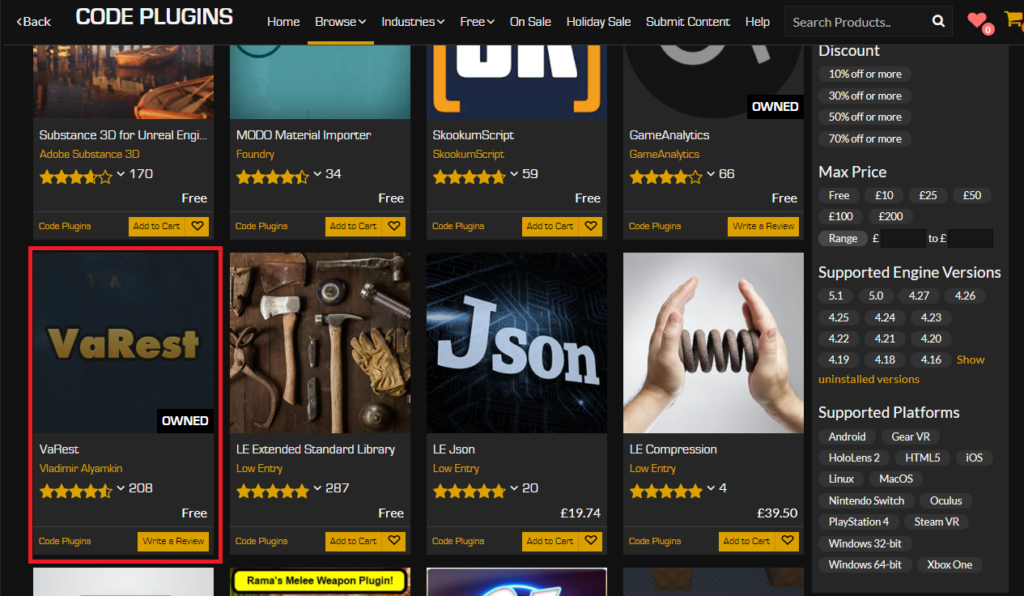
Once within the Marketplace, developers are presented with various browsing categories. To locate plugins specifically designed to extend engine functionality or provide additional Blueprint nodes, the "Code Plugins" option must be selected within the "Browse" tab. This filter streamlines the search, presenting only relevant programmatic extensions rather than art assets or project templates. The marketplace interface is intuitively designed, allowing users to quickly identify and filter content based on criteria such as price, engine compatibility, and category.
After identifying a desired plugin, such as the VaRest networking plugin, which is a popular choice for integrating web-based services into Unreal Engine projects, the next step is acquisition. If the plugin is commercial, it must be added to the cart and purchased. Epic Games processes these transactions securely, providing a digital license for the acquired software. Importantly, many valuable plugins are offered for free by individual developers or Epic Games itself. Even free plugins require a "purchase" process through the cart, though no charge is applied, effectively adding them to the user’s library for future installation. This system ensures that all licensed content, regardless of cost, is tracked and managed within the user’s account.
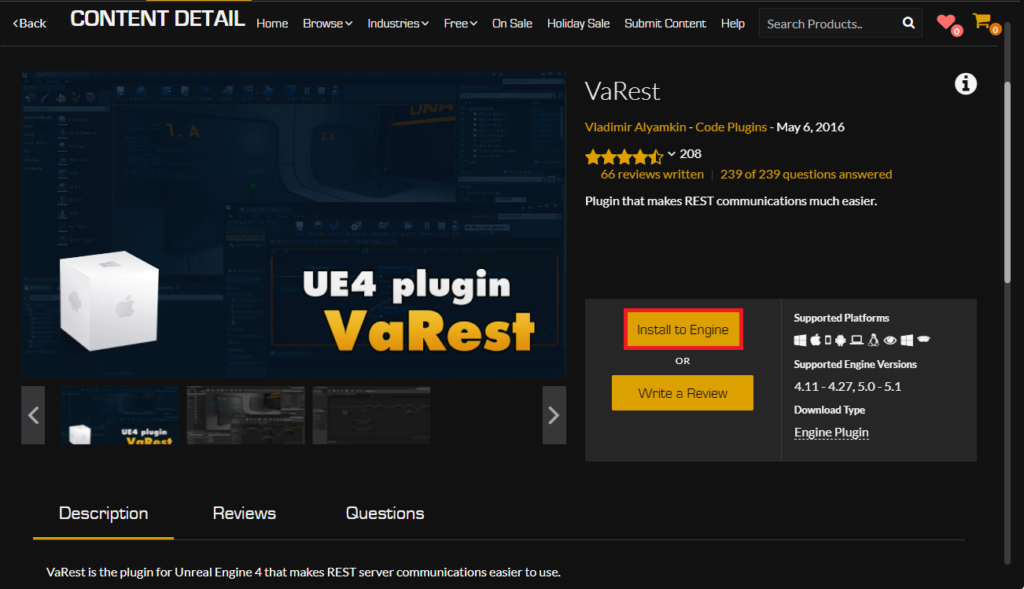
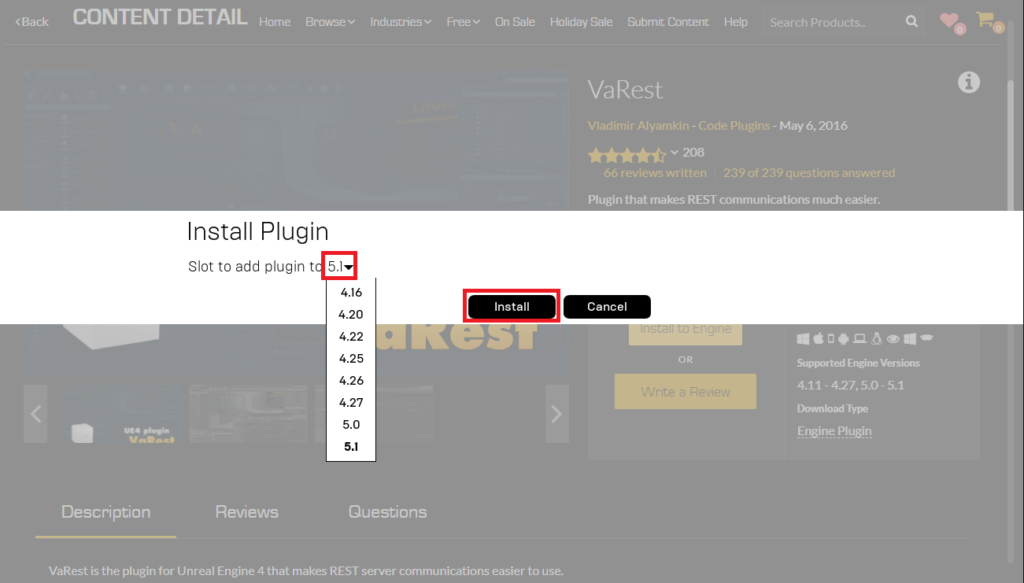
With the plugin successfully acquired, the installation process to the Unreal Engine itself can commence. Unlike project-specific assets, code plugins are typically installed directly into the engine’s core files, making them available across multiple projects that utilize that specific engine version. To initiate this, developers click the "Install to Engine" button associated with the plugin in their library. This action prompts a critical decision: selecting the target engine version. Users must carefully choose the specific Unreal Engine 5 version (e.g., 5.0, 5.1, 5.3) into which they wish to install the plugin. Compatibility is paramount; installing a plugin designed for one engine version into an incompatible one can lead to errors or instability.
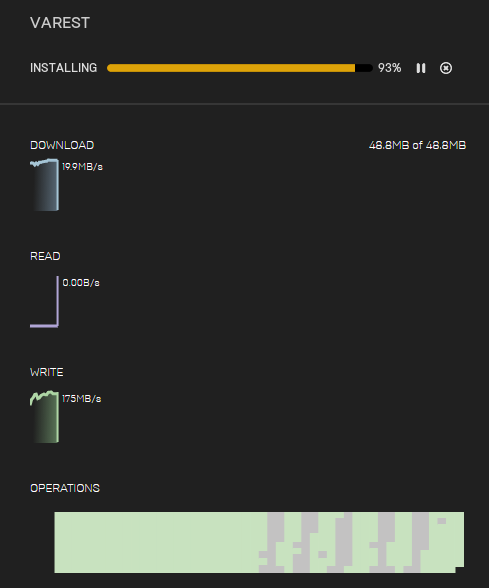
Once the engine version is selected, the download and installation process begins. The progress of this operation is conveniently displayed within the "Downloads" tab of the Epic Games Launcher. This allows developers to monitor the status, ensuring the plugin files are successfully transferred and integrated into the designated engine directory. The time taken for this step varies depending on the plugin’s size and the user’s internet connection speed. Upon successful completion, the launcher will indicate that the plugin has been installed.

Activating the Plugin Within an Unreal Engine Project
Despite being installed to the engine, newly added plugins are not automatically enabled in individual Unreal Engine projects. This design choice is a deliberate optimization by Epic Games, aimed at preventing projects from compiling unnecessary code, which could increase executable size and project load times. Therefore, the final, crucial step is to explicitly enable the plugin within the specific project where it will be utilized.
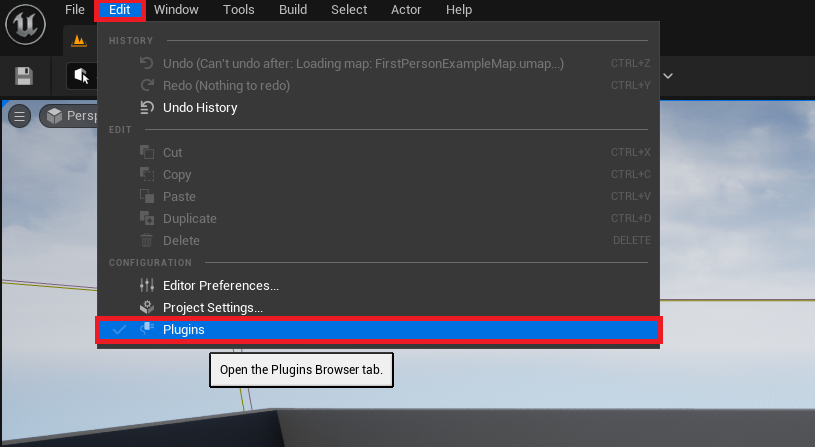
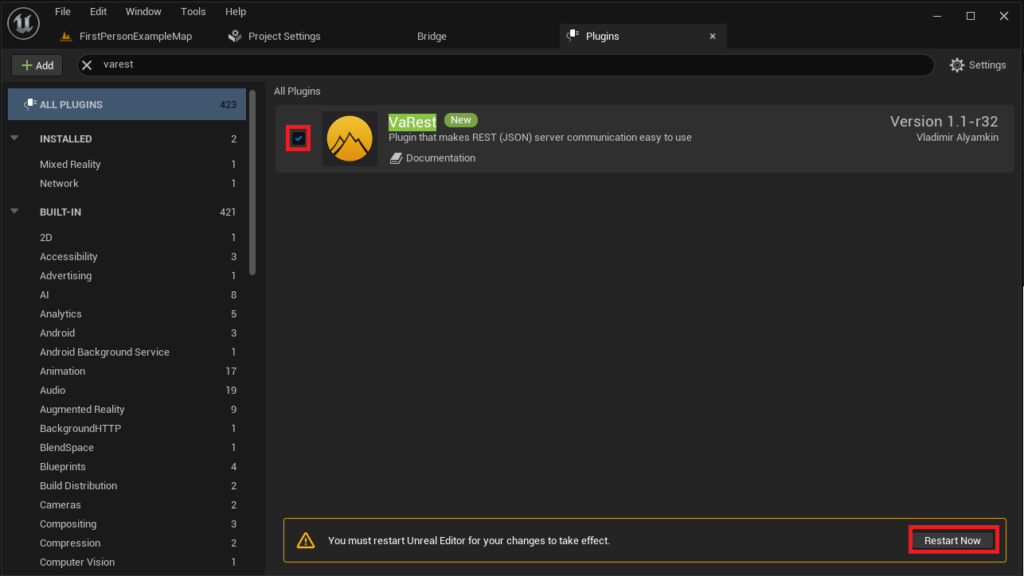
To perform this activation, developers must open their Unreal Engine 5 project in the Unreal Editor. Within the editor’s menu bar, they navigate to "Edit" and then select "Plugins." This action opens the "Plugins" window, a comprehensive interface for managing all plugins associated with the current project and engine installation.
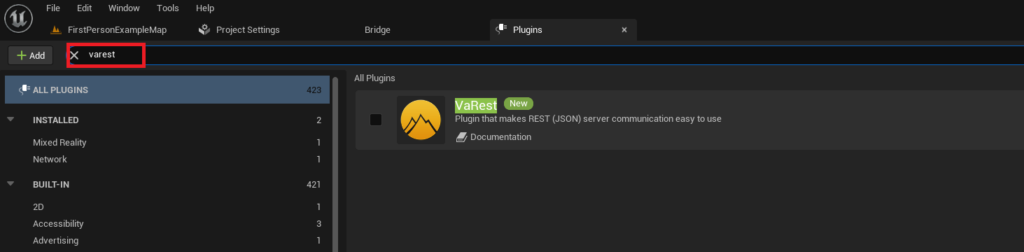
The Plugins window features a search bar, which is invaluable for quickly locating specific plugins amidst a potentially extensive list. Developers should type the name of the newly installed plugin (e.g., "VaRest") into this search box. The system will filter the list, displaying the relevant plugin and its details.
Once the plugin is identified, there will be a corresponding checkbox. To enable the plugin for the current project, this checkbox must be clicked. Upon activation, the Unreal Editor typically prompts the user to "Restart Now." This restart is essential as it allows the editor to recompile the project with the newly integrated plugin, ensuring all its functionalities, including new Blueprint nodes and C++ classes, are properly loaded and accessible. Without this restart, the plugin’s features will not be available. After the editor restarts, the plugin will be fully operational, ready for use in both C++ and Blueprint development within that specific project.
Beyond the Marketplace: Manual Plugin Installation (Advanced)
While the Unreal Marketplace offers a secure and convenient route, there are scenarios where manual plugin installation becomes necessary. This often applies to community-developed plugins not hosted on the Marketplace, private plugins, or specific versions of plugins that require direct integration. This method grants greater control but also introduces increased responsibility regarding security and compatibility.
Critical Disclaimer: It is imperative to exercise extreme caution when downloading and installing files from untrusted or unverified online sources. Manually installing plugins bypasses the Marketplace’s vetting process, potentially exposing a project and system to malicious code, viruses, or severe instability. Developers are strongly advised to download Unreal Engine plugins only from reputable sources, such as official developer forums, well-known GitHub repositories, or direct links from established development communities. Furthermore, always verify that the plugin is explicitly compatible with the exact version of Unreal Engine 5 installed on the system. Incompatibility can lead to project corruption, crashes, and lost work. CouchLearn, like any responsible information provider, disclaims responsibility for any damage resulting from the download or use of unknown or untrusted files.
The Manual Installation Process
To illustrate the manual installation, we can consider a hypothetical example like the "Victory BP Plugin" by Rama, a well-known community-contributed plugin that extends Blueprint capabilities. The process begins with ensuring the project directory is correctly structured.
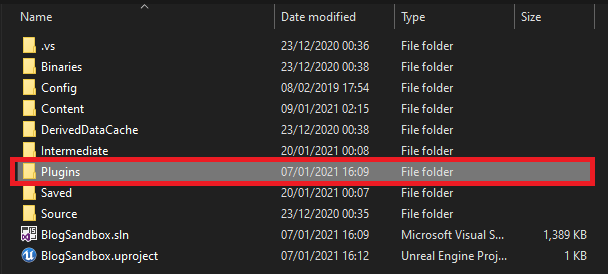
Firstly, developers must navigate to their Unreal Engine project’s root folder on their local file system. Within this directory, there needs to be a folder specifically named "Plugins." If this folder does not exist, it must be created manually. This "Plugins" folder serves as the designated location for all project-specific plugins that are not installed directly to the engine.
Next, the downloaded plugin’s folder, which typically contains all its necessary files (e.g., the "VictoryPlugin" folder compatible with Unreal Engine 5.0), must be copied directly into the project’s newly created or existing "Plugins" folder. For instance, if the downloaded plugin is packaged as a single directory named "VictoryPlugin," that entire directory should be placed inside the project’s "Plugins" folder. This ensures that the engine can discover and load the plugin’s modules when the project is opened.
Inside this copied plugin folder, developers would find various files and subfolders crucial for the plugin’s operation, including source code, binaries, content, and the essential .uplugin descriptor file. This file provides the engine with metadata about the plugin, such as its name, version, and dependencies. The presence of these files confirms a successful manual transfer.
Enabling the Manually Installed Plugin
Just like Marketplace plugins, manually installed plugins are not enabled by default. This is consistent with Epic Games’ philosophy of preventing unnecessary code compilation and maintaining lean project sizes. Therefore, the final step involves enabling the plugin within the Unreal Editor.
The procedure mirrors that for Marketplace plugins. Open the Unreal Engine 5 project. In the editor’s menu bar, select "Edit" and then "Plugins" to open the Plugins window.
Within the Plugins window, utilize the search bar to locate the manually installed plugin. Type its name (e.g., "VictoryPlugin") to filter the list. The plugin will appear, often categorized under "Project" plugins, indicating it resides within the project’s local "Plugins" folder rather than the engine’s global installation.
Finally, click the checkbox next to the plugin’s name to enable it. As with Marketplace plugins, the editor will prompt a "Restart Now" action. This restart is critical for the editor to compile and load the manually added plugin, integrating its functionalities into the project’s C++ and Blueprint environments. Once the editor reloads, the plugin will be fully active and ready for development.
The Broader Impact: Empowering Developers and Expanding Capabilities
The robust plugin architecture of Unreal Engine 5, supported by both the official Marketplace and community contributions, has profound implications for the game development industry. Firstly, it significantly democratizes access to advanced features. Blueprint-centric developers, who might not possess extensive C++ expertise, can leverage sophisticated functionalities like advanced networking, intricate UI frameworks, or specialized editor tools by simply installing a pre-built plugin. This lowers the barrier to entry for complex game mechanics and accelerates prototyping, allowing creative ideas to be realized more rapidly.
Secondly, plugins foster a vibrant ecosystem of innovation. Independent developers and studios often contribute open-source or commercial plugins that address niche requirements or introduce entirely new paradigms. This collective effort ensures that Unreal Engine 5 remains at the cutting edge, with a continuous influx of tools and utilities that extend its core capabilities far beyond what Epic Games could develop internally. The Marketplace, in particular, has become a significant economic driver, providing a platform for developers to monetize their contributions and fund further innovation.
However, the power of plugins also comes with responsibilities. Compatibility remains a perennial challenge, as engine updates can sometimes break older plugins, requiring developers to wait for updates or troubleshoot issues. Security, particularly with manual installations, demands vigilance, emphasizing the need for trusted sources and regular project backups. Despite these considerations, the overall impact is overwhelmingly positive, enabling a more agile, collaborative, and feature-rich development environment for creators worldwide, from indie teams to AAA studios.
Conclusion
Unreal Engine 5’s extensibility through its plugin architecture is a pivotal feature that empowers developers to transcend the inherent limitations of standard C++ and Blueprint functionalities. Whether acquired through the secure and curated Unreal Marketplace or installed manually for specialized needs, plugins serve as vital tools for enhancing development workflows, integrating advanced features, and fostering a dynamic community-driven ecosystem. By carefully following the outlined installation and activation procedures, developers can seamlessly integrate these powerful extensions into their projects, unlocking new creative avenues and significantly accelerating their journey in crafting immersive interactive experiences. The ability to customize and expand the engine’s capabilities ensures that Unreal Engine 5 remains a versatile and future-proof platform at the forefront of digital creation.
About the Author