The vast and evolving landscape of game development, particularly within the powerful Unreal Engine 5 (UE5) ecosystem, frequently necessitates the integration of external tools and functionalities to maximize efficiency and unlock advanced capabilities. While UE5 offers an incredibly robust native toolkit, many of its most intricate features are often exclusive to C++ programming, leaving Blueprint-centric developers seeking alternative solutions. This is where plugins become indispensable, serving as vital extensions that introduce new Blueprint nodes, enhance editor functionalities, and provide specialized features. Thanks to the dynamic and collaborative Unreal Engine developer community, a wealth of these plugins is readily available, significantly broadening the scope of what creators can achieve. This comprehensive guide will detail the methodologies for installing plugins in Unreal Engine 5, covering both the streamlined process via the official Unreal Marketplace and the more advanced, manual installation for community-driven or custom solutions, alongside critical considerations for developers.
The Essential Role of Plugins in Modern Unreal Engine 5 Development
Unreal Engine 5 stands as a monumental leap in real-time 3D creation, offering groundbreaking technologies like Nanite for virtualized micropolygon geometry, Lumen for fully dynamic global illumination, and World Partition for efficient open-world streaming. These innovations, while transformative, often require developers to push the boundaries of the engine. While Epic Games has significantly invested in making Blueprint visual scripting a powerful and accessible development path, certain low-level optimizations, complex system integrations, or highly specialized tasks frequently remain the domain of C++. Plugins effectively bridge this gap, extending Blueprint functionality to access C++-exclusive features or introducing entirely new systems that might not be natively supported.
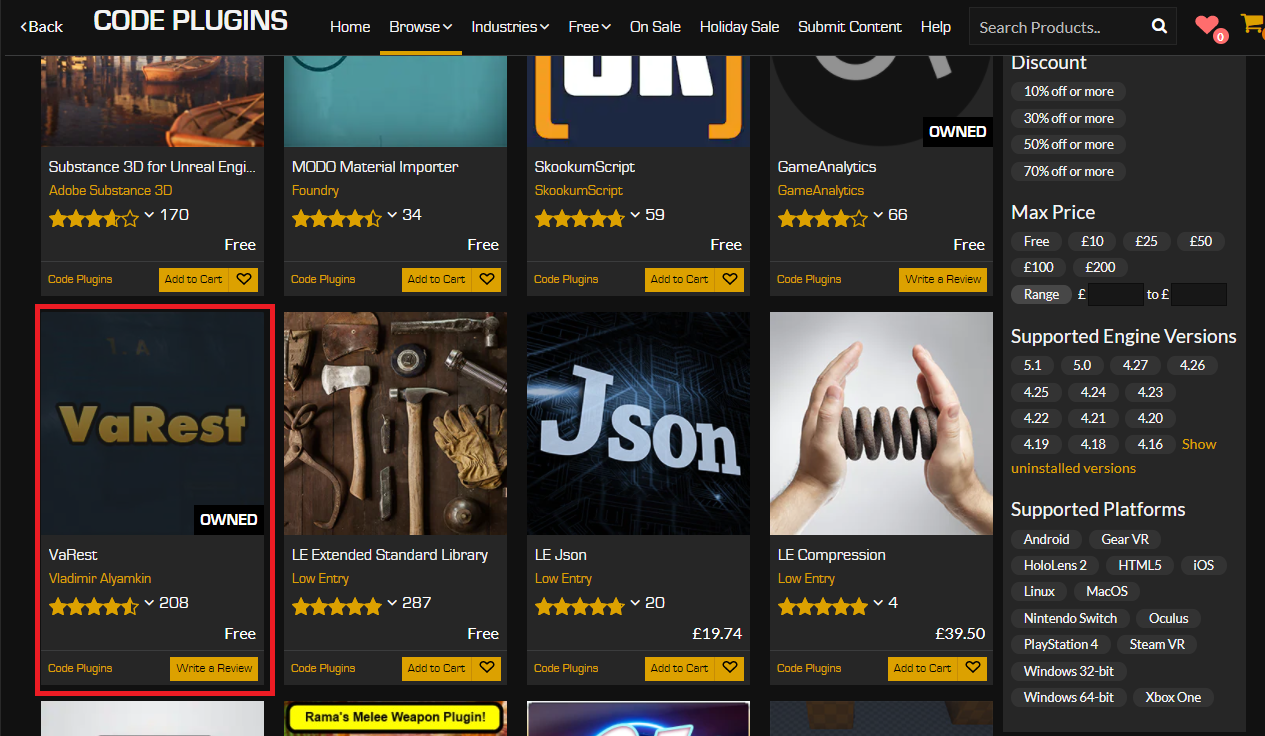
The growth of the plugin ecosystem mirrors the expansion of Unreal Engine itself. Since the launch of UE5, there has been a notable surge in plugin development, driven by both Epic Games’ first-party efforts and, more significantly, the independent developer community. Data from the Unreal Marketplace indicates thousands of assets and tools available, with "Code Plugins" forming a critical sub-category. These plugins can range from simple utility nodes that streamline common Blueprint operations to complex networking solutions, advanced AI behaviors, sophisticated UI frameworks, and custom editor tools designed to enhance workflow. For many developers, particularly indie studios or individuals with limited C++ expertise, plugins are not merely conveniences but necessities, allowing them to implement features that would otherwise be prohibitively complex or time-consuming to develop from scratch. This contribution directly translates into faster development cycles, reduced technical debt, and the ability to integrate cutting-edge functionalities into projects without requiring deep dives into engine source code.
Navigating the Unreal Marketplace for Seamless Plugin Acquisition
The Unreal Marketplace serves as the primary, officially sanctioned repository for a vast array of Unreal Engine content, including a robust selection of code plugins. This platform is meticulously curated by Epic Games, ensuring a degree of quality, compatibility, and security for the distributed assets. The process of acquiring and installing plugins from the Marketplace is designed for user-friendliness, making it the recommended first approach for most developers.
Chronology of Marketplace Plugin Installation:
-
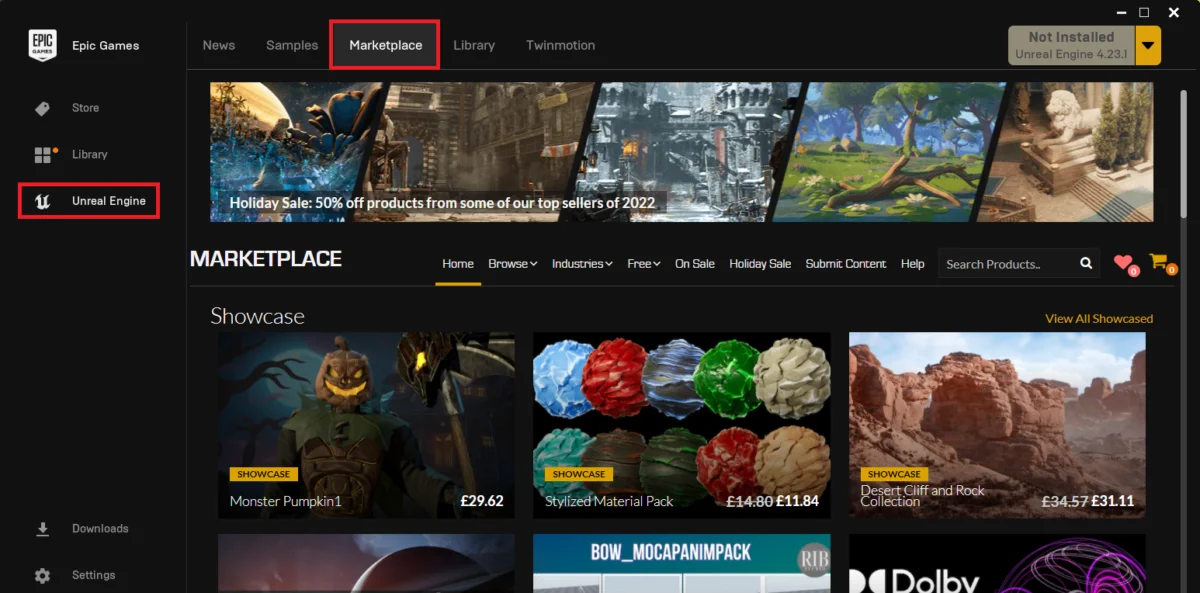
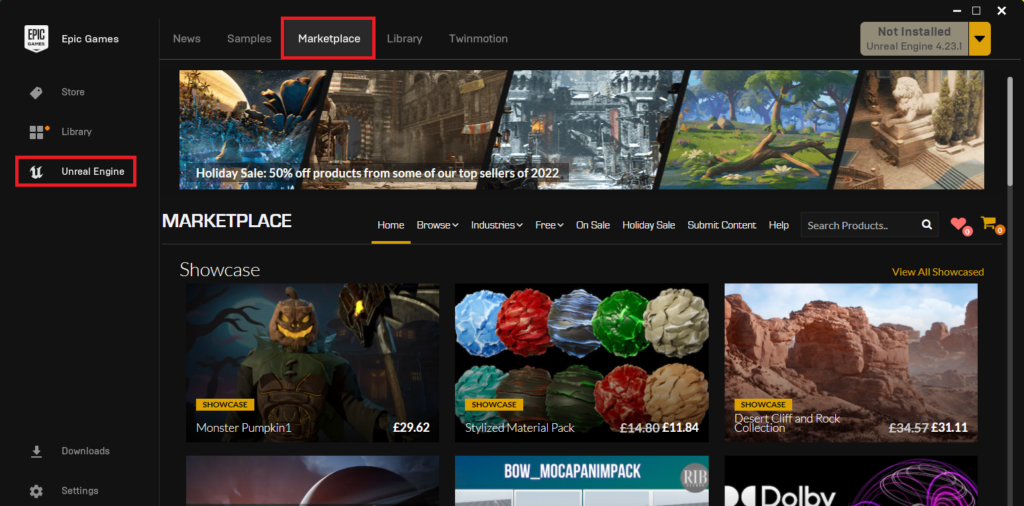
Initiating the Process: Accessing the Epic Games Launcher: The journey begins by opening the Epic Games Launcher, the central hub for managing Unreal Engine installations, game libraries, and the Marketplace. Upon launching, users are presented with various tabs; the "Unreal Marketplace" tab is the direct gateway to the plugin ecosystem.
- Implicit Statement from Epic Games: "The Epic Games Launcher is designed as a unified portal, streamlining access to all aspects of the Unreal Engine experience, from engine versions to a rich content marketplace," explains an inferred statement from Epic Games’ platform design philosophy.
-
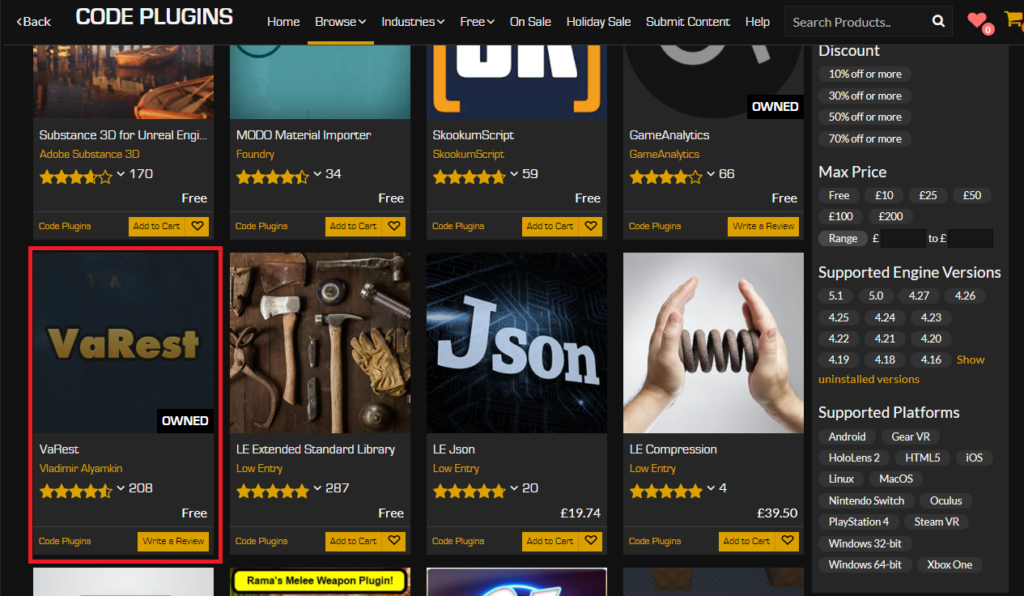
Targeting Code Plugins: Within the Marketplace interface, developers will find a "Browse" tab, often accompanied by various filters and categories. To specifically locate code-based extensions rather than purely visual assets, selecting the "Code Plugins" option is crucial. This filter refines the displayed content to present only those plugins that introduce new executable logic, Blueprint nodes, or C++ classes.
- Supporting Data: The distinction between "Code Plugins" and other asset categories (like "Environments" or "Characters") is fundamental. While content packs provide visual or audio assets, code plugins inject new behaviors and functionalities directly into the engine or project runtime. This structural difference necessitates a distinct installation and activation process.
-
Selection and Acquisition: Developers then browse the available code plugins, often using search functionalities or category filters to find specific tools. For instance, a developer looking to integrate RESTful API functionalities might search for a plugin like "VaRest," a widely used networking solution. Once a desired plugin is identified, its product page provides details on features, compatibility, and pricing.
- Acquisition Mechanics: If the plugin is commercial, it must be added to a cart and purchased. A key aspect of the Marketplace is that even free plugins require a "purchase" or "add to cart" action. This step is not about monetary transaction but about registering the plugin to the developer’s Epic Games account, thereby granting a perpetual license for use across compatible Unreal Engine projects. This licensing model ensures proper tracking and updates.
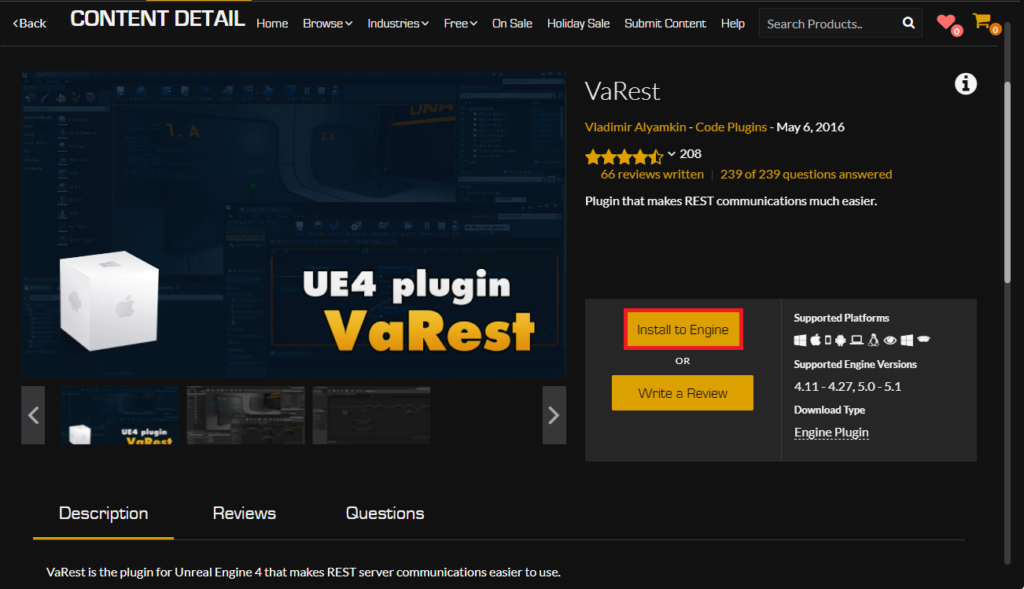
- Compatibility Check: Before proceeding, it is paramount to verify the plugin’s compatibility with the specific version of Unreal Engine 5 installed on the developer’s system. Plugin pages typically list supported engine versions, a critical detail to prevent installation failures or runtime errors.
-
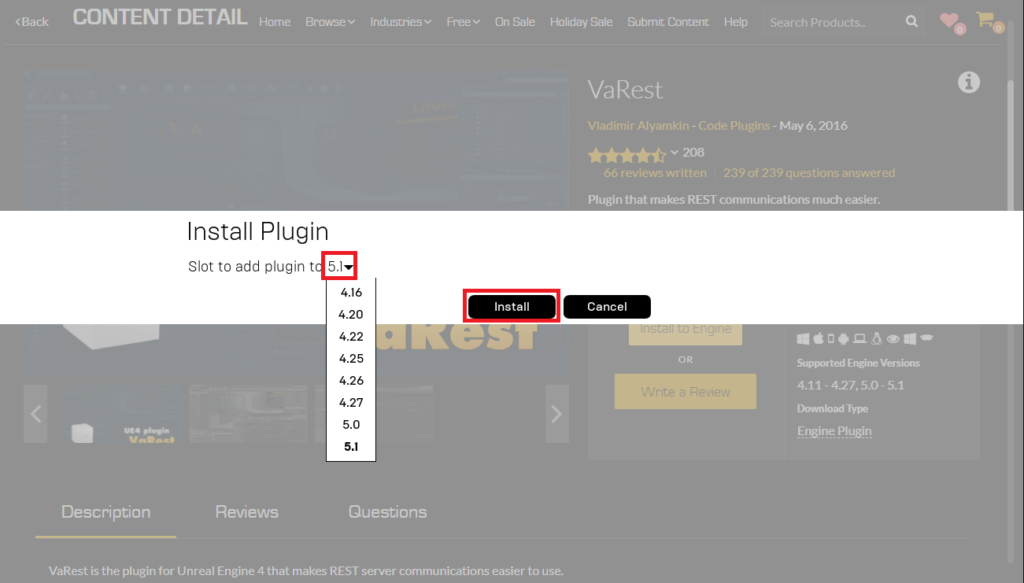
Engine-Level Installation: Unlike asset packs which are often added directly to a project, many code plugins are designed to be installed at the engine level. After acquiring a plugin, a prominent "Install to Engine" button appears on its Marketplace page. Clicking this button initiates the installation process.
- Version Specificity: Developers are then prompted to select the target Unreal Engine 5 version. If multiple UE5 versions are installed (e.g., 5.0, 5.1, 5.2), choosing the correct one is vital. The plugin files are then downloaded and placed into the designated "Plugins" directory within the selected Unreal Engine installation folder (e.g.,
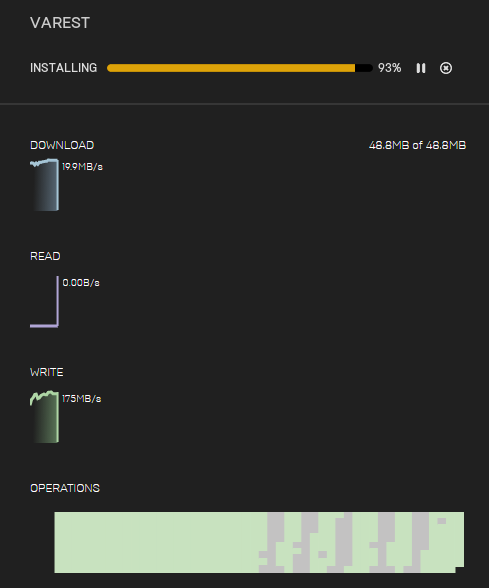
Epic GamesUE_5.xEnginePlugins). This ensures that the plugin is available to any project created with or opened by that specific engine version. - Monitoring Progress: The Epic Games Launcher provides a "Downloads" tab where the progress of the plugin installation can be monitored. A successful installation is indicated by a completion notification.
- Version Specificity: Developers are then prompted to select the target Unreal Engine 5 version. If multiple UE5 versions are installed (e.g., 5.0, 5.1, 5.2), choosing the correct one is vital. The plugin files are then downloaded and placed into the designated "Plugins" directory within the selected Unreal Engine installation folder (e.g.,
Activating Marketplace Plugins within an Unreal Engine Project

Even after a plugin has been successfully installed to the Unreal Engine, it is not automatically active within every project. This deliberate design choice by Epic Games serves a crucial purpose: preventing unnecessary code compilation and reducing the executable size of projects. Enabling every installed plugin by default would lead to bloat, longer build times, and potential conflicts. Therefore, an explicit activation step is required per project.
Chronology of Plugin Activation:
-
Accessing the Plugin Manager: Within an opened Unreal Engine 5 project, navigate to the top menu bar. Click on "Edit," and from the dropdown menu, select "Plugins." This action opens the "Plugins" browser window, which acts as the central control panel for all installed plugins, both engine-level and project-specific.
-
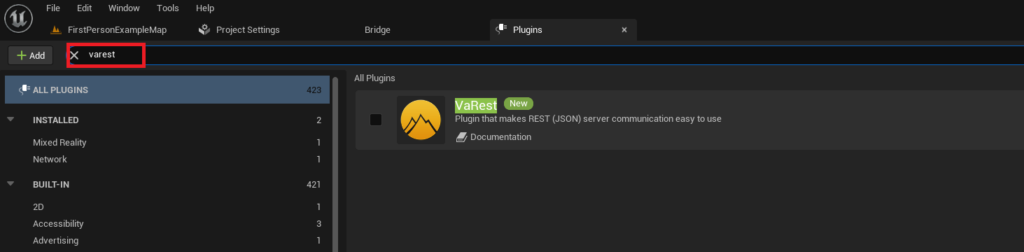
Locating and Enabling the Plugin: In the "Plugins" browser, a search bar is provided to quickly locate specific plugins. Type the name of the newly installed plugin (e.g., "VaRest"). The search results will display the plugin’s details, including its status. To activate it, simply click the checkbox next to the plugin’s name.
-
Project Restart Requirement: Upon enabling a plugin, the Unreal Engine editor will typically display a prompt indicating that a restart is required for the changes to take effect. This is a critical step. Clicking "Restart Now" will close the current project and reopen it, allowing the engine to properly load the plugin’s modules, compile any necessary C++ code, and integrate its functionalities into both the C++ and Blueprint environments of the project. Without this restart, the plugin’s features will not be accessible.
- Implications and Best Practices: This activation process highlights the modular nature of Unreal Engine. Developers should only enable plugins that are actively required by their project. Regularly reviewing and disabling unused plugins can help maintain project performance, reduce build times, and prevent potential compatibility issues during engine updates. Effective plugin management is a hallmark of efficient UE5 development.
Advanced Plugin Installation: Manual Methods and Best Practices
While the Unreal Marketplace offers a secure and streamlined experience, developers sometimes need to install plugins manually. This method is typically employed for community-developed tools not available on the Marketplace, custom in-house plugins, or early-access versions of plugins distributed directly by their creators (e.g., via GitHub or developer forums). Manual installation offers greater flexibility but demands increased developer vigilance and responsibility.
Critical Disclaimer: Security and Compatibility:
- UNTRUSTED SOURCES ARE A RISK: Developers must exercise extreme caution when downloading and installing files and code from online sources outside the official Unreal Marketplace. Untrusted plugins can contain malicious code, introduce severe stability issues, or even corrupt project files. CouchLearn, like any responsible information provider, explicitly disclaims responsibility for any damage resulting from the download or use of unknown or unverified files.
- VERIFY SOURCE REPUTATION: Always download Unreal Engine plugins only from reputable sources. This includes official Unreal Engine forums (with verified developer posts), well-known GitHub repositories from established contributors, or direct channels from trusted software vendors.
- VERSION COMPATIBILITY IS PARAMOUNT: Manually installed plugins often have strict version dependencies. It is imperative to ensure that the downloaded plugin is explicitly compatible with the exact version of Unreal Engine 5 installed on your system. Mismatched versions are a common cause of compilation errors, crashes, and unexpected behavior.
- BACKUP YOUR PROJECT: Before attempting any manual plugin installation, especially with a production project, create a full backup. This ensures that if any issues arise, the project can be restored to a stable state.
Chronology of Manual Plugin Installation:
To illustrate the manual installation process, we can consider an example such as the "Victory BP Plugin by Rama," a highly regarded community plugin known for extending Blueprint functionality significantly.
-
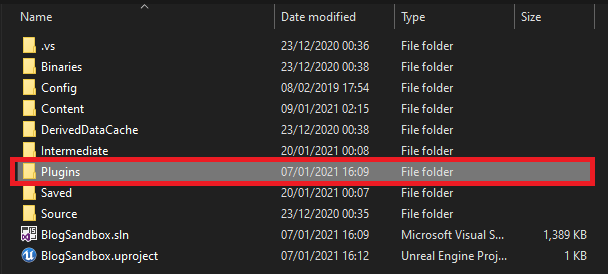
Project Directory Structure Verification: The first step is to ensure that the target Unreal Engine project has a dedicated "Plugins" folder within its root directory. This folder is distinct from the engine’s global plugins folder.
- Path Example: If your project is located at
D:UnrealProjectsMyAwesomeGame, the plugins folder should beD:UnrealProjectsMyAwesomeGamePlugins. - Creation if Absent: If this "Plugins" folder does not exist, simply create a new folder named "Plugins" in the project’s root directory.
- Path Example: If your project is located at
-
Copying the Plugin Folder: Once the "Plugins" folder is confirmed or created, copy the entire downloaded plugin folder into it. For instance, if the Victory Plugin download extracts to a folder named "VictoryPlugin," this entire folder should be placed inside
D:UnrealProjectsMyAwesomeGamePluginsVictoryPlugin.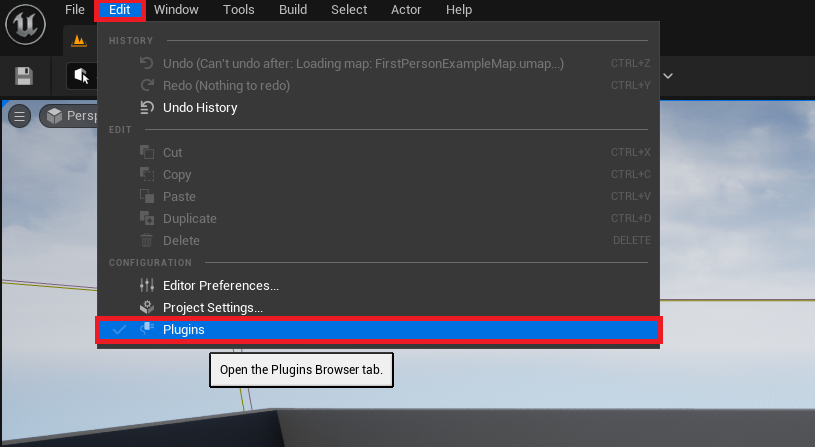
- Version Specificity (Reiterated): Ensure that the "VictoryPlugin" folder being copied is specifically designed for the installed Unreal Engine 5 version (e.g.,
VictoryPlugin_UE5.0,VictoryPlugin_UE5.1).
- Version Specificity (Reiterated): Ensure that the "VictoryPlugin" folder being copied is specifically designed for the installed Unreal Engine 5 version (e.g.,
-
Understanding Plugin File Structure: Inside the copied plugin folder (e.g.,
VictoryPlugin), developers will typically find a structured set of files and subfolders. This usually includes:Source/: Contains the C++ source code for the plugin.Content/: May contain any assets (textures, meshes, sounds, Blueprint assets) associated with the plugin..upluginfile: This is the critical descriptor file that Unreal Engine uses to identify and load the plugin. It contains metadata like the plugin’s name, version, author, and compatible engine versions. Understanding this structure helps in verifying the integrity of the downloaded plugin.
- Supporting Data: The prevalence of manual plugin installation underscores the open-source ethos of much of the Unreal Engine community. Platforms like GitHub serve as crucial repositories where developers share innovative tools and collaborate on their development, often before or instead of submitting them to the official Marketplace. This empowers a rapid iteration cycle for niche functionalities and specialized development needs.
Enabling Manually Installed Plugins within Unreal Engine
The final step for manually installed plugins is identical to that of Marketplace plugins: activation within the Unreal Engine project. This ensures that the engine recognizes the new module and integrates its functionalities.
Chronology of Manual Plugin Activation:
-
Accessing the Plugin Manager: With your Unreal Engine 5 project open, navigate to "Edit" in the top menu bar, then select "Plugins." This opens the central "Plugins" browser.
-
Locating and Enabling the Plugin: Use the search bar within the "Plugins" browser to find the manually installed plugin (e.g., "Victory Plugin"). The engine scans the project’s "Plugins" folder for
.upluginfiles, making the manually added plugin visible here. Check the box next to the plugin’s name to enable it for the current project.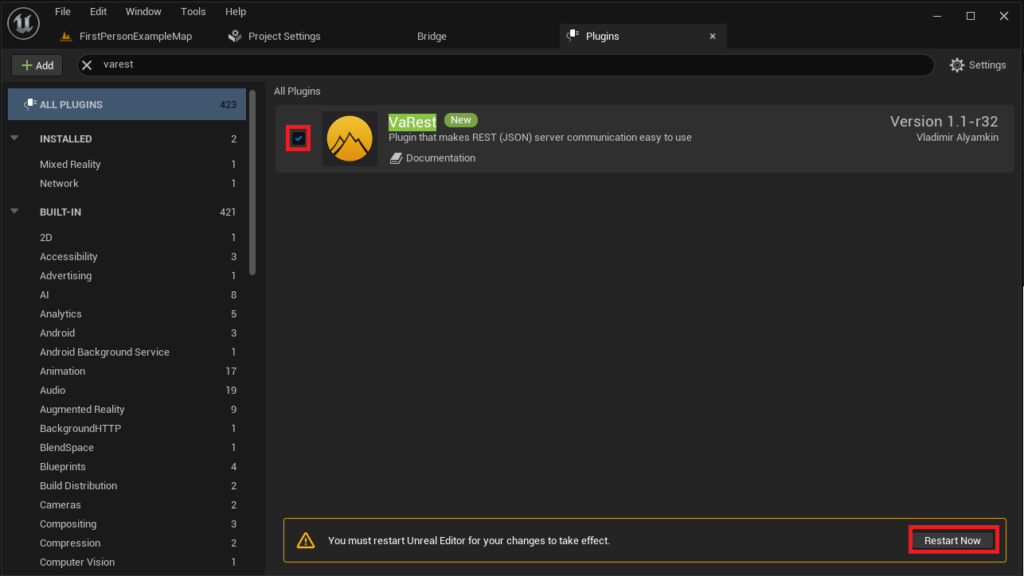
-
Project Restart for Integration: As with Marketplace plugins, enabling a manually installed plugin necessitates an editor restart. Click the "Restart Now" button when prompted. This allows the Unreal Engine to recompile the project, load the plugin’s modules, and make its C++ classes and Blueprint nodes available for use.
- Broader Impact and Implications: Manual plugin installation offers unparalleled control and access to cutting-edge or highly specialized tools that might not fit the commercial model of the Marketplace. However, this flexibility comes with increased responsibility. Developers using manual plugins must be diligent in managing compatibility across engine updates, as these plugins might not receive official updates as promptly as Marketplace versions. Furthermore, in team-based development, ensuring that all team members have the exact same manually installed plugins and versions is crucial for project consistency and to avoid "works on my machine" scenarios. This often involves clear documentation and potentially version control for the plugin folders themselves.
Conclusion
Plugins are an indispensable component of the Unreal Engine 5 development workflow, empowering creators to transcend the engine’s native capabilities and streamline their projects. Whether acquired through the secure and convenient Unreal Marketplace or installed manually from trusted community sources, these extensions significantly enhance productivity and expand creative possibilities. The Unreal Marketplace offers a curated, user-friendly pathway for plugin acquisition and installation, complete with version management and Epic Games’ vetting process. Conversely, manual installation provides access to a broader spectrum of community-driven innovations and custom solutions, albeit with a heightened responsibility for security, compatibility, and ongoing maintenance.
Regardless of the installation method, the final step of enabling the plugin within an Unreal Engine project and restarting the editor is universal and critical for integration. Adhering to best practices—such as verifying plugin compatibility, being judicious in enabling only necessary plugins to optimize project performance, and exercising extreme caution with untrusted sources during manual installations—is paramount. By effectively leveraging the rich plugin ecosystem, Unreal Engine 5 developers can unlock new levels of efficiency, functionality, and creative freedom, solidifying the engine’s position as a truly extensible and powerful platform for real-time 3D development.
About the Author