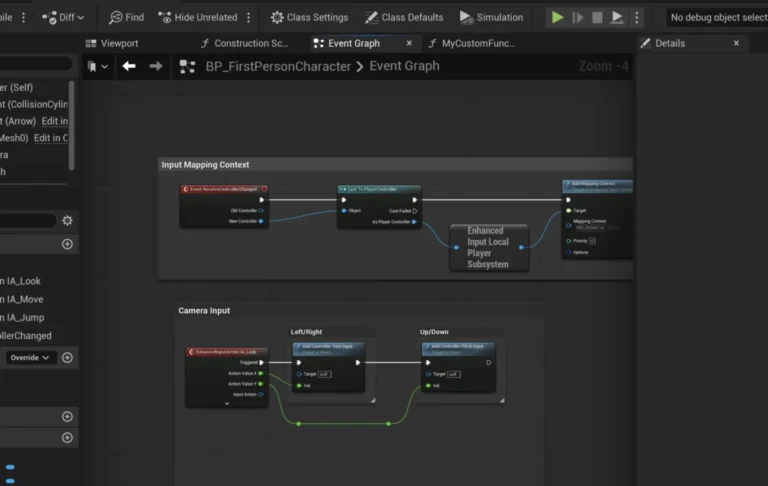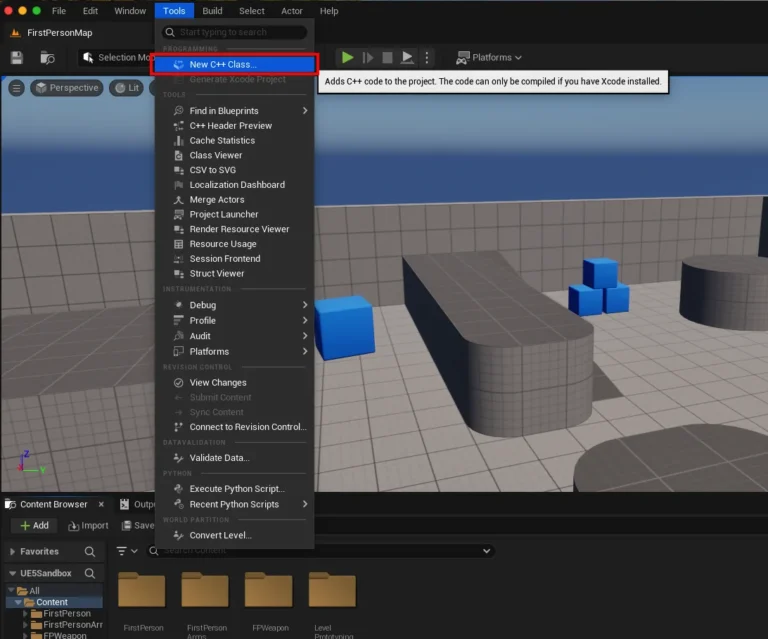
The Unreal Engine 5 (UE5) ecosystem thrives on its flexibility and extensibility, with plugins serving as critical enablers for developers seeking to push the boundaries of game and real-time content creation. While UE5 boasts a robust visual scripting system via Blueprints, many of its advanced features and optimizations remain inherently exclusive to C++ code. This architectural design necessitates the integration of plugins, which bridge this gap by exposing C++ functionalities directly to Blueprint users, alongside introducing entirely new capabilities not native to the engine. The vibrant global developer community plays a pivotal role in this expansion, consistently contributing a wealth of plugins that enhance productivity, streamline workflows, and unlock sophisticated features. Understanding the precise mechanisms for installing and enabling these plugins is therefore fundamental for any developer aiming to fully leverage the power of Unreal Engine 5. This article provides a detailed, step-by-step overview of the two primary methods for plugin integration: utilizing the Epic Games Launcher’s Unreal Marketplace and performing advanced manual installations.
The Epic Games Marketplace: A Streamlined Acquisition Process
The Unreal Marketplace, managed directly by Epic Games, serves as the primary official conduit for acquiring and distributing plugins, alongside various other assets. It offers a curated environment, ensuring a degree of compatibility, reliability, and support for listed products, making it the recommended starting point for most developers. The process of integrating a Marketplace plugin is designed for user convenience and seamless engine integration, reflecting Epic Games’ commitment to a robust and accessible developer platform.
Accessing the Marketplace and Identifying Plugins
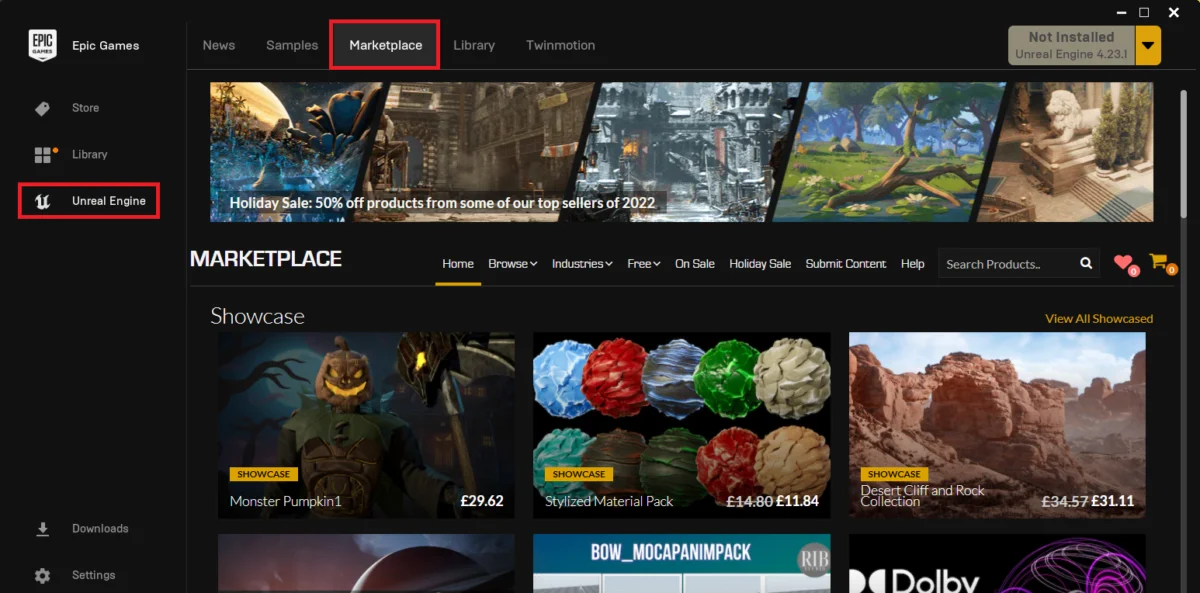
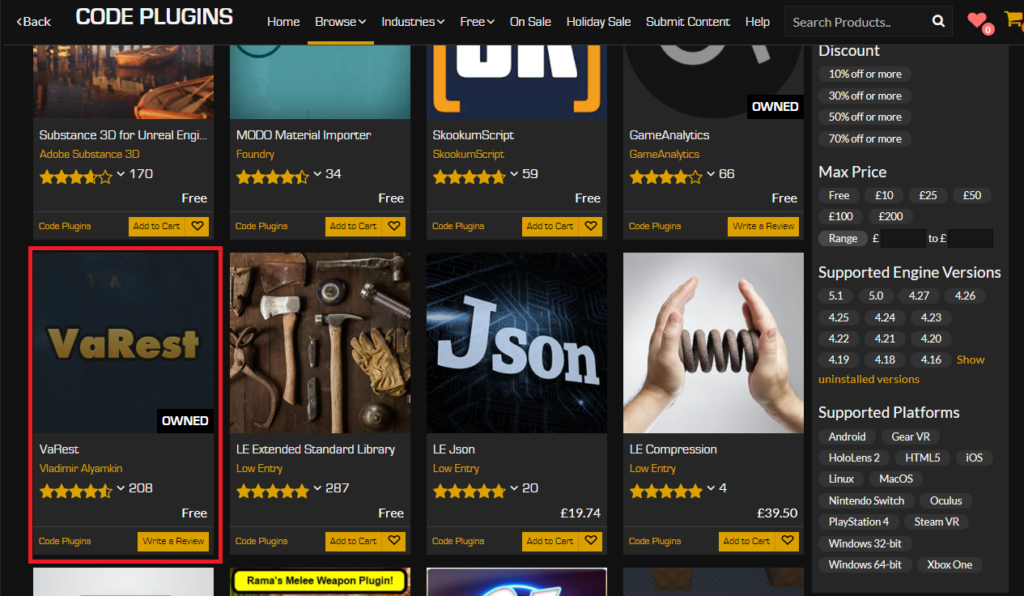
The initial step in acquiring a Marketplace plugin involves launching the Epic Games Launcher, the central hub for all Epic Games-related products, including Unreal Engine installations and the Marketplace. Upon opening the launcher, developers are directed to navigate to the "Unreal Marketplace" section. This dedicated storefront is meticulously organized, allowing users to browse a vast catalog of assets, tools, and plugins through various categories and search filters. The Marketplace currently hosts thousands of unique assets and plugins, catering to virtually every aspect of game development, from intricate 3D models and animation packs to complex code-based extensions.
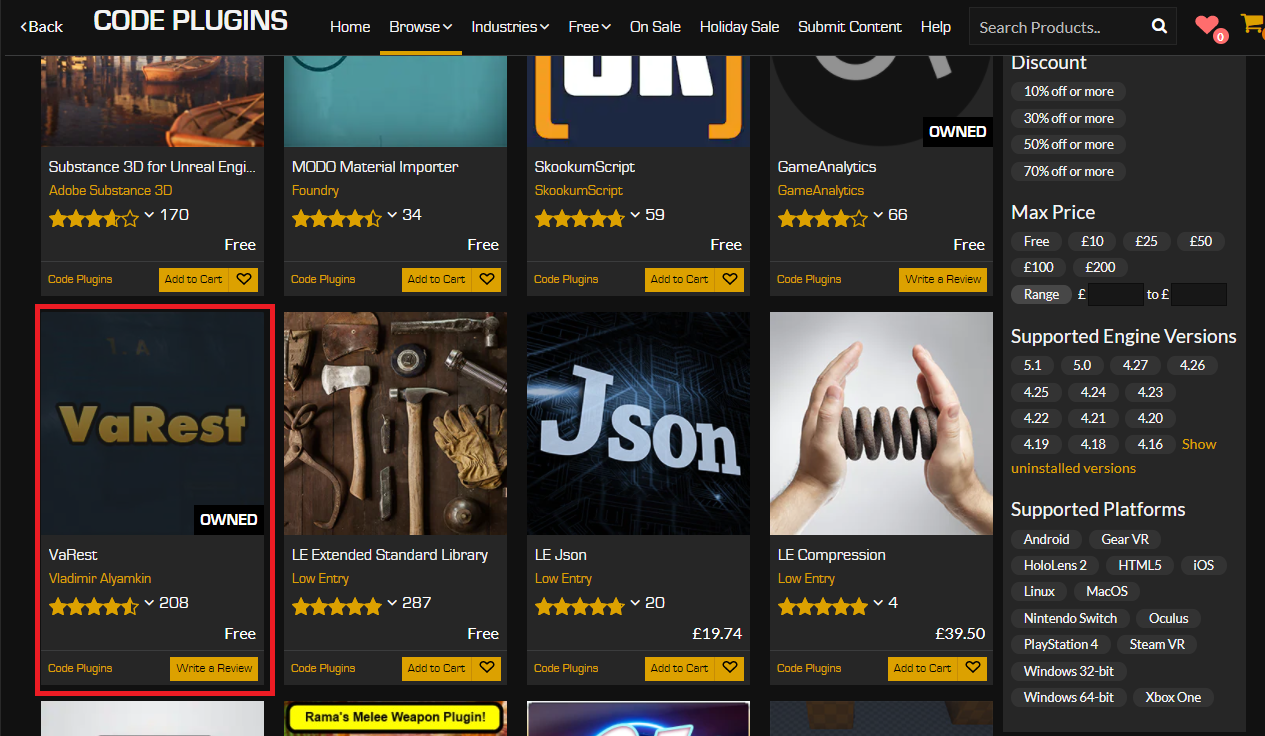
Within the Marketplace interface, a crucial distinction exists between various content types. To specifically locate code-based extensions that modify or enhance engine functionality, developers must access the "Browse" tab and then select the "Code Plugins" option. This filter narrows the search results to display only plugins that extend the engine’s capabilities, often by adding new Blueprint nodes, editor utilities, or backend integrations. The sheer volume of plugins available is testament to the active developer community, with options spanning categories from networking and UI to AI and physics enhancements. For instance, plugins like VaRest, which facilitates robust RESTful API communication, or the Substance 3D Plugin for advanced material creation, demonstrate the diverse range of functionalities offered, empowering developers to integrate external services or complex artistic pipelines with ease.
Acquisition and Engine-Level Installation
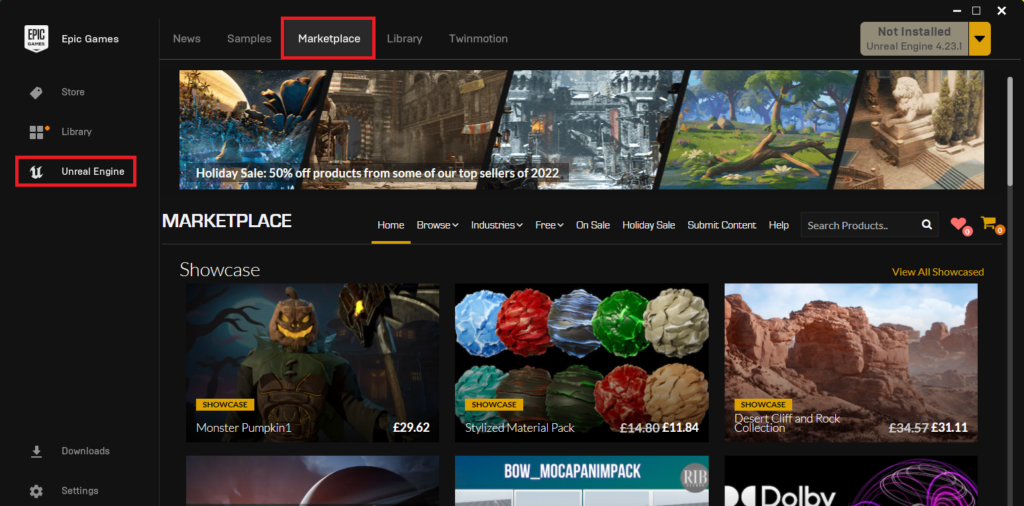
Once a desired plugin, such as the VaRest networking plugin used in this illustrative guide, has been identified, the acquisition process is straightforward. If the plugin is commercial, users proceed by adding it to their cart and completing the purchase through Epic Games’ secure payment gateway. It is important to note that even free plugins, though incurring no monetary cost, require a similar "purchase" process. This system ensures that the plugin is formally added to the user’s Epic Games account library, making it perpetually accessible for installation across multiple engine versions and projects associated with that account.
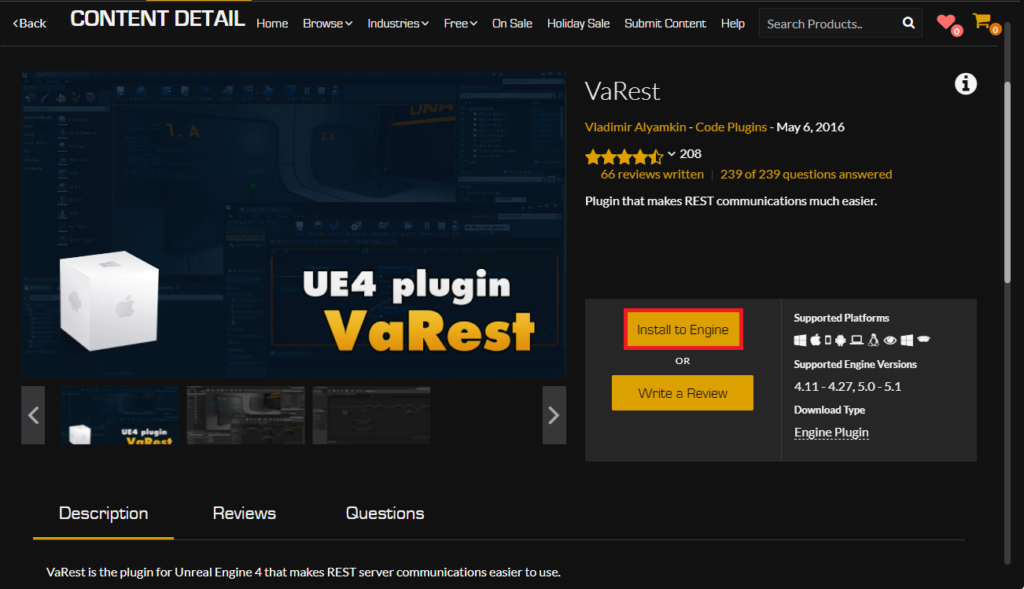
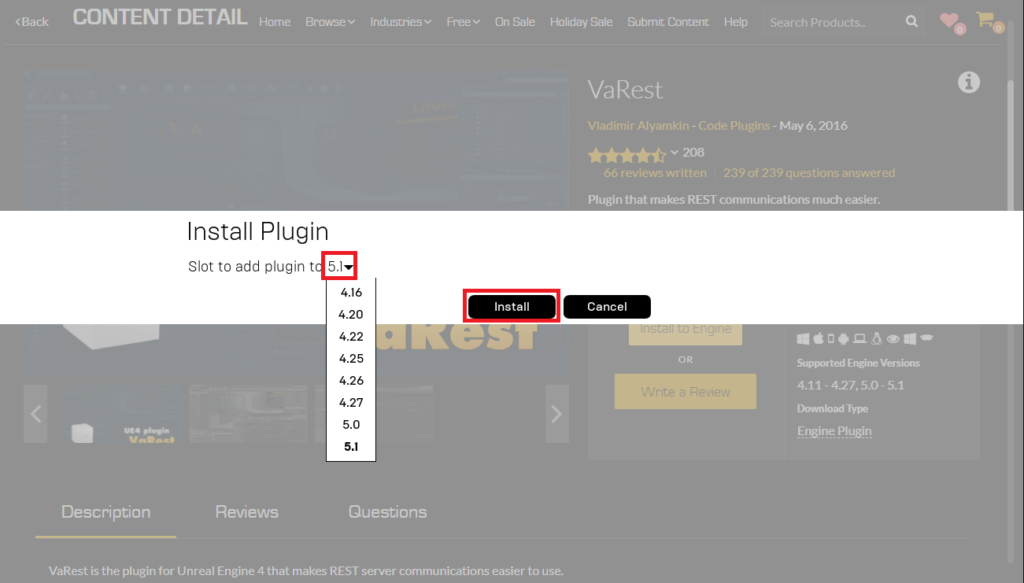
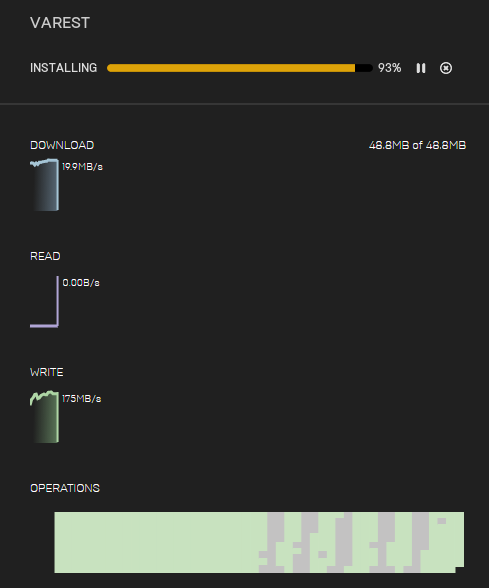
Following acquisition, plugins obtained from the Marketplace are typically installed directly to the Unreal Engine installation itself, rather than to a specific project. This architectural design allows a single plugin installation to be utilized across any number of projects that employ that particular engine version, thereby optimizing storage and simplifying management. Developers locate the "Install to Engine" button prominently displayed on the plugin’s product page. Clicking this prompts a dialogue where the user selects the specific Unreal Engine 5 version(s) to which the plugin should be installed. This step is critical, as plugins are often compiled against specific engine versions (e.g., UE5.0, UE5.1, UE5.3), and selecting an incompatible version can lead to compilation errors, runtime issues, or even project instability. The Epic Games Launcher then manages the download and installation process, with progress updates visible in the "Downloads" tab. Depending on the plugin’s size and the user’s internet connection speed, this process can take anywhere from a few seconds to several minutes. Upon successful completion, the plugin’s files are integrated into the chosen Unreal Engine installation’s directory structure, typically under Engine/Plugins/Marketplace/.
Enabling the Plugin Within an Unreal Engine Project
While installing a plugin to the engine makes its underlying code available, it does not automatically activate it within every project. This deliberate design choice, a best practice in software development, prevents projects from unnecessarily compiling and loading code for plugins they do not utilize. This minimizes executable size, improves compilation times, and reduces potential conflicts, maintaining project lean-ness and efficiency. The final step in integrating a Marketplace plugin is to explicitly enable it within the target Unreal Engine project.
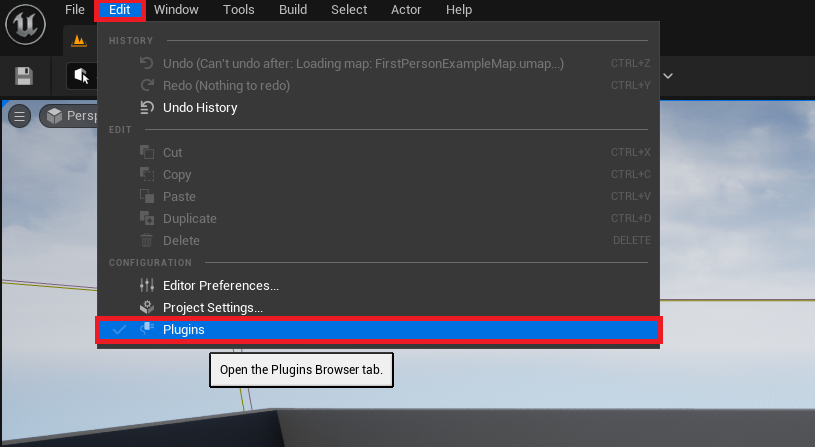
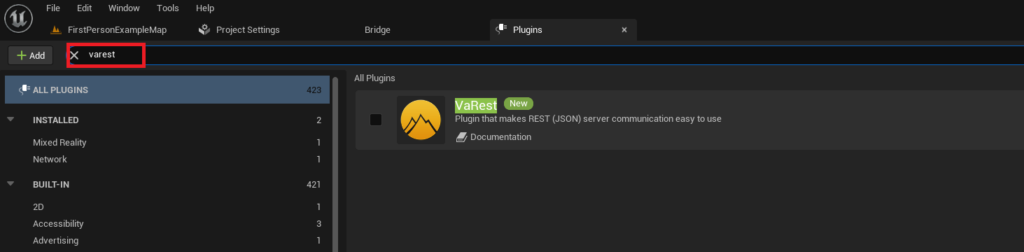
This activation process is performed directly within the Unreal Engine editor. Developers access the editor’s main menu, selecting "Edit," followed by "Plugins." This action opens the "Plugins" window, a comprehensive interface listing all installed plugins, both engine-level and project-specific. To efficiently locate the newly installed plugin amidst potentially hundreds of entries, a search bar is provided at the top of the window. Developers type the name of the plugin (e.g., "VaRest") into this search box. The system filters the list in real-time, displaying only the relevant plugin details.

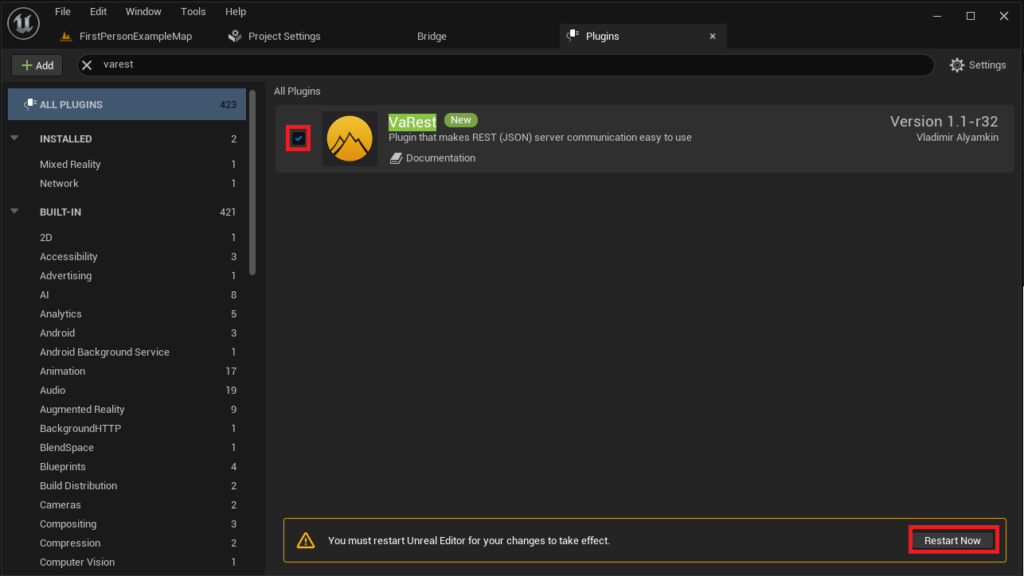
Adjacent to each plugin entry is a checkbox. To enable the plugin for the current project, the developer must select this checkbox. Upon activation, the Unreal Engine editor typically prompts the user to restart. This restart is not merely a formality; it is a mandatory step that allows the engine to properly initialize the plugin, load its modules, and integrate its functionalities (such as new Blueprint nodes, C++ classes, or editor extensions) into the project’s compilation and runtime environment. Without this restart, the plugin’s features will not be accessible, and developers may encounter errors when attempting to use its components. Once the editor has successfully restarted, the newly enabled plugin becomes fully operational, accessible for use in both C++ code and Blueprint visual scripts, immediately enhancing the project’s capabilities.
Advanced Plugin Integration: Manual Installation and Community-Driven Solutions
Beyond the curated environment of the Unreal Marketplace, the Unreal Engine community thrives on open-source contributions and direct developer sharing. This often necessitates manual plugin installation, a more advanced procedure that offers unparalleled flexibility but also demands a heightened awareness of compatibility, security, and best practices. Manual installation is particularly common for experimental features, highly specialized internal tools, or plugins shared directly by community members on forums, GitHub, or personal websites, often providing access to cutting-edge or highly niche functionalities not yet available on the official Marketplace.
Disclaimer: Navigating Untrusted Sources and Compatibility Risks
Before embarking on a manual plugin installation, it is paramount for developers to exercise extreme caution. The unverified nature of manually sourced files introduces inherent risks that are largely mitigated by the Marketplace’s rigorous vetting process. Developers are strongly advised to adhere to the following safety protocols:
- Verify Sources Rigorously: Only download Unreal Engine plugins from demonstrably trusted sources. Reputable community developers with established track records, official forum threads with active support, or well-maintained GitHub repositories are preferable. Avoid downloading from unknown or suspicious websites, as these can harbor malicious code.
- Understand Potential Risks: Untrusted files can contain malware, introduce severe stability issues (e.g., crashes, data corruption), or compromise project integrity. It is a widely accepted industry warning that users proceed at their own risk. For instance, CouchLearn, among many other platforms, explicitly disclaims responsibility for any damage resulting from downloading unknown files, a sentiment echoed across the broader developer community.
- Ensure Version Compatibility: Manually downloaded plugins are almost always built for specific Unreal Engine versions (e.g., UE5.0, UE5.1, UE5.3). Installing a plugin incompatible with the user’s installed engine version is a frequent cause of compilation failures, editor crashes, or unexpected runtime behavior. Always cross-reference the plugin’s stated compatibility with your engine version before proceeding. Discrepancies can often be resolved by seeking updated versions from the author or consulting the plugin’s documentation for compilation instructions.
The Manual Installation Process: Project-Specific Integration
Unlike Marketplace plugins that typically install to the engine globally, manually installed plugins are almost always placed within a specific project’s directory structure. This project-centric approach allows for granular control and ensures that unique or experimental plugins do not affect other projects or the core engine installation, providing an isolated environment for development.
1. Preparing the Project Directory: The foundational step involves ensuring the target Unreal Engine project’s root folder contains a dedicated "Plugins" directory. This folder acts as the repository for all project-specific plugins. If this directory does not exist, developers must manually create a new folder named "Plugins" at the same hierarchical level as the project’s .uproject file and other core directories like "Content" and "Source." For instance, a project named "MyAwesomeGame" would have its structure include MyAwesomeGame/Plugins/. This ensures the engine can correctly discover and load the plugin’s modules when the project is opened.
2. Transferring Plugin Files: Once the "Plugins" folder is established, the next action is to copy the entire plugin’s top-level directory into this newly created or existing "Plugins" folder. Using the "Victory BP Plugin" by Rama as an illustrative example, if a developer downloads its compatible version for Unreal Engine 5.0, the VictoryPlugin folder (which contains all its subdirectories like Source, Resources, Content, and the crucial .uplugin descriptor file) would be placed directly into MyAwesomeGame/Plugins/VictoryPlugin/. This careful placement ensures the engine can locate and load the plugin’s modules correctly. The internal structure of a properly formatted plugin folder typically includes a .uplugin file, which is an XML-like descriptor that informs Unreal Engine about the plugin’s name, version, modules, and dependencies. Without this file, the engine will not recognize the plugin as valid.
Enabling Manually Installed Plugins Within the Editor
Despite the difference in their installation method, manually integrated plugins follow the exact same activation procedure within the Unreal Engine editor as their Marketplace counterparts. This consistency streamlines the workflow for developers, regardless of the plugin’s origin, reinforcing a unified approach to plugin management.
1. Accessing the Plugin Management Interface: The process begins by opening the Unreal Engine editor for the project where the plugin was manually installed. From the editor’s main menu, developers navigate to "Edit" and then select "Plugins." This action invokes the "Plugins" management window, which provides an exhaustive list of all plugins available to the current project, including those installed to the engine globally and those residing in the project’s local Plugins folder.
2. Locating and Activating the Plugin: Within the "Plugins" window, the search bar proves invaluable for quickly finding the recently copied plugin. By typing the plugin’s name (e.g., "Victory Plugin") into the search field, the list is filtered to display only the relevant entry. Similar to Marketplace plugins, a checkbox is presented next to the plugin’s details. Developers must select this checkbox to enable the manually installed plugin for the current project. This action flags the plugin for inclusion in the project’s build.
3. Editor Restart and Full Integration: As with Marketplace plugins, enabling a manually installed plugin necessitates a restart of the Unreal Engine editor. This restart is not merely a formality; it is a critical step that allows the engine to properly compile any necessary C++ modules, load the plugin’s assets, and integrate its functionality into the project’s runtime environment. Without this restart, the plugin’s features will not be accessible, and developers may encounter errors or missing functionalities when attempting to use its Blueprint nodes or C++ classes. Once the editor has successfully restarted, the manually installed plugin is fully operational, ready to extend the project’s capabilities as intended, providing new tools and functionalities to the developer.
The Broader Impact: Empowering Development and Fostering Innovation
The robust plugin ecosystem within Unreal Engine 5 holds profound implications for the efficiency, accessibility, and innovative capacity of game and real-time content development. It represents a powerful testament to Epic Games’ commitment to an open and extensible platform, significantly broadening the engine’s appeal and utility across various industries, from interactive entertainment to architectural visualization and virtual production.
Democratization of Advanced Features: One of the most significant impacts of plugins is the democratization of complex functionalities. Features that might otherwise require deep C++ programming knowledge are often encapsulated within user-friendly Blueprint nodes by plugins. This allows artists, designers, and developers with a stronger focus on visual scripting to access sophisticated systems—like advanced networking, database integration, custom UI elements, or intricate procedural generation—without needing to delve into the intricacies of C++ development. This significantly lowers the barrier to entry for creating highly complex and feature-rich projects, empowering a wider range of creators to realize their visions.
Acceleration of Development Workflows: Plugins dramatically accelerate development cycles by providing ready-made solutions for common or specialized tasks. Instead of spending valuable time building foundational systems from scratch, developers can integrate well-tested, optimized plugins that handle functionalities like dynamic asset loading, advanced input management, or intricate physics interactions. This modular approach allows teams to focus their resources on unique gameplay mechanics, narrative elements, or artistic direction, rather than expending effort on redundant infrastructure. The availability of thousands of plugins on the Marketplace and through community channels underscores a collective effort to streamline virtually every aspect of Unreal Engine development, boosting overall productivity.
Fostering Community-Driven Innovation: The plugin ecosystem is a direct reflection of Unreal Engine’s vibrant and engaged global community. Developers often create plugins to solve specific problems they encounter, sharing these solutions with others, thereby fostering a collaborative environment of continuous improvement and innovation. This community-driven approach ensures that the engine’s capabilities are constantly evolving, often with cutting-edge tools that address emerging needs and experimental workflows before they might be officially integrated into the core engine. Forums, GitHub repositories, and dedicated community sites serve as vital platforms for sharing, feedback, and support, creating a self-sustaining cycle of innovation that benefits all users.
Challenges and Best Practices for Plugin Management: While the benefits are extensive, developers must also navigate potential challenges associated with plugin integration. Maintaining plugin compatibility across multiple engine updates, managing dependencies between various plugins, and troubleshooting potential conflicts can be complex tasks. Best practices include regularly backing up projects before installing new plugins, carefully reviewing plugin documentation for compatibility notes and known issues, and testing new plugins in isolated development environments (e.g., a separate test project) before integrating them into critical production builds. For manually installed plugins, vigilance regarding the source, continuous monitoring for official updates, and proactive security checks are crucial for ensuring long-term project stability and integrity.
In conclusion, the ability to seamlessly integrate plugins, whether through the user-friendly and vetted Unreal Marketplace or via meticulous manual installation, is an indispensable skill for any Unreal Engine 5 developer. These powerful extensions not only augment the engine’s core functionalities but also unlock advanced features for Blueprint users, significantly enhance development efficiency, and foster a dynamic, community-driven ecosystem of innovation. By understanding and correctly implementing these installation procedures, developers can fully harness the expansive power of Unreal Engine 5, transforming creative visions into compelling, high-fidelity interactive experiences across diverse applications.
About the Author