The robust and expansive capabilities of Unreal Engine 5 (UE5) are significantly amplified by its vibrant plugin ecosystem, offering developers unparalleled flexibility and efficiency. While UE5 is celebrated for its cutting-edge features in rendering, animation, and world-building, many of its most advanced functionalities are inherently tied to C++ programming. This presents a potential barrier for developers primarily utilizing Blueprints, Unreal Engine’s visual scripting system, which is designed for accessibility and rapid prototyping. Fortunately, the engine’s open architecture and a thriving developer community have fostered a rich repository of plugins, enabling Blueprint users to tap into C++ exclusive features and extend the engine’s core functionality without diving deep into code. These plugins range from simple utility nodes to complex systems for networking, UI, AI, and more, fundamentally transforming how projects are conceived and executed within UE5. The integration of such tools is not merely a convenience; it is a critical component of modern game development, allowing studios of all sizes to innovate faster and achieve higher fidelity results. This article delves into the essential methods for acquiring and integrating these powerful extensions into Unreal Engine 5 projects, outlining both the streamlined official marketplace process and the more advanced manual installation for specialized needs, alongside an analysis of their broader implications for the development landscape.

The Indispensable Role of Plugins in Modern Game Development
Unreal Engine 5 stands at the forefront of real-time 3D creation, powering everything from AAA video games and independent titles to architectural visualizations, cinematic productions, and immersive simulations. Its technological prowess, including Nanite virtualized geometry, Lumen global illumination, and the MetaSounds audio system, offers an unprecedented toolkit for creators. However, the inherent power of the engine often resides in its C++ foundation. While Blueprints provide an intuitive, node-based visual scripting interface that democratizes development, allowing designers and artists to implement complex logic without writing C++ code, they do not inherently expose every C++ feature. This is where plugins become indispensable. They act as bridges, exposing C++ functionalities to Blueprints, introducing entirely new systems, or optimizing existing workflows. The community-driven nature of many plugins means that developers can often find bespoke solutions for niche problems or leverage battle-tested tools that significantly reduce development time and effort. This extensibility ensures that UE5 remains adaptable to diverse project requirements and evolving industry demands, continually pushing the boundaries of what is possible within the engine.

The adoption of plugins also reflects a broader industry trend towards modular development and asset reuse. Rather than building every system from scratch, developers can integrate pre-built, optimized solutions, allowing them to focus resources on unique gameplay mechanics or artistic vision. This approach not only accelerates development cycles but also contributes to higher project quality by leveraging specialized expertise embedded within these tools. The sheer volume and variety of available plugins underscore their importance, demonstrating a collective effort within the Unreal Engine community to enhance the engine’s capabilities collaboratively.
Official Integration: Navigating the Unreal Marketplace for Plugins
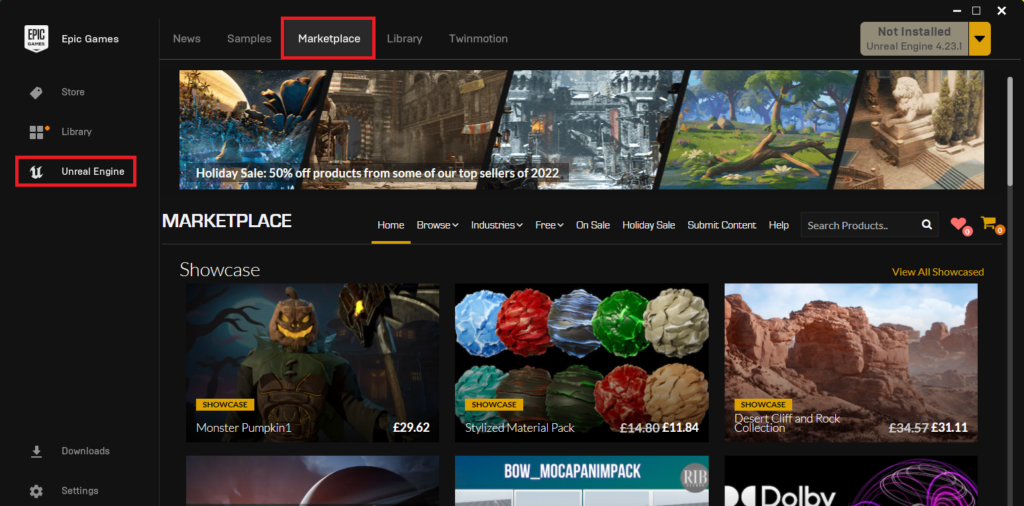
The most straightforward and secure method for acquiring plugins for Unreal Engine 5 is through the Unreal Marketplace, Epic Games’ official digital storefront for engine assets and tools. This platform serves as a curated repository, ensuring a degree of quality control and compatibility verification that is crucial for maintaining project stability. The process of installing a Marketplace plugin is designed for user convenience, integrating seamlessly with the Epic Games Launcher, which manages all Unreal Engine installations.
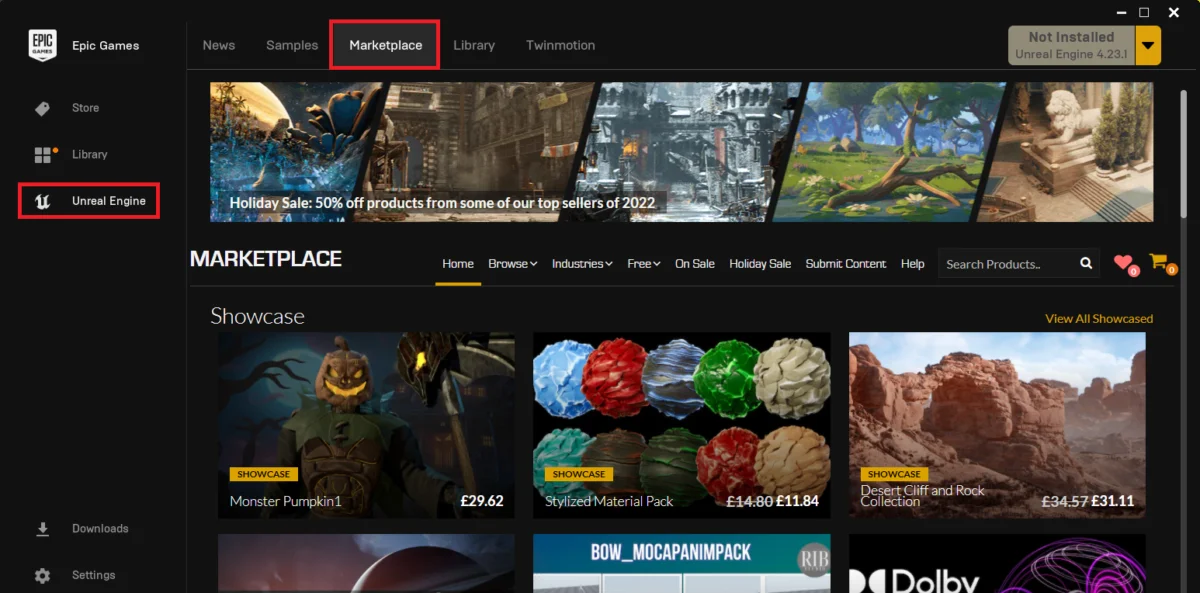
The initial step for any developer is to open the Epic Games Launcher, the central hub for accessing Unreal Engine versions, projects, and the Marketplace. Within the launcher, navigating to the "Unreal Marketplace" tab reveals a vast catalog of assets. To specifically locate plugins that extend engine functionality, developers must filter their search by selecting the "Code Plugins" option under the "Browse" tab. This categorization helps users quickly identify tools that introduce new Blueprint nodes, C++ classes, or backend functionalities, distinguishing them from art assets, environments, or sound packs.

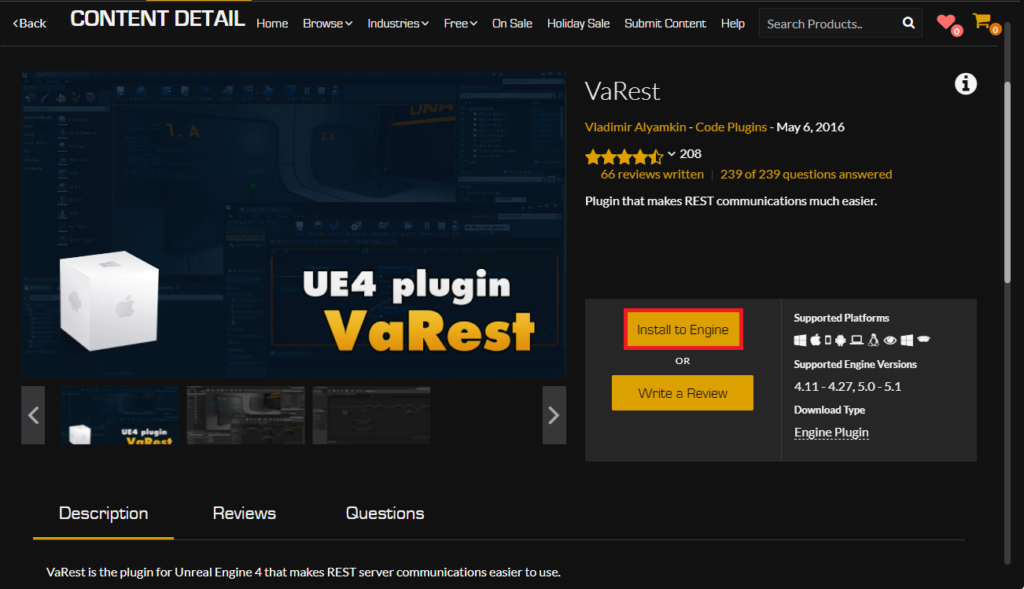
Once the "Code Plugins" section is accessed, developers can browse or search for specific tools. For illustrative purposes, consider the popular VaRest network plugin, a community-developed solution that significantly simplifies making RESTful API calls within Unreal Engine projects, making it a critical tool for games requiring external data integration or online services. If a developer wishes to acquire VaRest or any other plugin, they must either "Add to Cart" and complete a purchase or, in the case of free plugins, proceed with a "purchase" at zero cost. This standardized acquisition process ensures that all licenses are properly managed and associated with the user’s Epic Games account.
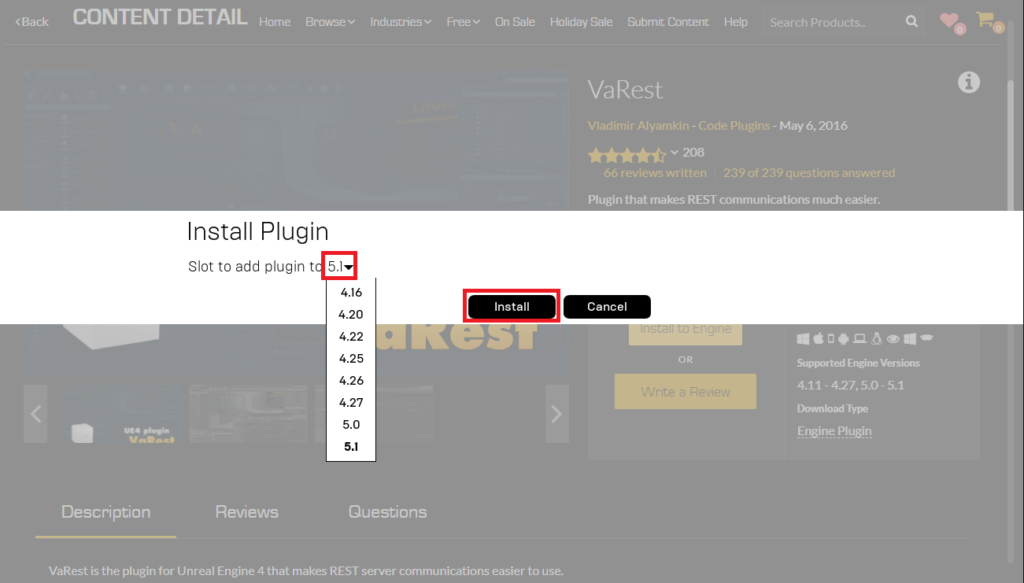
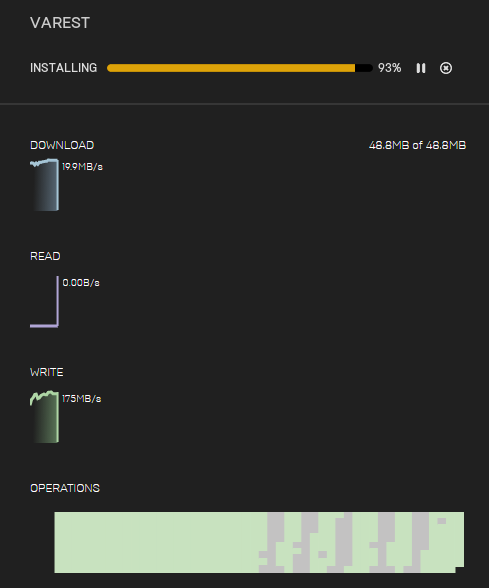
Following the acquisition, the plugin is not immediately available within Unreal Engine projects. It first needs to be installed to the engine itself. This is accomplished by clicking the "Install to Engine" button on the plugin’s Marketplace page. A prompt will then appear, asking the developer to select the specific Unreal Engine version they wish to install the plugin into. This step is crucial for maintaining compatibility, as plugins are often compiled against specific engine versions. Installing to the correct version ensures that the plugin functions as intended and avoids potential compilation errors or runtime crashes. Once the target engine version is selected, the installation process begins, with progress visible in the "Downloads" tab of the Epic Games Launcher. This download and installation typically involves placing the plugin’s compiled files and associated assets into the designated plugin directory of the chosen Unreal Engine installation. Upon successful completion, the plugin is ready for activation within individual projects.
The Unreal Marketplace not only provides a streamlined distribution channel but also fosters a commercial ecosystem around Unreal Engine development. Third-party developers are incentivized to create high-quality, well-supported plugins, knowing they have a direct path to reach a global audience of millions of creators. Epic Games, through its rigorous submission guidelines and revenue sharing model, actively supports this ecosystem, ensuring a continuous influx of innovative tools that further enhance the engine’s versatility and appeal. This official channel inherently manages version control and provides a layer of security, as all listed plugins undergo a review process to ensure they meet certain technical and quality standards, significantly reducing the risk associated with integrating external code.
Advanced Integration: The Manual Installation of Plugins
While the Unreal Marketplace offers a convenient and secure pathway for plugin integration, some specialized, experimental, or community-driven plugins may not be available through official channels. These often include cutting-edge tools, highly niche functionalities, or beta versions released directly by developers on forums or GitHub repositories. For such cases, manual installation becomes necessary, offering greater flexibility but also demanding a higher degree of caution and technical acumen from the developer.
Crucial Disclaimer on Manual Plugin Installation:
It is paramount for developers to exercise extreme caution when downloading and installing untrusted files and code from online sources. The internet is replete with potential security risks, and malicious code disguised as a plugin can compromise project integrity, system security, or introduce instability. Therefore, only download Unreal Engine plugins from trusted sources, such as reputable developer forums, well-known GitHub repositories with active communities, or direct recommendations from established professionals. CouchLearn, and indeed any responsible resource, explicitly states that it is not responsible for any damage caused by downloading unknown or malicious files. Furthermore, always verify that the plugin being downloaded is explicitly compatible with the exact version of Unreal Engine 5 currently installed on the development machine. Incompatibility is a common source of project crashes, build failures, and unexpected behavior.
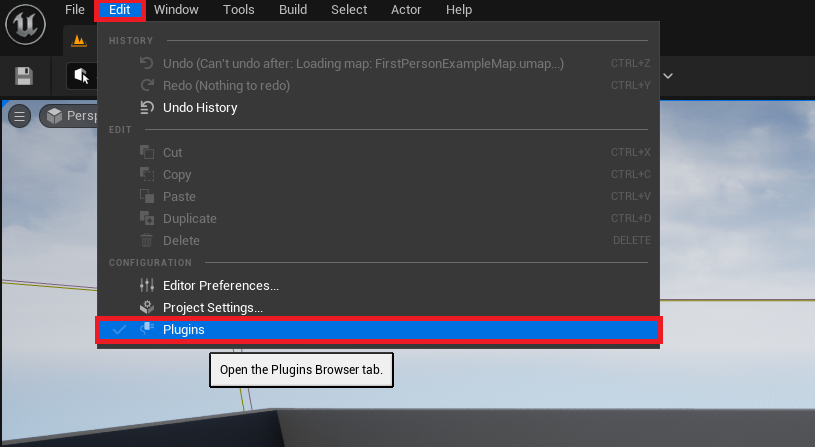
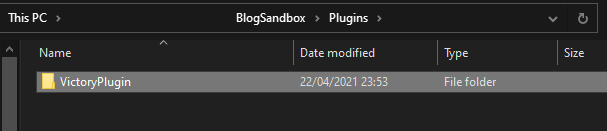
To demonstrate the manual installation process, we can refer to the methodology for integrating a tool like the Victory BP Plugin by Rama, a widely recognized community plugin offering a vast array of Blueprint nodes for various functionalities not natively exposed. The first step involves ensuring the project folder structure is correctly configured to accommodate the new plugin. Within the main directory of your Unreal Engine project (the folder containing your .uproject file), there must be a folder named "Plugins." If this folder does not exist, it must be manually created. This "Plugins" folder serves as the designated location for all project-specific plugins that are not installed directly into the engine’s core directory.
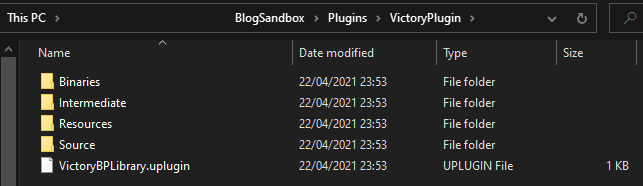
Once the "Plugins" folder is established, the next action is to copy the downloaded plugin’s main folder into this newly created or existing directory. For example, if the Victory Plugin for Unreal Engine 5.0 was downloaded, its entire folder (e.g., "VictoryPlugin") would be placed inside the project’s "Plugins" folder. It is critical to ensure that the entire plugin structure, including its .uplugin file, source code, and any content, resides within this copied folder. The internal structure of the plugin folder typically includes directories like "Source," "Content," and "Resources," along with the essential .uplugin descriptor file that Unreal Engine uses to identify and load the plugin. Correct placement of these files is fundamental for the engine to recognize and compile the plugin successfully.
Manual installation empowers developers with access to a broader spectrum of tools, including those in early development stages, highly specialized utilities, or custom solutions tailored for specific workflows. However, this flexibility comes with the responsibility of managing compatibility, potential bug fixing, and ensuring the security of the integrated code. Unlike Marketplace plugins, manual installations do not benefit from Epic’s vetting process, placing the onus entirely on the developer to assess the reliability and safety of the downloaded content.
Activating Plugins: The Final Essential Step for Both Methods
Regardless of whether a plugin is acquired through the Unreal Marketplace or installed manually, it will not be active within an Unreal Engine project by default. This design choice is a deliberate optimization strategy implemented by Epic Games. By keeping newly installed plugins disabled, the engine prevents all projects from compiling unnecessary code, which could lead to increased executable sizes and longer project build times. This modular approach ensures that developers only enable the functionalities they genuinely require for a specific project, maintaining lean and efficient builds.
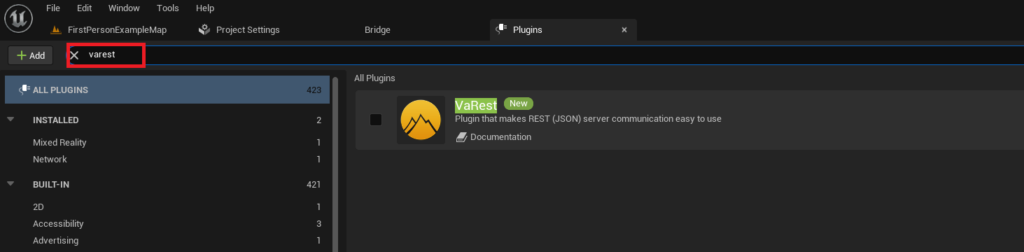
The activation process is uniform for all plugins within an open Unreal Engine project. The first action is to navigate to the engine’s main menu, select "Edit," and then choose "Plugins." This action opens the "Plugins" tab, a comprehensive interface that lists all detected plugins, both engine-level and project-specific.
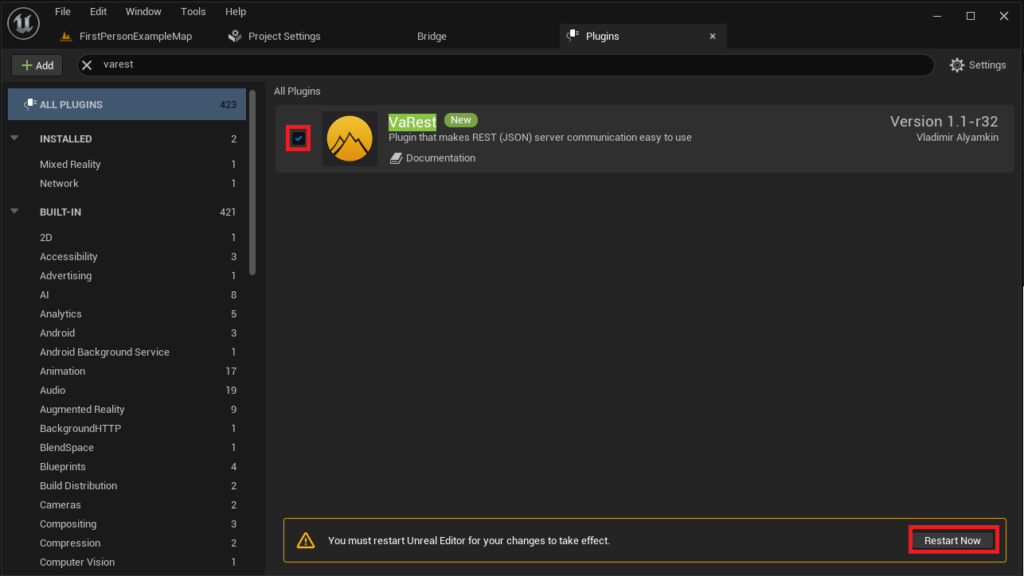
Within the Plugins tab, a search bar is provided to quickly locate the desired plugin among the potentially extensive list. Typing the name of the newly installed plugin—for instance, "VaRest" for a Marketplace plugin or "Victory Plugin" for a manually installed one—will filter the list and display its details. Once found, the plugin will typically have a checkbox next to its name. To enable the plugin for the current project, this checkbox must be clicked.
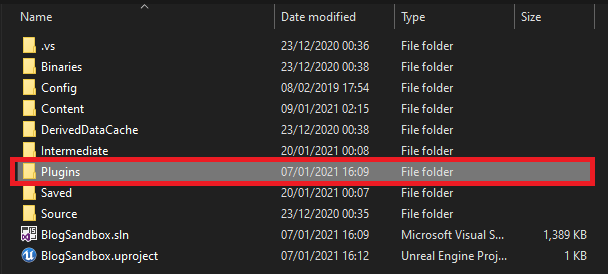
Upon enabling a plugin, Unreal Engine will often prompt the developer with a "Restart Now" button. Clicking this button is essential, as it initiates a restart of the Unreal Editor. This restart allows the engine to recompile the project, integrate the newly enabled plugin’s code, and properly load its functionalities. Once the editor has successfully restarted, the plugin will be fully active and its features, whether new Blueprint nodes, C++ classes, or editor extensions, will be available for use in both C++ and Blueprint scripting environments within that specific project. This final activation step solidifies the integration, making the extended capabilities an intrinsic part of the project’s development toolkit.
Broader Impact and Implications for the Unreal Engine Ecosystem
The seamless integration of plugins, facilitated by both the Unreal Marketplace and manual methods, carries significant implications for the entire Unreal Engine ecosystem. For individual developers and small studios, plugins are game-changers. They democratize access to advanced functionalities that might otherwise require specialized C++ expertise or extensive development time. This translates into increased productivity, allowing teams to iterate faster, experiment more freely, and focus their creative energy on core gameplay or artistic elements rather than reinventing foundational systems. For instance, a networking plugin can drastically reduce the barrier to entry for multiplayer game development, while a robust UI plugin can accelerate the creation of complex user interfaces. This leverage of existing, often community-vetted, solutions can be a crucial factor in the successful completion of projects with limited resources.
From a project perspective, the strategic use of plugins can lead to higher quality outputs and broader scope. By integrating specialized tools, projects can achieve features that would be prohibitively complex or time-consuming to build from scratch. This includes anything from advanced animation blending and procedural generation to complex data parsing and interaction with external services. The cost-effectiveness of leveraging pre-built solutions is also a major benefit, as it reduces the need for in-house development of common functionalities, freeing up budget and personnel for unique, project-specific challenges.
For the Unreal Engine ecosystem as a whole, the thriving plugin culture fosters a vibrant, self-sustaining community. Third-party developers are continuously incentivized to innovate and contribute, knowing that their tools can reach a global audience. This creates a positive feedback loop: more powerful and accessible tools attract more developers to Unreal Engine, who in turn contribute more tools, further enhancing the engine’s versatility. Epic Games plays a crucial role in nurturing this environment, not only through the Marketplace but also by providing comprehensive documentation and support for plugin development. This collaborative model ensures that Unreal Engine remains at the cutting edge of development technology, adapting rapidly to new trends and demands from its diverse user base.
However, the widespread reliance on plugins also introduces certain challenges and considerations. Compatibility issues, particularly with manually installed plugins or when upgrading engine versions, can lead to development roadblocks. Performance overhead can also become a concern if too many plugins are enabled, potentially increasing build times and executable sizes. Furthermore, the security risks associated with untrusted sources for manual installations cannot be overstated. Developers must remain vigilant, prioritize reputable sources, and conduct due diligence to protect their projects from malicious code.
Looking ahead, the role of plugins in Unreal Engine 5 is only set to expand. As technologies like artificial intelligence and machine learning become more integrated into game development workflows, we can anticipate a new wave of AI-powered plugins that automate tasks, enhance content generation, and provide intelligent assistance. Epic Games is also likely to continue refining its plugin management tools, making the process even more seamless and robust. The ability to extend, customize, and optimize Unreal Engine 5 through its plugin ecosystem is a testament to its flexible architecture and the power of its global community, ensuring its continued relevance and dominance in the evolving landscape of real-time 3D creation.
About the Author