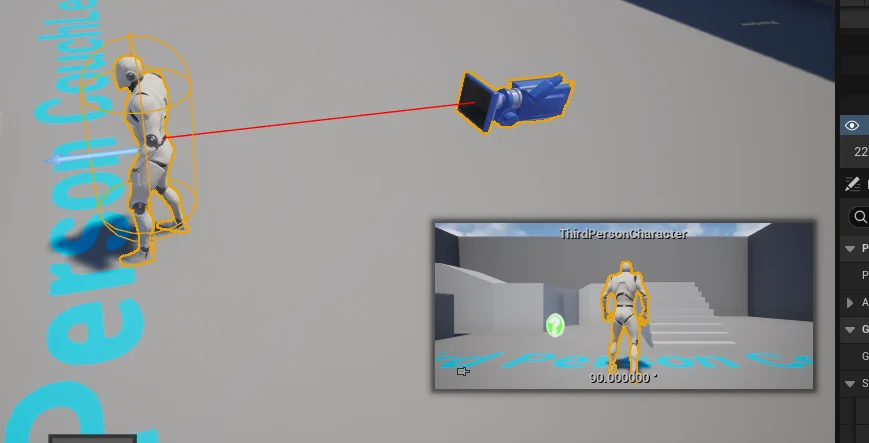
Establishing a dedicated server for an Unreal Engine 5 (UE5) game marks a pivotal milestone for developers aiming to deliver robust, scalable multiplayer experiences. In an increasingly competitive gaming landscape, where player expectations for seamless, secure, and high-performance online gameplay are at an all-time high, the shift from traditional peer-to-peer (P2P) or listen server models to dedicated server infrastructure has become an industry standard for professional titles. This guide provides a detailed walkthrough of the process, from initial project configuration to the final server build and local testing, ensuring a solid foundation for any multiplayer UE5 project, be it a high-octane competitive shooter, an expansive cooperative survival adventure, or an immersive social sandbox.
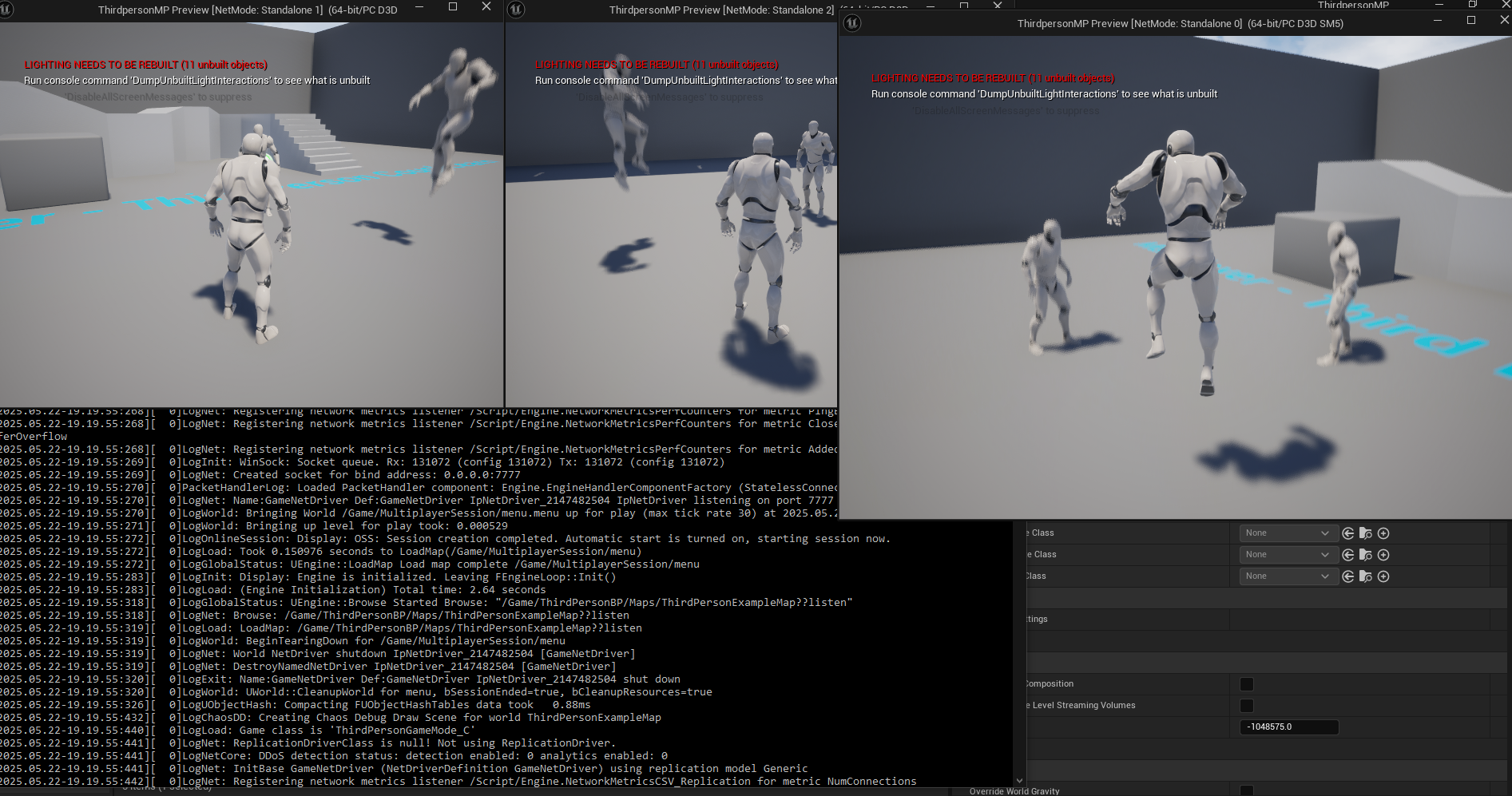
The Evolution of Multiplayer Hosting: From P2P to Professional Servers
For many years, especially in the early days of online gaming, peer-to-peer (P2P) connections and listen servers served as the backbone for multiplayer experiences. In a P2P model, one player’s machine acts as the host, managing game logic and connections for other players. Listen servers operate similarly, where a player’s client also hosts the game, but it’s often a more integrated part of the game client itself. These methods offered significant advantages for smaller development teams and games with low player counts, primarily due to their minimal infrastructure costs and ease of initial setup. A developer could launch a game without investing in external server hardware or cloud services, allowing players to self-host and connect directly.
However, the inherent limitations of P2P and listen server architectures quickly became apparent as multiplayer games grew in complexity and scale. Key drawbacks included:
- Host Advantage: The player hosting the game often experienced lower latency and smoother gameplay, creating an unfair advantage in competitive scenarios.
- Cheating and Security Vulnerabilities: Client-side hosting made games more susceptible to hacking and cheating, as malicious players could manipulate game state on their own machines without server-side validation.
- Latency Inconsistencies: Network performance was heavily reliant on the host’s internet connection and hardware, leading to variable latency and desynchronization for other players, especially across geographical distances.
- Host Migration Issues: If the host player disconnected, the game would either end abruptly or attempt a complex and often disruptive host migration process, severely impacting player experience.
- Limited Scalability: P2P models inherently cap player counts and struggle with complex game worlds, as a single player’s machine cannot handle extensive network traffic or game logic processing for a large number of concurrent users.
Recognizing these challenges, the gaming industry steadily transitioned towards dedicated server solutions for any game aspiring to a broad audience or competitive integrity. A dedicated server is a standalone application running on a separate, often powerful, machine that exclusively handles game logic, network synchronization, and player connections. Crucially, it does not render graphics, receive player input, or represent a player character in the game world. This "headless" operation allows it to dedicate all its resources to maintaining the authoritative game state.
Epic Games, through its continuous development of Unreal Engine, has consistently emphasized robust networking features, acknowledging the industry’s reliance on dedicated server infrastructure. Unreal Engine 5, with its advanced rendering capabilities like Lumen and Nanite enabling vast and detailed worlds, further underscores the necessity of stable, high-performance backend systems. While Lumen and Nanite primarily impact client-side rendering, the scale and complexity they facilitate demand equally robust networking solutions, making dedicated servers an indispensable component for realizing UE5’s full multiplayer potential.
The Indispensable Advantages of Dedicated Servers for UE5 Titles
The adoption of dedicated servers offers a multitude of benefits that directly address the shortcomings of P2P models and enhance the overall multiplayer experience:
- Superior Performance: By running on powerful, optimized hardware (often in data centers), dedicated servers ensure consistent tick rates and minimal latency, leading to smoother, more responsive gameplay for all connected clients. They offload computationally intensive game logic from player machines, allowing clients to focus on rendering and input.
- Enhanced Security and Fair Play: The server maintains the authoritative state of the game world, making it significantly harder for players to cheat by manipulating local game data. Anti-cheat measures are more effectively implemented and enforced server-side, ensuring a level playing field, particularly vital for esports and competitive titles.
- Unparalleled Reliability and Stability: Dedicated servers operate independently of any single player’s connection or hardware, drastically reducing the risk of game disruptions due to player disconnections or client-side crashes. They can run 24/7, providing persistent game worlds or always-available lobbies.
- Scalability for Mass Player Counts: Cloud-based dedicated server solutions allow developers to dynamically scale resources up or down based on player demand. This elasticity is crucial for managing peak player loads during events or new content releases without over-provisioning hardware.
- Global Reach and Reduced Latency: Deploying servers in multiple geographical regions allows players to connect to the closest server, minimizing ping and improving the overall experience by reducing the impact of physical distance on network performance.
- Simplified Development and Debugging: While the initial setup may seem more complex, dedicated servers provide a more consistent and controlled environment for developers to test and debug network-related issues, as the server’s behavior is predictable and isolated.
Prerequisites for Initiating Your UE5 Dedicated Server Build
Before embarking on the technical steps of building your dedicated server, several critical prerequisites must be met to ensure a smooth development and compilation process. Adhering to these foundational requirements will prevent common pitfalls and streamline your workflow.
-
A Fully Functional Multiplayer Unreal Engine 5 Project: This guide assumes you already possess an Unreal Engine 5 project with established multiplayer functionality. This includes properly replicated actors, game states, player controllers, and a basic understanding of network authority. If you are starting from scratch or need to solidify your multiplayer fundamentals, it is highly recommended to first follow a comprehensive guide on implementing multiplayer sessions in Unreal Engine 5. Such a guide typically covers topics like creating lobby systems, handling player joins/leaves, and basic character replication, forming the essential groundwork for a dedicated server environment.
-
Unreal Engine Built from Source Code: This is a non-negotiable requirement. Unlike the version downloaded directly from the Epic Games Launcher, a source-built version of Unreal Engine provides access to the necessary server build targets and allows for deeper engine customization. The Epic Games Launcher version is primarily optimized for client-side development and lacks the tools to compile a dedicated server executable. Developers must download the engine’s source code from GitHub (requiring a linked Epic Games and GitHub account) and compile it locally using Visual Studio (for Windows) or equivalent tools for Linux/macOS. This process grants the flexibility to compile platform-specific server binaries, such as
WindowsServer,LinuxServer, orLinuxArm64Server, which are not available through the standard launcher build. Epic Games provides detailed documentation on how to download and build the engine from source, a crucial step that often takes a significant amount of time and disk space. -
AdvancedSessions Plugin (Essential for Session Browser Functionality): For your dedicated server to be discoverable and joinable by players through an in-game session browser, the AdvancedSessions plugin is mandatory. While Unreal Engine offers native session interfaces, the AdvancedSessions plugin, developed by satheesh, significantly enhances and simplifies session management, offering more robust features and easier Blueprint integration for creating, finding, and joining multiplayer sessions. Without this plugin, your server might run but will not correctly appear in a session list, making it practically inaccessible to players. It provides extended nodes for session creation, searching, and managing player data, which are vital for a functional multiplayer game. Ensure this plugin is correctly installed and enabled in your project before proceeding.
Automating Server Behavior: Session Creation and Map Loading
A core difference between a client and a dedicated server is its "headless" nature – it operates without a graphical interface or direct player input. Therefore, it cannot rely on user interaction to navigate menus or initiate game sessions. The server must automatically create a session and load the appropriate game map upon launch.
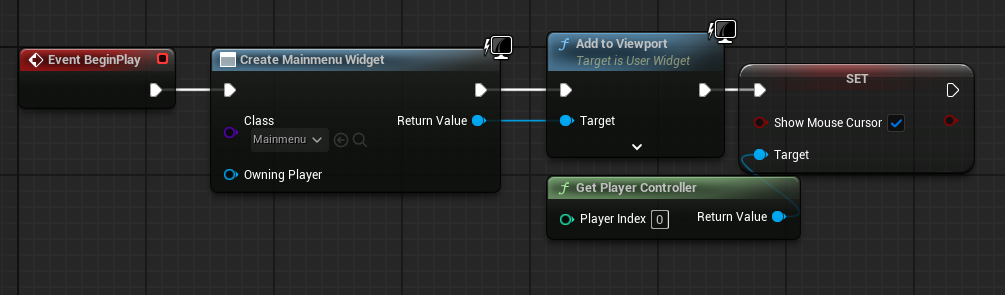
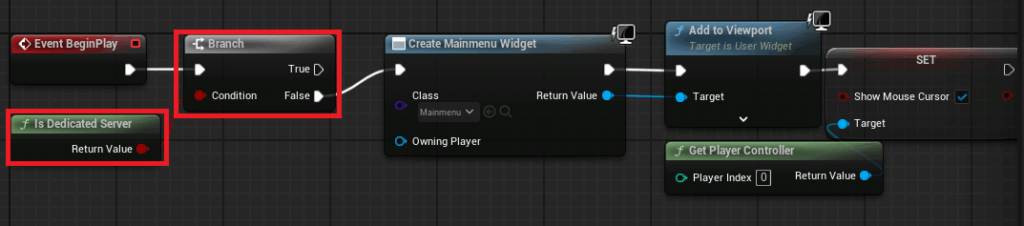
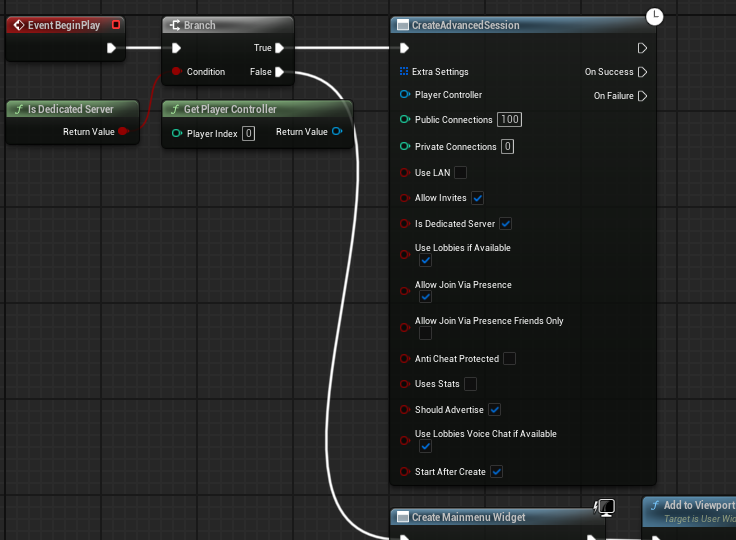
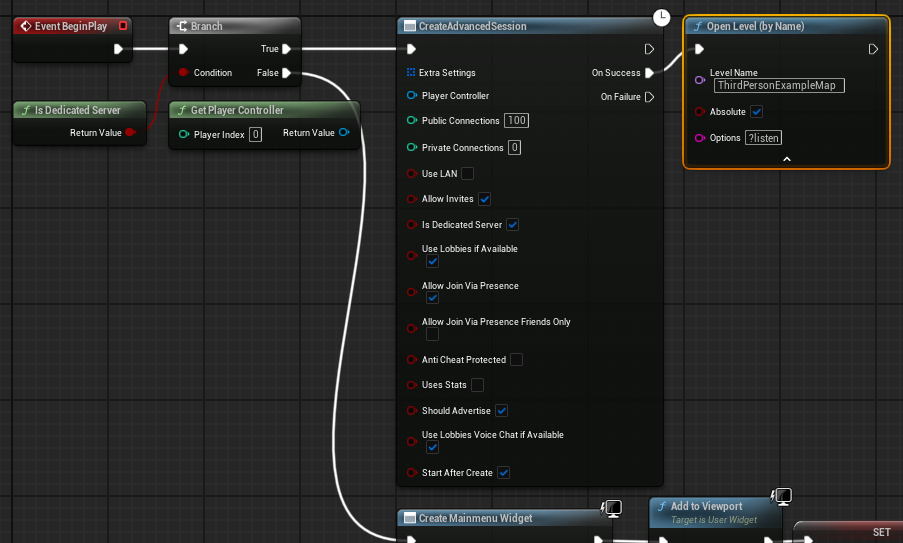
In a typical multiplayer project, a MainMenu widget is created and added to the viewport in the main menu level blueprint. For a dedicated server, this visual menu is irrelevant and consumes unnecessary resources. The solution involves implementing a conditional check within the level blueprint. By utilizing the Is Dedicated Server node in Blueprint, developers can create a branch that diverts execution flow based on whether the current instance is a dedicated server or a client. If Is Dedicated Server returns True, the code for creating the MainMenu widget is bypassed. Instead, the True pin of the branch is connected to a Create Advanced Session node. This node is configured with the desired session settings (e.g., maximum players, public/private status, game mode). Upon successful session creation, the server then executes an Open Level node, loading the designated game map (e.g., GameMap) with the ?listen option appended to the map name. The ?listen option is crucial as it instructs the server to listen for incoming client connections on that map. This entire sequence ensures that a dedicated server instance, upon booting, immediately establishes a game session and prepares the game world for players to join, without any manual intervention. After these changes, compiling and saving the blueprint are essential.
Configuring the Default Server Map
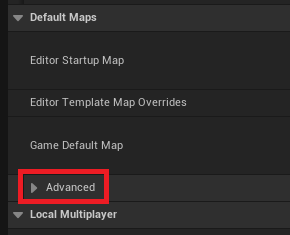
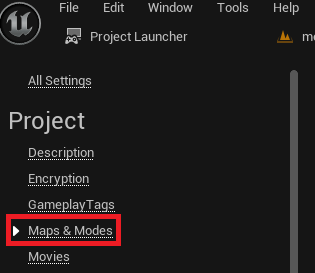
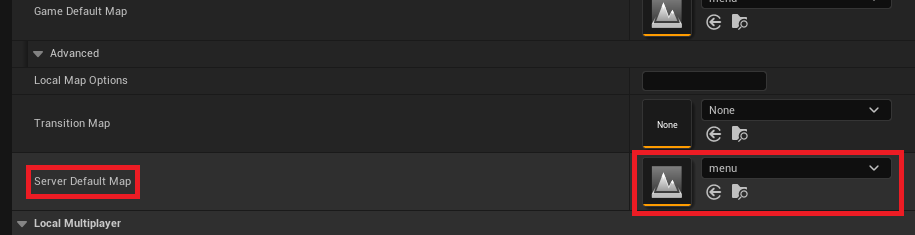
By default, an Unreal Engine server often attempts to load an internal engine map called "Entry." This is typically an empty or placeholder map and is unsuitable for hosting actual gameplay. To ensure the dedicated server loads your intended game world, the default server map must be explicitly set within the Project Settings.
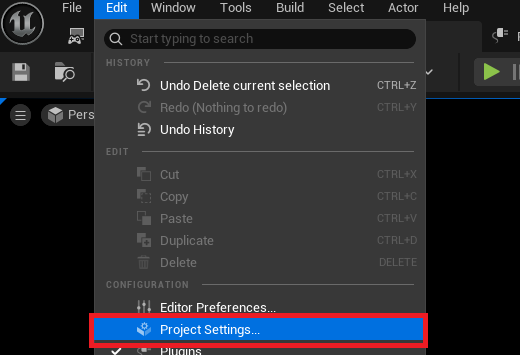
This configuration is accessed by navigating to Edit in the top-left menu, then selecting Project Settings. Within the Project Settings window, locate and click on the Maps & Modes section. Under the Default Maps category, an Advanced dropdown option needs to be expanded. Here, the Server Default Map setting can be found. This option dictates which map the dedicated server will load upon startup. It is crucial to select the main gameplay map or the initial lobby map that you wish your players to connect to. For instance, if your game’s primary playable area is MyGameMap, that map should be selected here. In many cases, developers might set this to their Menu map initially, with the blueprint logic then transitioning to the main game map after session creation, as outlined in the previous section. This two-step process (setting the default map to Menu in Project Settings and then having the Menu blueprint logic transition to GameMap for dedicated servers) provides a flexible and robust startup sequence.
Optimizing for Headless Operation: Eliminating Default Character Spawns
As previously established, a dedicated server is a headless instance that does not require a visual representation or player input. Therefore, spawning a default player character in the level when the server starts is not only unnecessary but also consumes valuable resources. Many Unreal Engine templates or example projects include a default character blueprint within the level that is automatically possessed by the first connected player or the server host.
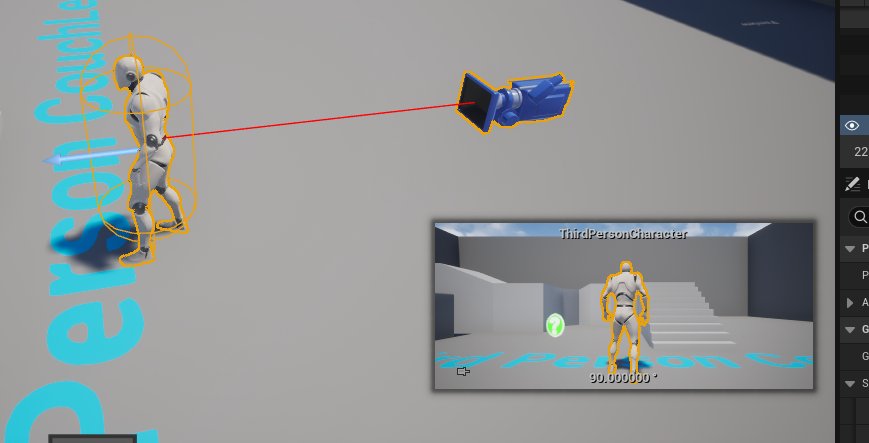
For a dedicated server, this character instance would simply stand idle in the world, consuming memory and CPU cycles without serving any purpose. To optimize the server’s performance and eliminate redundant entities, it is essential to locate and remove any default character blueprints or spawn points from the server’s starting level. This is typically done by opening the level in the editor, selecting the character actor (often a DefaultPawn or a template character), and deleting it. This ensures that the server only manages the core game logic and environment, leaving character instantiation to be handled by connecting clients.
Leveraging the Project Launcher for Server Builds
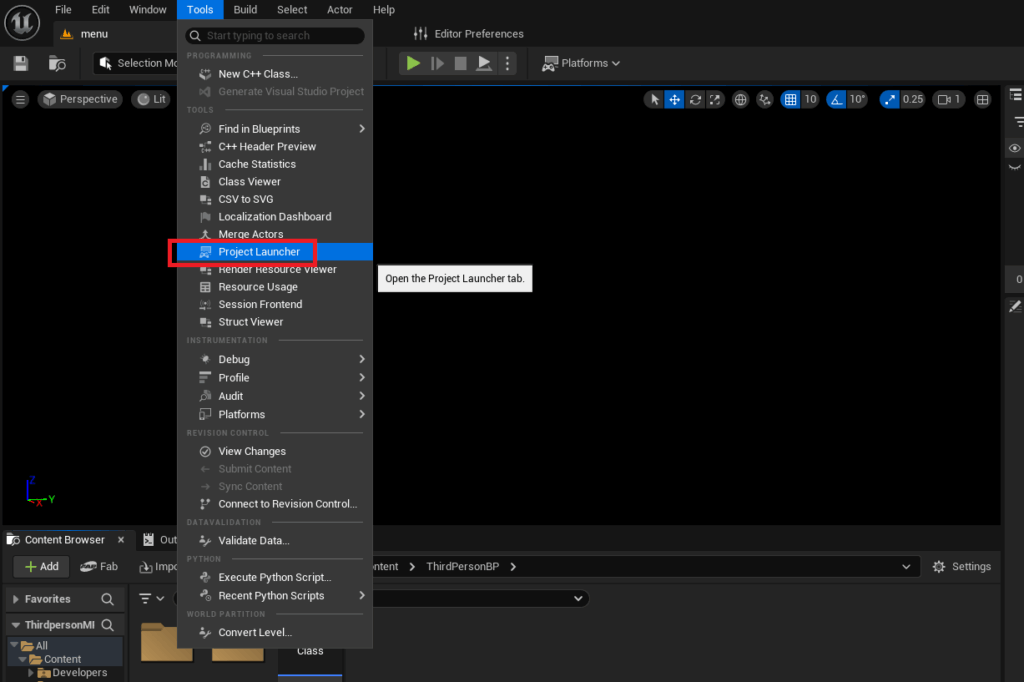
The Unreal Engine Project Launcher is an invaluable tool for packaging and deploying game builds, including dedicated servers. It provides a user-friendly interface to configure various build settings through profiles, simplifying what would otherwise be a complex command-line process.
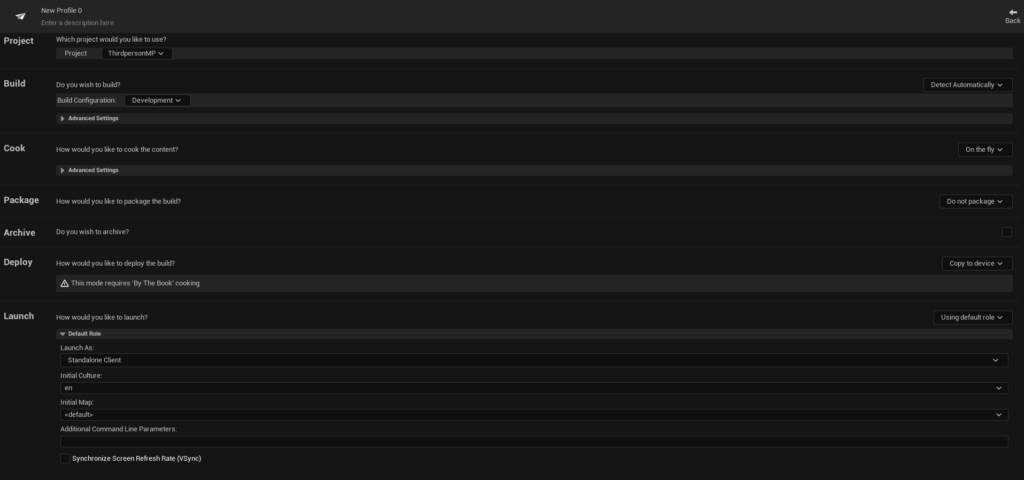
To access the Project Launcher, navigate to Tools in the top menu of the Unreal Editor, then select Project Launcher from the Tools section. Upon opening, you will typically find an empty interface for custom launch profiles. The next step is to create a new custom profile specifically for your dedicated server build.
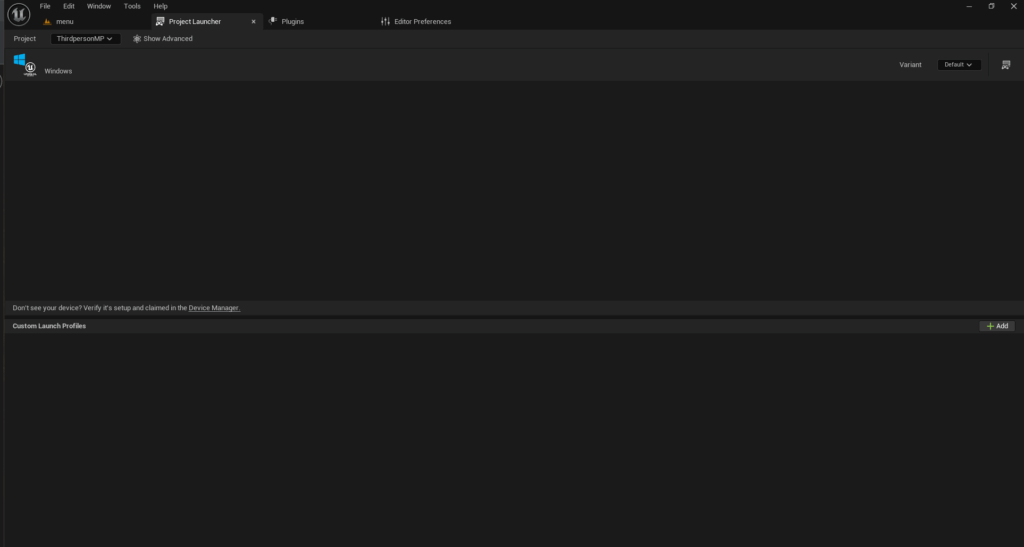
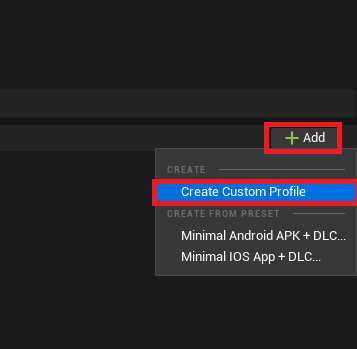
- Creating the Custom Profile: Click the
Addbutton (often represented by a plus icon) in the bottom right, then chooseCreate Custom Profile. This will open an extensive menu of configuration options. - Configuring Cook Settings: In the
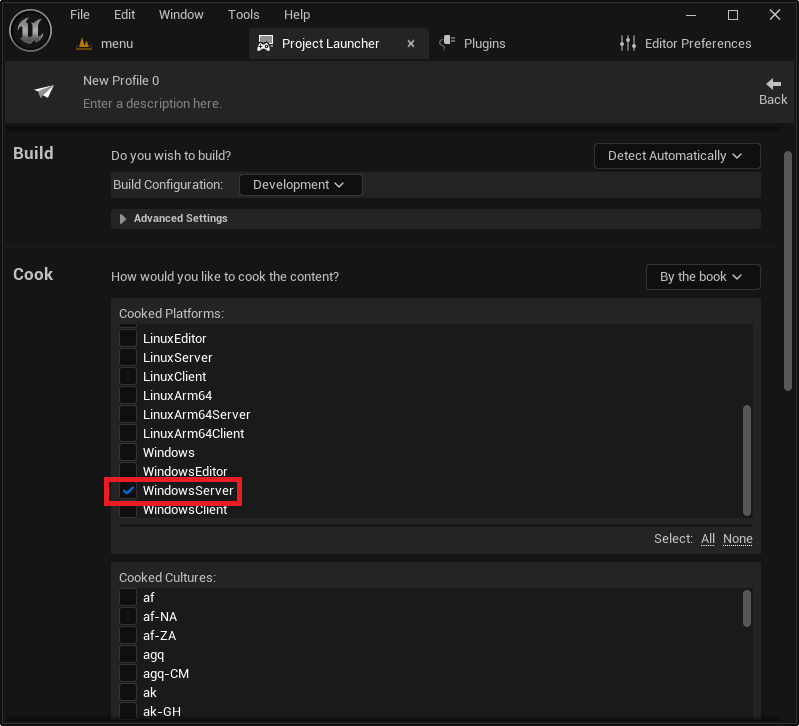
Cooksection, change the dropdown menu fromOn the flytoBy the book. This is a crucial distinction: "On the fly" cooking processes assets as needed during runtime (common for editor testing), whereas "By the book" pre-cooks all necessary content into a packaged format. For a dedicated server, pre-cooked content is essential for efficient, self-contained operation. - Selecting Cooked Platforms: Scroll down to the
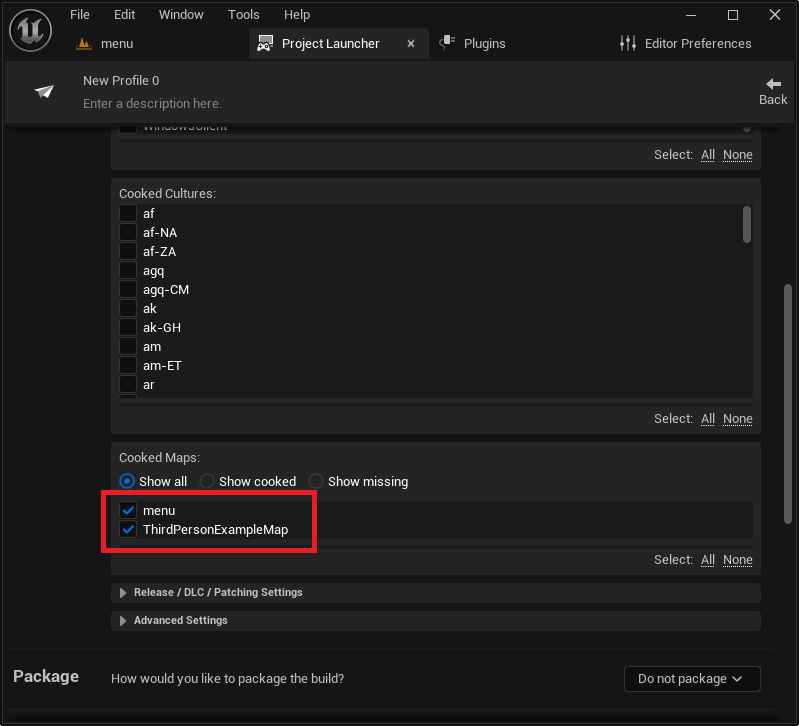
Cooked Platformslist. Here, you must select the target platform for your dedicated server. For most PC-based deployments,WindowsServeris the appropriate choice. If deploying to a Linux-based virtual machine or container,LinuxServer(for x86/64 architectures) orLinuxArm64(for ARM-based systems like some cloud instances) would be selected. The selection depends entirely on your planned server hosting environment. - Including Maps: Further down, you need to explicitly select all the maps that should be included in your server build. This includes your main menu map, all gameplay maps, and any other levels the server might need to load. Failure to include a necessary map will result in runtime errors.
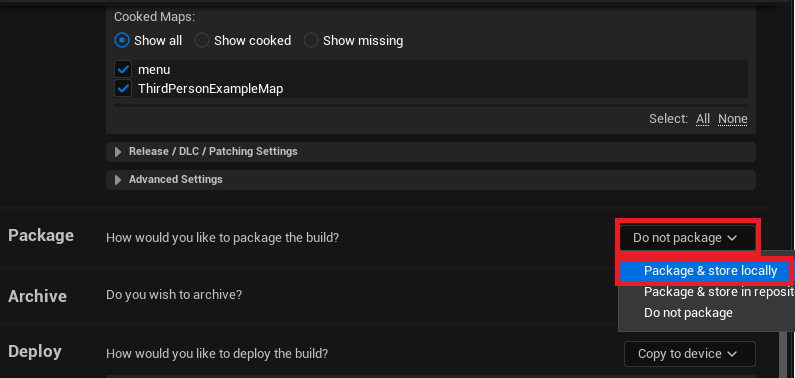
- Packaging Options: In the
Packagesection, change the dropdown menu fromDo not packagetoPackage & store locally. This instructs the Project Launcher to compile and package all the necessary files into a self-contained folder structure on your local machine. A default output path within your project’sSaved/StagedBuildsdirectory will be generated, but you can customize this location using theBrowsebutton. - Deployment Settings: For dedicated servers, it’s generally recommended to set the
Deployoption toDo not deploy. While the Project Launcher can copy builds to a device, dedicated servers are typically deployed manually to remote machines or cloud services, making automatic deployment within the editor less practical. - Naming the Profile: Finally, give your new profile a descriptive name, such as "MyGame_DedicatedServer," to easily identify its purpose.
Generating the Dedicated Server Files
Once your custom profile is meticulously configured, return to the main Project Launcher menu. Your newly created profile will now appear in the list of custom launch profiles. To initiate the build process, simply click the Launch button associated with your profile (often depicted as a controller and display icon).
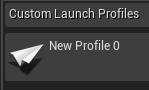
The Project Launcher will then display a log window, detailing the progress of your server build. This process involves several stages: cooking content, compiling server-specific code, and packaging the final executable and associated files. The initial build, especially for larger projects, can be time-consuming, potentially taking several hours depending on your project’s complexity and hardware specifications. It is crucial to allow this process to complete fully without interruption. A successful build will show "Success" for all tasks in the log, indicating that your dedicated server files are ready.
Testing the Dedicated Server Locally
After a successful build, navigate to the output folder specified in your custom profile. If you used the default setting, this path would typically be YourProjectFolder/Saved/StagedBuilds/WindowsServer/YourGameName/Binaries/Win64. Inside, you will find your server executable (e.g., YourGameNameServer.exe).
Running this executable directly will launch the server as a background process, making it difficult to monitor or terminate. To facilitate testing and debugging, it is highly recommended to create a Windows shortcut to your server executable. Right-click on the executable, select Create shortcut, and then right-click the newly created shortcut and select Properties. In the Target field, append the launch option -log to the end of the existing path. For example: "C:PathToYourGameNameServer.exe" -log.
The -log argument forces the server to open a console window, displaying real-time logging messages from the engine. This window is invaluable for observing server startup, session creation, player connections, and any potential errors, providing critical feedback during development.
Upon launching the shortcut, the console window will fill with text as the server initializes, loads the default map, and creates the multiplayer session. Once the server is fully operational, it will be discoverable by client instances of your game. You can then launch multiple client instances (e.g., from the Unreal Editor using "Play -> Standalone Game" or by launching packaged client builds) and use your game’s session browser to find and connect to your locally running dedicated server. The demonstration will show multiple clients successfully connecting to the single dedicated server, moving around and interacting, all managed by the headless server instance.

Broader Impact and Future Considerations
The transition to dedicated servers for Unreal Engine 5 projects signifies a commitment to professional-grade multiplayer experiences. However, it also introduces new considerations for game development teams:
- Increased Infrastructure Investment: While P2P is cheap to deploy, dedicated servers require significant investment in hardware (physical or cloud-based) and ongoing maintenance. Cloud providers like Amazon Web Services (AWS), Google Cloud Platform (GCP), and Microsoft Azure offer scalable solutions, but their management and cost optimization require specialized knowledge.
- DevOps and Server Management Expertise: Running dedicated servers necessitates expertise in server administration, networking, and potentially containerization (e.g., Docker) or orchestration (e.g., Kubernetes) for large-scale deployments. Teams often need to integrate continuous integration/continuous deployment (CI/CD) pipelines for efficient server updates.
- Enhanced Player Experience and Retention: Despite the complexities, the benefits of dedicated servers—fairness, stability, and low latency—directly translate into a superior player experience. This, in turn, fosters higher player retention, positive community feedback, and a stronger foundation for a game’s long-term success, especially in the Game-as-a-Service (GaaS) model prevalent today.
- Security Beyond Anti-Cheat: Beyond preventing client-side cheating, dedicated servers introduce the need for robust network security, including protection against Distributed Denial of Service (DDoS) attacks, secure authentication, and data integrity checks, all critical for maintaining a trustworthy online environment.
- The Role of Epic Online Services (EOS): Epic Games’ commitment to multiplayer development is further exemplified by Epic Online Services (EOS), a free SDK offering cross-platform services like matchmaking, lobbies, player authentication, and anti-cheat. While dedicated servers handle the game logic, EOS can seamlessly integrate to simplify the discovery and connection process, providing a comprehensive multiplayer ecosystem for UE5 games.
Conclusion
The journey of building and configuring a dedicated server for your Unreal Engine 5 game is a crucial undertaking that elevates your multiplayer project from a casual endeavor to a robust, scalable, and professional-grade experience. By understanding the fundamental differences between server architectures, meticulously preparing your project prerequisites, and systematically configuring your server build using the powerful tools within Unreal Engine, you lay the groundwork for a multiplayer title capable of supporting a global player base. This knowledge empowers you to deliver consistent performance, impenetrable security, and unwavering reliability, all of which are paramount in today’s demanding gaming market. With a dedicated server now building and capable of accepting connections, you are one significant step closer to launching a fully featured multiplayer game that not only performs exceptionally well but also consistently delivers an unparalleled experience to your players.
Project Files
[Click here to download the project files for this guide] (https://couchlearn.gumroad.com/l/objlo)
Further Reading
- [Click here to follow our guide on Multiplayer Sessions in Unreal Engine 5.] (https://couchlearn.com/how-to-use-multiplayer-sessions-in-unreal-engine-5/)
- [Click here to read how to build a source version of the engine.] (https://dev.epicgames.com/documentation/en-us/unreal-engine/downloading-source-code-in-unreal-engine)
- [Click here to download the AdvancedSessions plugin.] (https://vreue4.com/advanced-sessions-binaries)
About the Author